







I got a laptop with a SSD disk (120 gb) inside of it. I deleted some files on it (let’s call them ‘X’) and have been using it for the past 6 months, reaching states of almost entirely full capacity, deleting and moving stuff in order to keep on working on the laptop. What interests me now is this – Can the files ‘X’ still on it be seen or recovered? Someone told me that SSD disks do not save deleted data like HDD’s do so that once something is deleted it is not recoverable. If that however is not true, I’d like to make sure that the ‘X’ files are not recoverable. I assume that formatting alone will not be enough, that I will have to encrypt or load it with random data. How do I do that? What tools do I use?—from Reddit
Introduction to Deleted File Recovery on SSD
Understanding SSD Data and Its Vulnerability
Solid-state drives (SSDs) have revolutionized data storage with high speed and durability. However, deleted file recovery SSD can be challenging because SSDs handle deleted files differently than traditional hard drives. Features like TRIM can permanently remove data blocks, making immediate recovery critical. Understanding how data is stored and how deletion works is the first step toward successful SSD deleted file recovery.
⚠️Warning: Avoid saving new files to the SSD after deletion to prevent overwriting recoverable data.
The Importance of Immediate Action
Once a file is deleted from an SSD, the operating system may mark the space as available, but actual data may remain temporarily. Prompt recovery increases the chance of retrieving files intact. Delays or improper handling can permanently erase your data.
Common Causes of SSD File Loss
Accidental Deletion
Users often delete files unintentionally while managing folders or performing cleanups. Even files emptied from the Recycle Bin or Trash may still be recoverable using SSD deleted file recovery methods.
System Errors and Crashes
Operating system errors, sudden shutdowns, or application crashes can corrupt files or cause SSD partitions to become inaccessible. Deleted file recovery SSD can help restore data in these situations.
Formatting or Repartitioning
Formatting an SSD or changing its partition structure erases file pointers. Although data may still exist, standard tools cannot recover it. Specialized recovery software is necessary.
⚠️Warning: Avoid formatting the SSD unless necessary, and always work on a cloned copy for recovery.
Solutions for SSD Deleted File Recovery
Method 1: Using Recycle Bin/Trash for Quick Recovery
1: Open Recycle Bin (Windows) or Trash (Mac)
- Check if the deleted files are still present.
- Use search or sorting features to locate your files quickly.
2: Restore the Files
- Select the files you need.
- Click “Restore” or “Put Back” to return them to the original location.
Test Environment: Windows 11, 512GB SSD, standard file system NTFS.
⚠️Warning: Do not empty the Recycle Bin or Trash until you have recovered all needed files.
Method 2: Recovering Deleted Files Using Built-in OS Backup
1: Access Backup Utility
- On Windows: Use File History or Previous Versions.
- On Mac: Use Time Machine to locate the lost files.
2: Navigate to the Backup Date
- Select the folder and date when the files were last intact.
- Choose the files and restore them to a safe location.
3: Verify Recovery
- Confirm that files are intact and functional.
Test Environment: Windows 10, 1TB SSD with File History backup; macOS Ventura, 512GB SSD with Time Machine backup.
⚠️Warning: Restoring files to the original SSD may overwrite existing data.
Method 3: Using Terminal or Command-Line Recovery (Advanced Users)
1: Open Terminal (Mac) or Command Prompt/PowerShell (Windows)
- Navigate to the directory where files were stored.
2: Use Copy or Restore Commands
- Mac:
cporrsyncto copy files to a safe location. - Windows:
robocopyorxcopyfor file duplication.
3: Check for Hidden or System Files
- Include flags to show hidden files.
- Recover files selectively to avoid overwriting.
Test Environment: MacBook Pro M2, 512GB SSD, macOS Terminal; Windows 11, 1TB SSD.
⚠️Warning: Incorrect commands may overwrite or permanently delete files.
Method 4: Using Third-Party Software – Pandaoffice Drecov
Download Drecov1: Connect SSD to Windows PC
- For Macs or external SSDs, connect using SATA-to-USB adapter or enclosure.
2: Launch Pandaoffice Drecov
- Select the connected SSD as the target drive.
3: Perform Quick or Deep Scan
- Quick Scan: For recently deleted files.
- Deep Scan: For files deleted long ago or formatted SSDs.
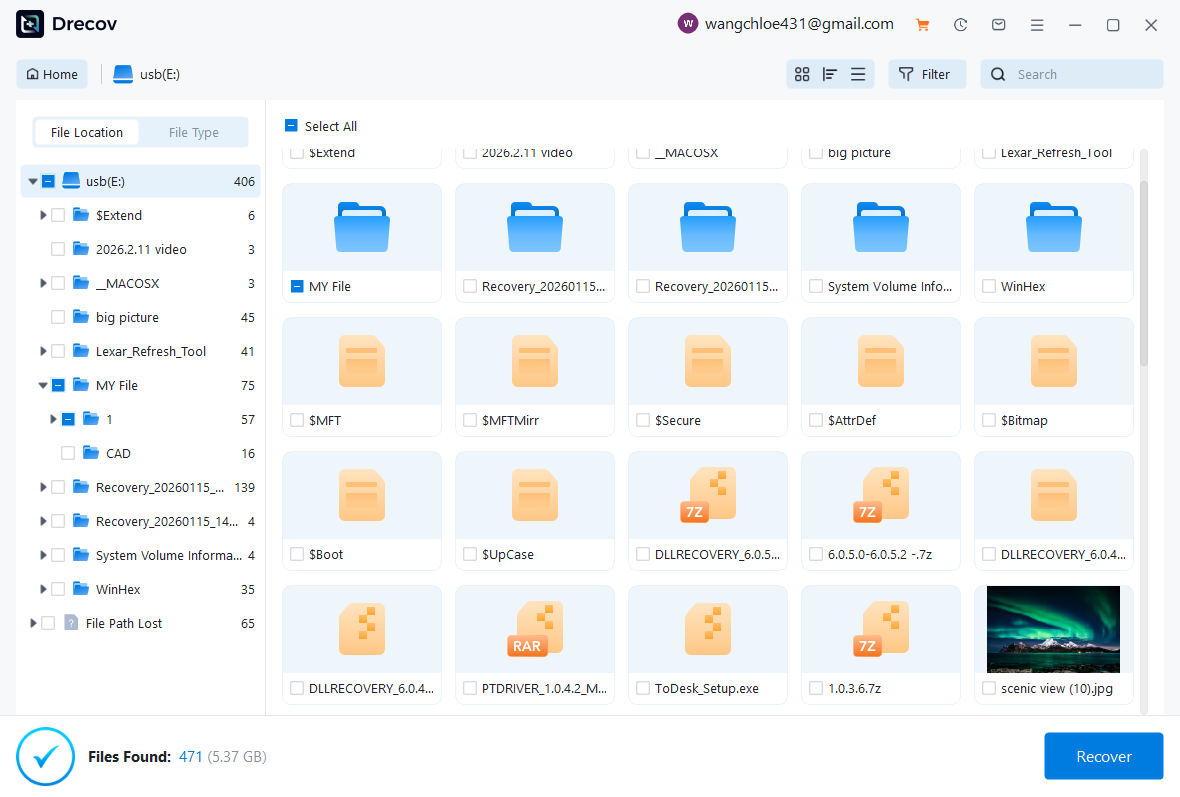
4: Preview and Recover Files
- Select the files needed and save to a different drive.


Why Choose Pandaoffice Drecov?
Data loss can occur unexpectedly due to accidental deletion, system crashes, formatting errors, or software failures. Whether you need to restore Windows previous date, perform recover Excel files,or handle deleted PowerPoint recovery, Pandaoffice Drecov provides a reliable and efficient solution designed to restore important documents quickly and safely.
Pandaoffice Drecov is a professional PowerPoint Recovery Software that supports recovery for multiple document types, including Excel spreadsheets, Word documents, and PowerPoint presentations. With advanced scanning technology, the software can detect and recover files even after deletion, formatting, or unexpected system shutdowns. This makes it an ideal tool for users who urgently need Document Recovery from hard drives, SSDs, USB drives, memory cards, and other storage devices.
One of the key advantages of Pandaoffice Drecov is its intelligent deep-scan engine. It carefully analyzes storage sectors to locate lost or hidden files that standard recovery tools often miss. Whether you accidentally deleted a presentation and require deleted PowerPoint recovery, or you lost critical spreadsheets and need to recover Excel files, the software provides fast scanning and high recovery success rates.
The software also features a user-friendly interface that allows beginners and professionals alike to complete recovery tasks in just a few steps. Users can preview recoverable files before restoring them, ensuring that only the needed data is recovered. In situations where files were lost due to system errors, the software can also help recover documents after attempts to restore Windows previous date.
Test Environment: 1TB MacBook SSD connected via SATA-to-USB to Windows 11 PC; Pandaoffice Drecov v5.2.
⚠️Warning: Always save recovered files to a separate storage device to avoid overwriting.
Method 5: Recovering Formatted or Partitioned SSDs
- Connect the SSD to a recovery environment via SATA-to-USB adapter or external enclosure.
- Run recovery software capable of scanning formatted or repartitioned drives with a Deep Scan.
- Preview recovered files and save important ones to a separate storage device to avoid overwriting.
Test Environment: 512GB SSD accidentally formatted, scanned on Windows 11.
⚠️Warning: Do not save recovered files to the same SSD until the recovery process is complete.
Method 6: Recovering Data After System Crashes or Power Failures
- Boot the system in Safe Mode (Windows: Shift + Restart → Safe Mode; Mac: hold Shift during startup).
- Attempt to access files through Finder (Mac) or File Explorer (Windows) and copy accessible files to an external drive.
- For inaccessible files, use recovery software to scan the SSD and restore lost files.
Test Environment: MacBook Pro 2021 SSD, macOS Ventura, connected via SATA-to-USB to Windows 11.
⚠️Warning: Repeated crashes or power failures can worsen data loss, so act immediately.
Method 7: Recovering Corrupted SSD Volumes
- Repair minor corruption using Disk Utility (Mac) or Check Disk (Windows).
- If the volume is still inaccessible, run deep scanning recovery tools to locate lost or corrupted files.
- Restore files selectively, focusing first on critical documents and media, and save them to a safe external drive.
Test Environment: 1TB SSD with corrupted partition, scanned via Windows PC.
⚠️Warning: Avoid repairing the original SSD directly if data is valuable; work on a clone.
Method 8: Recovering Encrypted SSDs (BitLocker/FileVault)
- Unlock the SSD using the encryption password.
- Connect the SSD to a recovery environment via SATA-to-USB adapter.
- Scan the drive to locate and recover decrypted files, saving them to a separate drive.
Test Environment: 512GB SSD with FileVault/BitLocker encryption, connected via SATA-to-USB to Windows 11.
⚠️Warning: Attempting to bypass encryption without a password can permanently destroy the data.
Frequently Asked Questions (FAQ)
Q1: How long does SSD deleted file recovery take?
Recovery time depends on SSD size, damage level, and scan type. Deep Scans of a 1TB SSD may take several hours. Ensure stable power and avoid interruptions.
Q2: Can overwritten files be recovered from an SSD?
Overwritten files are extremely difficult to recover. Immediate scanning after deletion increases success rates, but recovery is not guaranteed.
Q3: Is it safe to remove an SSD for recovery?
Yes, if proper anti-static precautions are followed. Removing the SSD allows connection to a recovery environment where recovery tools can scan the drive.
Q4: Does TRIM affect SSD file recovery?
Yes, TRIM actively erases deleted data blocks. Immediate action after data loss significantly increases recovery success.
Q5: Can physically damaged SSDs be recovered?
Physical damage may require professional lab recovery. Software recovery is mostly effective for logical errors, deletions, or corruption.
Conclusion and Key Takeaways
Summary of SSD Deleted File Recovery
Recovering deleted files from an SSD requires understanding how SSDs handle data, acting promptly, and using appropriate recovery methods. Solutions include built-in OS tools, command-line techniques, and professional recovery software.
Final Recommendations
- Maintain regular backups using Time Machine, File History, or cloud storage.
- Avoid writing new data to the SSD after detecting data loss.
- Handle SSDs carefully, following anti-static precautions during removal or connection.
⚠️Warning: Delaying recovery or using incorrect methods can permanently destroy SSD data. Immediate, careful action improves recovery success.






