








A missing Jupyter cell can have several different recovery sources: a live editor undo state, an existing notebook checkpoint, IPython’s executed input history, or a saved notebook revision. These sources do not preserve the same information. A kernel can remember executed code without preserving Markdown explanations or the original cell order. First protect the current session and notebook, then decide whether you need source cells, outputs, execution context, or all of them.
Quick answer: save evidence before restarting the kernel
If the notebook remains open, copy useful cells and inspect the available undo operation before closing the tab. Preserve the current IPYNB before reverting to any checkpoint. For executed Python code, inspect the appropriate IPython history as a partial source. Existing Git revisions or independent notebook copies may preserve richer structure. None of these routes guarantees recovery of a Markdown cell that never reached a saved or recoverable editor state.
Jupyter’s native recovery-related features and IPython are free. However, their availability depends on the notebook interface, server configuration, kernel, and storage backend. Classic Notebook and JupyterLab can present different commands. Also, the browser, notebook server, and kernel are separate components. A page closing does not always mean the kernel stopped, while a live kernel does not prove that the notebook file contains the latest text.
Identify what the missing work contained
Code, Markdown, output, and execution state
List the missing cells and their purpose. Code history may help restore an executed transformation, but it will not automatically restore explanatory Markdown, attachments, output images, or the original order of every edit. A saved IPYNB can contain those structures, although it may be outdated. Therefore, compare the required content before choosing a recovery source. A notebook with familiar outputs can still lack the source that generated them.
Record the notebook path, server environment, kernel type, and the last important computation. Also note whether the notebook lived locally or on a hosted service. A local disk scan cannot recover a file that only existed on a remote server. For hosted notebooks, inspect the provider’s existing version or checkpoint facilities through the normal account. Do not assume that your Windows browser cache is a complete notebook backup.
Preserve the current session
If useful content remains visible, copy it to a separate document or save a clearly named notebook copy. Avoid restarting the kernel or discarding the browser tab before you inspect that state. Also preserve the current file on the server through the supported download or copy workflow where appropriate. This gives you a baseline before a checkpoint restore replaces newer cells that you still need.
Keep a small recovery inventory: current notebook, checkpoint candidates, executed input history, independent exports, and relevant data files. Distinguish actual copies from links to the same live source. Two browser tabs can edit the same notebook rather than provide independent historical versions. Record which server and path each tab uses so you do not overwrite useful content while assuming you are comparing separate files.
Free route 1: undo a cell deletion in the live editor
- Keep the current notebook open and preserve useful visible content.
- Inspect the interface’s Edit menu or documented command for undoing cell deletion.
- Restore the relevant cell if the live undo state still contains it.
- Save a separate notebook copy and verify the recovered source and placement.
Use the command appropriate to the interface and mode. Keyboard shortcuts can differ between editing text inside a cell and selecting a whole cell. Therefore, inspect the visible command before repeatedly pressing a remembered shortcut. A text undo and a deleted-cell undo address different actions. Also avoid a long uncontrolled undo sequence that removes legitimate newer work while you search for one missing cell.
Compare the restored cell with its neighbors
Check the cell type, full source, and intended position. A restored code cell may rely on variables defined elsewhere, while a Markdown cell may include an attachment or link. Inspect those relationships before saving the recovery as complete. Also preserve newer cells that remain useful. The goal is to recover the missing content without discarding the valid work performed after the deletion.
If the live undo state no longer contains the cell, record that result and move to another source. Repeatedly reopening the notebook does not create an undo history that the session lost. Also do not clear the notebook’s outputs or restart the kernel merely to simplify its appearance. Those actions can remove useful evidence while leaving the missing source unresolved.
Free route 2: compare an existing checkpoint
- Preserve the current IPYNB as a separately named copy.
- Inspect the interface’s checkpoint or revert options for the actual storage backend.
- Identify a checkpoint from before the missing-cell event.
- Open or restore the candidate, then copy verified content into a new working notebook.
Checkpoints are not necessarily an unlimited revision history. Their number and behavior depend on the application and content manager. On a conventional filesystem, an existing notebook checkpoint may appear in a related checkpoint directory, but do not assume every hosted service exposes the same arrangement. Use the actual interface and inspect the candidate’s content. A checkpoint after the deletion may preserve the same unwanted state.
Reconcile older and newer content
An older checkpoint can preserve the missing explanation while lacking newer code. Keep both sources and compare them deliberately. Copy the needed cell or section into a new working notebook rather than replacing the entire current notebook blindly. Also inspect cell ordering and references in the prose. A restored paragraph can refer to a figure or variable that changed after the checkpoint.
Record the checkpoint’s role in the recovery note. For example, state that it supplied two Markdown cells while the current copy supplied later analysis. This makes the resulting notebook easier to review. It also prevents a collaborator from assuming the whole recovered file represents a single historical execution when you actually combined content from several points.
Free route 3: inspect IPython input history
- Confirm that the relevant code ran in an IPython kernel.
- Preserve the notebook and inspect available input history through supported IPython commands.
- Locate executed code using recognizable functions, variables, or surrounding execution entries.
- Copy useful source into a separate recovery notebook and verify it before running anything.
IPython history can help recover executed inputs even when the notebook’s editor state no longer contains them. However, it does not preserve every unsaved edit, Markdown cell, or the complete visual notebook structure. The relevant history may belong to another kernel profile or environment. Also, execution order can differ from notebook order. Treat recovered inputs as source fragments that need reconstruction and review, not as a ready-to-run notebook.
In an appropriate live IPython session, %history -n displays available input history with line numbers. Inspect the relevant entries before copying them into a new cell. IPython also provides history search options documented in its magic-command reference; choose the range or search that fits your session rather than executing old inputs automatically. These commands belong to IPython and should not be presented as universal commands for every Jupyter kernel or programming language.
Avoid running recovered code automatically
Inspect recovered commands before execution. They may write files, change databases, access external services, or depend on an old working directory. A useful historical input can still be inappropriate in the current environment. Preserve it as text first. Then rebuild a controlled notebook using copies of data where the workflow requires them. Recovery of code and authorization to rerun its side effects are separate questions.
Also inspect variable dependencies and data versions. A cell that once worked may rely on state created by an earlier execution no longer visible in the notebook. Use the history to understand that dependency, but do not assume a successful old output proves reproducibility now. Record missing inputs or unavailable data rather than silently replacing them and presenting the result as the exact original analysis.
Free route 4: inspect existing notebook revisions
- Locate an existing Git revision, exported notebook, or verified independent project copy.
- Preserve the current notebook before extracting a historical candidate.
- Compare cell source, types, order, and relevant metadata.
- Build a separately named recovered notebook from the verified material.
Version control can preserve a complete notebook state that includes more context than input history. However, it only protects the content that reached the recorded revision. Also, large output changes can obscure a small source change in a raw JSON diff. Use an appropriate notebook comparison workflow where available, and inspect the actual missing cells. Do not restore the entire repository destructively just to retrieve one notebook version.
Use exports according to what they retain
An HTML or PDF export can preserve explanations, figures, and visible output while omitting the editable notebook structure. A Python script export may preserve code and some comments but not every notebook feature. Compare the actual export before reconstruction. If it supplies only a reference, label it as such. A screenshot of a chart cannot restore the data and source cells that produced it.
When combining an export with a current IPYNB, check mathematical notation, code indentation, special characters, and links. Text extraction can alter those details. Also preserve the original export and record which sections you reconstructed. This lets a reviewer focus on the uncertain parts instead of assuming that every recovered cell came directly from an intact notebook checkpoint.
Free route 5: salvage readable notebook JSON on a copy
- Preserve the damaged IPYNB and create a working duplicate.
- Inspect the duplicate in a suitable text editor without executing it.
- Identify complete readable cell source and supporting structures where they survive.
- Transfer verified content into a new notebook and validate its format through supported tools.
An IPYNB normally uses a structured JSON document. A damaged or truncated file can sometimes leave readable cell source even when the notebook application rejects the whole file. However, missing closing syntax is not the only possible damage. Do not assume that adding a bracket restores absent cells, outputs, or attachments. Keep the original bytes unchanged and treat manual extraction as partial salvage.
Preserve source before simplifying the structure
Copy useful source carefully and compare its boundaries. Escaped newline characters, quotation marks, and embedded data can make raw JSON difficult to interpret. A crude text cleanup can change code meaning or join Markdown paragraphs incorrectly. Also preserve readable metadata when it matters to the workflow. If you rebuild the notebook, use a valid new structure rather than repeatedly overwriting the damaged package with guesses.
Outputs deserve separate treatment. A readable chart image can preserve evidence of a previous result, but it does not prove the reconstructed source reproduces it. Keep outputs and recovered source associated while clearly distinguishing them. If the original analysis has scientific or business significance, apply the normal review process before relying on a rebuilt notebook. Storage recovery does not certify the correctness of its computations.
Example: restore an explanation and a transformation cell
Suppose a user deletes a Markdown explanation and later overwrites a code cell. The current notebook still holds new charts, while an earlier checkpoint contains the explanation. IPython history contains the executed transformation code. First preserve the current notebook. Copy the explanation from the checkpoint and inspect the historical code as text. Then assemble a new candidate without erasing the current figures or assuming the sources share one execution state.
Next, compare variable names, input data versions, and cell order. Run the reconstructed analysis only in an appropriate controlled environment. If the original source data is unavailable, preserve the notebook as a partial recovery and state the limitation. Finally, record which cells came from the checkpoint and which came from input history. This makes the result useful and reviewable without overstating reproducibility.
Validate a notebook beyond opening it
Check cell count, types, source, attachments, execution order, kernel metadata, and required external files. Inspect the first and last cells and the area edited before the loss. Then save, close, and reopen the accepted IPYNB. A successful open confirms valid structure, not correct results. Use the normal analytical validation process before treating the notebook’s conclusions as current or reproducible.
If a clean rerun is appropriate, preserve the recovered baseline first and use the intended data and environment. Compare important outputs and investigate differences. Also document cells that you reconstructed manually. A notebook can be valuable as recovered evidence even when it cannot yet run end to end. Label that state clearly instead of hiding missing dependencies behind stored historical outputs.
Choose a notebook source for each missing component
Markdown explanations need document history
Suppose a deleted cell contains the reasoning behind a data-cleaning decision. IPython input history cannot substitute for that prose merely because it preserves the code executed nearby. Look for a live editor undo state, checkpoint, recorded notebook version, or existing export. Compare the actual explanation and its references. A reconstructed code cell can restore processing while leaving the analytical argument incomplete.
If no source preserves the exact wording, rebuild the explanation from legitimate notes and mark it for review. Do not infer an original rationale solely from a stored chart. Several different analyses can produce similar figures. Keep the recovered outputs as evidence while documenting which prose you recreated. This makes the notebook useful without pretending that every part represents an untouched historical record.
Executed inputs can be out of notebook order
A notebook user may execute cells in a different order from their visual arrangement. Historical inputs therefore provide clues about what ran, not an automatic sequence for rebuilding the document. Compare variable creation, imports, and data loading before arranging recovered fragments. Also identify repeated experiments. A later execution may be a failed test rather than the intended final transformation.
Preserve candidate code as text before running it. Then build a clear dependency order in a separate notebook and review the reconstructed analysis. If you cannot establish the intended sequence, state that uncertainty. A collection of readable historical inputs can be valuable while still requiring analytical work before it becomes a reproducible notebook.
Inspect notebook-specific relationships
Outputs and source can disagree
A stored output can remain visible after the source cell changes. Therefore, compare execution context rather than treating the displayed result as proof that the current code produced it. During recovery, keep source and output provenance visible. A checkpoint may preserve an earlier source with a later-looking chart, or a manual extraction may recover only one part of the pair.
If you need a fresh result, preserve the historical candidate and rerun only in an appropriate controlled environment. Use the intended data version and dependencies. Then compare important outputs and investigate differences. This separates recovery of evidence from validation of the analysis. It also prevents a notebook that merely opens from becoming an unsupported claim that its conclusions remain correct today.
Attachments and external files
Markdown cells can depend on embedded attachments or external images, while code cells can read datasets and configuration files elsewhere. Inventory those dependencies separately. A recovered IPYNB can contain every visible source cell and still fail because an input CSV or model file is absent. Locate verified existing sources rather than substituting a similarly named file without review.
For each important dependency, record its expected identity and source location. If a replacement dataset differs, document that change before computing new results. Also check whether image references still resolve after moving the notebook. A local preview can work on one machine while the accepted notebook depends on temporary recovery folders that another user cannot access.
Cell metadata and environment clues
Kernel and language metadata can help identify the intended environment, but they do not install dependencies or restore a lost kernel state. Record the available information and compare it with project environment files. Also inspect unusual cell metadata used by extensions or execution tools. If the recovery omits it, determine whether that affects the actual workflow rather than assuming every metadata difference is harmless.
Preserve the original notebook candidate before normalizing it with another tool. A format conversion can change representation or omit extension-specific information. Keep the transformed result separate and test the supported workflow. This provides a way back if a later review reveals that a seemingly minor field mattered to a slideshow, report export, or automated execution process.
Make partial JSON salvage reviewable
Extract complete logical cells
When raw JSON remains readable, identify the boundaries of each complete cell and its source. Do not join fragments solely because they appear adjacent in a text search. Truncation or malformed escaping can interrupt a string. Compare the recovered code’s indentation and quotation marks carefully. A small extraction error can change meaning even when the resulting cell looks syntactically plausible.
Use a clean valid notebook structure for the accepted reconstruction and retain the raw evidence separately. Also record missing attachments, outputs, or metadata. A repaired document container does not prove that absent content returned. The recovery note should distinguish structural repair, source extraction, and manual reconstruction so reviewers understand what the candidate actually establishes.
Avoid inventing missing analytical context
If a cell refers to a variable that no surviving source defines, investigate history and independent project files before guessing its value. A plausible replacement can make the notebook run while changing the analysis. Mark unresolved inputs explicitly. This is particularly important when the notebook supports published research, financial planning, or operational decisions that require the normal subject-matter review.
A partial notebook can still be a useful recovery result. Preserve the verified source, known outputs, and a concise list of missing context. This gives a future reviewer a bounded task rather than a misleading apparently complete analysis. It also keeps the evidence available if another checkpoint or original dataset appears later.
Establish a new reproducible baseline
Test the saved document and the computation separately
First save, close, and reopen the reconstructed notebook to confirm a valid durable document. Then assess whether a controlled fresh execution is appropriate. Those are separate tests. The first checks file structure and content availability; the second checks the analysis under a defined environment. Keep historical outputs if they provide evidence, but do not confuse them with newly validated results.
After an accepted rerun, preserve the notebook, environment description, and required input references together. Record any reconstructed cells and data substitutions. This makes the recovery reproducible and helps collaborators understand why a new result may differ from a historical export. A clear baseline is more useful than a notebook that runs only because an old interactive kernel still holds unexplained variables.
Protect more than the IPYNB filename
Use deliberate versioned saves and independent copies of important data and environment information. Test a representative restore into a separate location. Also verify what your chosen checkpoint backend actually retains. A single rotating checkpoint and a synchronization service do not necessarily provide the same historical coverage as meaningful recorded project milestones.
Keep the current notebook, recovered candidates, and reconstruction notes until review finishes. Afterwards, identify one accepted source and preserve the evidence according to the project’s retention needs. This gives future incidents distinct routes for document structure, executed source, visible output, and input data instead of relying on one browser tab to preserve the entire analytical process.
When PandaOffice Drecov may help
A storage scan may help when a locally saved notebook or relevant checkpoint file is actually absent from supported media. PandaOffice Drecov does not restore a hosted notebook account or reconstruct memory-only kernel state. Check current support and inspect available candidates. A familiar IPYNB filename does not prove complete JSON or all required cells, so native and source-level validation remain essential.
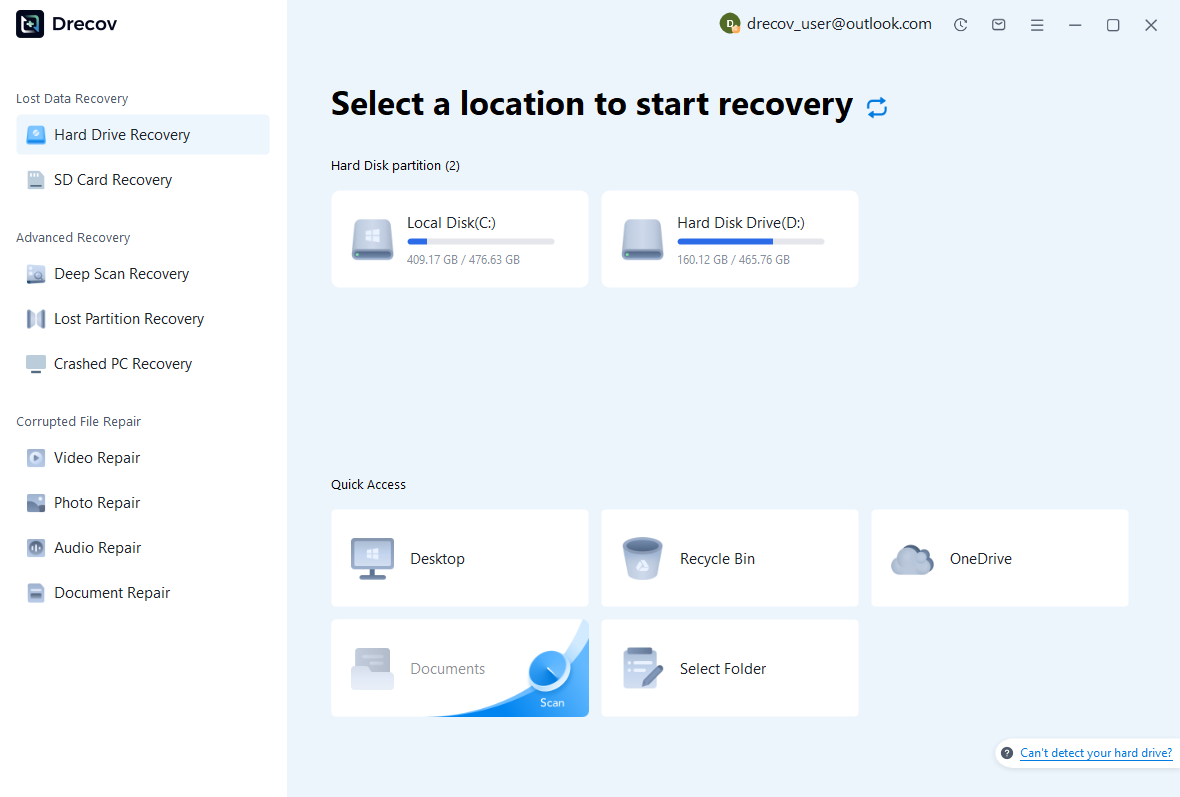
Step 1: select the actual notebook storage
Identify whether the server saved the notebook on the Windows disk, another supported drive, or remote storage. Select the relevant accessible source. Avoid writing new datasets, environments, or notebook outputs to affected storage. If the device becomes unstable, stop repeated scans and assess its condition. Scanning a browser’s local disk is irrelevant when the only saved notebook lived on an inaccessible remote server.
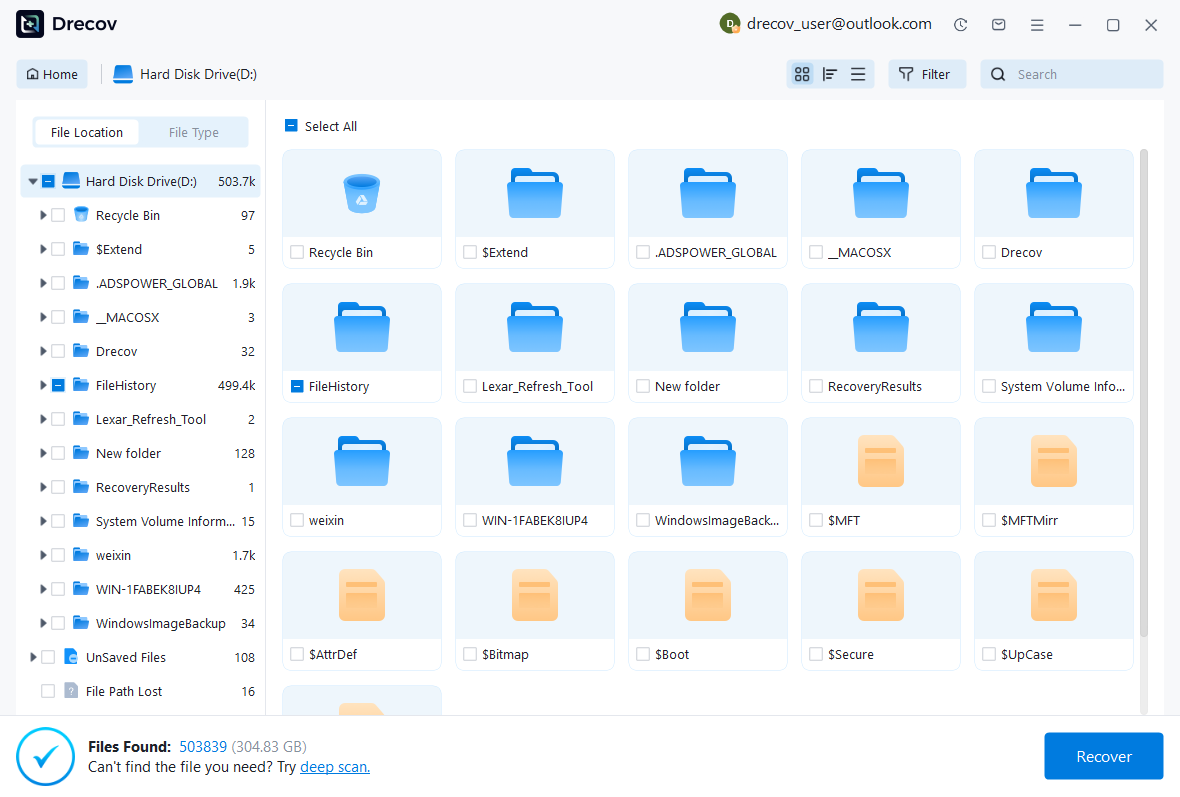
Step 2: compare notebook and checkpoint candidates
Use available path, name, date, and format filters. Preserve several plausible versions and any relevant data or script companions. A text preview may help identify cell source, but inspect enough content to distinguish revisions. Also keep candidate origins recorded. This makes it possible to reconcile notebook source, checkpoint state, and external input files without confusing unrelated analyses with similar names.
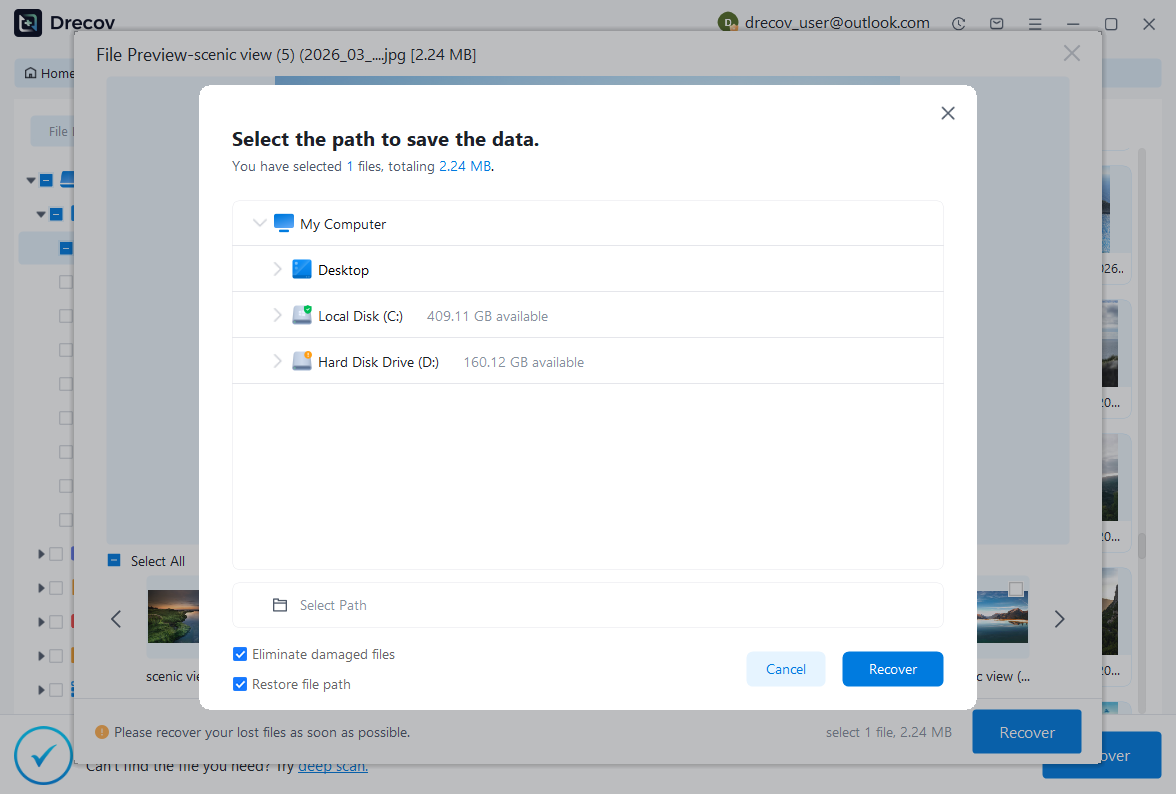
Step 3: recover elsewhere and validate structure
Save useful candidates to a different healthy physical disk. Review licensing and preview limitations before purchasing. Then open copies through the appropriate notebook interface or inspect their source safely. Do not execute an unreviewed candidate automatically. Verify both document structure and analytical context before accepting it. The recovery utility supplies potential files, while notebook review determines whether they restore the intended work.
Related recovery resources
Explore the relevant recovery options: Hard drive recovery, External hard drive recovery.
For another recovery case and its practical checks, read the related recovery guide.
Check the vendor guidance for the installed version: official recovery documentation 1, official recovery documentation 2, official recovery documentation 3.





