







DaVinci Resolve projects live inside project libraries, so an empty Project Manager does not necessarily mean that every edit disappeared. Resolve may be connected to a different library, the original local library may be unavailable, or an existing DRP export may still preserve the project. Start by identifying what you lost: the library connection, the project state, or the source media. Those are related components with separate recovery paths.
Quick answer: reconnect before rebuilding
Inspect the selected project library and preserve any existing local library before changing it. Reconnect a known intact library through the supported interface when the connection alone is missing. Otherwise, compare existing Project Backups or import a verified DRP into a separate recovery library. A project archive may also provide source media, but an ordinary DRP does not automatically contain the original camera footage. Verify both editing decisions and media access.
The free edition of Resolve offers useful native project-management routes, although availability can vary with the feature and release. Existing backups and exports require no separate recovery utility. However, enabling backups now cannot recreate yesterday’s state. Also, Live Save and historical backups serve different purposes. A current saved project can preserve an unwanted change, while a separate earlier backup offers a point before that change.
Distinguish library loss from project loss
Identify the library type
Record whether the project used a local disk library, a server library, or a cloud library. Their locations and supported recovery procedures differ. A local folder search cannot restore access permissions to a remote service, and reconnecting a server cannot recreate a deleted local media file. Record the library name, creating Resolve version, and last known working computer before testing alternatives. This keeps the investigation tied to the actual production environment.
For a local library, preserve a complete readable copy while Resolve is closed. Do not copy a few database-looking files into a new empty library and assume the project structure will reconstruct itself. For remote libraries, use the appropriate administrator or service recovery workflow instead of manipulating local cache material. In both cases, preserve the source and avoid upgrading the only remaining library as a casual troubleshooting experiment.
Check whether the wrong library opened
Inspect the library list and compare recognizable project names. An installation change can leave Resolve showing a newly created empty library while the old one remains elsewhere. Also compare the selected user or service account where relevant. An empty view is evidence about the current connection, not proof about every library on disk. Find a known project milestone before concluding that the editing work requires a storage scan.
Keep a simple candidate record with library path, project names, version, and recent editing state. Similar library names can conceal different productions or archived copies. A large folder may belong to another job. Therefore, inspect content and chronology together. This record also helps another editor continue the recovery without repeatedly connecting and upgrading unrelated candidates that happen to share a familiar name.
Free route 1: reconnect an intact local library
- Close Resolve and preserve the known local library folder.
- Open Project Manager and use Add Project Library with its Connect option.
- Select the documented existing library location rather than creating a replacement over it.
- Inspect projects and open a candidate to compare the intended timeline milestone.
Use Connect for an existing library and the appropriate Restore function for a library backup. Those are different inputs. A DRP export is another separate input that belongs in a project import workflow. Confusing them can lead to an apparently failed recovery even when useful material survives. Follow the current interface for your installed version, and keep a complete unchanged source before testing a library that may need conversion.
Verify recent projects and timeline identity
Open a project that received recent edits and inspect its actual timeline. Check the beginning, ending, and the changes made before the incident. Also compare project bins and the intended active timeline. A library can contain several similar project revisions. Reconnecting successfully establishes access to the library, but the right revision still needs confirmation before you resume work or replace any newer candidate.
Next, inspect whether the project opens with offline media. That does not automatically make the library recovery unsuccessful. It can mean that the project state survived while its asset paths changed. Preserve the recovered project and relink verified sources separately. Choosing an older library only because its media paths happen to work can discard valuable recent cuts, grades, and sound work unnecessarily.
Free route 2: inspect existing Project Backups
- Preserve the current project and available backup material.
- In Project Manager, open the relevant project’s Project Backups interface where available.
- Select a backup from before the loss or unwanted edit.
- Open the restored candidate separately and compare its timeline, grades, and audio.
Project Backups depend on the feature having produced useful snapshots before the incident. Inspect the actual configuration and backup location rather than promising a universal retention period. Also distinguish a project backup from a timeline-specific backup where your Resolve version offers both. Restoring a timeline can address a focused editing loss, while a project-level problem may require broader state. Match the scope of the candidate to the scope of the missing work.
Compare versions around the incident
Start with candidates that bracket the unwanted change or crash. Check a few distinctive edit points, a known grade, and an important audio adjustment. Dates help narrow the list, but they do not establish the complete project state. If the newest backup repeats the problem, compare an earlier one. Keep useful candidates until you identify the strongest base and understand which later changes need reapplying.
Do not continue production inside a confusing collection of restored project names. Once you select the candidate, create a clearly named working revision and preserve the original backup source. Also record the recovery point. For example, note that the final cut survived but the latest color pass needs review. This turns an uncertain restore into a practical handoff with a bounded list of remaining production tasks.
Free route 3: import an existing DRP export
- Locate a verified DRP from your own project deliveries or daily exports.
- Preserve the export and create a separate recovery library or clear test location.
- Import the DRP through Resolve’s supported project import interface.
- Open the imported project, relink verified media, and compare the editing milestone.
A DRP preserves an exported project state. Resolve imports that state into a library; later edits normally affect the library’s project rather than updating the original DRP automatically. Therefore, an old export remains a historical candidate, not a live mirror of your most recent session. Compare its content and export date. A usable DRP can restore substantial work even if the local library no longer opens.
Do not assume the export contains footage
Check what the surviving export actually includes. An ordinary project export differs from a project archive that may collect media and other material according to its options. The timeline can return while clips remain offline. Preserve original camera and audio archives separately. Also inventory graphics, subtitles, external effects resources, and any source dependencies needed for the deliverable. A project file alone cannot supply media bytes that it never embedded.
If a DRP opens in a suitable existing Resolve environment, save a fresh clearly named project and inspect the work before updating software or dependencies. Version differences can affect feature availability. Keep the original export unchanged so another compatible environment can still test it if necessary. Avoid interpreting every unavailable effect as proof that the entire project export is damaged.
Free route 4: restore a verified project archive
- Locate an existing archive created for the affected production.
- Preserve its complete folder structure and inspect the included material.
- Use Resolve’s supported archive restoration workflow in a separate recovery location.
- Compare the restored project and actual source media before accepting the archive as complete.
An archive can provide a more coherent recovery source than a loose project because it may include the assets needed for playback. However, completeness depends on what the original archive collected. Check whether it contains original media, proxies, optimized material, or only selected sources. A production may have external dependencies that the archive did not preserve. Document those gaps instead of assuming every archive represents a fully portable production.
Compare original and proxy quality
Inspect the media used for representative clips and the requirements of the final export. A proxy can preserve editability and timing while offering lower quality than the camera original. It may be sufficient for reconstruction but unsuitable for final delivery. Keep that distinction visible. Also check source audio channels and clip identity, because two similarly named files can represent different takes or different recording cards.
If originals survive elsewhere, relink the restored project deliberately rather than replacing the archive structure blindly. Test several clips across the production. Repeated camera filenames can lead to plausible wrong matches. Keep the recovered archive and the original-media inventory associated with the accepted project. This helps another editor understand which sources support the final render and which remain temporary substitutes.
Free route 5: reconnect existing media
- Inspect offline clip information and identify the expected original source.
- Locate the verified camera, audio, or graphics file in your existing archive.
- Relink through Resolve’s supported media interface and inspect neighboring matches.
- Test picture, sound, timing, and representative exports in the recovered timeline.
Relinking repairs a reference when the file still exists. It does not recover deleted footage or reverse an incorrect ingest. Compare visible content, duration, and identifying metadata rather than using the filename alone. Also keep separate card folders intact where names repeat. A correct library connection and a clean offline-media count answer different questions from whether the timeline uses the intended takes.
Inspect grades and sound after relinking
Check representative color nodes, keyframes, sizing, and the audio mix relevant to the job. A media interpretation difference can change the recovered output even when every clip reconnects. Compare a known reference render and inspect the exact area edited before the failure. Then export a short test containing difficult shots and sound transitions. This provides stronger evidence than a single timeline thumbnail or an untested successful import message.
If a missing dependency prevents exact reproduction, preserve the original project structure and create a separate workaround revision. A rendered replacement can support an urgent delivery while reducing editability. Record that compromise. Do not delete the original source relationship merely to remove a warning, because its path and timing information may guide a later asset recovery or a more faithful reconstruction.
Example: recover an edit after reconnecting a different disk
Suppose a workstation migration leaves Project Manager empty. The old local library remains on a secondary disk, and a recent DRP exists in an independent delivery folder. First preserve both. Connect the existing library and compare the recent timeline with the DRP import in a separate test library. The existing library may preserve a later grade, while the DRP provides a reliable fallback if the library candidate behaves poorly.
Next, relink original media from the verified production archive. Inspect the final interview cuts, captions, and representative graded shots. If one recent sound change is absent, reconstruct that documented change in a new working project rather than replacing the entire edit with an older fully linked archive. Finally, record which source became the master and which changes you reapplied after recovery.
Validate the complete production
Check project identity, timelines, frame rate, duration, bins, edits, grades, titles, audio, and media paths. Then save, close, and reopen the accepted project from its library. Export representative sections using the actual delivery settings. A project that opens correctly can still point to proxies or lack a final title revision. Use the production’s normal editorial and output review before declaring the recovered work ready.
Keep the library candidate, project backups, DRP exports, archive, and reference output until review finishes. Document the accepted recovery point and any missing dependency. Afterwards, establish a fresh project export and an independent library backup according to your workflow. Protect original media separately. Those sources preserve different layers of a production and provide alternatives when a later incident affects only one of them.
Compare editing states before selecting a library
Use a production milestone checklist
Choose several distinctive changes: the latest timeline ending, a revised title, a known color adjustment, and a recent sound edit. Check those points in every candidate and record the result. A library’s name or folder size cannot establish its editorial state. Also distinguish duplicate timelines inside one project. The first timeline that opens may be an earlier cut rather than the intended recovery target.
Keep the observations concrete. A note such as current interview cut with older title tells the next editor what remains to do. Preserve the initial candidate before correcting it. This separates recovered project data from the fresh production work you apply afterwards. It also helps explain why you selected a current project with offline assets over an older fully linked archive.
Compare project and timeline backup scope
If your version offers timeline-specific recovery, determine whether the missing work is confined to one timeline or affects broader project state. A focused candidate can preserve a useful edit without replacing unrelated grading or media organization. However, verify what the restore actually includes. Do not assume a timeline backup restores every project setting, shared resource, or external dependency.
Use a separate working candidate and compare the affected section before integrating it. Also inspect nested or compound relationships relevant to the production. A recovered top-level arrangement can refer to another item whose state differs. Keep a short note of those relationships. This makes a selective recovery reviewable and prevents one successful timeline preview from concealing a missing dependency elsewhere in the project.
Verify media identity and interpretation
Repeated clip names across camera cards
Several camera cards can contain files with identical names. Before broad relinking, inspect a representative clip’s visible content, duration, and identifying metadata. Then check neighboring automatic matches. A wrong source can fit the expected timeline length while showing a different take. Use the reference export and production notes together so the verification covers both source identity and editorial use.
Preserve card folder boundaries in the recovered archive. Flattening every clip into one directory can create collisions and obscure source context. Also record which archive supplied each group. This helps another editor reconnect the project reliably and avoids another recovery that spends time distinguishing similarly named clips after their original organization has been lost.
Audio channels and long-form synchronization
Listen to important dialogue, music, and effects separately where the project uses isolated tracks. Check source-channel interpretation and synchronization at several points, not only the opening. A clip can reconnect for picture while its audio configuration differs. Also inspect the final section near the interruption. A successful short playback does not establish that a long recording remains complete and synchronized throughout the edit.
If you replace missing audio with an independent source, align a copy deliberately and preserve the original take. Compare several recognizable events across the program. Document any timing correction or processing you introduce. That work may produce a useful recovered program, but it is a reconstruction step rather than proof that the original media relationship survived intact.
Color and source processing
Compare important grades against a reference render using the intended viewing workflow. A source interpretation difference can change the output even when color nodes remain present. Inspect a few representative shots rather than one attractive frame. Also check sizing and framing. A project that restores the correct edit can still produce a different deliverable if the source media differs from the version used during approval.
Keep original media and project candidates unchanged while testing adjustments. Do not compensate for a wrong source by changing the grade until the screen looks approximately familiar. First establish source identity, then review the intended processing. If reconstruction is necessary, label it and retain the evidence. This protects both production accuracy and the ability to improve the recovery later.
Recover a usable project when one component remains missing
Separate urgent output from an editable master
An existing render may meet an immediate archive or viewing need while the editable project still lacks a plugin or source asset. Preserve that output as a limited result, but keep the project investigation separate. Define the next task clearly. A simple re-delivery and a substantial revision need different levels of source completeness and editing control.
If you build a workaround project, give it a distinct name and document the substituted material. Keep the original project structure where it contains useful relationships. This lets another editor understand which parts remain editable and which rely on rendered replacements. It also prevents an emergency workaround from silently becoming the authoritative production master for future changes.
Use complementary sources carefully
Suppose the existing library preserves the current grade while a DRP contains a more stable earlier edit. Compare the specific differences before combining them. Transfer or reconstruct only the verified material through supported workflows. A broad project replacement can discard useful decisions that survived in another candidate. Keep both sources until the accepted combined result passes editorial and output review.
Record the origin of each important recovered component. This need not become a long troubleshooting diary. A concise note identifying the base project, restored timeline, and reconnected media is enough to guide the next editor. Also keep reference exports associated by revision. Comparing a recovered project with an unrelated old proof can produce misleading reports of differences that never belonged to the target state.
Test a portable recovery baseline
Reopen and export from the intended location
After acceptance, reopen the project through its authoritative library and verify media access from the intended production folders. Export representative sections without relying on temporary recovery directories. This catches sources that worked only on the investigator’s machine. Also check the final output settings, because a proxy-based preview can look acceptable while the actual delivery requires original media quality.
Create an independent project export and preserve the appropriate library backup after the accepted changes. Protect source media separately and test a small restore into a different recovery location. This validates the relationship between project state and assets. A reliable baseline gives the next incident several coherent options rather than a collection of files whose purpose is unclear when the production is under deadline.
When PandaOffice Drecov may help
A storage scan may help when a local DRP, archive component, or original media file is actually absent from supported storage. PandaOffice Drecov does not reconstruct a Resolve library from arbitrary database fragments or restore remote service access. Check current support for the actual missing file and inspect candidates. Treat a recovered database-looking filename as evidence to preserve, not as proof that it can safely replace a working library.
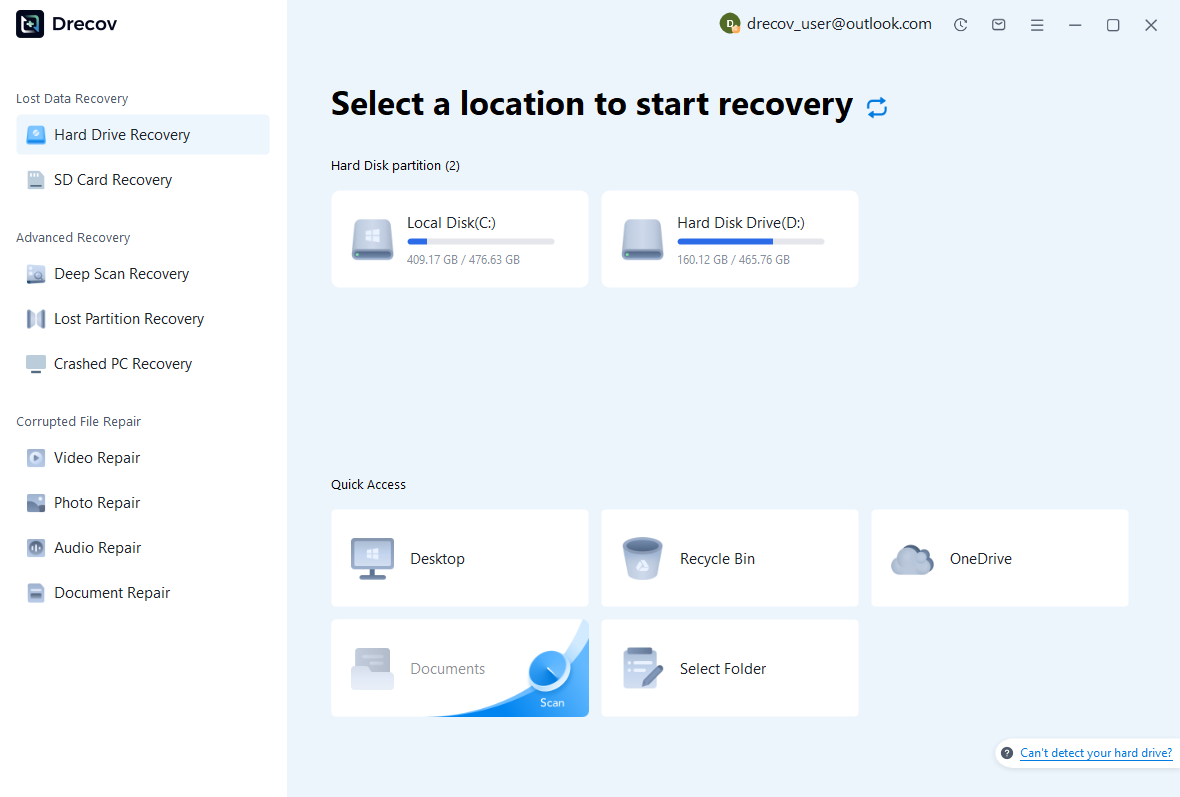
Step 1: identify the missing component’s source
The library, exported projects, and camera archive may occupy different disks. Select the supported device that actually held the missing component. Avoid rendering new files, importing a fresh production, or installing recovery software there. If the device disconnects or repeatedly fails to read, stop repeated scans and assess the hardware condition. Stable access matters before any storage recovery utility can provide trustworthy candidates.
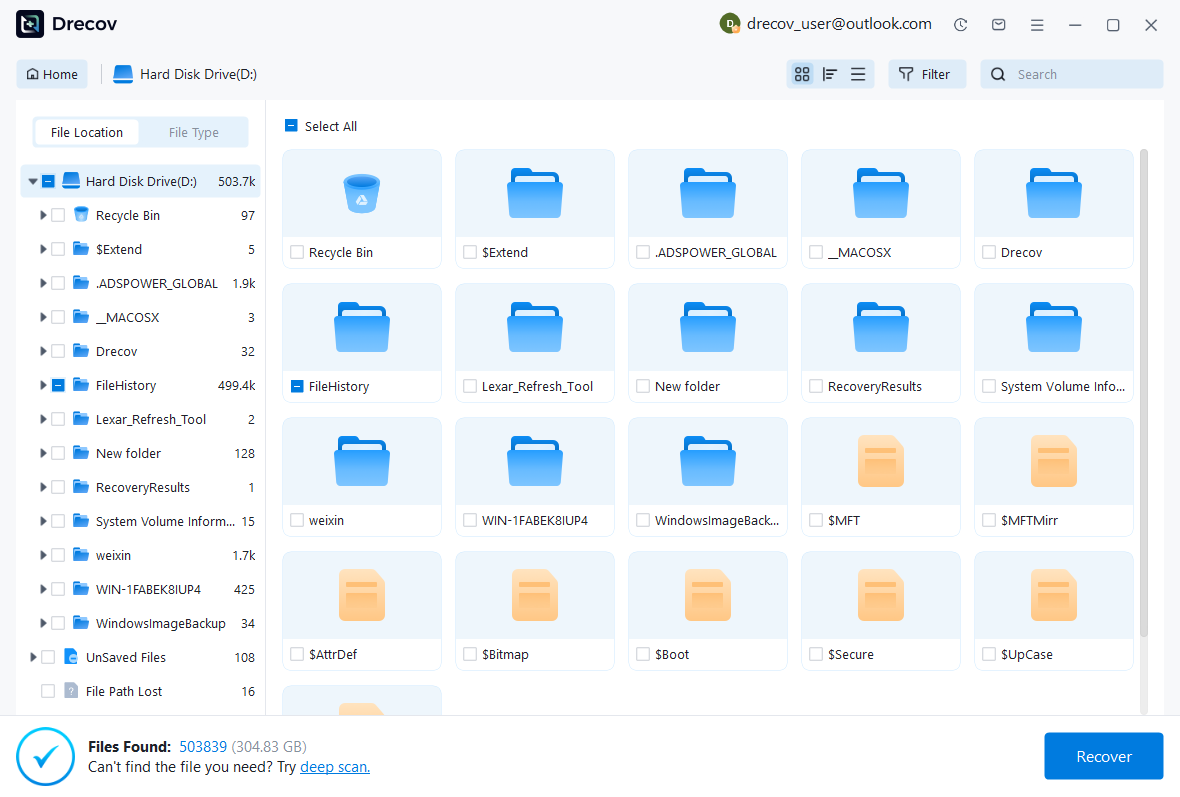
Step 2: preserve candidates with their context
Use available path, date, name, and format filters. Keep multiple project exports or media candidates when the revision remains uncertain. Also preserve archive structure where possible. A large file or familiar name does not guarantee a healthy project or complete recording. Record the origin of each candidate so you can pair it with the appropriate library milestone and source assets during Resolve validation.
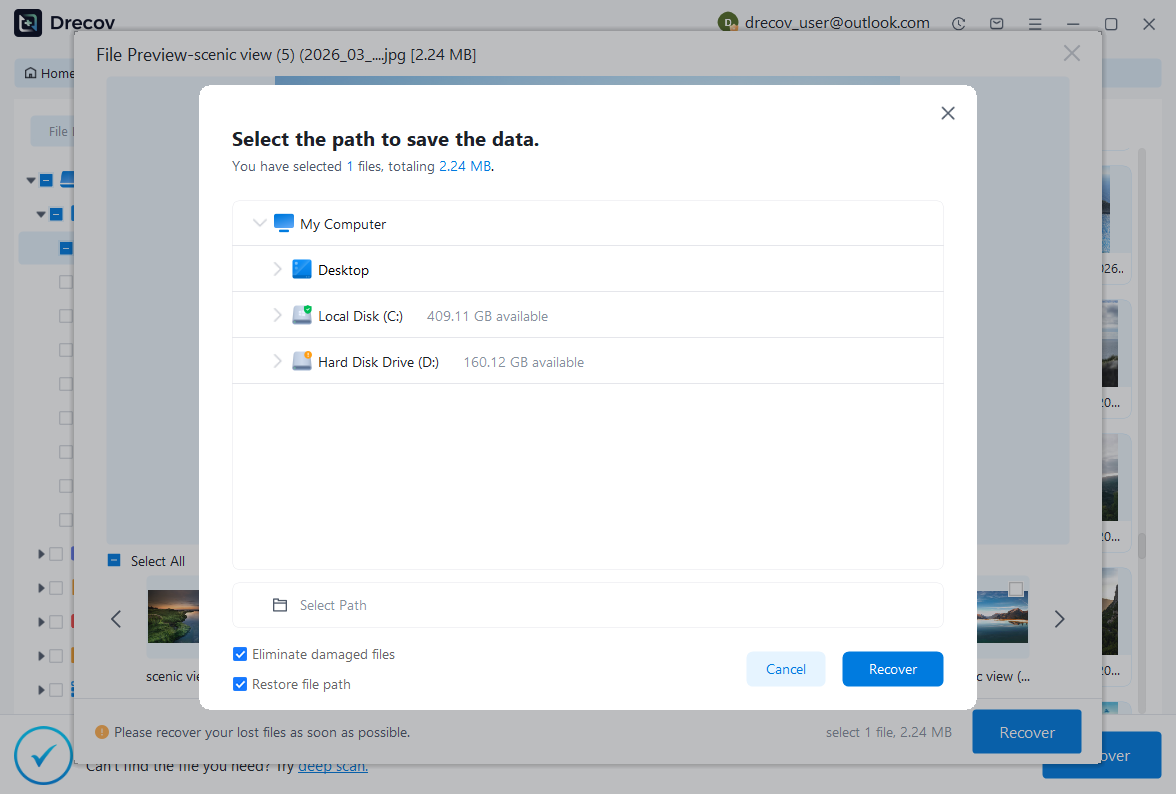
Step 3: recover elsewhere and test natively
Save useful results to a different healthy physical disk. Review current licensing and preview limitations before purchasing. Then test copies through the appropriate Resolve import or archive workflow. If a proprietary project offers no preview, acknowledge that limit rather than claiming success from its name. Finally, verify the actual timeline and rendered output. A storage scan supplies candidates, while native project review establishes whether they meet the production requirement.
Preserve future recovery points deliberately
Use Live Save for its intended current-state protection and configure historical backups appropriate to the project. Also create meaningful independent DRP exports and protect the source-media archive. Test a representative restore into a separate library. A folder containing many backup files is reassuring only when you know which workflow opens them and whether the production’s required assets remain available.
Document the authoritative library and project revision after recovery. Keep the accepted export, asset inventory, and reference render associated by name. This prevents another editor from choosing an older candidate merely because it opens with fewer warnings. It also provides several different future recovery paths: reconnecting the library, importing an exported state, restoring an archive, or rebuilding a limited missing component from verified sources.
Related recovery resources
Explore the relevant recovery options: Hard drive recovery, External hard drive recovery.
For another recovery case and its practical checks, read the related recovery guide.
Check the vendor guidance for the installed version: official recovery documentation 1, official recovery documentation 2, official recovery documentation 3.





