








Losing a file in Visual Studio Code does not always mean its contents disappeared from every source. The editor may retain local history, a still-open buffer may contain unsaved text, or Git may preserve a saved revision. Those sources protect different states. Start by identifying whether the file was saved, committed, renamed, or edited only in memory. Then choose a recovery route that preserves the current workspace while you compare candidates.
Quick answer: preserve the editor before restoring anything
If the text remains visible in an editor tab, copy or save it to a new safe location first. For a previously saved file, inspect Timeline local history or the Local History restore picker. For committed content, inspect Git’s existing revision without overwriting the working tree. A missing file in a remote workspace also requires checking the machine where it actually lived. Your local Downloads folder may have no relevant copy.
VS Code’s native history features are free, but they are not unlimited backups. Their availability depends on settings, exclusions, file size, retention, and where the editor ran. Enabling local history after the incident cannot create earlier entries. Also, recovering a source file differs from restoring the entire project environment. Define the missing function, configuration, tests, and revision before accepting a candidate simply because it contains familiar code.
Classify the loss precisely
Deleted file, overwritten file, or missing workspace?
Check the actual folder and full path. A workspace can hide files through filters or exclusions without deleting them. Also confirm the correct repository, branch, and project root. A file that existed on another branch may remain intact in Git even though the current Explorer view omits it. Record the expected path and one distinctive code fragment before searching. This avoids restoring an unrelated file with a common name.
If the file exists but contains older text, compare local history rather than treating it as a deletion. For a file that never had a saved name, inspect the surviving editor state. When a remote connection changed, inspect the corresponding remote workspace through its normal access route. These distinctions guide the next action. A disk scan of the wrong machine cannot retrieve content that only existed on the remote host.
Save a baseline of the current work
Preserve the current workspace and any useful open text before restoring an earlier state. Also record whether the editor shows unsaved changes. A recovery operation can replace content that you still need, even when the missing older version is valuable. Therefore, use a separate candidate file or recovery folder for comparison. Keep the active project untouched until you understand how the recovered code fits the current revision.
For a repository, inspect its status and preserve uncommitted changes through your normal workflow before applying anything. Do not use a destructive reset merely to make the missing file reappear. A new branch or separate workspace can support controlled testing. Also keep configuration and dependency information with the candidate. A function can look correct while relying on an older interface that no longer matches the rest of the project.
Free route 1: inspect Timeline local history
- Select the affected existing file in Explorer when available.
- Open its Timeline view and inspect local history entries.
- Compare a candidate with the current file or another saved state.
- Preserve useful content separately before choosing a restore operation.
Local history can preserve full file snapshots from earlier saves according to the configured policy. It is especially useful for a saved change that never reached Git. However, the history belongs to the relevant editor environment. An entry on one computer is not automatically present on another. Inspect the actual installation and profile where the edit occurred, and do not clear editor user data while that history may be your only source.
Compare the missing change rather than the entire file first
Look for the distinctive function, setting, or paragraph you lost. Then inspect surrounding imports and callers. A candidate may preserve the desired function but predate another important fix. Use the comparison view to identify the smallest verified change you need. This reduces the risk of restoring an entire older file and silently removing current improvements elsewhere in the same source.
Keep a short candidate note with its timestamp, relevant changes, and source environment. Local history labels can help you understand a refactor or save, but the code itself remains the acceptance evidence. Also inspect comments and configuration values that affect behavior. A source file that compiles can still contain an outdated endpoint or feature setting, so validation needs more than a quick glance at the function name.
Free route 2: find a deleted file’s local history entry
- Open the Command Palette in the relevant VS Code environment.
- Run the documented Local History command to find an entry to restore.
- Search for the deleted file and inspect available candidates.
- Restore or copy the useful state to a separate comparison location where the interface permits.
The global restore picker can help when a deleted file no longer appears in Explorer. Its usefulness still depends on a surviving history entry. Do not promise that every deleted file appears there. Files excluded from history, files beyond configured limits, and unsaved buffers may have no applicable snapshot. Record that result honestly and move to Git, existing copies, or storage recovery rather than repeatedly searching the same empty picker.
The English command label is Local History: Find Entry to Restore. Search for that command in the Command Palette of the environment that held the file; localized installations may display a translated label. Select the matching history candidate and inspect its content before accepting a restore. If the command returns no relevant entry, preserve that result and move to another source. Reinstalling the editor or enabling history afterwards cannot manufacture the missing earlier snapshot.
Check settings without mistaking them for historical evidence
Inspect the local history settings relevant to the environment, including exclusions and limits. They explain why an entry may be absent, but current settings do not prove what existed at the incident time. Also distinguish local history from a third-party extension’s separate history. If an extension created backups, use its documented format and existing records. Installing a new history extension now does not generate snapshots of earlier edits.
Avoid copying random history database files into the live editor profile without guidance. Preserve the complete relevant user-data source first. A readable candidate through the supported interface is easier to verify than an undocumented cache transplant. If the history store itself is missing, a storage assessment may target that source, but it cannot guarantee that recovered fragments reconstruct a usable editor history.
Free route 3: inspect existing Git content
- Confirm the repository, branch, and relative path of the missing file.
- Inspect existing commits or branches that may contain the desired state.
- View or export the candidate without resetting the current working tree.
- Compare it in a separate location and apply only the verified recovery change.
Git protects content that reached its object database, not every keystroke in the editor. A file that was committed earlier may remain available even after deletion from the current branch. Conversely, a completely new untracked file may never have entered Git. Keep those cases separate. A clean repository status does not prove that an unsaved or ignored file has a historical copy.
Use read-only inspection before replacement
Commands such as git log –all — path/to/file and an appropriate git show reference can help inspect existing history. Treat paths and references as examples that you must adapt to the actual repository. Do not execute a command that overwrites the current file until you preserve its present state. Also avoid publishing recovered content automatically. The immediate task is local recovery and validation, not rewriting shared history.
If a candidate belongs to a different branch, compare its dependencies and interfaces before copying it. A standalone source file can require accompanying tests, schema changes, or configuration. Preserve the relevant project context. This prevents a recovery that restores the missing text while introducing a runtime problem because the surrounding code now expects a newer contract.
Free route 4: preserve a surviving unsaved editor
- Inspect open tabs and windows before closing or resetting the editor.
- Copy visible useful text or save it under a new safe filename.
- Verify that the saved copy contains the intended beginning and ending.
- Reopen it separately and compare it with the current project state.
A still-open editor can preserve work that never reached the normal file. This is an opportunity to save evidence, not a reason to restart the application first. Also check whether a tab belongs to another window or remote session. Do not discard an unsaved-change prompt merely to simplify the workspace. Preserve the useful buffer before troubleshooting extensions, user profiles, or application startup.
Understand the limits of session restoration
VS Code can preserve some unsaved state according to its session and Hot Exit behavior. However, you should not assume every crash, reset, or user-data cleanup leaves a recoverable buffer. Inspect what the application actually offers. If no buffer remains, acknowledge the limit. A file recovery scan cannot recreate a memory-only edit that never reached a recoverable local or remote store.
When a recovered buffer lacks a clear filename, save it with a descriptive candidate name and record the project it belongs to. Then inspect encoding, line endings, and complete content. A long file can appear useful while missing its final block. Compare recognizable markers and tests before merging it into the live project. Keep the initial saved buffer unchanged as a baseline for any later reconstruction.
Recover remote and container work in the right place
For an SSH, container, or other remote workspace, identify where the file and editor history actually resided. Inspect the authorized remote environment through its normal connection. A local editor window does not prove the underlying source lived on the Windows disk. Also preserve any persistent workspace volume before rebuilding a container. A new empty environment can obscure the relationship between a recoverable volume and the editor view.
Do not rebuild or prune the only environment simply because reconnecting fails once. Record the workspace identity, original path, and available persistent copies first. If the remote service or volume is unavailable, the relevant administrator or provider recovery route may be necessary. A desktop file recovery product is not a substitute for restoring a remote account, server snapshot, or deleted cloud volume it cannot access.
A practical recovery example
Suppose a developer deletes a configuration helper before committing it, then notices the application no longer starts. Git’s current history lacks the helper, but VS Code local history contains several saved versions. First preserve current work. Use the restore picker to inspect candidates, then select the version with the intended configuration parsing. Copy it into a separate test workspace rather than overwriting unrelated current changes immediately.
Next, compare the helper’s imports and its callers. A later local history entry may include a useful validation change that an earlier candidate lacks. Run focused tests using the current project dependencies. If the recovery works, apply a reviewed change and preserve a normal project milestone. The important result is a verified source revision with compatible context, not merely the return of a familiar filename in Explorer.
Validate recovered code responsibly
Inspect the recovered file’s complete contents, encoding, expected path, and interfaces. Then run tests appropriate to the actual change and review the diff against current work. Do not treat a successful compile as proof that every behavior matches the intended version. Also check configuration and secrets handling before committing or sharing anything. A local candidate may contain obsolete values that need deliberate review.
Keep the untouched candidate, accepted source, and a brief recovery note until the work is verified. Afterwards, preserve meaningful commits and independent workspace backups. Include ignored project assets where your workflow requires them. Git and editor history protect different states, so a resilient plan uses both deliberately rather than assuming that a repository automatically contains every file visible in the editor.
Choose the recovery source by file state
A saved file that never reached a commit
Consider a helper script saved several times during a debugging session but never committed. Git may have no useful version, while editor history can preserve the saved snapshots. Search that history first and compare the actual function. Also check the environment where the editor ran. A local window connected to a remote workspace may not place the relevant source on the Windows disk.
If history supplies several candidates, identify the one compatible with current callers. A later snapshot may preserve an unfinished experiment, while an earlier one contains the working implementation. Use a focused test rather than selecting by date alone. Keep both candidates until the change passes review. This gives you a practical recovery point without assuming every automatic snapshot represents a valid program state.
A committed file deleted on the current branch
First inspect existing repository references. A file absent from the current working tree can remain intact in another recorded revision. Retrieve a candidate through a read-only view or separate workspace before replacing current content. Also compare its surrounding project state. The missing file may have been intentionally replaced by another module, and restoring it blindly can introduce duplicate or conflicting behavior.
Document why the file should return and which revision supplies it. This keeps recovery separate from the normal engineering decision to reintroduce code. If the goal is only to inspect an old implementation, an exported comparison copy may be enough. Avoid resetting unrelated files or publishing a branch merely to make one historical source visible in the editor again.
Preserve technical details that affect recovered text
Encoding and line endings
Inspect the file’s encoding and line endings after recovery. A source file can look readable while containing altered special characters, a misplaced byte-order marker, or unexpected line-ending changes. Compare a focused diff and test the relevant toolchain. Also inspect configuration values and non-English strings. Those details can affect behavior even when the recovered function names and broad structure look correct.
Keep the original candidate unchanged before normalization. If you deliberately convert encoding or line endings for the current project, make that a separate reviewed change. This makes the diff easier to understand and avoids confusing recovery damage with intentional cleanup. A clean-looking file should still retain the exact characters required by its language, configuration format, and runtime environment.
Configuration and generated files
Determine whether the missing file is authoritative source or generated output. A generated bundle may be replaceable from intact source, while a unique local configuration may have no repository history. Recover the source of truth where possible. Also inspect ignored files explicitly. Their absence from Git can be intentional, so do not assume the repository protects them merely because they sit inside its working directory.
If a build can regenerate the file, preserve the current project state before running it and confirm the intended inputs. A successful generated output does not restore unique manual edits made directly to an older build artifact. Document that distinction. This helps prioritize recovery effort and prevents a fresh build from being presented as proof that the original missing file survived.
Related tests and interface contracts
A recovered module can require accompanying tests, type definitions, or schema changes. Compare the candidate’s imports and callers before integrating it. Also inspect the error that first revealed the loss. That symptom can guide the smallest meaningful validation. A broad test run may pass while the specific recovered behavior remains untested, especially when the missing path has limited coverage.
Create or run checks appropriate to the actual recovery change rather than mirroring the file’s contents mechanically. Keep the review focused on behavior and compatibility. Also record any dependency you reconstructed. Returning a source file to disk is only part of the task; the accepted result should fit the current project without silently replacing valid newer work.
Handle multiple editor environments
Local windows and remote hosts
Record the workspace path and environment for each relevant editor window. Two tabs with the same filename can point to different machines or containers. Compare the full path and project identity before copying content. This prevents a successful recovery from restoring the right-looking file into the wrong repository. Also preserve any useful remote buffer through the supported connection before rebuilding the environment.
If a remote service is unavailable, keep the local evidence and identify the actual provider or administrator recovery route. A desktop scan cannot restore access to a deleted remote volume it cannot read. State that limit clearly. Existing local exports or repository clones may still provide useful source, but they should be labeled according to the states they actually preserve.
Editor profiles and user-data cleanup
An editor profile or portable installation can use a different user-data location from the default environment. Inspect the actual configuration and supported history interface. Do not clear user data as the first troubleshooting action when local history may contain the only saved source. Preserve relevant data before resets, reinstalls, or extension cleanup that could remove recovery evidence.
Also distinguish native local history from an extension’s own backup scheme. An extension may preserve a useful source in a separate format, but a new installation does not recreate earlier backups. Use existing documented records and inspect actual content. Keep the candidate’s source in the recovery note so the next developer understands why it may differ from the repository’s recorded history.
Review and preserve the accepted source
Compare a realistic use case
Test the recovered change in the workflow that actually failed. For a configuration helper, use representative settings and error conditions. For a script, inspect its inputs and outputs before execution. A candidate can compile while using an old path or changing data unexpectedly. Preserve the recovery baseline and use an appropriate controlled environment for any test with side effects.
Review the final diff against current work and document reconstructed sections. Do not label a newly rewritten function as an exact historical recovery. It can still be a valid solution when the original is unavailable, but the reviewer should know which behavior came from evidence and which came from new implementation. This distinction supports a clear and trustworthy integration decision.
Keep several independent protection layers
After acceptance, preserve a meaningful repository milestone and an independent copy of important ignored assets. Also retain editor history settings appropriate to the workflow. These mechanisms protect different states: recent saved edits, recorded project revisions, and files that version control intentionally omits. Test a representative restore instead of relying only on a reassuring sync or backup icon.
Keep the recovery evidence until the project owner accepts the result. Then separate the authoritative working source from obsolete candidates according to the normal retention policy. A clear baseline helps future work and avoids another incident where a developer chooses an old recovered file simply because its name contains final. The durable outcome is a verified project state with understandable provenance.
When PandaOffice Drecov may help
A storage scan may help when the saved source file or relevant local history material is genuinely absent from supported local storage. PandaOffice Drecov does not restore a remote workspace automatically or reconstruct text that existed only in memory. Check current support and preview what the interface makes available. Also preserve any repository metadata and surrounding project files that remain, because source-level validation depends on context.
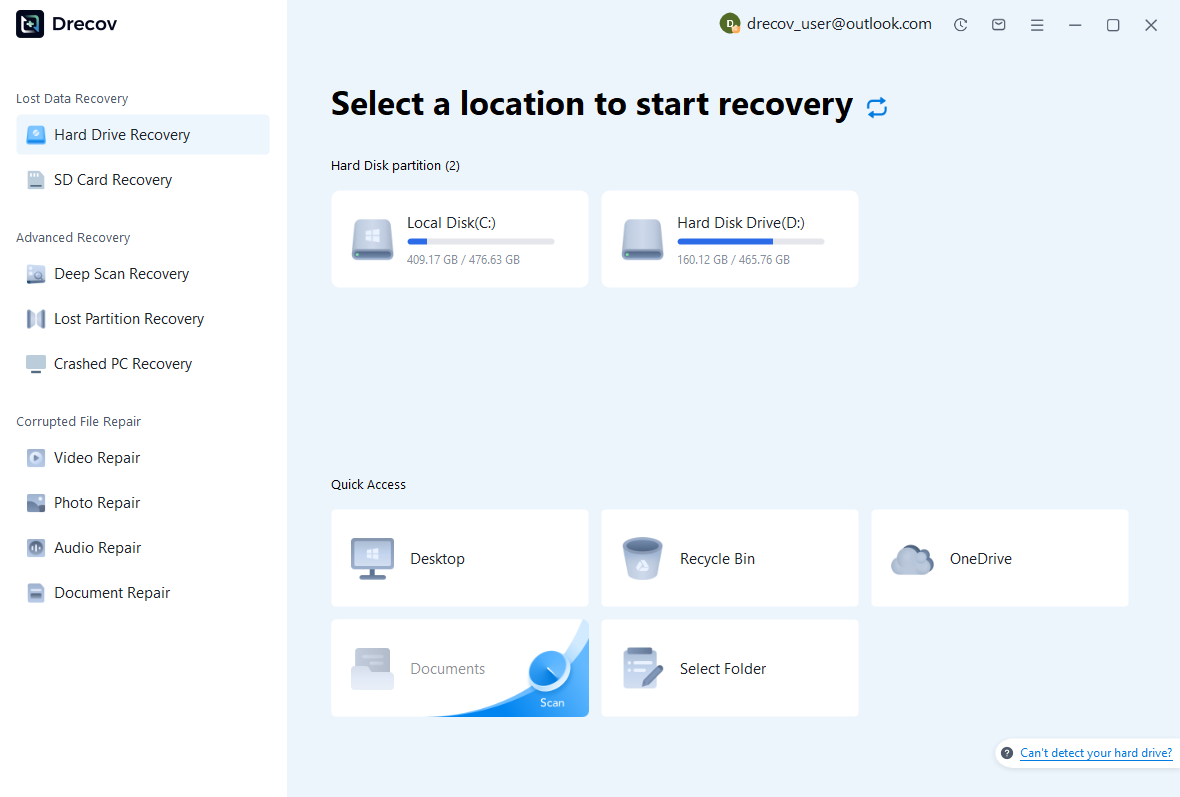
Step 1: select the original storage location
Identify whether the missing file lived on the Windows disk, another supported drive, or a remote host. Select only an appropriate accessible source. Avoid installing recovery software or rebuilding the project on affected storage. New dependency downloads and build outputs can write substantial data. If the disk becomes unstable, stop repeated scans and assess its condition before attempting more software recovery.
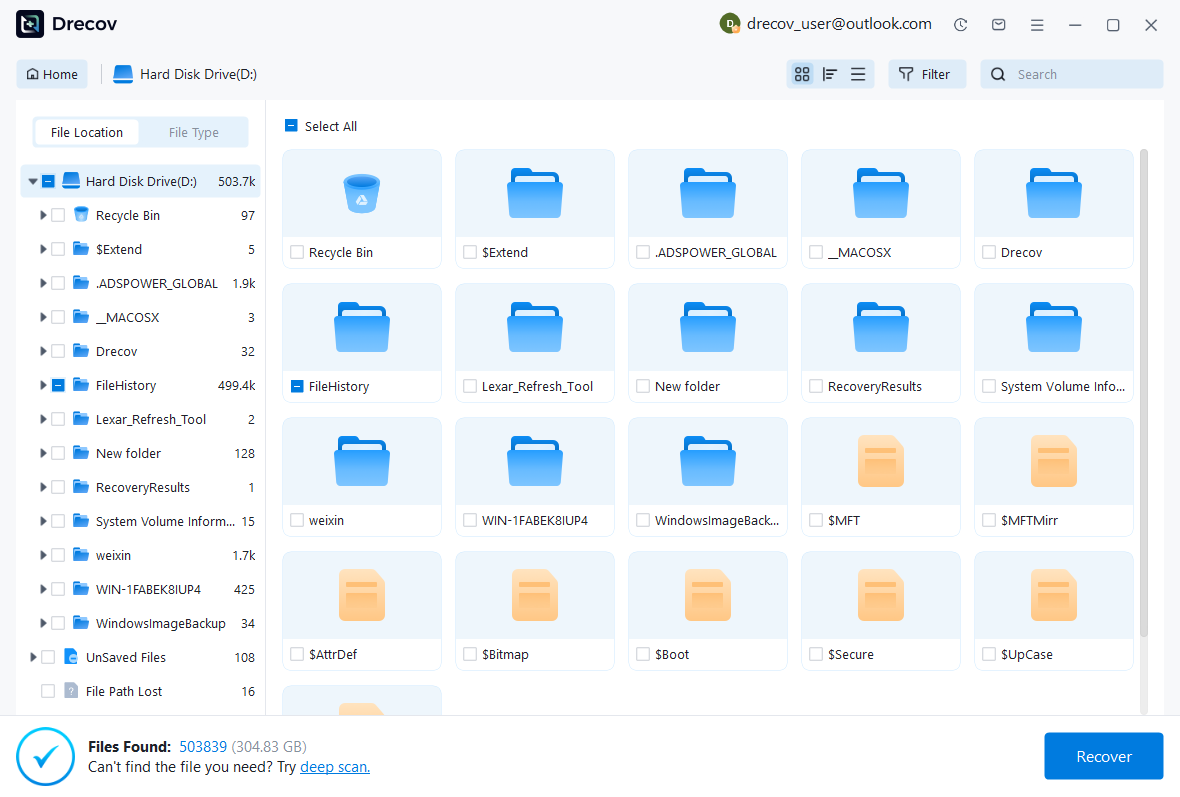
Step 2: inspect source candidates
Use available path, filename, date, and format filters. Text previews can help identify a function, but inspect enough content to distinguish versions. Preserve several plausible candidates when the latest revision is uncertain. Also retain associated configuration and tests where available. A recovered filename or large byte count does not prove that the entire source file or project structure survived.
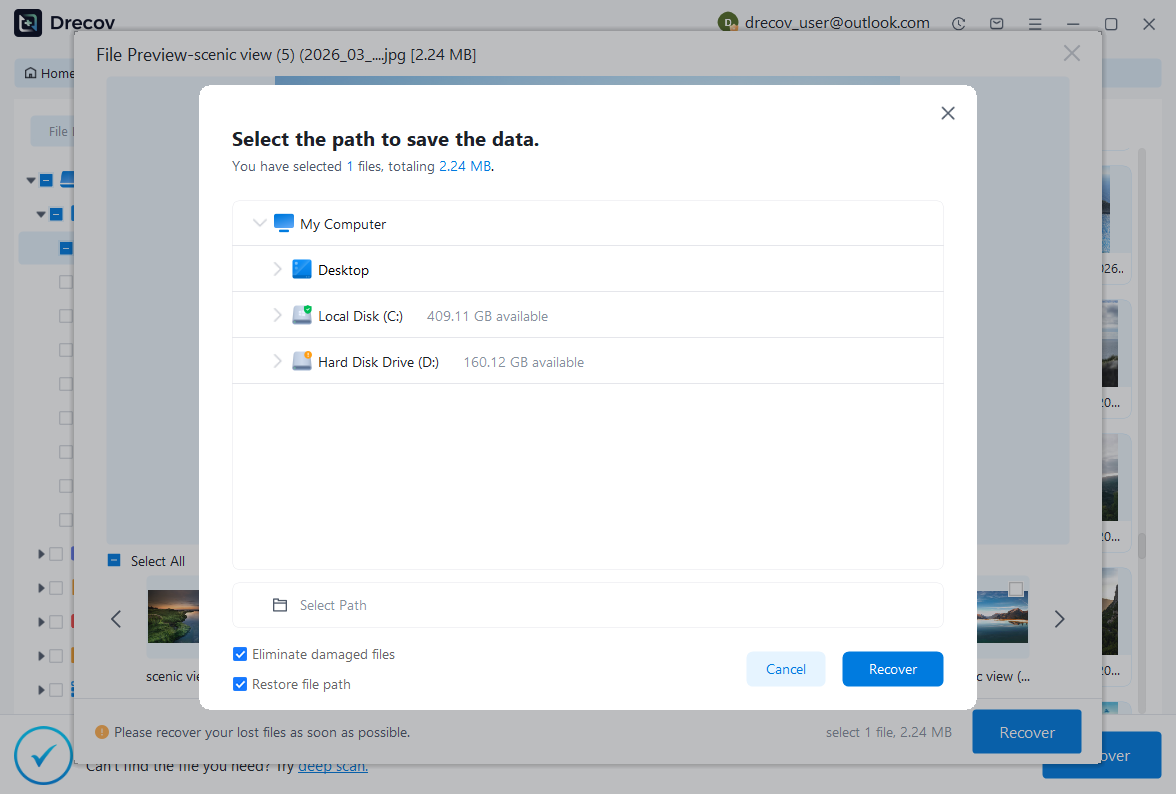
Step 3: recover elsewhere and compare a diff
Save candidates to a different healthy physical disk. Review licensing and preview limitations before purchasing. Then inspect copies in a separate workspace and compare them with the current repository. Apply the same focused tests used for local-history candidates. The recovery utility supplies potential files; a controlled source review determines whether they restore the intended behavior without discarding current work.
Keep the recovered project understandable
Use one clearly named accepted working revision and retain evidence separately. Record whether the source came from local history, Git, or an unsaved buffer. This helps another developer understand which project state the recovery represents. Also document any code you reconstructed manually. Recreating a missing function can be useful, but it is different from finding the exact original implementation.
After acceptance, test that the project opens from its intended location and does not depend on temporary recovery paths. Preserve a meaningful version-control milestone and an independent backup of important non-Git material. This gives the next incident several practical routes: editor snapshots for recent saves, Git for recorded project states, and separate storage copies for assets that neither mechanism covers.
Related recovery resources
Explore the relevant recovery options: Hard drive recovery, External hard drive recovery.
For another recovery case and its practical checks, read the related recovery guide.
Check the vendor guidance for the installed version: official recovery documentation 1, official recovery documentation 2, official recovery documentation 3.





