



Video loss can happen in seconds. A wrong keystroke, an emptied Recycle Bin, or a formatted drive may wipe out valuable recordings before you notice. Fortunately, Windows offers several reliable recovery paths. When you understand how to recover videos using Windows File Recovery and related tools, you can often restore deleted videos successfully.
This guide explains each recovery method clearly, shows when to use it, and helps you choose the best solution for your specific data loss scenario.
How Video Deletion Works on Windows Systems
Before learning how to recover videos using Windows File Recovery, you should understand what happens after deletion.
When you delete a video on Windows:
- The file system removes its reference
- The data stays on the drive temporarily
- New data can overwrite it at any moment
For this reason, stop using the affected drive immediately after video loss. Early action dramatically improves recovery results.
Video Data Loss Scenarios and Recommended Recovery Methods
| Data Loss Scenario | Recommended Method | Reason |
|---|---|---|
| Recently deleted video | Recycle Bin | Fast and risk-free |
| Deleted after Recycle Bin | Windows File Recovery | Direct NTFS scanning |
| Shift + Delete | PandaOffice Drecov | Signature-based recovery |
| Formatted drive | PandaOffice Drecov Deep Scan | Rebuilds file structure |
| Folder rollback needed | Previous Versions | Snapshot recovery |
| Cloud-synced files | OneDrive Restore | Cloud retention |
| External drive errors | PandaOffice Drecov | Broad device compatibility |
Recover Deleted Videos Using Built-In Windows Features
1.Restore Videos from the Recycle Bin (Quick Recovery Method)
This option works when the video was deleted normally and the Recycle Bin still contains it.
Steps:
- Open Recycle Bin
- Locate the deleted video file
- Right-click and select Restore
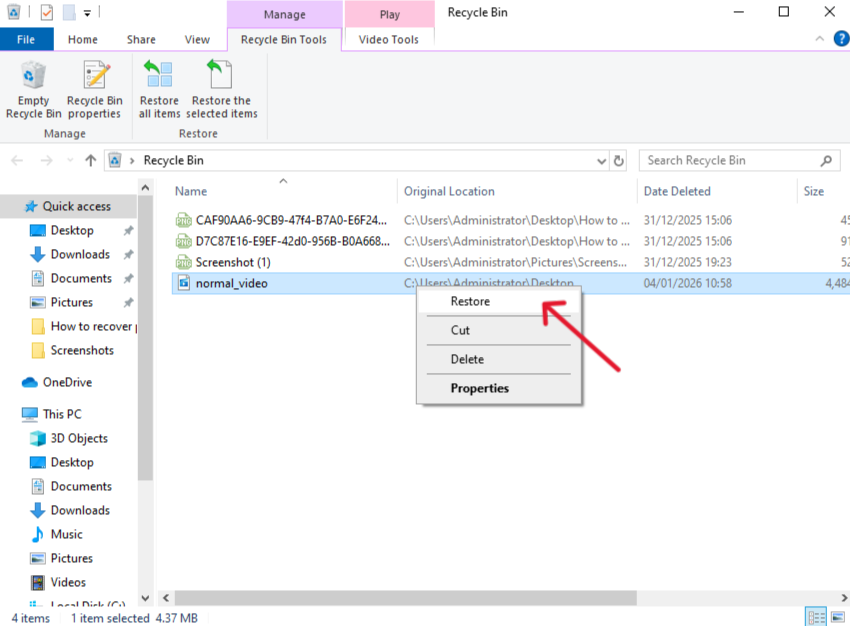
Windows returns the video to its original folder instantly.
2.Restore Videos Using Previous Versions or File History
If File History or System Protection was enabled, Windows may store earlier copies.
Steps:
- Open File Explorer
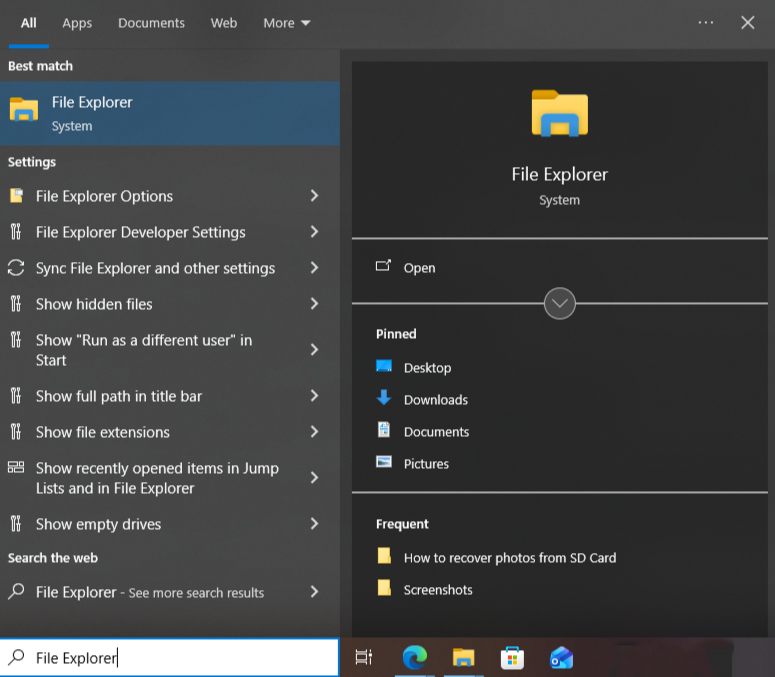
- Navigate to the original video folder
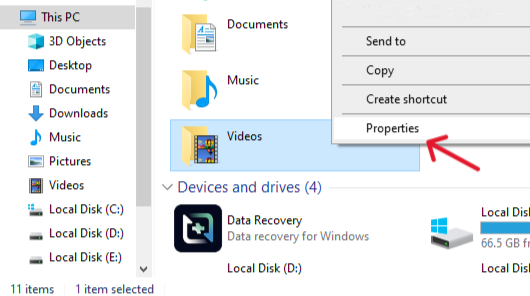
- Right-click the folder → Restore previous versions
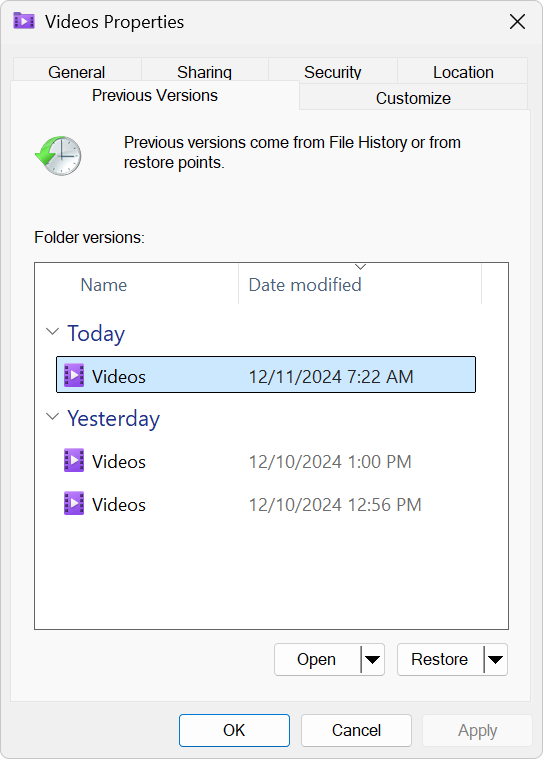
- Select a version created before deletion and click Restore
This method avoids scanning and works well for accidental deletions.
How to Recover Videos Using Windows File Recovery (Microsoft Command-Line Tool)
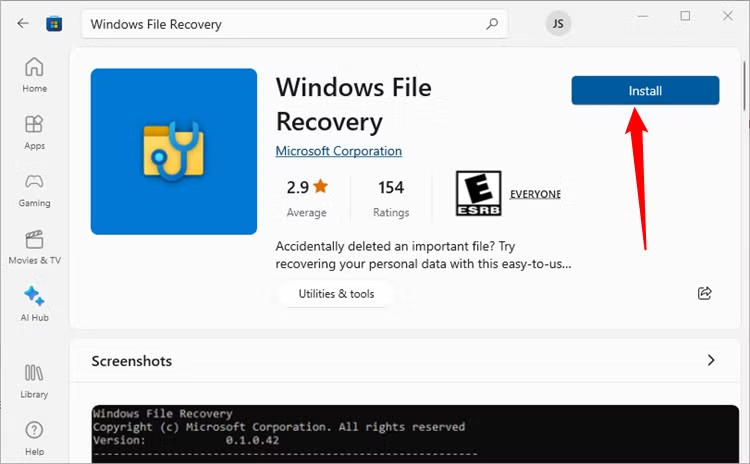
Windows File Recovery is Microsoft’s official recovery utility for Windows 10 (version 2004+) and Windows 11. It works through Command Prompt and supports NTFS, FAT, exFAT, and ReFS file systems.
Requirements
- Windows File Recovery installed from Microsoft Store
- Administrator access
- A separate drive for recovered files
Step-by-Step Instructions
Step 1: Open Command Prompt as Administrator
Press Win + X → select Windows Terminal (Admin)
Step 2: Enter the recovery command
winfr C: D:\RecoveredVideos /regular /n *.mp4
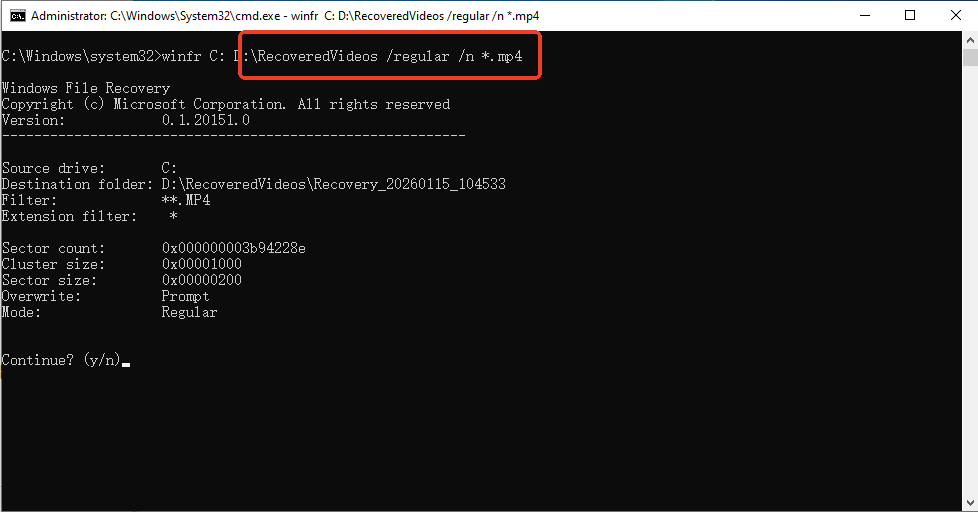
Command details:
C:→ source drive where the videos were deletedD:\RecoveredVideos→ destination folder (must be on another drive)/regular→ standard scan mode for NTFS*.mp4→ target video format (replace with *.mov, *.avi, or *.mkv if needed)
Step 3: Press Y to confirm and start the scan
⚠️ Critical warning: Never save recovered files to the same drive you scan. Doing so can overwrite remaining video data.
This method suits users who are comfortable with command-line tools and file extensions.
Recover Deleted or Lost Videos with PandaOffice Drecov (Best for Most Users)
For users who want a visual interface and higher recovery efficiency, PandaOffice Drecov offers a powerful alternative that applies the same recovery principles as Windows File Recovery without technical complexity.
This software is a favorite among IT professionals, maintaining strong reputations on Trustpilot and collaborating with industry leaders like the Microsoft Store, TechBullion, and Sourceforge. It serves as a comprehensive “safety net,” capable of retrieving everything from accidentally deleted desktop files to formatted SD cards.
- Versatility: It recovers photos, videos, audio, compressed files (ZIP/RAR), and even system files like EXEs.
- Accidental deletion from your computer desktop.
- Files lost after emptying the Recycle Bin.
- Data loss from disk formatting.
- Accidental deletion or formatting of SD cards/U disks.
- Sync error occurring with deleted OneDrive files
- Simple for Beginners: You don’t need to know a single line of code. It’s a “point-and-click” experience.
- File Repair: It can often fix files that are “corrupted” or “unreadable” during the recovery process.
- Privacy First: All recovery happens locally on your machine, so you don’t have to worry about your private data leaking to the web.
🚨 Important Warning: Do not install this on the same drive where the lost files were. Use an external USB drive to keep the data safe from being overwritten.
Step-by-Step Video Recovery with PandaOffice Drecov
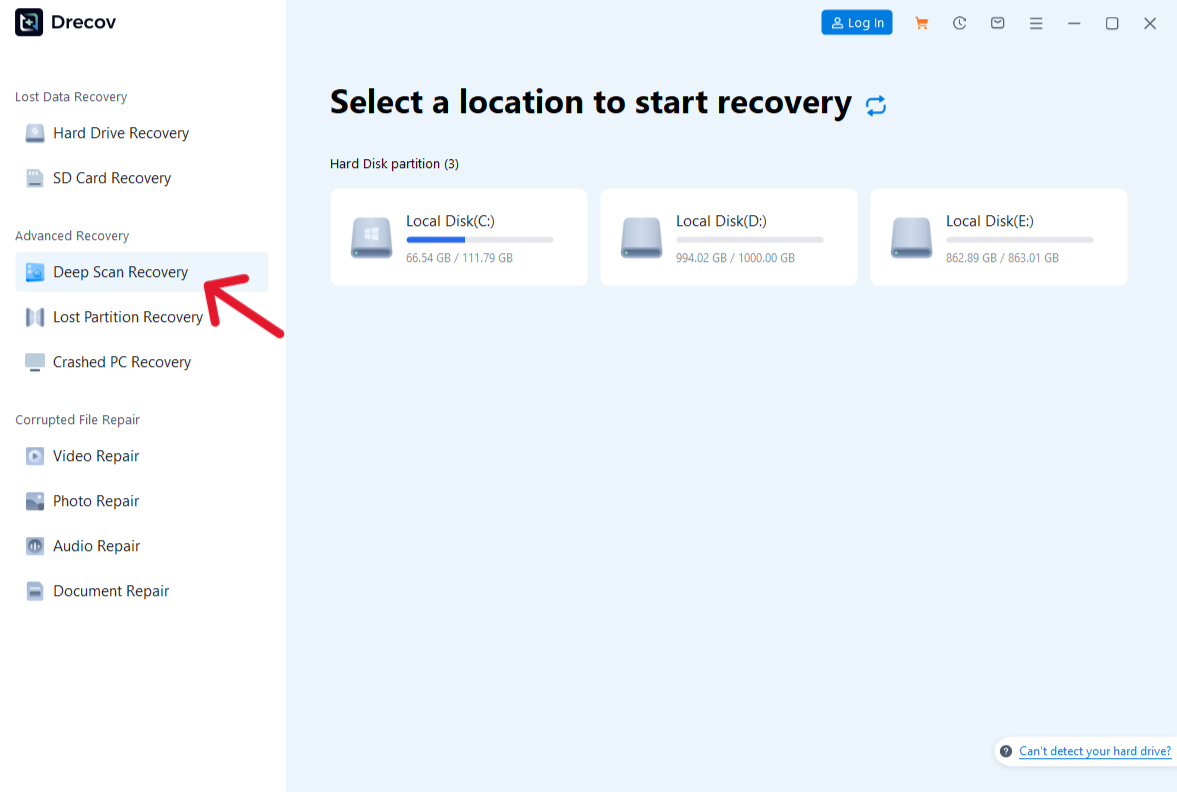
1: Start the Scan
- Click Scan. Select Deep Scan if the videos were deleted long ago, formatted, or fragmented.
2 : Filter and Preview Video Files
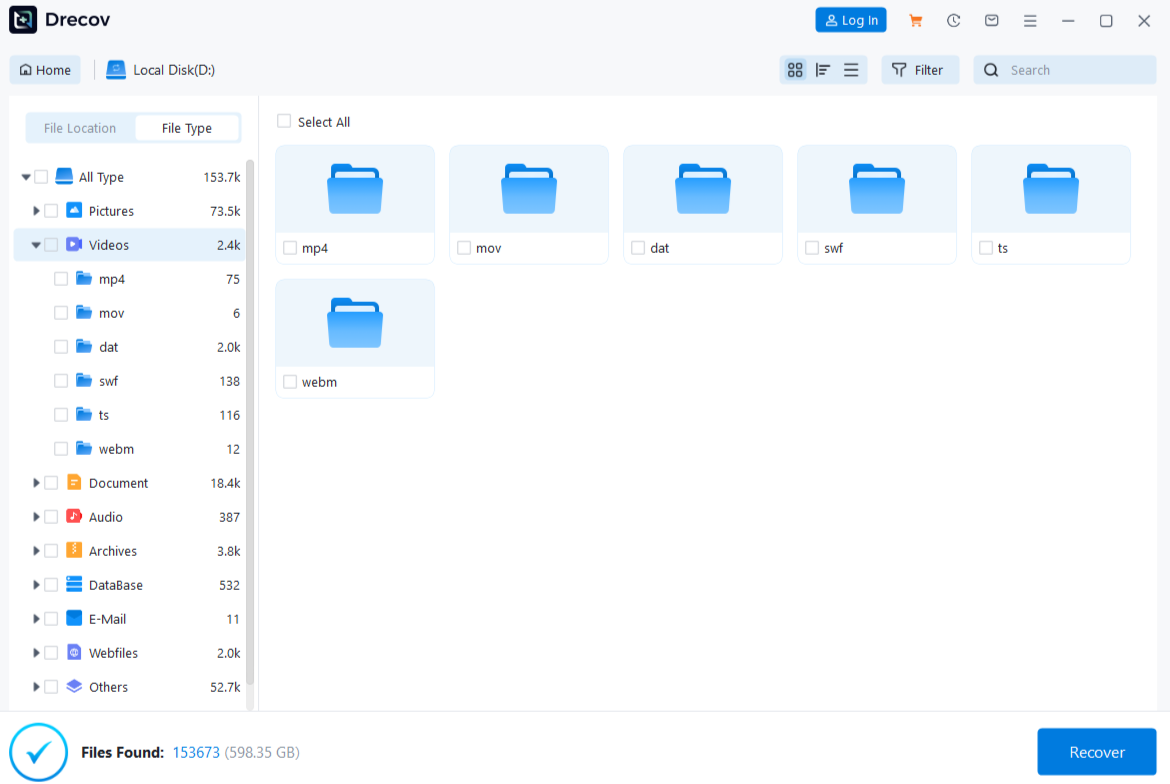
- Use the Video category to narrow results. Preview files to confirm quality and integrity.
3 : Recover Safely
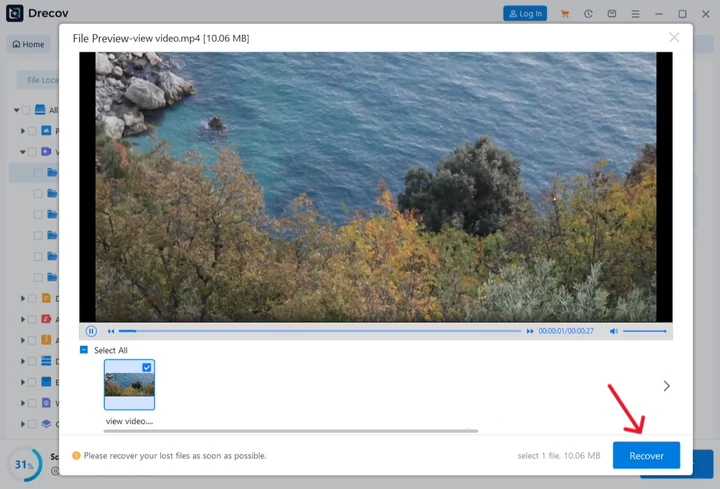
- Click Recover and save the videos to a separate drive.
This method simplifies how to recover videos using Windows File Recovery logic while improving usability and success rates.
Recover Videos from Windows Backup or Cloud Storage
Restore Videos from Windows Backup
1.Open Settings → Update & Security → Backup
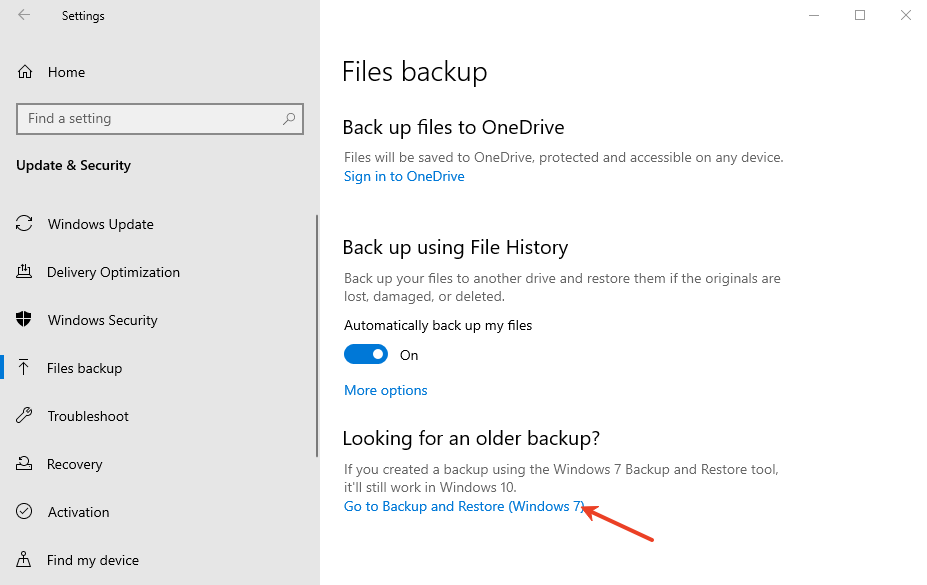
Click Restore files from a current backup
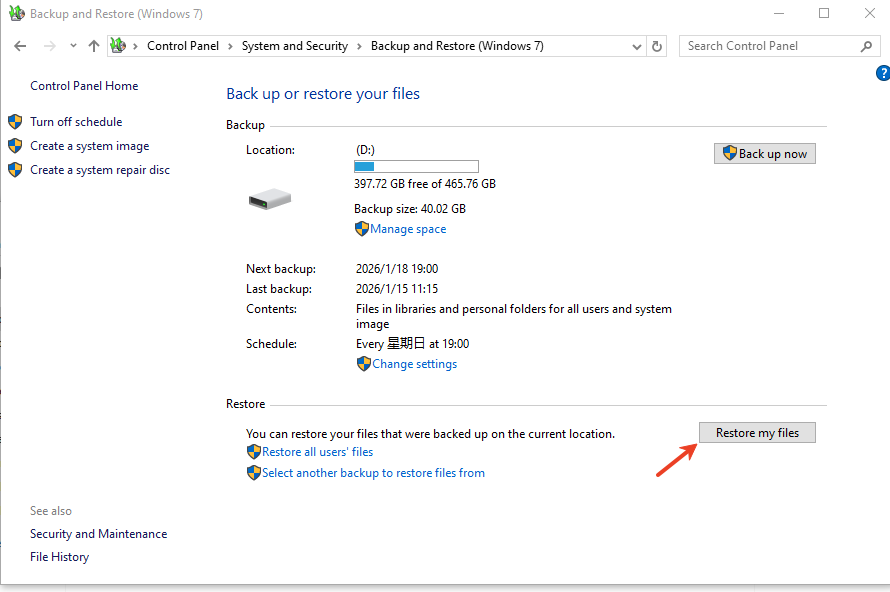
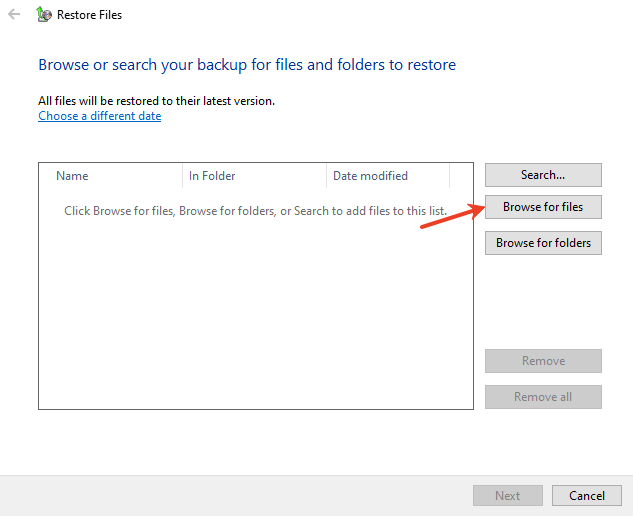
Locate and restore the video files
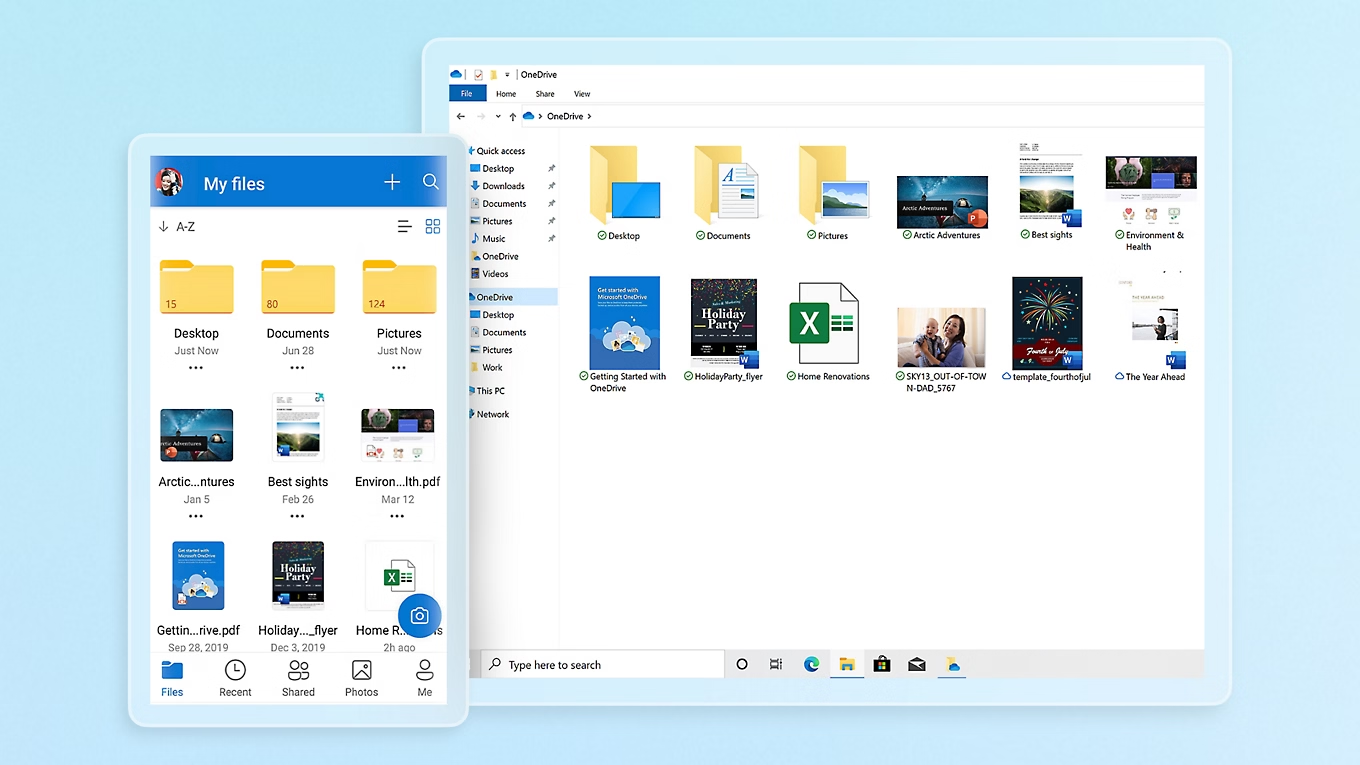
Restore Videos from OneDrive
1. Sign in to onedrive.live.com
2. Open Recycle Bin

3. Select the deleted videos

4. Click Restore
This option works well for Desktop and Documents folders synced with OneDrive.
Recover Videos from a Formatted Drive on Windows
Formatting does not immediately destroy video data. However, recovery success depends on how quickly you act.
Best practices:
- Avoid writing new data to the formatted drive
- Skip Windows File Recovery regular mode
- Use PandaOffice Drecov Deep Scan instead
Deep Scan reconstructs file fragments and greatly improves recovery results for large video files.
Conclusion: Choosing the Right Video Recovery Method on Windows
Understanding how to recover videos using Windows File Recovery gives you a solid technical foundation. However, no single method fits every situation. Built-in Windows tools handle simple cases well, while PandaOffice Drecov provides greater flexibility for complex video loss scenarios.
The most important rules remain consistent:
- Act quickly
- Avoid overwriting data
- Recover files to a different drive