







PDF files have become an essential part of digital communication. They are widely used for sharing documents, reports, e-books, forms, and presentations. While PDFs maintain formatting across devices, one common challenge users face is large file sizes. Oversized PDF files can be difficult to share via email, slow to upload, or consume excessive storage space, making it crucial to learn how to minimise pdf file size for more efficient document management.
In this article, we will explore how to minimise pdf file size, covering practical methods, tools, and best practices to optimize PDFs efficiently. Furthermore, because aggressive file reduction or abrupt software crashes can sometimes cause data corruption or accidental deletion, we will also look at professional data recovery techniques to ensure your essential files remain completely safe throughout the optimization process.
Why Minimising PDF File Size is Important
Before diving into the methods, it is essential to understand why reducing PDF file size matters:
- Faster Sharing: Large PDFs can exceed email attachment limits or cloud-sharing restrictions. Minimising file size allows quicker sharing.
- Storage Efficiency: Smaller PDFs take up less space on devices and cloud storage solutions.
- Improved Performance: PDFs with heavy images or complex elements can slow down rendering. Optimised files improve accessibility and speed.
- Better User Experience: Recipients can open and download smaller PDFs more quickly, which is crucial for professional communication.
Factors That Affect PDF File Size
Several elements can increase the size of a PDF:
- High-Resolution Images: PDFs containing high-quality images can become very large.
- Embedded Fonts: Some PDFs embed all fonts used in the document, increasing file size.
- Annotations and Forms: Comments, forms, and interactive elements can add extra data.
- Scanned Documents: Scanned PDFs often include images rather than text, which inflates size.
- Unused Metadata: Hidden data, document properties, and revision history contribute to file size.
Understanding these factors is crucial when choosing an optimisation method.
Methods to Minimise PDF File Size
1. Use Built-In PDF Optimisation Tools
Many PDF software programs include built-in tools to reduce file size:
- Adobe Acrobat Pro DC: Open the PDF, navigate to File, select Save as Other, and click Optimised PDF. Choose settings such as image compression, font reduction, and removing unused objects.
- Preview on Mac: Open the PDF, navigate to File, select Export, choose Quartz Filter, and click Reduce File Size.
These tools are reliable and maintain good document quality while reducing size.
2. Compress Images Before Adding Them to PDF
Images are often the largest contributors to PDF size. To how to minimise pdf file size:
- Reduce resolution: 150–200 DPI is sufficient for most digital documents.
- Compress images: Use tools like TinyPNG or JPEGmini before inserting them into PDFs.
- Convert to appropriate formats: JPEG for photos, PNG for images with transparency, and avoid BMP or TIFF.
By optimising images before creating the PDF, you prevent unnecessary inflation of file size.
3. Remove Unnecessary Fonts and Metadata
Embedded fonts and metadata can bloat PDFs. You should remove unused fonts or subsets of fonts in your PDF creation software. Delete metadata, such as author information, comments, or revision history. In Adobe Acrobat, you can perform this action via File → Properties → Description → Remove Metadata. Reducing metadata ensures a leaner PDF without affecting visible content.
4. Convert Scanned PDFs to Text Using OCR
Scanned PDFs are often image-heavy, making them large. Using Optical Character Recognition (OCR) can convert images of text into selectable text. In Adobe Acrobat Pro, go to Tools, select Scan & OCR, and click Recognize Text → In This File. Free tools like ABBYY FineReader or PDFCandy OCR also work well. This conversion drastically reduces file size because text takes up far less space than image-based scans.
5. Use Online PDF Compressors
Online PDF compression tools are convenient for quick optimisation. Popular platforms include Smallpdf, ILovePDF, and PDF Compressor. These platforms allow uploading the PDF and selecting a compression level. However, be cautious with sensitive documents, as uploading to third-party servers may have privacy implications. For official standards regarding the file formats themselves, you can consult the ISO 32000-1 specification for PDF to understand how document elements are structured.
6. Split Large PDFs
If your PDF contains multiple chapters or sections, splitting the file can reduce individual file sizes. In Adobe Acrobat, go to Tools, select Organize Pages, and click Split. Free offline tools like PDFsam Basic or PDF Split & Merge also offer this capability. Splitting large PDFs is particularly useful for meeting strict email attachments or cloud sharing caps.
7. Adjust PDF Creation Settings
Creating PDFs with optimisation in mind prevents large file sizes. When exporting from Microsoft Word, PowerPoint, or Excel, choose Save As → PDF, and select Minimum Size (publishing online). Avoid embedding unnecessary media or high-resolution images unless essential, and use vector graphics instead of raster images where possible. Optimised PDF creation reduces the need for later compression.
8. Use Advanced PDF Optimisation Software
Professional software often offers granular control over file size reduction. The Adobe Acrobat Pro Optimizer allows image downsampling, font subsetting, disabling embedded thumbnails, and removing unused objects. Foxit PhantomPDF offers similar features with batch processing support. Advanced optimisation tools are ideal for businesses handling large volumes of PDFs.
9. Batch Compress Multiple PDFs
For multiple documents, batch processing saves time. In Adobe Acrobat, you can use the Action Wizard to set up an Optimize PDF routine. Alternatively, free standalone software like PDF Shaper or PDFsam Basic allows batch compression. Batch compression ensures consistent file sizes across your entire archive without manual intervention.
10. Check PDF Version Compatibility
Older PDF versions often store data less efficiently. Exporting PDFs as PDF/A or using modern PDF standards can improve compression. Most PDF editors allow selecting version compatibility when saving the document. Upgrading the file structure allows modern, more efficient compression algorithms to compress your file data.
The Hidden Risk: Document Loss During Compression
While learning how to minimise pdf file size is highly beneficial for productivity, the actual process of managing, saving over, or compressing documents carries inherent data loss risks. For example, a sudden power failure while an optimization program overwrites an original PDF can corrupt the file completely. Similarly, users frequently delete their uncompressed “master copies” by mistake, only to realize later that the compressed version has unreadable text or blurry graphics.
If you find yourself in a situation where an important document is lost, corrupted, or accidentally deleted during file optimization, you must deploy advanced recovery techniques immediately.
Data Recovery Methods: From Basic to Advanced
When a file disappears or becomes unreadable during optimization, data recovery methods can be classified by their technical complexity. Below is a structured guide ranging from simple system checks to specialized software recovery.
Method 1: Check System Temporary Folders and Auto-Save Paths
Many advanced PDF editors create temporary hidden backup files while executing compression routines. If the program crashes, the compressed file might disappear, but the original text may still reside in a local cache directory.
- Step 1: Press the Windows Key + R hotkey combination on your keyboard to open the Run dialogue box.
- Step 2: Type
%appdata%into the text field and press Enter. This command opens your system’s roaming application data directory. - Step 3: Navigate to the folder named after your PDF editor (for example,
Adobe\Acrobat\DC). Look for files bearing a.tmpextension or files prefixed with AutoSave strings. - Step 4: Copy the found file to a secure desktop folder, right-click it, select Rename, and change the extension back to
.pdf. Attempt to open the document to verify its content integrity.
Method 2: Use Windows Previous Versions
If you modified or saved over your original PDF copy during the file size minimization process, the Windows Volume Shadow Copy Service might have preserved a prior state of the file.
- Step 1: Open Windows File Explorer by pressing the Windows Key + E shortcut. Navigate directly to the folder where your PDF document was originally stored.
- Step 2: Right-click the specific folder or the individual PDF file itself, and select Properties from the contextual menu.
- Step 3: Click on the Previous Versions tab located at the top of the properties window. The system will search for and display an interactive list of older file iterations accompanied by modification dates.
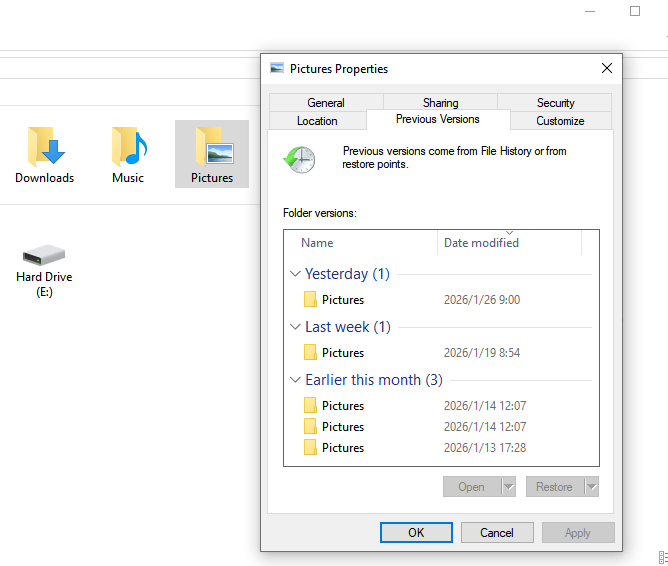
- Step 4: Highlight the version created prior to your compression attempt. Click the Restore button to overwrite the current file, or click the arrow next to it and select Restore To to save the historical version to an entirely separate drive location.
Method 3: Deep File Retrieval via PandaOffice Drecov Data Recovery Software
When basic recovery methods fail, or when a file is permanently erased because a user emptied the desktop bin after a compression task, advanced recovery software is required. Using the professional PandaOffice Drecov data recovery software provides a reliable mechanism to scan raw storage sectors and reconstruct fragmented PDF data structures safely.
⚠ Warning: Install it on a drive different from the one where your data was lost to prevent overwriting.
This software handles situations ranging from simple accidental deletion to sudden file system failure caused by unstable optimization applications. Follow these explicit operational steps to recover your files:
- Step 1: Launch the application. On the primary user interface console, select the specific logical storage partition or custom folder destination where your original uncompressed PDF document was last saved.

- Step 2: Click the Scan button to initiate an automated search. The utility will seamlessly execute a quick scan followed by a thorough deep sector analysis to detect file headers unique to PDF structures.

- Step 3: Once the scan finishes, browse through the generated file tree list. Use the built-in search filter by typing
.pdfor entering a matching string from the document’s original name to isolate the relevant items.
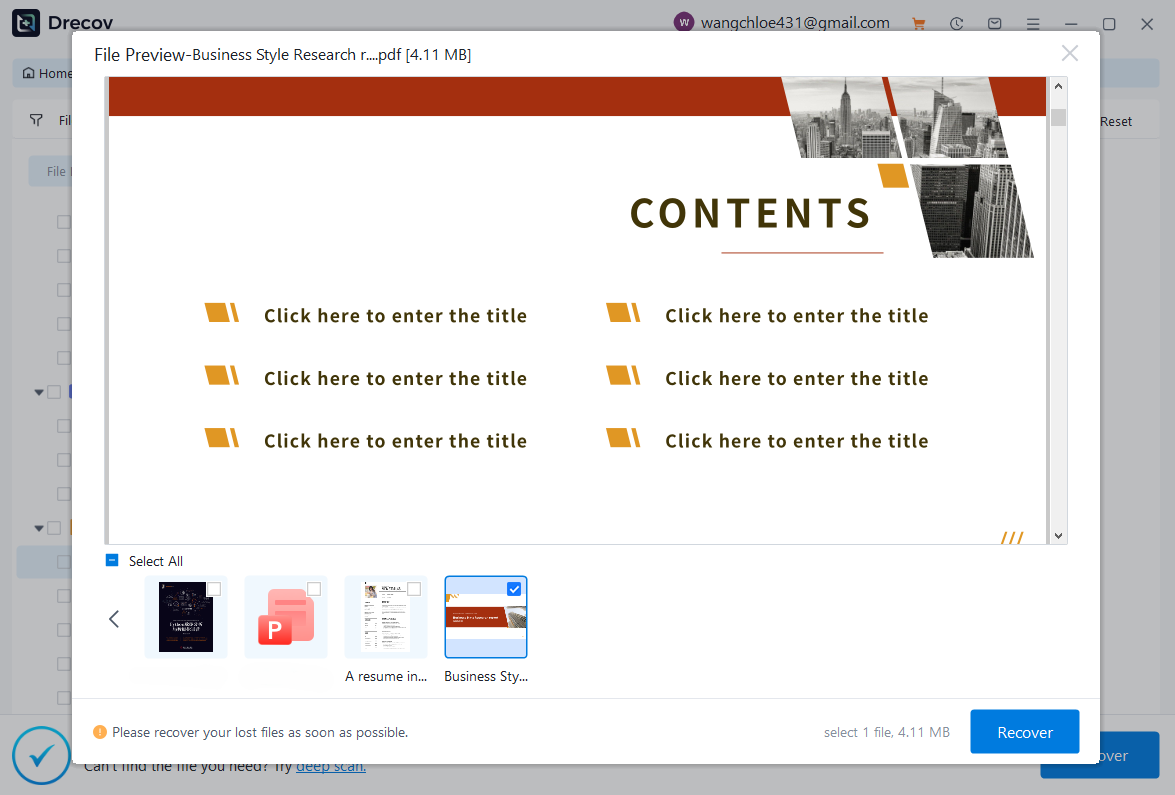
- Step 4: Select the desired file and inspect the interactive preview window to confirm that the text and structure are fully legible. Mark the checkboxes next to the target documents.
- Step 5: Click the Recover button. Choose a secure storage destination that is completely distinct from the drive where the file was lost, then click OK to finish the extraction process.
CRITICAL WARNING: Never save recovered files back to the exact same drive partition where they were originally lost. Doing so will overwrite the underlying storage sectors, causing irreversible data corruption to any remaining fragments.
Essential Resources for System and File Recovery
To further expand your knowledge regarding document preservation, file structure maintenance, and system storage optimization, review the following comprehensive guides:
- For users seeking free, highly rated application recommendations to secure deleted items, read our detailed evaluation of the top 5 best free recycle bin data recovery software solutions available in 2026.
- If you are having trouble locating your standard desktop disposal area after a system upgrade or interface change, consult our guide outlining exactly where is the recycle bin located in Windows 10 and Windows 11 systems.
- For portable gaming enthusiasts and mobile professionals looking to optimize external flash storage file layouts, check out our resource covering the ultimate guide to choosing micro SD cards for Steam Deck performance.
Best Practices to Maintain Optimised PDFs
To prevent file sizes from ballooning in the future, integrate these efficient practices into your daily digital creation workflows:
- Limit Use of High-Resolution Images: Only use high resolution where printing is required. For screen viewing, lower resolution is fine.
- Regularly Audit PDFs: Periodically review and optimize older archives to free up cloud and local storage space.
- Use Text Instead of Images for Content: Avoid placing large screenshots of text into a document. Type the text directly or use a clean font layout.
- Avoid Unnecessary Multimedia: Embedding heavy videos or high-fidelity audio loops inside a PDF document will instantly inflate its storage footprint. Use hyperlink references to external streaming hosts instead.
- Keep a Master Copy: Always save an uncompressed, high-quality master copy in a secure folder before executing any severe file reduction procedures.
Common Mistakes to Avoid
- Over-compressing Files: Compressing PDFs too aggressively can lead to completely unreadable images, pixelated diagrams, and heavily distorted graphic elements. Always verify legibility after processing.
- Using Untrusted Online Platforms: Uploading sensitive corporate, legal, or personal financial PDFs to unverified online web compression tools exposes your private data to massive security risks.
- Ignoring Font Subsetting Rules: Neglecting to check your font configuration settings during optimization can cause custom fonts to disappear entirely, replacing your document text with unreadable symbols on a recipient’s machine.
- Failing to Optimize Early: Delaying file optimization until right before a critical corporate deadline often results in rushed mistakes, file corruption, or accidental deletion errors.
Conclusion
Reducing your PDF file size is a highly effective way to optimize digital workflows, save storage space, and ensure smooth email delivery. By mastering techniques such as image downsampling, metadata extraction, OCR processing, and batch configuration adjustments, you can easily master how to minimise pdf file size and effortlessly maintain lightweight archives.
At the same time, maintaining awareness of file safety, system temporary locations, and reliable tools like PandaOffice Drecov data recovery software guarantees that even if a file optimization attempt goes wrong, your critical business data can be fully restored without panic or operational downtime. Keep a clear workflow, double-check your document output quality, and protect your digital master copies to maintain peak administrative efficiency.






