







In the modern digital landscape, our browsers have become more than just windows to the internet; they are personalized libraries of information. If you have ever felt the panic of losing your carefully curated list of research links, work tools, or favorite shopping sites, you know that managing your data is essential. This guide focuses on the critical skill of mastering chrome import export bookmark to ensure your digital life remains organized and recoverable.
Whether you are upgrading to a new workstation, switching browsers to explore new features, or recovering from a sudden system crash, understanding the mechanics of bookmark management is your first line of defense against data loss.
Understanding Chrome Bookmarks
What Are Bookmarks and Why They Matter
Let’s be honest—most of us treat bookmarks like a digital junk drawer. You save links thinking, “I’ll come back to this later,” and before you know it, you’ve got hundreds of saved pages scattered across folders. But here’s the thing: Chrome bookmarks are more than just saved links—they’re your personal internet map. Lose them, and it feels like losing your memory of the web.
Bookmarks allow you to instantly access frequently visited websites without typing URLs or searching again. Whether it’s your favorite productivity tools, research pages, or entertainment sites, bookmarks streamline your browsing experience. Imagine trying to remember every website you’ve ever used—it’s nearly impossible.
That’s why knowing how to chrome import export bookmark is so important. It ensures you never lose access to your saved content, even if you switch devices, reinstall your browser, or migrate to a different platform. According to Google Chrome’s official documentation, Chrome allows users to transfer bookmarks easily using built-in tools or HTML files, making it one of the most flexible systems available.
How Chrome Stores Bookmark Data
Behind the scenes, Chrome doesn’t just randomly store your bookmarks—it organizes them in a structured format. Internally, Chrome uses a JSON-based file system located in your user profile directory. However, when you perform a chrome import export bookmark action, the browser converts this complex data into a simplified HTML file.
Think of it like packing your belongings into a suitcase before moving houses. Everything stays organized, and when you unpack it in a new place, it looks exactly the same. This is why exporting bookmarks is so powerful—it maintains your browsing ecosystem intact. What’s interesting is that different browsers use different internal structures, but HTML remains the universal “language” for transfer. That’s why Chrome can import bookmarks from browsers like Firefox, Edge, and Safari without major compatibility issues.
Why You Need to Import and Export Bookmarks
Switching Browsers
Switching browsers used to feel like starting over. You’d lose all your saved links, settings, and preferences. But now, thanks to the chrome import export bookmark features, moving between browsers is seamless. Perhaps you want to transfer bookmarks from chrome to edge/safari/firefox to take advantage of specific ecosystem integrations.
When you import bookmarks into Chrome, you can transfer:
- Saved websites and folder hierarchies.
- Browsing history (in some cases).
- Saved passwords and form data.
Chrome even allows direct import from installed browsers, making the process incredibly fast. This means you can move from one browser to another without losing your digital life. It’s like moving into a new house but bringing all your furniture with you.
Backing Up Important Links
Here’s a question: what would happen if your computer crashed right now? Would you lose all your bookmarks? This is where exporting comes in. By saving your bookmarks as an HTML file, you create a manual backup that you can restore anytime. Experts recommend backing up bookmarks regularly, especially before reinstalling your operating system, resetting your browser, or switching devices.
How to Export Bookmarks in Chrome
Step-by-Step Export Process
Exporting bookmarks in Chrome is surprisingly simple and requires no technical expertise. Follow these steps to secure your data:
- Step 1: Open your Chrome browser and click the three-dot menu (vertical ellipses) in the top-right corner.
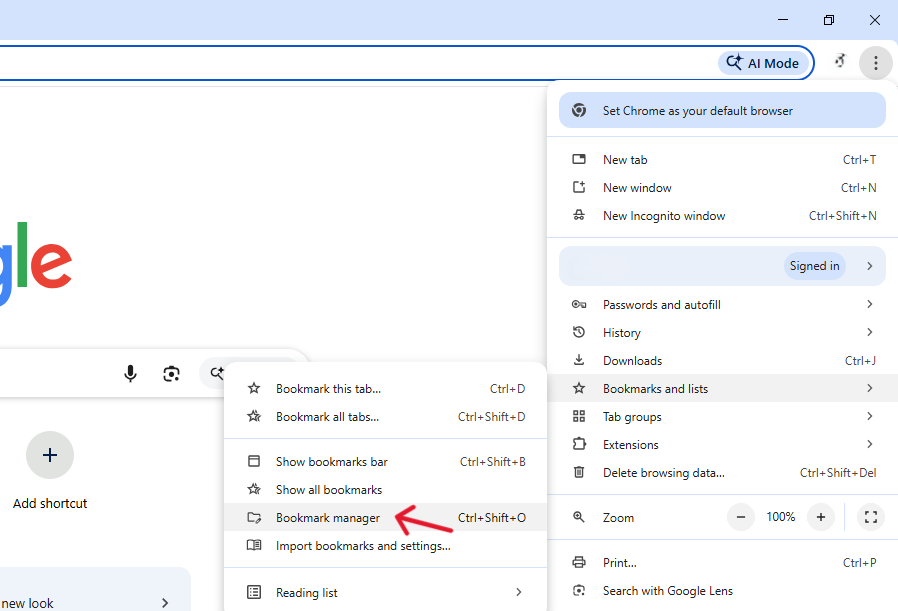
- Step 2: Hover over Bookmarks and lists and then select Bookmark Manager. Alternatively, you can use the hotkey Ctrl + Shift + O (Windows) or Cmd + Option + B (Mac).
- Step 3: Once in the Manager, click the three-dot icon located at the top right of the blue bar (not the browser menu).
- Step 4: Select Export bookmarks from the dropdown menu.
- Step 5: A file explorer window will appear. Choose your destination and click Save.
Where the Exported File Is Saved
By default, Chrome lets you choose where to save the file. Most people store it in the Desktop, Documents folder, or an External drive. The file will be named bookmarks_month_day_year.html. Pro tip: Always keep a copy on a cloud service like Google Drive or Dropbox to ensure you have access even if your hardware fails.
How to Import Bookmarks into Chrome
Import from Another Browser
If you are migrating to Chrome, the browser makes it easy to pull data from other software installed on your machine.
- Step 1: Click the three-dot menu and select Settings.
- Step 2: Navigate to the You and Google section and click Import bookmarks and settings.
- Step 3: Choose the source browser (e.g., Microsoft Edge or Mozilla Firefox).
- Step 4: Select the items you want to import (Bookmarks, Favorites, Passwords, etc.) and click Import.
Import from HTML File
If you have a manual backup file from a previous chrome import export bookmark session, follow these steps:
- Step 1: Open the Bookmark Manager (Ctrl + Shift + O).
- Step 2: Click the three-dot icon in the Bookmark Manager interface.
- Step 3: Select Import bookmarks.
- Step 4: Locate the
.htmlfile you saved previously and click Open. Your bookmarks will appear instantly, often in a folder labeled “Imported.”
How to Transfer Bookmarks from Chrome to Edge/Safari/Firefox
If you decide to leave the Chrome ecosystem, the process is just as easy in reverse. Because Chrome follows the universal HTML standard, you can easily transfer bookmarks from chrome to edge/safari/firefox.
Transferring to Microsoft Edge
- Step 1: Open Edge and click the three dots (
...) > Settings. - Step 2: Click Profiles > Import browser data.
- Step 3: Select Choose what to import and pick “Google Chrome” from the list.
Transferring to Mozilla Firefox
- Step 1: Open Firefox and click the Library icon or the menu button.
- Step 2: Go to Bookmarks > Manage Bookmarks.
- Step 3: Click Import and Backup > Import Data from Another Browser.
Transferring to Apple Safari
- Step 1: Open Safari on your Mac.
- Step 2: Go to File > Import From > Google Chrome.
- Step 3: Select the items and click Import.
Common Issues: Chrome Export Bookmarks Option Missing
Sometimes, things don’t go according to plan. A common frustration for users is finding the chrome export bookmarks option missing from the menu. This usually occurs due to one of three reasons:
- Managed Profiles: If you are using a work or school computer, your IT administrator may have disabled the ability to export data for security reasons.
- Outdated Browser Version: If your Chrome version is significantly out of date, the UI might look different. Ensure you are running the latest version by going to Help > About Google Chrome.
- Extension Conflicts: Occasionally, “Bookmark Manager” extensions can override the default Chrome interface. Try disabling extensions if the option is invisible.
If the option remains missing, you can manually locate the “Bookmarks” file in your local AppData folder:
C:\Users\YourUsername\AppData\Local\Google\Chrome\User Data\Default
Advanced Data Recovery: How to Recover Deleted Chrome Bookmarks Without Backup
What happens if you accidentally delete a folder and realize you haven’t performed a chrome import export bookmark backup in months? Most users think their data is gone forever, but that isn’t necessarily true. When you delete a bookmark, Chrome removes it from the UI, but the data may still exist on your hard drive’s sectors until it is overwritten by new information.
How to Recover Deleted Chrome Bookmarks Without Backup
If you find yourself in this situation, you must act quickly. Avoid saving new files to your computer to prevent overwriting the deleted data. Here is the hierarchy of recovery:
- The Undo Shortcut: If you just deleted the bookmark, pressing Ctrl + Z while the Bookmark Manager is open might bring it back.
- The “Bookmarks.bak” Method: Chrome keeps a single backup file of your bookmarks. You can find it in the User Data folder mentioned above. Rename
Bookmarks.baktoBookmarks(after moving the original) to restore the previous state. - Professional Data Recovery: If the
.bakfile is gone or corrupted, you will need a professional tool to scan your drive for the original data fragments.
Using PandaOffice Drecov Data Recovery Software
When manual methods fail, PandaOffice Drecov data recovery software is the most reliable solution for retrieving lost browser data. This tool is designed to scan the deep architecture of your hard drive to find files that the operating system no longer sees.
⚠ Warning: Install it on a drive different from the one where your data was lost to prevent overwriting.
Step-by-Step Recovery with PandaOffice Drecov
- Step 1: Select the Location. Launch the program and select the C: drive (or wherever your Chrome profile is stored).

- Step 2: Scan for Files. Click “Scan.” The software will perform a Quick Scan followed by a Deep Scan to locate the “Bookmarks” and “Bookmarks.bak” files.

- Step 3: Filter and Preview. Use the search bar in the software to type “Bookmarks”. Look for the files associated with the Chrome path.

- Step 4: Recover. Select the found files and click Recover. Save them to a secure location like an external hard drive.
Once you have recovered these files, simply copy them back into your Chrome User Data folder, and your bookmarks will reappear.
Key Operation Point: Always check the “Modified Date” in the Drecov results to ensure you are recovering the most recent version of your bookmark library.
Internal Resources for Data Management
Recovering browser data is just one part of maintaining a healthy digital environment. If you frequently handle important documents, you might find these guides helpful:
- Learn how to recover overwritten Excel files to protect your spreadsheets.
- Accidentally emptied the bin? Follow these 5 fast fixes for Recycle Bin recovery.
- Never lose work again with our complete guide on recovering unsaved Excel files.
Chrome Bookmark File Format Explained
HTML Format Overview
The HTML file generated during a chrome import export bookmark process is a standardized “Netscape Bookmark File.” It is a basic text file that uses HTML tags to define the hierarchy of your folders and the URLs of your links. Because it is plain text, it is incredibly lightweight and resistant to corruption compared to binary database files.
Compatibility Across Browsers
The beauty of this format is its longevity. An HTML bookmark file created in 2010 will likely still work in a browser in 2030. This cross-compatibility is why you can move between Chrome, Firefox, and Edge without losing your structure. It is the “universal translator” of the web browsing world.
Common Issues During Import/Export
Missing Bookmarks Problem
If you import a file and it looks empty, check the file size. A healthy bookmark file should be at least a few dozen kilobytes. If it is 0KB, the export failed, likely due to a lack of disk space or a browser crash during the process.
Duplicate Bookmarks Issue
Syncing Chrome across multiple devices while also manually importing files can lead to massive duplication. To fix this, use the “Clean up bookmarks” feature in the Bookmark Manager or use a dedicated extension to merge duplicates.
Advanced Tips for Managing Bookmarks
Organizing Bookmark Folders
A messy bookmark system defeats its purpose. Use the Bookmark Manager to create broad categories (e.g., “Finances,” “Travel,” “Learning”). You can even add emojis to folder names to make them visually distinct in the bookmarks bar.
Using Bookmark Manager Efficiently
Did you know you can search specifically within your bookmarks? By using the search bar inside the Bookmark Manager, you can find a link from three years ago in seconds. Furthermore, you can “Select All” to move entire batches of links between folders, making your chrome import export bookmark tasks much cleaner.
Chrome Sync vs. Manual Import/Export
When to Use Sync
Chrome Sync is perfect for users who live entirely within the Google ecosystem. It keeps your bookmarks, passwords, and history identical on your phone, tablet, and PC.
When Manual Transfer Is Better
Manual chrome import export bookmark is superior when:
- Air-Gapped Systems: You need to move data to a computer without internet access.
- Privacy: You don’t want to store your browsing data on Google’s servers.
- Hard Backups: You want a “point-in-time” snapshot of your links that won’t change if you delete something on another device.
Security and Backup Best Practices
Protecting Your Bookmark Data
Your bookmarks often contain links to sensitive portals, internal company wikis, or private cloud storage. Treat your exported HTML file like a password. Do not leave it on public computers or unencrypted USB drives.
Creating Regular Backups
Set a calendar reminder to perform a chrome import export bookmark routine once a month. This “manual sync” ensures that even if your Google account is locked or your local profile becomes corrupted, your years of internet curation remain safe.
FAQs
1. Can I export Chrome bookmarks on mobile?
No, the mobile app does not currently support exporting to HTML. You must use Chrome Sync to bring the bookmarks to a desktop, then export them from there.
2. What format are Chrome bookmarks exported in?
They are strictly exported as an HTML file, which is compatible with nearly every web browser in existence.
3. Will importing bookmarks overwrite my current ones?
No. Chrome is smart enough to add imported bookmarks into a new folder, usually named “Imported,” so your existing links remain untouched.
4. How can I recover bookmarks if my computer won’t turn on?
You would need to remove the hard drive, connect it to another computer as an external drive, and use PandaOffice Drecov data recovery software to scan the drive for your profile data.
5. Is there a limit to how many bookmarks I can export?
There is no hard limit within Chrome. However, extremely large files (tens of thousands of links) may cause the browser to lag slightly during the import process.
Conclusion
Managing chrome import export bookmark isn’t just a technical task—it’s about protecting your digital workflow. Whether you’re switching browsers, upgrading devices, or simply backing up your data, understanding how bookmarks work gives you complete control over your browsing experience.
If disaster strikes and you find your data missing, remember that tools like PandaOffice Drecov data recovery software can bridge the gap between loss and recovery. Treat your bookmarks like valuable assets, and you’ll never have to start your internet journey from scratch again.






