







If you’re staring at your Chromebook and asking yourself, “how to factory reset a Chromebook?”—you’re not alone. This question usually pops up when something feels off. Maybe the device has slowed to a crawl. Maybe apps won’t open. Or maybe you’re getting ready to hand it over to someone else and want a clean break.
Whatever brought you here, let’s slow it down and walk through it together. Learning how to factory reset a Chromebook isn’t complicated, but it is decisive. It wipes the slate clean. And if you know what you’re doing, it can feel oddly satisfying—like tidying up a room you’ve ignored for too long. In this guide, we will explore the nuances of the Powerwash, the hidden dangers of data loss, and the specialized steps to recover your files if the “reset” button was clicked a little too quickly.
What a Factory Reset Means on a Chromebook
On a Chromebook, a factory reset is officially called a Powerwash. That name sounds intense, but the idea is simple: it removes everything stored locally on the device and restores ChromeOS to its original state. When people ask how to factory reset a Chromebook, they are essentially asking how to trigger this deep cleaning process.
This includes:
- User accounts on the device
- Locally saved files (Downloads, Screenshots, etc.)
- Installed apps and Linux development environments
- Personalized settings and wallpaper
- Wi-Fi passwords and network configurations
What it doesn’t erase is anything already synced to your Google account. If it lives in Google Drive, Gmail, or Chrome sync, it comes back once you sign in again. Think of it less like destroying data and more like resetting the room while your valuables stay safely in storage. However, if you haven’t synced your data, learning how to factory reset a Chromebook can lead to immediate local data loss.
Why People Factory Reset Chromebooks in the First Place
People don’t usually wake up excited to reset a device. It’s a response to something. If you are researching how to factory reset a Chromebook, you likely fall into one of these categories:
1. Performance Has Gone Downhill
Chromebooks are designed to stay fast, but even they can bog down over time. Too many extensions, lingering glitches, or sync issues can turn a smooth experience into a frustrating one. A fresh start is often the best medicine.
2. Login or Sync Problems
When sign-in loops, profile errors, or syncing issues refuse to resolve, knowing how to factory reset a Chromebook becomes an essential troubleshooting skill. Sometimes the local profile becomes corrupted beyond a simple restart’s ability to fix.
3. Selling or Giving the Chromebook Away
Before someone else uses your Chromebook, your data needs to be gone. A factory reset makes sure of that. You wouldn’t leave your house keys with a stranger; don’t leave your digital life on a laptop you’re selling on Craigslist.
4. General Troubleshooting
When nothing else works, resetting is the last—and often most effective—step. If the operating system is throwing constant errors, the “Nuclear Option” is often the quickest path back to productivity.
Data Loss Scenarios During a Powerwash
Before we dive into the mechanics of how to factory reset a Chromebook, we must address the elephant in the room: Data Loss.
The “Powerwash” is ruthless. It doesn’t ask which files you want to keep; it assumes you want none of them. Common scenarios where data is lost include:
- The Forgotten Downloads Folder: Most users treat the “Downloads” folder as a temporary staging area, but it often becomes a graveyard for important PDFs, tax documents, and saved images.
- Linux Files: If you use the Linux (Crostini) environment, those files are tucked away in a separate partition. A standard reset nukes that partition entirely.
- Android App Data: If you have offline games or specialized Android photo editors, their internal “Local” save data is usually not backed up to the cloud unless the app specifically supports it.
- The Unsynced Bookmark: If you haven’t enabled Chrome Sync, your carefully organized folders of websites will vanish.
What You Should Do Before Resetting
Before you pull the trigger on how to factory reset a Chromebook, pause. A factory reset is quick, but preparation matters.
Back Up Local Files
Anything stored locally, especially in the Downloads folder, won’t survive the reset. Move it to Google Drive or plug in an external USB drive.
Check Your Sync Status
Make sure Chrome sync is on so bookmarks, passwords, and preferences return later. Go to Settings > You and Google > Sync and Google Services to verify everything is toggled on.
Charge the Device
A reset interrupted by a dead battery is not the adventure you want. Ensure you have at least 30% battery or stay plugged into a wall outlet.
The Most Common Way to Factory Reset a Chromebook
If you can sign in normally, this is the easiest method for how to factory reset a Chromebook.
Method 1: Factory Reset Through Chromebook Settings
- Step 1: Click the clock in the bottom-right corner of your shelf to open the status area.
- Step 2: Click the Settings gear icon.
- Step 3: On the left sidebar, click on Advanced.
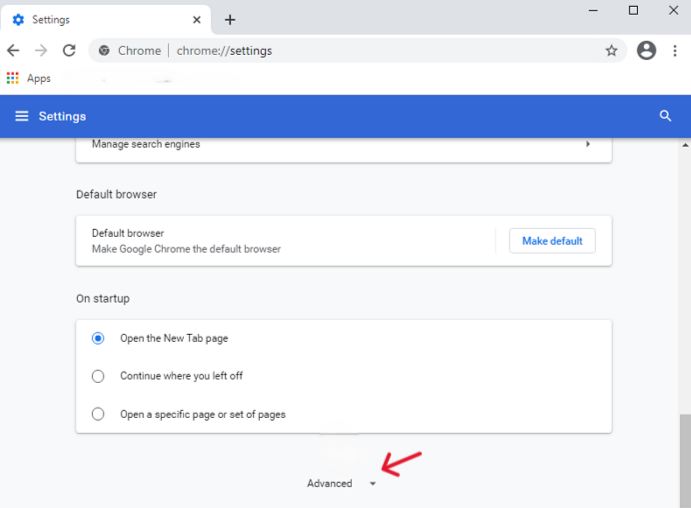
- Step 4: From the expanded menu, select Reset settings.
- Step 5: Find the Powerwash section and click the Reset button.
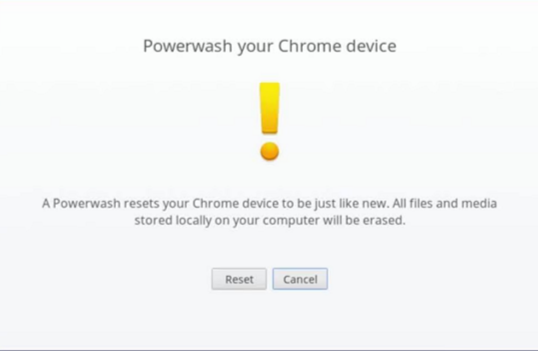
- Step 6: A confirmation box appears. Click Restart.
- Step 7: After the device reboots, click Powerwash again on the final confirmation screen and click Continue.
The Chromebook restarts and begins the reset process automatically. Within a few minutes, you will see the “Welcome” screen.
Using the Keyboard Shortcut to Powerwash
Sometimes settings don’t cooperate. Maybe the UI is glitchy, or the mouse isn’t responding correctly. That’s when the shortcut helps you master how to factory reset a Chromebook without touching a menu.
Method 2: The Powerwash Shortcut Method
- Step 1: Sign out of your Chromebook. If you are already logged in, click the clock and select Sign out.
- Step 2: Once you are at the login screen (where you see your profile picture), press and hold Ctrl + Alt + Shift + R.
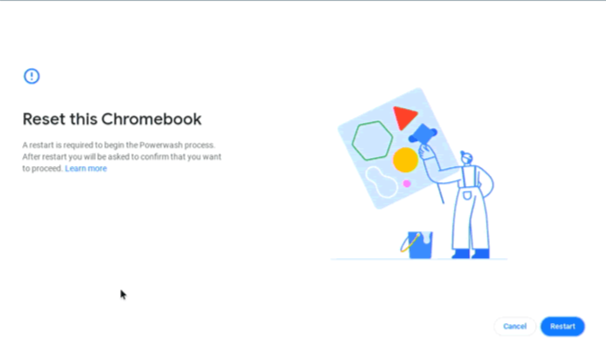
- Step 3: A window titled “Reset this Chromebook” will appear. Select Restart.
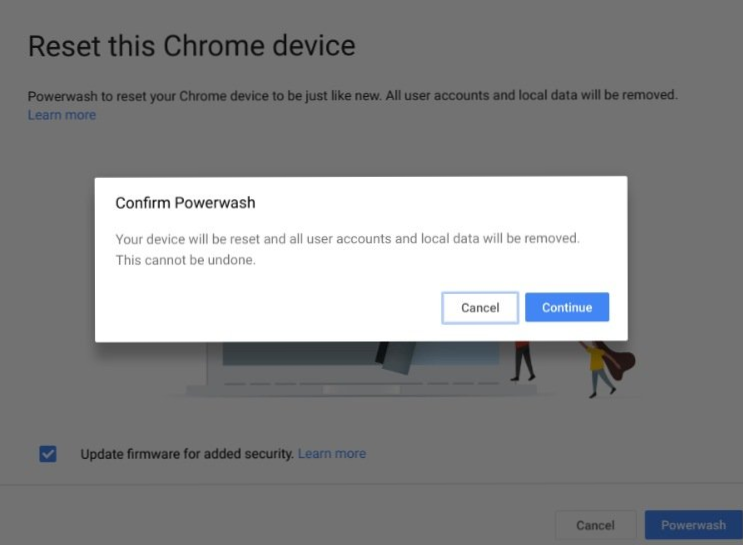
- Step 4: Once the device restarts, click Powerwash.
- Step 5: Click Continue to confirm the final wipe.
Occasionally, users encounter issues where When I press Ctrl + Alt + Shift + r it does not give me the opinion to restart, why is that? This often happens because the device is managed by a school or employer, or the keyboard layout is not set to US English.
When the Chromebook Won’t Start Normally
If your Chromebook won’t boot properly, you’re dealing with a more stubborn situation. In these cases, learning how to factory reset a Chromebook involves entering “Recovery Mode.”
Method 3: Using Recovery Mode to Reset
- Step 1: Turn the Chromebook completely off.
- Step 2: Press and hold the Esc key and the Refresh key (the circular arrow).
- Step 3: While holding those two, tap the Power button.
- Step 4: Release the Esc and Refresh keys once you see a screen with a yellow exclamation point or a message saying “ChromeOS is missing or damaged.”
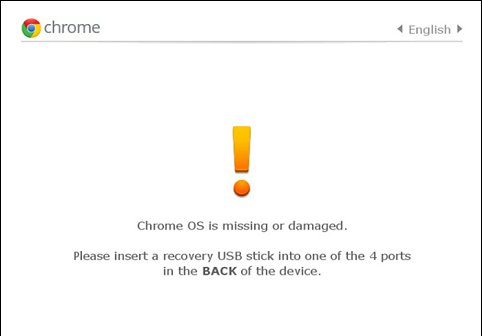
- Step 5: On this screen, press Ctrl + D to open the Developer Mode screen (which also allows a reset) or follow the on-screen prompts if you have a recovery USB drive inserted.
Note: For many modern Chromebooks, simply pressing Ctrl + Alt + Shift + R on the “ChromeOS missing” screen can also trigger the reset process.
Emergency Recovery: Using Pandanoffice drecov
What happens if you learned how to factory reset a Chromebook a little too well, and realized you forgot to save a critical folder? Once a Powerwash is finished, the internal SSD is encrypted and wiped. However, many users lose data on their SD cards or USB drives that were plugged in during the process, or they accidentally deleted files right before the reset while trying to “clean up.”
This is where Pandanoffice drecov becomes a lifesaver. While it cannot penetrate the encrypted internal TPM of a Chromebook post-wipe, it is incredibly effective at recovering data from the external media you might have been using for “backups.”
How to Recover Data Post-Reset Using Pandanoffice drecov
- Step 1: Launch the Software and Select the Drive
Open Pandanoffice drecov. On the main dashboard, you will see a list of available drives. Select the external drive you were using with your Chromebook.

- Step 2: Choose the “Deep Scan” Mode
For data lost during a system transition or reset, a “Quick Scan” might miss fragmented files. Select Deep Scan to allow the tool to look for raw file signatures like .jpg, .pdf, and .docx.

- Step 3: Filter and Preview
As the scan progresses, Pandanoffice drecov will categorize files by type. You can use the search bar to find specific file names or extensions. One of the best features is the Preview function—click on a photo or document to see if it’s intact before you commit to the recovery.

- Step 4: Recover to a Safe Location
Select the files you want back and click the Recover button.
Tip: Never save the recovered files back onto the same drive they were lost from. Save them to your desktop or a cloud folder first to avoid overwriting data.
Reset chromebook to factory Common Roadblocks
Powerwash Option Not Showing
If you are looking for how to factory reset a Chromebook and the option is greyed out, it is highly likely that your device is “Managed.” This means a school or company owns the device. They can disable the Powerwash feature. You’ll need to contact your IT administrator to perform a reset.
Reset Seems Stuck
If the screen stays white or the “Resetting” wheel spins for more than 20 minutes, don’t panic. Perform a “Hard Refresh” by holding the Refresh button and the Power button simultaneously until the device restarts. Usually, it will resume the process or boot to the setup screen.
Reset Didn’t Fix the Problem
Sometimes, how to factory reset a Chromebook isn’t the final answer. If your screen is flickering or your battery won’t charge, a software reset won’t fix hardware failure. However, it is the first thing a support technician will ask you to do, so it’s good to have it checked off the list.
Detailed Table: Methods to Reset at a Glance
| Method | Best For… | Shortcut/Path | Difficulty |
| Settings Menu | Routine cleaning | Settings > Advanced > Reset | Easy |
| Shortcut | Login issues | Ctrl + Alt + Shift + R | Medium |
| Recovery Mode | System failure | Esc + Refresh + Power | Hard |
| Pandanoffice drecov | Accidental data loss | External PC Software | Advanced |
Factory Reset vs. Chromebook Recovery: What’s the Difference?
These two sound similar, but they serve different purposes. When you research how to factory reset a Chromebook, you are looking to wipe user data. Chromebook Recovery, on the other hand, is like a heart transplant. It completely re-installs the operating system from a USB stick.
- Factory Reset (Powerwash): Fast, deletes your files, keeps the OS.
- Recovery: Slow, requires a second computer and a USB drive, fixes a “dead” OS.
Most people only need a factory reset. Recovery is the fallback when the Chromebook says “ChromeOS is missing or damaged.”
Avoiding the Need to Reset Again
Once you’ve mastered how to factory reset a Chromebook, you probably don’t want to do it again for another year. A few habits go a long way in keeping ChromeOS snappy:
- Be Selective With Extensions: Every extension runs in the background. If you haven’t used that coupon-finding extension in three months, delete it.
- Let ChromeOS Update Automatically: Don’t ignore the little “Update” arrow in the bottom corner. Updates often fix the very memory leaks that make a device feel slow.
- Store Files in the Cloud: Use the internal “Downloads” folder only for things you plan to delete tomorrow. Use Google Drive for anything you plan to keep.
Conclusion
You now know the answer to the big question—and more importantly, you know how to protect your data in the process. Learning how to factory reset a Chromebook isn’t a failure of the device; it’s an essential part of maintenance. Sometimes the cleanest solution really is starting fresh.
On a Chromebook, that process is refreshingly simple. Whether you use the settings menu, the keyboard shortcut, or the deep-level recovery mode, you are only minutes away from a laptop that feels brand new. And if things go south and a file disappears, tools like Pandanoffice drecov are there to catch you.






