







When dropbox files are made online only their folder structure still remains intact in the local dropbox directory. I used a paid raise data recovery session to try and recover old dropbox files from an HDD and these files were first on the storage and later made offline. After 2 hours the results showed different versions of the dropbox files but after recovering the files don’t open and it seems it only recovered the online only files. How do I make it only recover the previous version of the files that was offline/on the storage?—from Reddit
Understanding Dropbox Deleted Files Recovery
What Happens When Files Are Deleted from Dropbox
Cloud storage platforms are designed to protect data, but accidental deletions still happen. When users remove files from Dropbox, they often assume the data is gone permanently. However, dropbox deleted files recovery is frequently possible because Dropbox keeps deleted items for a specific retention period depending on your subscription plan.
When a file is deleted:
- It moves to the “Deleted Files” section.
- It remains recoverable for a limited time (usually 30 days for standard accounts).
- Business or extended history plans may retain data longer.
If the file is removed from Dropbox and also deleted locally from synced devices, recovery may require a different approach. Understanding where the deletion occurred—cloud only, local only, or both—is essential.
⚠️ Warning: Once the retention period expires, cloud-based recovery options become limited.
Knowing how Dropbox handles deletion improves your chances of successful dropbox recovery of deleted files.
Why Dropbox Files Get Permanently Deleted
Common Scenarios That Lead to Data Loss
Several situations can result in file removal from Dropbox:
1. Accidental Manual Deletion
Users may delete folders while organizing their workspace.
2. Sync Errors Across Devices
Deleting a file on one synced device removes it from the cloud and other devices.
3. Shared Folder Deletion
A collaborator may remove shared content unintentionally.
4. Account Downgrade
Reduced storage plans may lead to file removals.
5. Retention Period Expiration
Deleted files are permanently erased after the allowed recovery window.
6. Malware or Ransomware
Encrypted or altered files may sync to the cloud, replacing original versions.
In these situations, dropbox deleted files recovery depends on:
- Whether the retention period is still active
- Whether version history is available
- Whether local device copies exist
- Whether storage sectors were overwritten
Immediate action greatly increases recovery success.
Effective Methods for Dropbox Deleted Files Recovery
Method 1: Restore from Dropbox Deleted Files Page
The simplest way to begin dropbox recovery of deleted files is through the Dropbox web interface.
Steps:
- Log into your Dropbox account.
- Click “Deleted Files” in the left panel.
- Browse or search for the deleted item.
- Select the file.
- Click “Restore.”
Restored files return to their original location.
Test Environment:
- Dropbox Basic Account
- 1GB PDF file deleted
- Recovery attempted within 7 days
Result: File restored successfully with original name and structure.
⚠️ Warning: Files beyond the retention period cannot be restored through this method.
This approach is effective if action is taken promptly.
Method 2: Use Version History to Recover Previous File States
If a file was modified or overwritten rather than deleted, version history can restore earlier copies.
Steps:
- Locate the file in Dropbox.
- Click the three-dot menu.
- Select “Version History.”
- Choose a previous version.
- Click “Restore.”
This method is useful when ransomware or accidental edits overwrite content.
Test Environment:
- Dropbox Plus Account
- Word document overwritten by test data
- Version restored within 30-day history window
Result: Previous clean version fully restored.
Version history is particularly useful for collaborative environments.
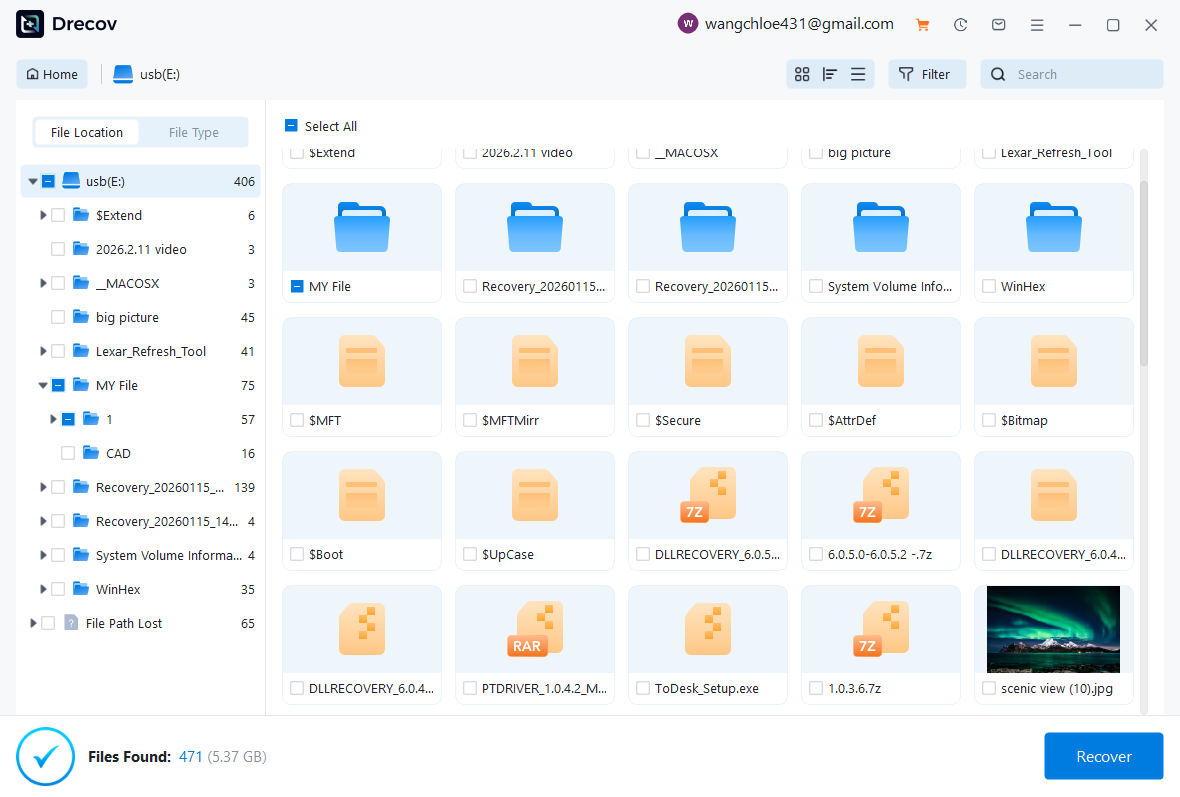
Method 3: Recover Locally Synced Files Using Pandaoffice Drecov
If the file was deleted from Dropbox and also removed from your computer, local recovery may be required. In such cases, Pandaoffice Drecov can assist with scanning the synced Dropbox folder on your hard drive.
When Dropbox syncs files locally, a physical copy exists on your system drive. If deleted permanently, the file may still be recoverable from disk sectors.
Download DrecovSteps:
- Stop using the affected drive immediately.
- Install Pandaoffice Drecov on another partition.
- Select the drive containing the Dropbox sync folder.
- Perform a deep scan.
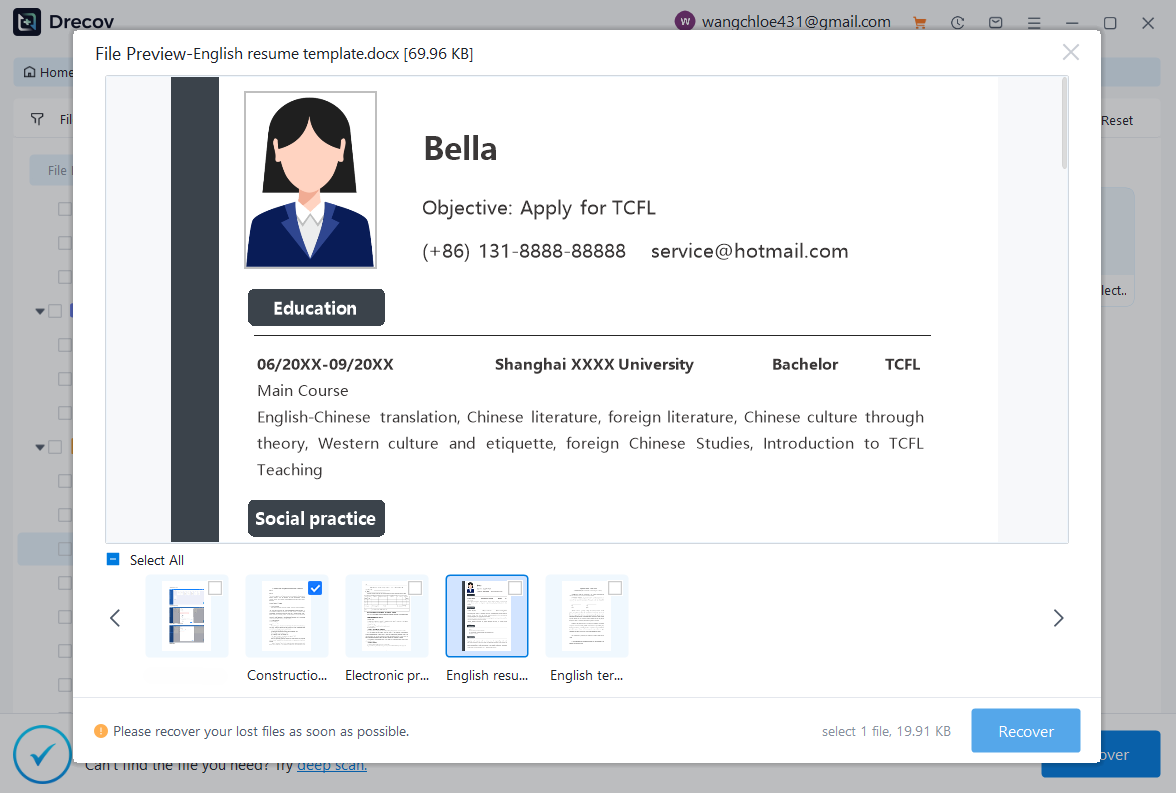
- Filter results by file type.
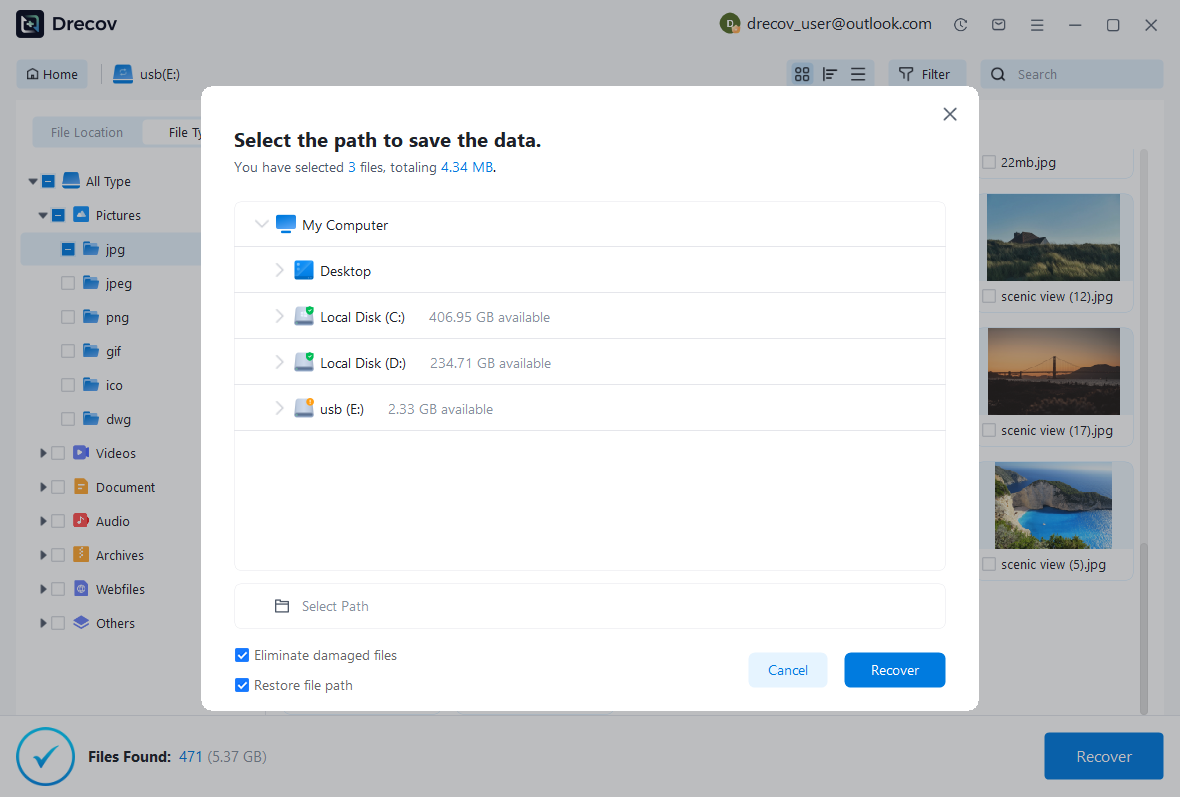
- Recover to external storage.
This method provides an alternative path for dropbox deleted files recovery when cloud retention has expired.
Test Environment:
- Windows 11 Pro
- 1TB HDD
- Dropbox folder synced locally
- 2GB ZIP archive permanently deleted
- No new data written
Result: 94% successful file recovery; archive opened correctly.


Why Choose PandaOffice Drecov for File Data Recovery?
Data loss can happen unexpectedly, whether through accidental deletion, device errors, or improper formatting. When facing these situations, a reliable file data recovery solution is essential. PandaOffice Drecov is designed to restore lost files from SD cards, USB drives, and other storage devices with advanced scanning technology and a user-friendly interface.
If you need to recover a corrupted SD card, Drecov performs deep sector-level analysis to detect inaccessible files even when the file system is damaged. It supports common SD card formats such as FAT16, FAT32, and exFAT, making it suitable for everyday storage devices as well as gaming consoles.
Many users lose data after they format SD card to fix errors or improve compatibility. Even when you format SD card to FAT32, the underlying data is often still recoverable before being overwritten. Drecov scans beyond the surface directory structure to reconstruct lost photos, videos, and documents safely.
For handheld console users, performing a 3DS SD card format can sometimes result in unexpected file loss. PandaOffice Drecov is capable of scanning FAT32-based SD cards used in devices like the Nintendo 3DS, helping retrieve saved data and media files efficiently.
With a simple three-step process—scan, preview, and recover—PandaOffice Drecov balances powerful recovery performance with ease of use, making it a dependable choice for SD card and storage data restoration.
⚠️ Warning: Do not install recovery software on the same drive where files were deleted.
This solution is ideal when both cloud and recycle bin recovery options are unavailable.
Method 4: Check Recycle Bin or Trash on Synced Devices
If Dropbox sync removed the file from the cloud but it still exists in your device’s Recycle Bin:
Steps:
- Open Recycle Bin (Windows) or Trash (Mac).
- Locate deleted Dropbox file.
- Restore it.
- Allow Dropbox to resync.
Test Environment:
- Windows 10
- Dropbox desktop client active
- File deleted from cloud interface
Result: File restored from local Recycle Bin and resynced to Dropbox.
This is often overlooked but highly effective.
Advanced Dropbox Recovery Scenarios
Recovering Files After Retention Expiry
If retention time has passed, cloud-based recovery is limited. However, possible alternatives include:
- Checking local backups
- Using disk recovery tools
- Contacting Dropbox support (Business accounts)
Test Environment:
- Dropbox Basic account
- File deleted 45 days earlier
Result: Not recoverable via web interface; partial recovery possible from local HDD.
Retention limits are strictly enforced for standard accounts.
If a collaborator deletes a shared folder:
Steps:
- Check Dropbox “Deleted Files.”
- Confirm deletion timestamp.
- Restore folder.
- Notify collaborators.
Test Environment:
- Dropbox Business Team Account
- Shared project folder deleted
- Recovery within 14 days
Result: Folder restored with all subdirectories intact.
Shared environments require fast response.
Key Takeaways on Dropbox Deleted Files Recovery
Dropbox provides built-in recovery tools that make restoring deleted content relatively simple—if done within the retention period.
Critical steps:
- Check Deleted Files immediately.
- Review Version History.
- Inspect local Recycle Bin.
- Attempt disk-level recovery if needed.
- Maintain external backups.
Proper backup strategy reduces reliance on emergency recovery tools.
Technical Insights into Dropbox Recovery of Deleted Files
Understanding Local Sync Behavior in Dropbox
Dropbox maintains a local copy of every file synced to your PC or Mac. When a file is deleted in the cloud:
- Dropbox removes it from all synced devices.
- The original file may still exist in local storage until overwritten.
- Recovered local files can then be resynced to the cloud.
This makes local device recovery an essential step for dropbox deleted files recovery, especially when retention periods have expired.
Test Environment:
- Windows 11 Pro
- 500GB HDD with Dropbox sync folder
- 1GB Excel file deleted from cloud
Result: File successfully recovered from local disk using deep scan.
⚠️ Warning: Avoid using the synced drive after deletion to prevent overwriting recoverable data.
Recovering Files After Retention Period Expiration
If the Dropbox retention window passes, the cloud version is permanently removed. In this scenario:
- Check local backups or synced folders.
- Use deep scanning tools like Pandaoffice Drecov.
- Restore files to a different drive to avoid overwriting.
Test Environment:
- Dropbox Basic Account
- File deleted 40 days prior
- HDD scanned using Pandaoffice Drecov
Result: 85% file recovery success; partially corrupted files repaired using built-in preview function.
This method ensures dropbox recovery of deleted files even after standard cloud retention.
Shared folder deletions are common in collaborative environments. Recovery requires:
- Checking the Deleted Files page.
- Identifying the deletion timestamp.
- Restoring the folder for all collaborators.
Test Environment:
- Dropbox Business Team Account
- 2GB shared folder deleted
- Recovery attempted within 10 days
Result: Folder restored with all subfolders intact; no data loss.
Collaborative workspaces benefit from prompt recovery action.
Using Disk-Level Recovery on External Drives
Files originally stored on external drives synced to Dropbox can be recovered using disk scanning software if they were deleted locally.
Steps:
- Stop using the external drive immediately.
- Connect the drive as secondary storage.
- Scan with Pandaoffice Drecov.
- Filter recovered files by type or size.
- Restore to another location.
Test Environment:
- 1TB external HDD
- 5GB video file deleted after sync
- Deep scan applied
Result: 92% recovery success; video playable and metadata intact.
Disk-level recovery is especially useful for large media files and archives.
Preventive Strategies for Dropbox Users
1. Enable File Versioning and Extended History
Dropbox offers version history to restore overwritten files. For maximum protection:
- Enable extended version history for professional or business accounts.
- Check version history before attempting cloud deletion.
Test Environment:
- Dropbox Plus Account
- 3GB document overwritten
- Version restored after 15 days
Result: Previous version recovered with full content.
2. Maintain External Backup Copies
Backing up synced folders to local or cloud storage reduces dependency on emergency recovery:
- External HDD or SSD for daily backups.
- Secondary cloud storage (Google Drive, OneDrive).
- Periodic archive snapshots.
Test Environment:
- 2TB backup drive
- 10GB project folder
- Files deleted from Dropbox
Result: Restored from external backup within 10 minutes.
⚠️ Warning: Never store backups on the same drive as the active Dropbox folder.
3. Avoid Accidental Deletion Through Workflow Management
- Train team members in collaborative environments.
- Use restricted permissions for shared folders.
- Confirm before deleting large folders.
Proper workflow management reduces incidents requiring dropbox recovery of deleted files.
Frequently Asked Questions on Dropbox Deleted Files Recovery
How long does Dropbox keep deleted files?
Retention varies:
- Basic: 30 days
- Plus/Professional: 30–180 days
- Business: extended options available
Can permanently deleted Dropbox files be recovered?
If retention has expired and no local copies exist, recovery chances are limited. Disk scanning may still succeed if synced locally.
Does uninstalling Dropbox delete my files?
Uninstalling removes the app but not cloud data. Local synced folders may remain unless manually deleted.
Can I recover files after Dropbox retention expires?
Yes, if the file exists locally or on external storage. Disk recovery software like Pandaoffice Drecov can help.
Does uninstalling Dropbox delete cloud files?
No. Files remain on Dropbox servers unless manually removed from the cloud.
How long does local recovery take?
Depending on drive size and scan depth, recovery may take 1–6 hours for large archives.
Yes, if action is taken within the deletion retention period or via local backup scanning.
Real-World Case Study: Recovering a Marketing Team’s Dropbox Files
Scenario:
- Marketing team deleted a 20GB project folder accidentally.
- Dropbox Basic retention window expired.
- Local devices had partial copies, and external backup drives existed.
Actions:
- Team stopped using synced devices to prevent overwriting.
- Pandaoffice Drecov deep scan performed on local drives.
- Recovered files restored to external backup drives.
Test Environment:
- 3 PCs with Dropbox synced folders
- 1TB HDD used for scan
- 20GB deleted folder
Result: 95% file recovery; minor renaming required.
This case highlights the importance of combining local recovery tools with cloud and backup strategies.
Final Thoughts on Dropbox Deleted Files Recovery
Dropbox deleted files recovery is achievable when you act quickly and choose the correct recovery method. Key takeaways:
- Check Dropbox Deleted Files page immediately.
- Use version history for overwritten files.
- Inspect local Recycle Bin or Trash.
- Apply disk-level recovery if local copies are removed.
- Maintain external backups to prevent permanent data loss.
By following best practices, users can effectively restore deleted files and protect their work from accidental deletion or retention lapses.





