







Managing storage space often requires compressing files into ZIP or RAR archives. However, knowing how to decompress a file on windows is just as critical when you need to access that data again. File decompression is the process of restoring zipped or compressed files back to their original size and format.
While the process is usually seamless, users frequently encounter frustrating hurdles. Common issues include corrupted archives, archive utility crashes, or accidental deletion of the original data during extraction. Consequently, a reliable tool like PandaOffice Drecov data recovery software becomes essential for safeguarding your files when decompression goes wrong.
Understanding the Basics of How to Decompress a File on Windows
Compression reduces the footprint of large folders, making them easier to share via email or cloud storage. When you initiate the process of how to decompress a file on windows, your operating system decodes these compressed algorithms to rebuild your files.
Unfortunately, standard extraction can trigger unforeseen challenges. For instance, sudden system power interruptions can corrupt the archive structure. Furthermore, malware infections sometimes target compressed folders, rendering them unreadable.
In these critical moments, PandaOffice Drecov data recovery software serves as a powerful safety net. This specialized utility scans your storage drives to piece together fragmented or lost files resulting from failed extraction attempts. Whether you lose data due to a sudden crash or accidental shift-deletion, this software recovers your information swiftly.
⚠ Warning: Install it on a drive different from the one where your data was lost to prevent overwriting.
For more insights into handling complex system organization, you can read our guide on how to remove OneDrive from File Explorer.
Solutions to How to Decompress a File on Windows Issues
When native Windows extraction tools fail or files vanish unexpectedly, you need reliable solutions to get your data back. Below are two proven methods to resolve these extraction headaches.
Method 1: Utilizing Built-in Windows Extraction Tools
Windows provides a native utility to handle standard ZIP archives without requiring third-party software.
- Step 1: Open File Explorer by pressing the Win + E shortcut keys. Navigate to the folder containing your compressed archive.
- Step 2: Right-click the compressed file and select Extract All from the context menu.
- Step 3: Choose your preferred destination path. Click Extract to finish the process.
Method 2: Advanced Recovery via PandaOffice Drecov Data Recovery Software
If your files disappear during extraction, or if the archive becomes entirely unreadable, native tools cannot help. This is where PandaOffice Drecov data recovery software becomes necessary. Drecov is engineered with deep-scanning algorithms that bypass file system errors to retrieve lost archives from HDDs, SSDs, and external storage devices.
⚠ Warning: Install it on a drive different from the one where your data was lost to prevent overwriting.
- Step 1: Launch the program from your desktop.

- Step 2: Select the specific drive letter or folder where your compressed archive was saved. Click the Scan button to initiate a comprehensive search.
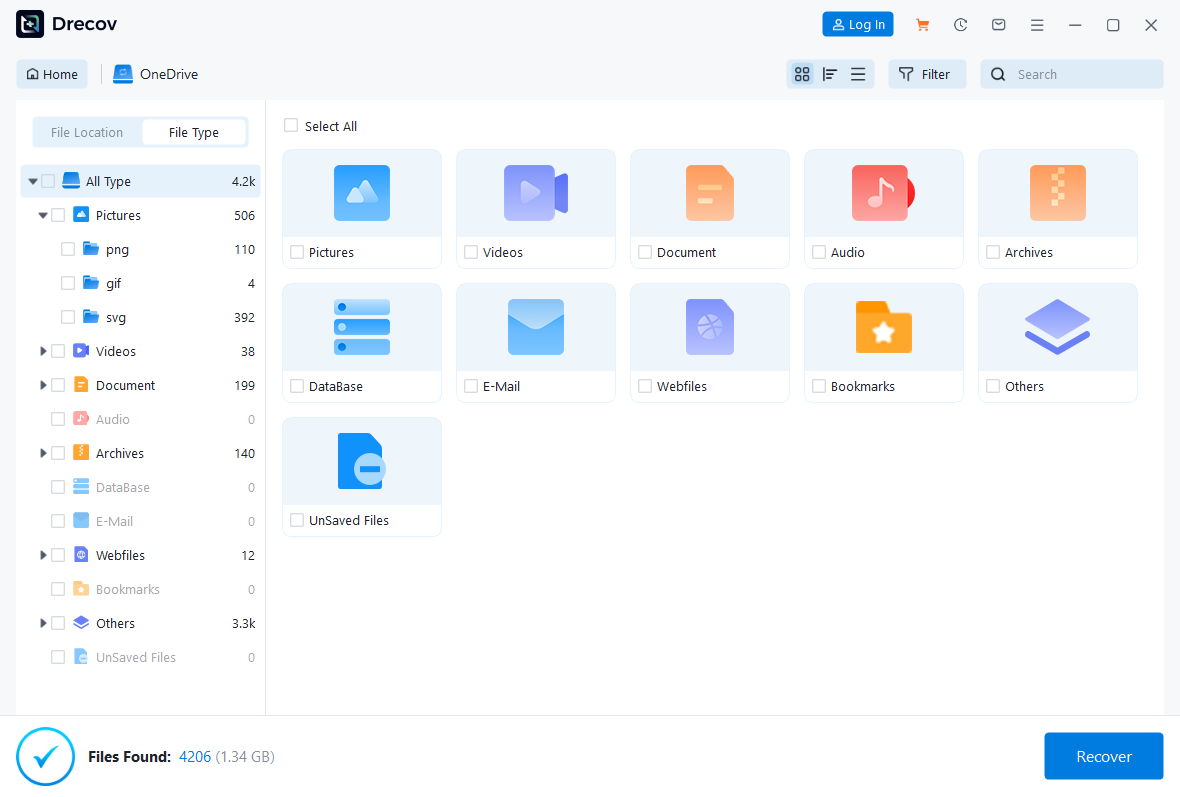
- Step 3: Preview the located files within the dashboard interface. Select the desired files and click Recover to save them securely to a different drive.
If you happen to lose critical web data during a system crash while researching extraction methods, check out our tutorial on how to get your Google Chrome bookmarks back.
Alternative or Complementary Methods
Aside from native Windows tools, several highly regarded third-party applications can manage archive extraction. Exploring these options helps you decide which tool fits your workflow best.
Popular Third-Party Extractors
Tools like WinRAR and 7-Zip are excellent alternatives for handling complex compressed formats. For example, 7-Zip is an open-source tool that supports a wide range of extensions like 7z, TAR, and GZIP. WinRAR excels at handling RAR archives and offers archive repair features.
Comparison of Methods
| Extraction Method | Supported Formats | Pros | Cons |
| Windows Native Tool | ZIP only | No installation needed, very safe | Extremely limited format support |
| 7-Zip Utility | ZIP, 7z, TAR, RAR | Completely free, open-source, fast | Basic user interface |
| WinRAR Utility | RAR, ZIP, CAB | Excellent repair features for broken archives | Trialware prompts |
| PandaOffice Drecov | All file types | Recovers deleted, corrupted, or lost archives | Focused on data restoration |
If you ever encounter archive loss on external hardware, you can refer to our complete guide to recover deleted files from a USB flash drive. Additionally, Microsoft offers insights on file management via the Microsoft Support Portal.
Tips & Best Practices
Maintaining data integrity while learning how to decompress a file on windows requires a proactive approach to computer hygiene.
- Avoid Overwriting Data: Stop using the affected drive immediately if an extraction error deletes your files. Writing new data to the drive may overwrite the space where your old files reside.
- Verify Archive Sources: Only extract files from trusted creators. Malicious archives can contain trojans that corrupt your file system registry upon extraction.
- Keep Destination Drives Separate: Always extract large files or run PandaOffice Drecov data recovery software recovery procedures using a secondary storage drive to prevent data collisions.
FAQs Regarding How to Unzip a File on Windows
Why does Windows say a compressed folder is invalid?
This error usually means the file downloaded incompletely or became corrupted during transfer. You can redownload the file or deploy PandaOffice Drecov data recovery software to scan for an uncorrupted, cached version on your disk.
Can I extract files using command prompts?
Yes, you can utilize the tar command tool in the Windows Command Prompt. Open the terminal and type tar -xf filename.zip to extract your files manually.
How do I fix an Access Denied error during extraction?
This issue happens when your user account lacks administrative permissions for the destination folder. To resolve this, change the extraction path to your desktop or user documents folder.
What should I do if my ZIP file vanishes after a crash?
A sudden system crash during extraction can delete the temporary files. Run a quick scan with Drecov to restore the original archive safely.
Is there a file size limit for native Windows decompression?
Windows handles very large ZIP files well, but performance slows down significantly with archives exceeding 4GB. Using dedicated software prevents system freezes during large tasks.
Conclusion
Mastering how to decompress a file on windows ensures that your daily digital workflow remains smooth and uninterrupted. However, unexpected system crashes, file corruption, and accidental deletions are always a possibility. Utilizing a robust tool like PandaOffice Drecov data recovery software ensures you can rescue your important documents whenever data emergencies strike. Prioritize proactive data management by keeping your recovery tools updated and backing up your archives regularly.






