







Few things are more frustrating than realizing that a cherished video—maybe a family memory, an important work recording, or a project file—has been accidentally deleted or erased. Whether it was lost due to accidental deletion, a corrupted storage device, or software malfunction, the panic is real. Fortunately, performing an erased video recovery is possible in most cases if you act quickly and use the right methods.
This guide will take you through every step of erased video recovery, covering software solutions, cloud options, professional services, prevention tips, and advanced techniques. By the end, you’ll feel confident that your lost videos aren’t gone forever.
Understanding Why Videos Get Erased
Modern digital storage systems—from SD cards and USB drives to hard drives and cloud storage—have mechanisms that temporarily store deleted files before they are permanently overwritten. Understanding how these systems work, combined with the right recovery tools and techniques, can greatly increase your chances of restoring lost videos.
Before diving into recovery, it’s essential to know why videos disappear in the first place. Some of the most common causes include:
- Accidental Deletion: It’s easy to click the wrong button and permanently remove a video. Even experienced users do this all the time, especially on devices with multiple storage locations.
- Storage Device Corruption: USB drives, SD cards, and hard drives can become corrupted due to power loss, improper ejection, malware attacks, or file system errors. Corrupted devices may appear empty even though the videos are technically still there.
- Software Glitches: Video editing software or media apps can occasionally fail, causing unsaved or deleted files to vanish. Sometimes updates or bugs trigger these losses unexpectedly.
- Format Errors: Reformatting a drive or memory card without backing up data is a common reason for lost videos. Even though the device appears empty, the underlying data is often recoverable.
How Video Deletion Works in Digital Devices
When you delete a video, most devices don’t erase the actual data immediately. Instead:
- The storage space is marked as available by the operating system.
- File pointers are removed from the directory index.
- Until new data overwrites the original location, recovery is usually possible.
Think of it like a library: removing the book’s catalog entry doesn’t destroy the pages—it just makes the book invisible until someone replaces it on the shelf.
How to Recover Permanently Erased Videos
When standard recovery methods fail, you must act quickly. Checking the Recycle Bin or Trash folder is not always enough. Instead, you need to know how to recover permanently erased videos directly from the storage sectors.
This scenario occurs when files bypass temporary storage completely. For example, this happens when using Shift + Delete on Windows. It also occurs when clearing out your smartphone’s storage cache.
To tackle this challenge, we have arranged the primary solutions below. We start with basic software applications. After that, we move up to deeply advanced technical interventions.
Method 1: Utilizing PandaOffice Drecov Data Recovery Software
For most users, specialized utility software offers the highest success rate when seeking an efficient erased video recovery. The PandaOffice Drecov utility is specifically engineered to handle complex data loss scenarios, utilizing an advanced deep scanning algorithm that reconstructs raw video fragments.
Follow these precise steps to use the PandaOffice Drecov data recovery software safely:
- Step 1: Launch the application. The home screen will display an overview of all connected storage devices, including local hard disks, external solid-state drives, and memory cards. Select the specific drive volume where your lost video files were originally stored.

- Step 2: Click the Scan button. The program will automatically initiate a quick scan, followed immediately by an intensive deep scan. This process systematically analyzes the binary structure of your storage sectors to locate missing file headers.

- Step 3: Monitor the real-time results window. You can use the file filter sidebar to narrow down the search parameters by selecting video-specific file extensions such as
.mp4,.mov,.mkv, or.avi.
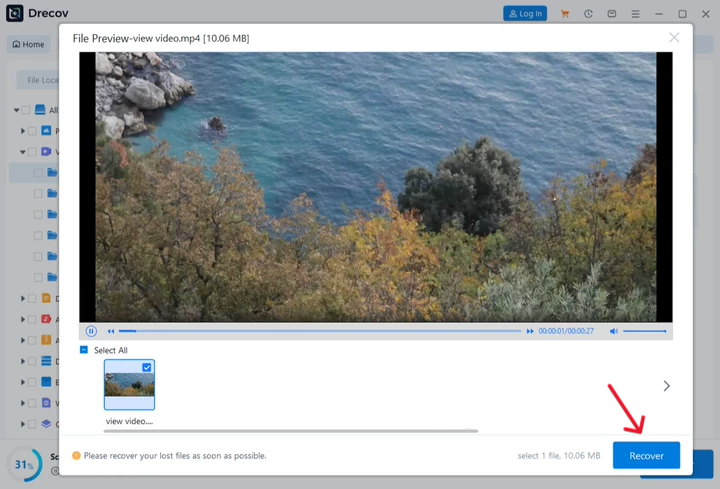
- Step 4: Once the scan concludes, select a video file from the list and use the built-in media preview feature. This allows you to verify that the video streams match your expectations and are entirely corruption-free before proceeding.
- Step 5: Click the Recover button. A system dialogue box will appear prompting you for a destination directory. Choose a folder on an entirely different storage drive or an external storage device, then click OK to commit the restoration process.
⚠️ Critical Warning: Never save the recovered video files back onto the exact same drive volume you just scanned. Doing so risks triggering immediate file allocation table errors, which could corrupt the remaining data blocks beyond repair.
Recover Erased Dash Cam Videos
Dash cams operate using a highly aggressive system structure. Because these cameras write data continuously to micro-SD cards, they employ a cyclic looping mechanism. This means that when storage space runs low, old footage is systematically deleted to make room for new recordings. Learning how to recover erased dash cam videos requires a specialized technical workflow because these files are often fragmented across multiple flash memory blocks.
Method 2: Restoring Dash Cam Footage via Deep Block Carving
If your camera has automatically cycled out an important incident log, you can attempt to reclaim it by targeting the underlying flash storage layer.
- Step 1: Immediately turn off your dash cam the moment you realize crucial footage is missing. Carefully eject the micro-SD card from the device slot to halt all ongoing continuous-loop recording cycles.
- Step 2: Insert the micro-SD card into an external USB 3.0 card reader accessory, then connect it directly to your primary desktop computer. Avoid using slow hub extensions that could cause interface dropouts.
- Step 3: Open the PandaOffice Drecov data recovery software interface. Navigate to the external drives listing section, identify your connected micro-SD card configuration, and select it as the target scan zone.

- Step 4: Initiate the deep scan within the software settings. This customized scanning mode ignores the traditional, potentially damaged file system index and reads raw bytes across the flash sectors to find unique video signatures.
- Step 5: Filter the final directory tree output using the creation date stamps. Dash cam video segments generally follow strict chronological file-naming conventions (e.g.,
VID_20260513_1200.mp4). - Step 6: Mark the checkbox next to the necessary chronological files, click the recovery activation icon, and direct the destination payload output safely to your local computer’s internal storage drive.
Erased Video Recovery After Overwriting Data
This is widely considered the ultimate technical bottleneck in data forensics. An erased video recovery after overwriting data presents an intense challenge. This happens because new binary information claims the old storage clusters.
However, video files are often massive. New data packages may only overwrite a small fraction of the original cluster chains. This leaves the remaining fragments available for technical reconstruction.
Method 3: Sector-Level Imaging and Advanced Raw Recovery
When files are partially overwritten, standard file system listings are useless. You must analyze the storage device at a block-by-block structural level to salvage surviving media streams.
- Step 1: Open your computer’s built-in disk management system or use an administrative command tool to review the physical health status of the target storage drive. Ensure that the drive is fully stabilized before proceeding.
- Step 2: Use a bit-stream imaging utility to create an exact sector-by-sector clone image file (such as a
.ddor.imgfile format) of the entire drive. This ensures you can run intensive data recovery scripts without wearing down the original physical hardware component. - Step 3: Load this newly created raw disk image file straight into your PandaOffice Drecov data recovery software by selecting the “Mount Disk Image” option from the file drop-down menu bar.
- Step 4: Configure a custom raw scanning mask. Direct the engine to search explicitly for specific video container markers—such as looking for hex codes like
76 69 64 65(which translates to the “video” data type) or explicit header bytes matching standard.mp4structures. - Step 5: Execute the raw recovery pass. The application will spend time scanning the entire digital image, attempting to bind orphaned fragments back together into a readable media stream.
- Step 6: Export the reconstructed video clips onto an external storage unit. If the recovered files suffer from playback issues due to the partial overwrite, pass the files through a dedicated video repair tool to reconstruct missing index tracks.
Advanced System Restoration Procedures
Now you have completed the software-based recovery processes. Next, you can utilize built-in operating system frameworks. These tools fortify your local workstation against future data loss events.
First, optimize your Windows architecture for data safety. Read this guide on how to create a recovery partition in Windows 10. This helps establish a dedicated, isolated partition area. This secure zone on your local hard disk protects system-level assets.
Additionally, your video production work might rely heavily on web research. If so, it is smart to safeguard your browser environment. Learn exactly where are Firefox bookmarks stored on your PC. This knowledge allows you to locate, copy, and preserve critical data streams manually.
Finally, prepare for absolute disasters like complete hardware failures. Check out the comprehensive walkthrough on how to create a Windows 10 recovery disk. This step-by-step guide helps you create bootable external media. It ensures you can access your data even if your main operating system crashes completely.
Recovery from SD Cards and USB Drives
External storage devices are particularly vulnerable to accidental deletion and file system corruption due to frequent insertions and ejections across different host systems. Here’s how to systematically recover files from them:
- Connect Device to Computer: Use a high-quality USB 3.0 card reader or direct motherboard USB port for maximum connection stability. Avoid using external unpowered hubs.
- Run Data Recovery Software: Open your preferred recovery package and ensure the application identifies the correct external volume letter assigned to your device.
- Select Video Formats: Set the scanning filters to look for common formats like MP4, MOV, AVI, MKV, and WMV to speed up search times.
- Recover Videos: Save all discovered video files onto your computer’s internal hard drive. Do not write them back to the source external card.
Erased video recovery from Smartphones
Smartphones use complex flash memory layouts and strict security permissions, which means recovery workflows differ slightly between operating systems.
Android Devices
- Google Photos Trash: When a video is deleted via the standard gallery app, it is usually moved to the Google Photos Trash cloud loop, where it remains safely for up to 60 days.
- Recovery Software: Advanced computer applications like Dr.Fone or iMobie PhoneRescue can scan internal flash storage chips directly via USB debugging mode to locate missing records.
- Removable Storage: If your smartphone features an expandable micro-SD slot, eject the card and handle it using standard desktop computer data recovery tools for better results.
iOS Devices (iPhone)
- Recently Deleted Folder: The native iOS Photos application retains deleted videos inside an isolated system folder for 30 days before permanent erasure occurs.
- iCloud Backup Restoration: If you have automated cloud synchronization routines enabled, you can roll back your device state using a historic iCloud system backup image.
- Third-Party Recovery Utilities: Programs like iMobie PhoneRescue or Tenorshare UltData help interface directly with the device’s internal sqlite database files to recover permanently deleted videos.
Cloud-Based Video Recovery
Many modern production platforms and operating systems automatically back up video content to cloud environments. These options are often simpler and safer than local data recovery because they run completely isolated from your local hardware’s physical issues.
| Cloud Platform | Default Retention Period | Recovery Location |
| Google Drive | 30 Days | Trash Bin |
| Dropbox | 30 to 180 Days (by tier) | Deleted Files Section |
| iCloud Drive | 30 Days | Recently Deleted Area |
| Microsoft OneDrive | 30 Days | System Cloud Recycle Bin |
Tips for Preventing Future Video Loss
Once your videos are recovered, implement these preventative habits to protect your data moving forward:
- Enforce the 3-2-1 Backup Strategy: Maintain 3 separate copies of your video assets, distributed across 2 distinct physical media types (e.g., an internal SSD and an external mechanical drive), with 1 copy stored entirely off-site in a secure cloud network.
- Enable Active Auto-Save Routines: Configure video editing suites like Adobe Premiere or DaVinci Resolve to automatically save project timelines at short 5-minute intervals onto an independent drive.
- Invest in Premium Media Hardware: Buy high-end storage components featuring built-in wear-leveling algorithms and error-correcting code (ECC) capabilities.
- Always Use “Safely Remove Hardware” Options: Never pull a storage device out of a USB port while data transfers are active. Doing so risks corrupting the file system index instantly.
- Monitor Drive Health Continuously: Use diagnostic software tools to monitor S.M.A.R.T. disk attributes, keeping an eye out for early signs of hardware degradation like accumulating bad sectors.
Understanding Forensic Recovery Limitations
While data recovery technology has advanced significantly, certain situations make successful retrieval impossible:
- Solid-State Drives (SSDs) with TRIM Enabled: When you delete a video from a modern SSD, the operating system executes a TRIM command. This tells the controller to instantly wipe the underlying flash cells, making software recovery almost impossible.
- Complete Overwriting: If a drive is completely filled with new data after a deletion event, the original binary video information is completely replaced, leaving nothing behind to reconstruct.
- Severe Physical Destruction: If a storage card or drive platter is cracked, snapped, or deeply scratched, the actual storage layers are physically gone, putting the data beyond the reach of even professional forensic labs.
FAQs About Erased Video Recovery
1. Can I recover videos after formatting my SD card?
Yes. Standard quick-formatting routines simply wipe the file index file system without touching the underlying media data sectors. Unless you run a full format or write new files over the drive, a recovery program can easily scan the raw sectors and pull your videos back.
2. How long do I have to recover deleted videos?
You need to act immediately. The longer a device stays powered on and active after data loss, the higher the risk that background system processes or new files will overwrite those sectors, destroying your chances of recovery.
3. Are free recovery tools reliable?
Free tools like Recuva work well for straightforward file deletion on older storage setups. However, for large video files, fragmented data blocks, or corrupted storage cards, you will get much better results using professional-grade tools like PandaOffice Drecov.
4. Can I recover videos from cloud storage?
Yes. Most major cloud services store deleted files in a temporary cloud trash bin for 30 to 60 days before removing them permanently.
5. Will using the device after deletion affect recovery?
Yes, absolutely. Any new data written to the device can permanently overwrite the deleted files’ storage locations, destroying the data beyond repair. Always disconnect the drive until you are ready to start the recovery scan.
How can I help you protect or recover your video data today?
Conclusion
An erased video recovery is entirely achievable if you act fast and follow the right technical steps. Whether you choose to use desktop software like PandaOffice Drecov, salvage loop logs from an external dash cam, or dive into sector-level disk images, acting quickly is your best defense against data loss.
By combining reliable tools with smart habits like regular backups and drive monitoring, you can protect your valuable video files and avoid future data loss panics entirely.






