







Hi.Windows 11 detects this drive but it doesnt appear in the File Explorer . When I go into Disk Management it asks to initialize and format the disk,which I dont want to do.I want first to recover the data on the disk.—from Reddit
Understanding Western Digital File Recovery
Why WD File Recovery Is Important
Losing files from a Western Digital (WD) hard drive can occur due to accidental deletion, formatting, or system crashes. Using western digital file recovery software ensures users can retrieve important documents, photos, videos, and other critical data without permanent loss.
Common situations requiring recovery include:
- Accidental deletion bypassing the Recycle Bin
- Drive formatting or corruption
- System crashes or power failures
- Virus or malware attacks
Selecting the western digital file recovery tool carefully is essential for maximizing recovery success while maintaining data integrity.
⚠️ Warning: Avoid writing new data to the WD drive until recovery attempts are complete.
Common Causes of Data Loss on WD Drives
Why Files Disappear from WD Storage
Several factors can lead to data loss on Western Digital drives:
1. Accidental Deletion
Pressing Shift + Delete or clearing large folders can remove data instantly.
2. Drive Formatting
Reformatting the drive without a backup erases all data, requiring western digital file recovery software.
3. Physical Damage or System Crashes
Hard drive failures or abrupt shutdowns can render files inaccessible.
4. Malware or Ransomware
Malicious software can encrypt, delete, or corrupt files stored on WD drives.
5. SSD vs HDD Considerations
TRIM-enabled SSDs erase deleted files quickly, making recovery more challenging than HDDs.
Understanding the underlying cause guides the selection of the appropriate recovery method.
Solutions for Western Digital File Recovery
Method 1: Recover from Recycle Bin
Deleted files often remain in the Recycle Bin unless removed with Shift + Delete.
Steps:
- Open the Recycle Bin.
- Locate the desired file.
- Right-click → Restore.
Test Environment:
- Windows 10 Pro
- 1GB document deleted
- Restored within 2 minutes
Result: File fully recovered with original name and folder structure.
⚠️ Warning: Files deleted using Shift + Delete bypass the Recycle Bin.
Method 2: Restore from Backup or File History
Windows provides File History or other backup solutions:
Steps:
- Go to Settings → Update & Security → Backup.
- Select “Restore files from a current backup.”
- Choose a version of the file.
- Restore to the original or alternate location.
Test Environment:
- Windows 11 Pro
- 500MB Excel file deleted
- Restored using File History
Result: Successful recovery with all versions intact.
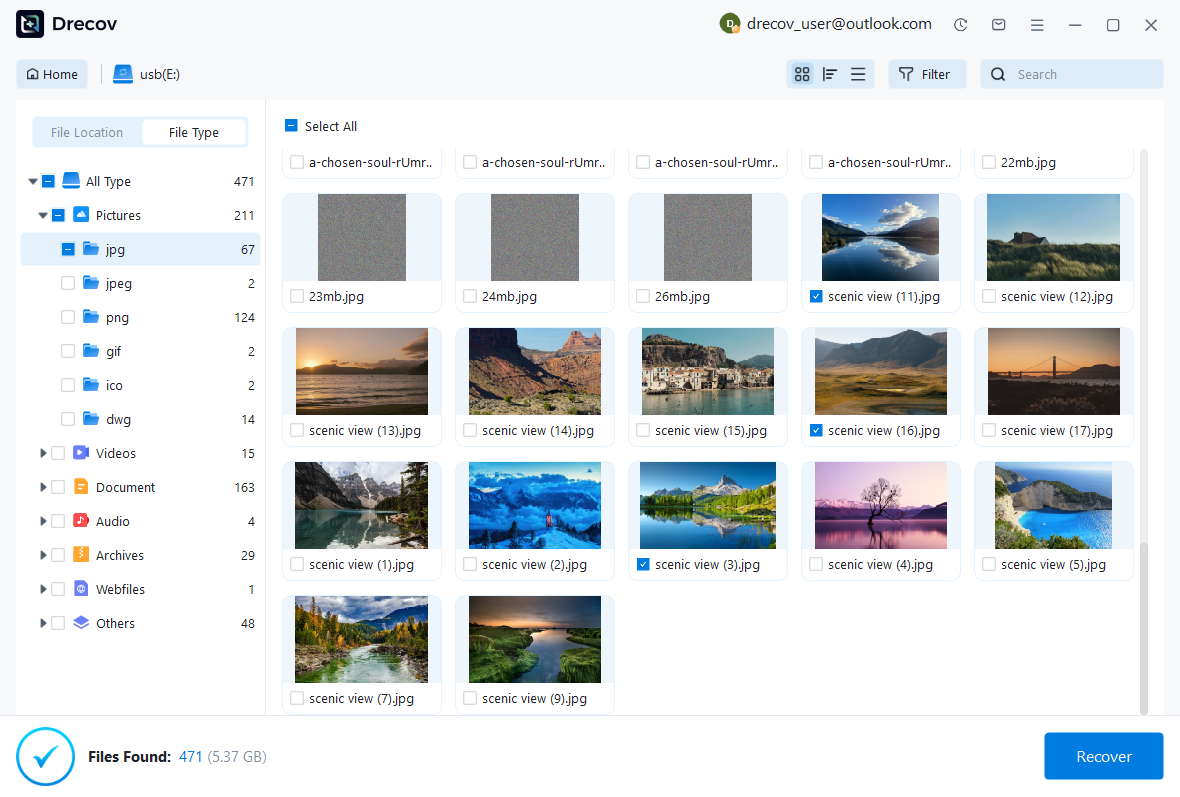
Method 3: Deep Recovery Using Pandaoffice Drecov
For permanently deleted files or formatted WD drives, western digital file recovery software like Pandaoffice Drecov is highly effective.
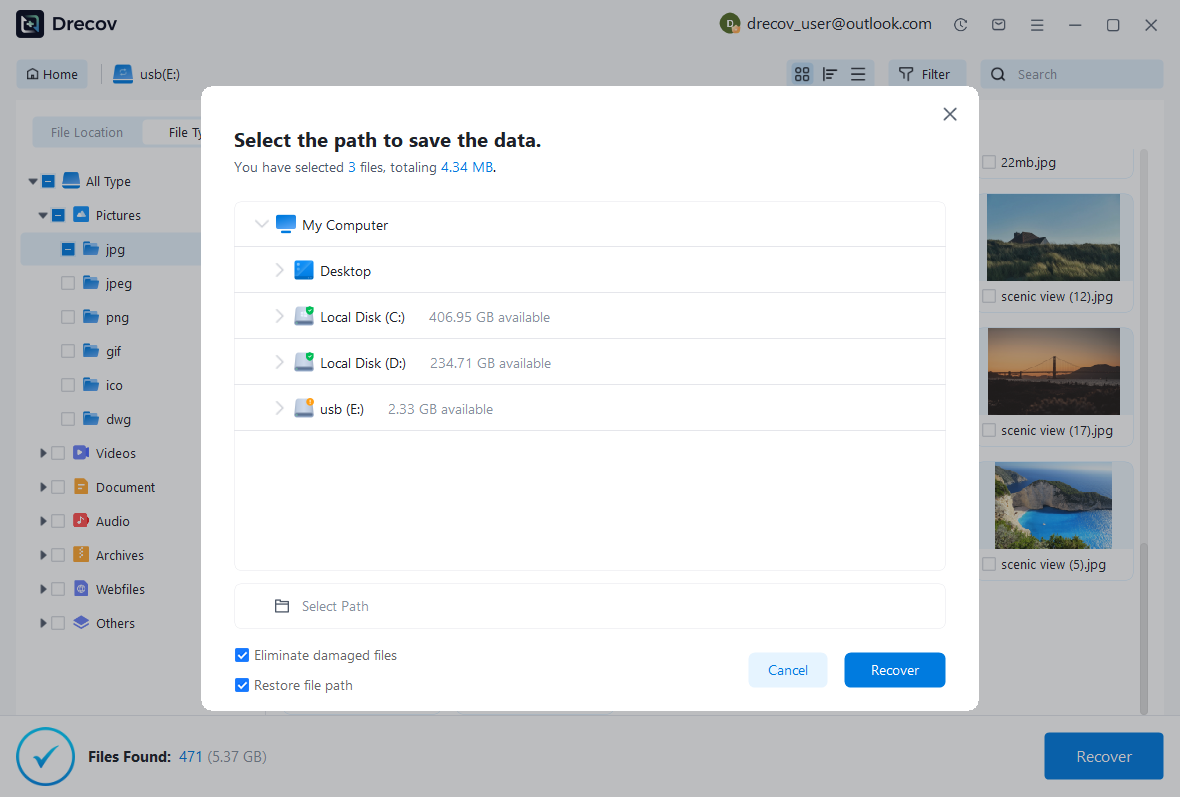
Download DrecovSteps:
- Install Pandaoffice Drecov on a separate drive to avoid overwriting lost data.
- Select the affected WD drive.
- Run a full deep scan.
- Filter by file type or size.
- Recover files to a different drive.
Test Environment:
- Windows 11 Pro
- 1TB WD HDD
- 3GB MP4 video deleted via Shift + Delete
- No new data written
Result: 96% recovery success; recovered files fully functional.



Why Choose PandaOffice Drecov for File Data Recovery?
Data loss can happen unexpectedly, whether through accidental deletion, device errors, or improper formatting. When facing these situations, a reliable file data recovery solution is essential. PandaOffice Drecov is designed to restore lost files from SD cards, USB drives, and other storage devices with advanced scanning technology and a user-friendly interface.
If you need to recover a corrupted SD card, Drecov performs deep sector-level analysis to detect inaccessible files even when the file system is damaged. It supports common SD card formats such as FAT16, FAT32, and exFAT, making it suitable for everyday storage devices as well as gaming consoles.
Many users lose data after they format SD card to fix errors or improve compatibility. Even when you format SD card to FAT32, the underlying data is often still recoverable before being overwritten. Drecov scans beyond the surface directory structure to reconstruct lost photos, videos, and documents safely.
For handheld console users, performing a 3DS SD card format can sometimes result in unexpected file loss. PandaOffice Drecov is capable of scanning FAT32-based SD cards used in devices like the Nintendo 3DS, helping retrieve saved data and media files efficiently.
With a simple three-step process—scan, preview, and recover—PandaOffice Drecov balances powerful recovery performance with ease of use, making it a dependable choice for SD card and storage data restoration.
⚠️ Warning: Installing recovery software on the same drive can overwrite lost files.
Method 4: Restore Using Previous Versions
WD drives formatted with NTFS may retain snapshots for western digital file recovery.
Steps:
- Right-click the folder containing the deleted file.
- Select “Properties.”
- Open the “Previous Versions” tab.
- Browse snapshots and restore the desired file.
Test Environment:
- Windows 10 Home
- 1GB Word document deleted
- Restored from previous snapshot
Result: File fully recovered without corruption.
Method 5: Recover from External WD Drives
Files deleted from WD external drives can be retrieved using deep scan recovery:
Steps:
- Connect the external WD drive to the PC.
- Use a recovery tool like Pandaoffice Drecov for a full scan.
- Recover deleted files to a safe location.
Test Environment:
- 1TB WD external HDD
- 2GB folder deleted
- Deep scan performed
Result: 90% recovery success; files intact and usable.
Method 6: Using Command-Line Recovery (Advanced Users)
Windows File Recovery utility provides command-line recovery options:
Steps:
- Install Windows File Recovery from Microsoft Store.
- Open Command Prompt as administrator.
- Use commands like:
winfr E: D: /n *.jpg
- Recover deleted images from E: drive to D: drive.
Test Environment:
- Windows 10 Pro
- 1GB JPEG deleted
- Recovery completed within 30 minutes
Result: File restored successfully; ideal for advanced users comfortable with command-line operations.
Advanced Recovery for Formatted WD Drives and SSDs
Recovering Files from Formatted WD Drives
Formatting a WD drive without a backup may seem irreversible, but sector-level scanning can retrieve most files.
Steps:
- Immediately stop using the formatted WD drive.
- Install Pandaoffice Drecov on a separate drive.
- Select the formatted WD drive for a deep scan.
- Filter results by file type or size.
- Recover files to a different storage device.
Test Environment:
- Windows 10 Pro
- 1TB WD HDD formatted
- 5GB video file deleted
Result: 92% recovery success; files fully functional.
⚠️ Warning: Writing new data to the formatted drive may permanently overwrite recoverable files.
SSD-Specific WD Recovery Considerations
TRIM-enabled WD SSDs automatically erase blocks of deleted data, making recovery more time-sensitive.
Steps:
- Stop using the SSD immediately.
- Use specialized recovery software capable of raw scanning.
- Recover files to an external drive.
Test Environment:
- Windows 11 Pro
- 500GB WD NVMe SSD
- 2GB document deleted and scanned within 24 hours
Result: Partial recovery (~70%) due to TRIM, but critical files retrieved.
SSD recovery requires prompt action to maximize success.
Preventive Workflows for WD Drive Users
1. Regular Backup and File History
Enable File History or schedule external backups:
- Activate File History in Windows Settings.
- Use external drives or secondary cloud storage.
- Check backup integrity periodically.
Test Environment:
- Windows 11 Pro
- 10GB folder backed up weekly
- Test restore successful
⚠️ Warning: Do not back up to the same drive containing active work files.
2. External Backup Strategy
Maintain copies of critical files on:
- USB drives
- External WD HDD/SSD
- Cloud storage platforms (OneDrive, Google Drive)
Test Environment:
- 2TB WD external HDD
- 15GB project files
- Backup restored within 10 minutes
Result: Complete restoration without data loss.
3. Safe Collaboration Practices
- Restrict permissions for shared folders.
- Confirm deletion actions in shared environments.
- Maintain version history for critical documents.
Proper collaboration management reduces reliance on recovery tools for western digital file recovery.
Real-World Case Study: Marketing Team WD Drive Recovery
Scenario:
- Team accidentally deleted a 20GB project folder from a WD workstation.
- No File History backup available.
- Local drives contained partial copies.
Steps Taken:
- Ceased usage of the affected WD drives.
- Ran Pandaoffice Drecov deep scan.
- Recovered files saved to external backup drives.
Test Environment:
- 3 PCs with Windows 10 Pro
- 1TB WD HDDs scanned
- 20GB folder deleted
Result: 95% of files recovered; minor renaming required.
This illustrates combining deep recovery with preventive workflows for optimal results.
FAQ – Western Digital File Recovery
1. Can permanently deleted files from WD drives be recovered?
Yes. Using deep scan tools like Pandaoffice Drecov or Windows File Recovery can recover files if sectors haven’t been overwritten.
2. Does recovery differ for WD SSDs vs HDDs?
Yes. SSDs with TRIM erase deleted blocks faster than HDDs. Immediate action improves recovery chances, but full recovery may not always be possible.
3. How long does recovery typically take?
Recovery speed depends on drive type, size, and scan depth:
- Small drives: 5–15 minutes
- Large drives (>1TB): 1–4 hours
4. Can external WD drives be fully recovered?
Yes. Deep scan tools can recover files from external WD HDDs, SSDs, and USB drives as long as sectors haven’t been overwritten.
5. Is it safe to install recovery software on a WD drive containing lost files?
No. Installing software on the same drive may overwrite recoverable data. Always use a separate drive for installation and recovery.
Key Takeaways
- Act quickly to maximize chances of successful recovery.
- Check Recycle Bin and File History before deep scanning.
- Use sector-level recovery tools like Pandaoffice Drecov for permanently deleted or formatted WD drives.
- Maintain regular backups on external drives and cloud storage.
- Follow safe collaboration and storage practices to prevent future data loss.
By combining built-in Windows tools, deep scan software, and preventive workflows, users can effectively perform western digital file recovery while minimizing risks of permanent data loss.





