







You have just finished a marathon session on your most important project of the year. You click save, close your laptop, and breathe a sigh of relief. But the next morning, as you log in to sync your work, the folder is empty. You check your local drive—nothing. You check your online portal—gone. That cold shiver running down your spine is a feeling every digital worker dreads.
Did the cloud just swallow your hard work? Or did an accidental click send your files into the digital abyss? Before you panic and start from scratch, you need to know the secret: recover deleted OneDrive files is not only possible, it is often quite simple.
The “Ghost” in the Machine: Why Data Never Truly Vanishes
To understand how to recover deleted OneDrive files, you first need to pull back the curtain on how computers and cloud services actually handle “deletion.” Most people imagine that when they hit the delete button, the computer physically “shreds” the file or wipes the magnetic storage clean. In reality, that is far too much work for your processor.
The Library Index Card Analogy
Think of your OneDrive storage like a massive library. Every file is a book, and the “File System” is the index card catalog at the front desk. When you delete a file, the computer doesn’t burn the book. Instead, it simply walks over to the index card and scribbles out the entry.
The result? The book is still sitting on the shelf (your hard drive or the server), but the librarian now thinks that shelf space is “empty” and available for new books. As long as you don’t bring in a new book and place it on that exact spot, the old one remains perfectly intact. This is the fundamental reason why we can recover deleted OneDrive files even hours or days after they seem to have disappeared.
The Danger Zone: Overwriting
However, there is a catch. Because the system views that space as “free,” any new activity—downloading a movie, installing an app, or even background system updates—could potentially “overwrite” the old data. Once a new file takes that physical spot, the old one is gone for good. This is why timing is everything.
Critical First Steps: The “Do’s and Don’ts” of File Rescue
Before we dive into the recovery methods, you must follow these rules to protect your “ghost” data:
- 🚫 Stop Writing Data: If you realized you lost a file, stop saving new documents or downloading large files to that drive immediately.
- 🚫 Don’t Empty the Trash: It sounds obvious, but many people reflexively “clean up” their recycle bin when they are stressed. Leave it alone!
- ✅ Act Fast: The longer you wait, the higher the chance that background sync processes will overwrite your lost data.
Method 1: The First Line of Defense—The OneDrive Online Recycle Bin
Most users forget that OneDrive has its own “Safety Net” that operates independently of your computer’s local trash can. If you want to recover deleted OneDrive files, your first stop should always be the web browser.
- Step 1: Log in to the OneDrive web portal using your Microsoft account.

- Step 2: On the left-hand navigation pane, look for the icon labeled “Recycle Bin.”
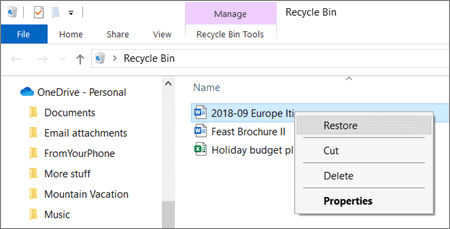
- Step 3: Browse through the list. If you find your missing files, simply select them and click “Restore” at the top of the screen.
Why this works: Microsoft keeps deleted items here for 30 days (for personal accounts) or 93 days (for business accounts) before they are permanently purged.
Method 2: The Pro Secret—PandaOffice Drecov Data Recovery Software
What if the 30-day window has passed? Or what if you emptied your online bin? This is where standard cloud tools fail and professional solutions take over. For those who need to recover deleted OneDrive files from the local sync folder on their PC, PandaOffice Drecov Data Recovery Software is a lifesaver.
Why Choose PandaOffice Drecov?
Unlike basic tools, PandaOffice Drecov is a heavy-hitter in the industry, trusted by users on Trustpilot and featured on platforms like TechBullion, Sourceforge, and the Microsoft Store. It doesn’t just look at the “index cards”; it scans the actual physical surface of your disk to find those “ghost” files.
Key Advantages:
- Versatility: It recovers photos, videos, audio, compressed files (ZIP/RAR), and even system files like EXEs.
- Accidental deletion from your computer desktop.
- Files lost after emptying the Recycle Bin.
- Data loss from disk formatting.
- Accidental deletion or formatting of SD cards/U disks.
- Simple for Beginners: You don’t need to know a single line of code. It’s a “point-and-click” experience.
- File Repair: It can often fix files that are “corrupted” or “unreadable” during the recovery process.
- Privacy First: All recovery happens locally on your machine, so you don’t have to worry about your private data leaking to the web.
How to Use PandaOffice Drecov in 3 Simple Steps:
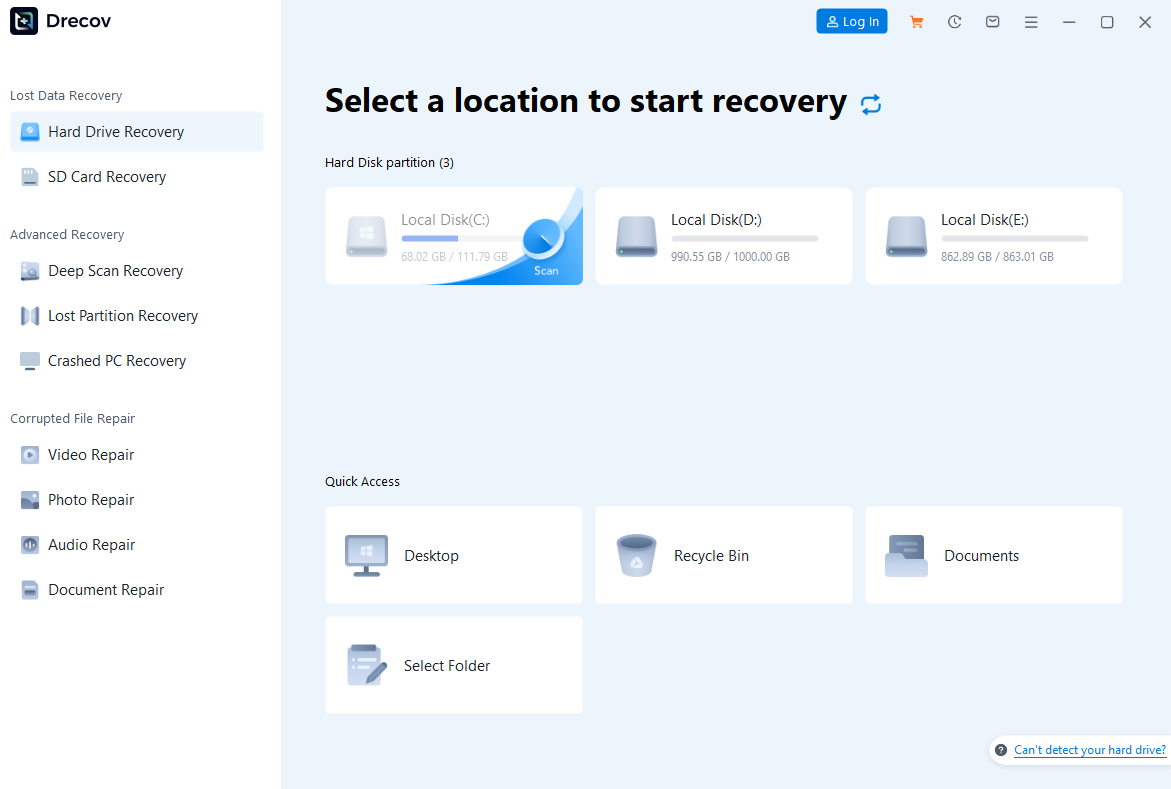
- Step 1: Select Location. Open the software and choose the drive where your OneDrive folder was located (usually the C: drive).
- Step 2: Scan and Preview. Hit the “Scan” button. The software will perform a deep analysis. Once finished, you can use the “Filter” or “Preview” function to find specific formats like .docx or .jpg.
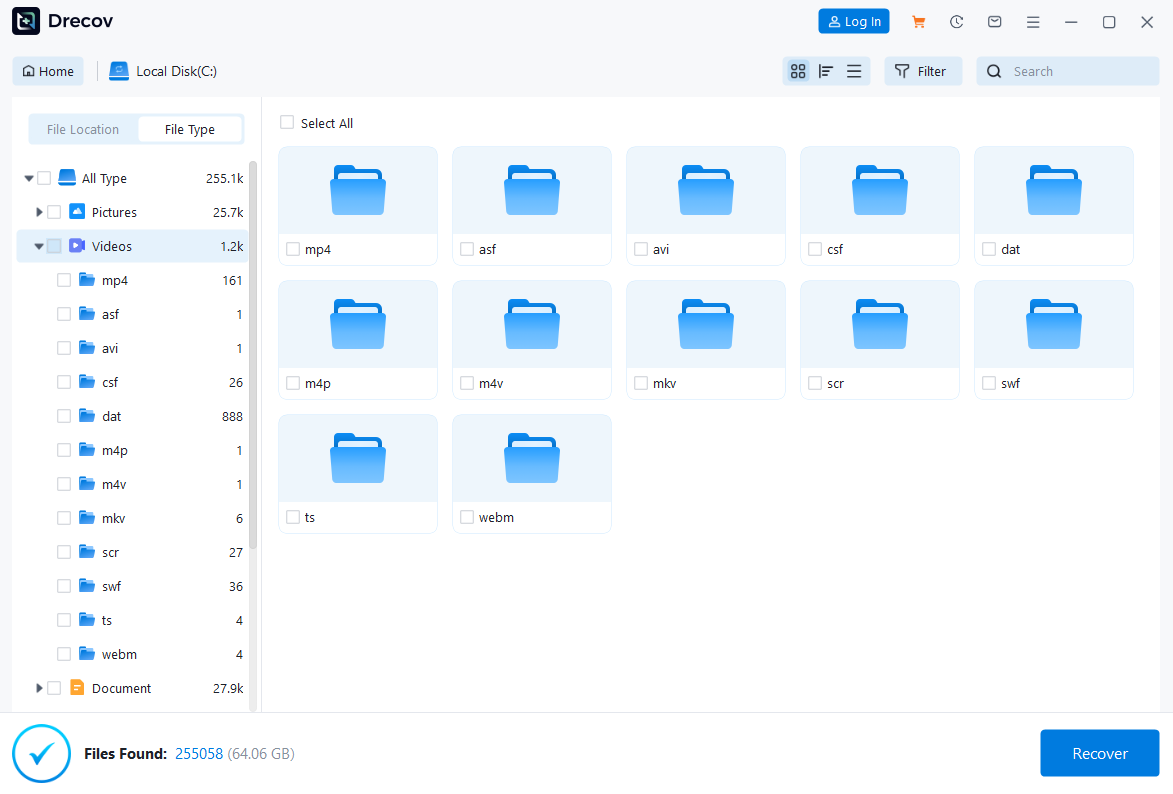
- Step 3: Recover and Save. Select your files and click “Recover.”

- ⚠️ Critical Reminder: When saving your recovered files, never save them back to the same drive or partition where they were lost. Use a USB drive or a different hard drive to ensure you don’t overwrite any other data you might still want to rescue.
Method 3: Turning Back Time—OneDrive Files Restore (Premium Feature)
If you have a Microsoft 365 subscription, you have access to a “Time Machine” for your files. This is particularly useful if your files weren’t just deleted, but were corrupted by a virus or overwritten by a bad sync.
- Step 1: Go to your OneDrive website and click on Settings⚙.
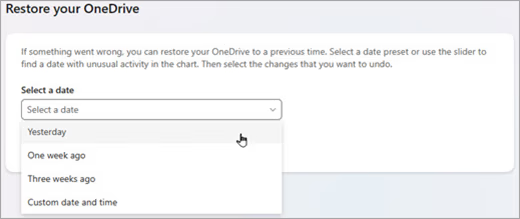
- Step 2: Click on “Options” and then select “Restore your OneDrive.”
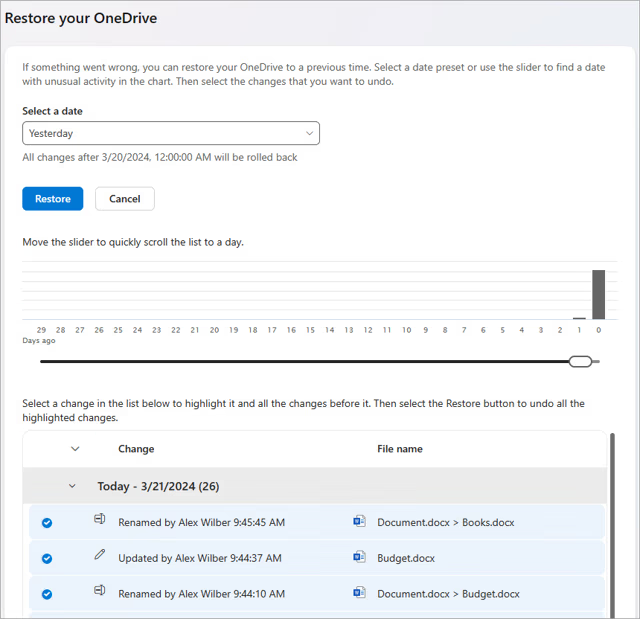
- Step 3: You will see a chart of your file activity over the last 30 days. You can move the slider back to a specific day or hour before the deletion happened.
- Step 4: Click “Restore” to revert your entire library to that exact moment in time.
Method 4: The Local Backup—Windows “File History”
If you are lucky, your Windows system has been quietly taking snapshots of your OneDrive folder in the background.
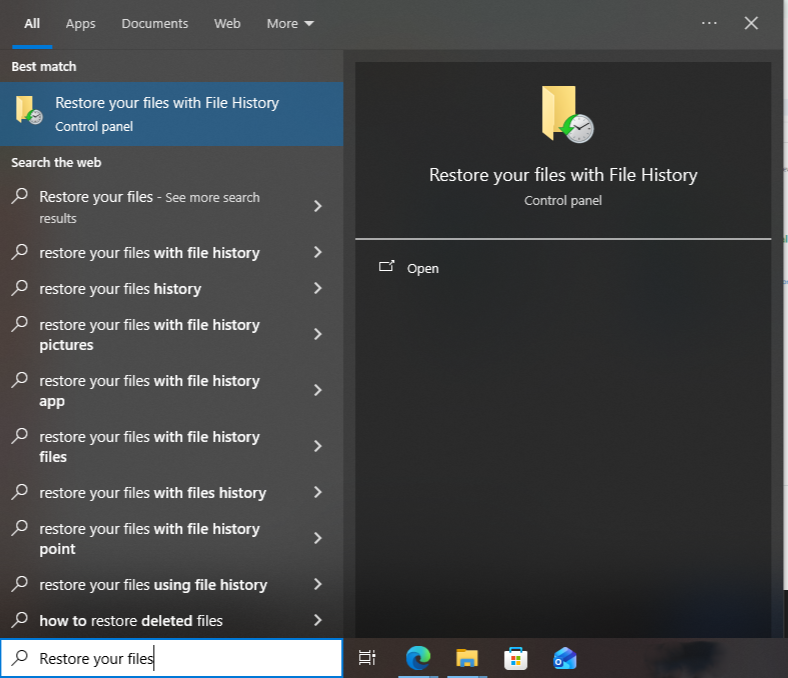
- Step 1: Type “Restore your files with File History” into the Windows search bar.
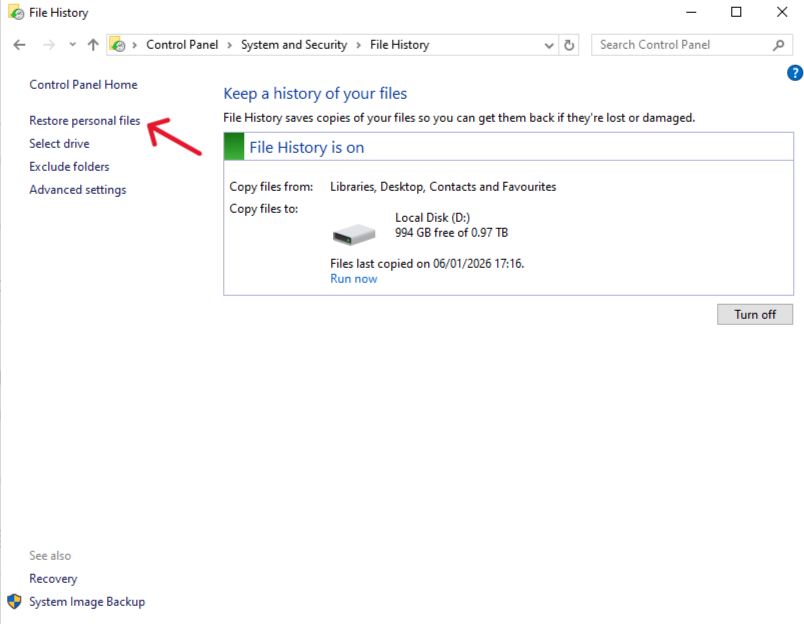
- Step 2: Locate the folder where your OneDrive files lived.
- Step 3: Use the arrow buttons at the bottom to scroll back through time until you see the missing files.
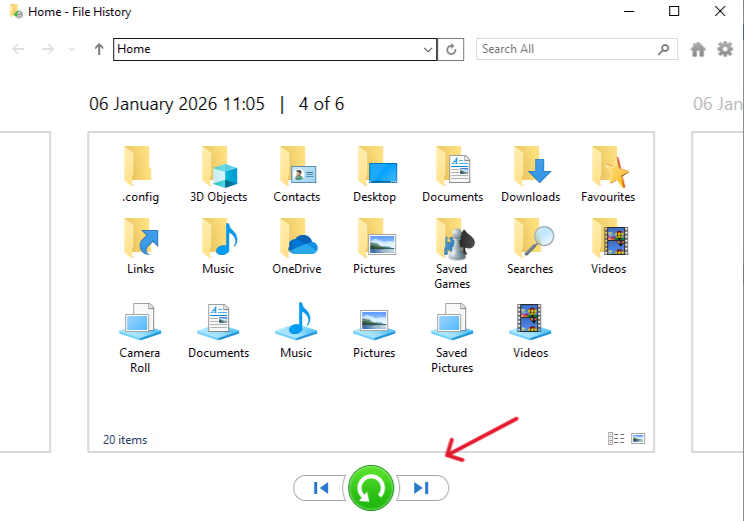
- Step 4: Select the files and hit the green “Restore” button to bring them back to their original location.
Solving Common Hurdles in OneDrive Recovery FAQs
1. Can I recover deleted OneDrive files if I’ve already emptied the local Recycle Bin? Yes, you certainly can. When you empty the local bin, you are only removing the “shortcut” from your Windows interface. The actual data blocks still reside on your hard drive until they are overwritten. In this scenario, you should immediately use PandaOffice Drecov Data Recovery Software. It bypasses the empty recycle bin and scans the drive’s deeper sectors to reconstruct the files that Windows no longer “sees.”
2. How do I recover deleted OneDrive files that were shared with me by someone else? If a file shared with you disappears, it usually means the original owner deleted it or revoked your access. You cannot recover these files from your own Recycle Bin. Instead, you must contact the original owner and ask them to check their OneDrive Recycle Bin. If they have already purged it, they can still use a recovery tool on their local machine to find the original source file.
3. Why can’t I find my deleted files in the OneDrive online Recycle Bin? There are two likely reasons. First, OneDrive automatically purges the bin after 30 days (for personal accounts). Second, if your OneDrive storage was completely full at the time of deletion, items might bypass the Recycle Bin entirely. If the online bin is empty, your best hope is to perform a deep scan of your PC’s local sync folder using the “Extensive” recovery mode in professional software.
4. Is it possible to recover an older version of a file that I accidentally saved over? Absolutely. OneDrive features a built-in “Version History” tool. To use it, right-click the file in your OneDrive folder (or on the web portal) and select “Version History.” This allows you to view and restore previous iterations of the document from the last 30 days, effectively “undoing” any unwanted changes or accidental overwrites.
5. How do I recover deleted OneDrive files after a “Factory Reset” of my PC? A factory reset often wipes the local directory, but since OneDrive is a cloud service, your files should still exist in the cloud. Simply sign back into OneDrive on your refreshed PC to trigger a re-sync. However, if the files were deleted before the reset and are missing from the cloud, you will need to use a data recovery tool to scan the “Unallocated Space” of your hard drive created during the reset process.
Conclusion: Building a “Bulletproof” Digital Life
Successfully learning how to recover deleted OneDrive files is a vital skill, but the best strategy is never having to use these tools at all. While software like PandaOffice Drecov provides a powerful safety net with its high success rates and simple interface, you should always treat it as a last resort.
Final Takeaway Checklist:
- Check the Online Bin First: It’s the easiest way to recover deleted OneDrive files.
- Use Professional Tools for Deep Recovery: If the bin is empty, PandaOffice Drecov can scan your local disk for data that the system thinks is gone.
- Practice the “3-2-1” Backup Rule: Keep 3 copies of your data, on 2 different types of media (e.g., Cloud and External Hard Drive), with 1 copy located off-site.
Digital files are fragile, but they are also remarkably resilient if you know where to look. By acting quickly, avoiding overwriting, and using the right tools, you can turn a potential disaster into a minor inconvenience.






