







Imagine this: You’ve just finished a marathon session of cleaning up your digital workspace. You selected dozens of old project folders, hit “Delete,” and then, with a sense of accomplishment, performed the final ritual—right-clicking that tiny trash can icon and selecting “Empty Recycle Bin.” Seconds later, a cold chill runs down your spine. You realize that a folder containing three years of tax returns or a critical project file was tucked inside one of those “junk” folders. You need to windows recover emptied recycle bin data immediately, but the bin is empty. Is your data gone forever?
The short answer is: No. Whether the files were on your local drive or shifted through a USB interface, they are often still there, hiding in plain sight within the file system’s architecture. This guide will walk you through the science of data recovery and the precise steps to reclaim your lost files.
Why “Empty” Doesn’t Mean “Gone”: The Science of Deleted Data
To understand how to windows recover emptied recycle bin files, we must first dispel a common myth. When Windows “empties” the bin, it does not actually scrub the data off your hard drive or USB flash drive.
The Index vs. The Content
Think of your hard drive like a massive library. The operating system uses a “Master File Table” (MFT) as the library’s card catalog. When you empty the Recycle Bin:
- Windows simply deletes the “index card” for that file.
- The space that the file occupied is marked as “available” or “unallocated.”
- The actual binary data (the 0s and 1s) remains on the physical disk platter or flash memory cells.
As long as you do not save new files that overwrite that specific “available” space, the original data remains intact. This is why timing is critical. If you continue using the computer or saving new photos to a USB drive, you risk overwriting the very data you are trying to save.
Common Scenarios for Data Loss
- Shift + Delete Command: This shortcut bypasses the bin entirely, marking files for immediate deletion.
- Large File Deletion: Files too large for the Recycle Bin’s allocated quota are permanently removed instantly.
- Auto-Cleaning Settings: Windows Storage Sense may be configured to empty your bin automatically every 30 days.
Proven Strategies to Windows Recover Emptied Recycle Bin
When you need to windows recover emptied recycle bin content, you should move from the least invasive methods to the most powerful professional tools.
Method 1: Harnessing Windows File History
Windows has a built-in “time machine” called File History. If you had this enabled prior to the deletion, your recovery is just a few clicks away.
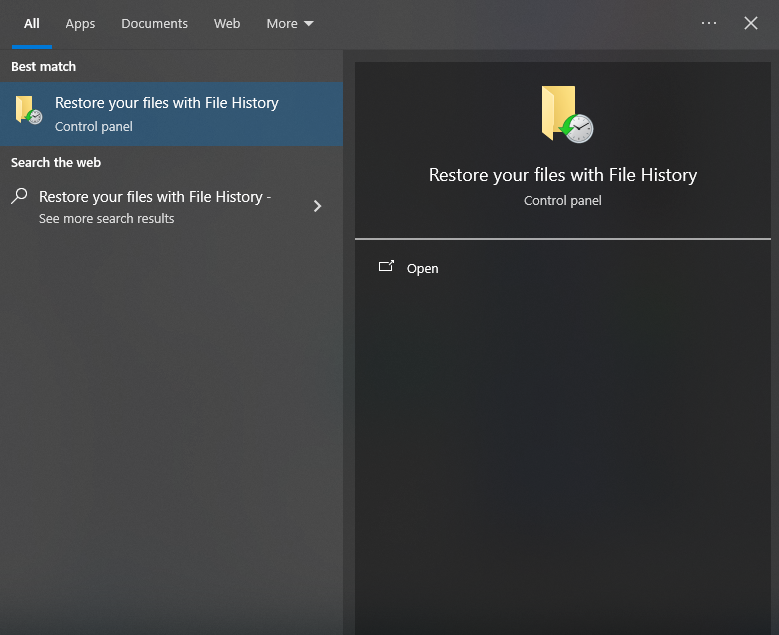
- Step 1: Click the Start menu and type “Restore your files with File History.”
- Step 2: Navigate to the folder where the deleted files were originally stored (e.g.,
C:\Users\Documents). - Step 3: Use the left and right arrows at the bottom to browse through different versions of that folder.

- Step 4: Once you find the version containing your files, select them and click the green Restore (circular arrow) button.
Method 2: Professional Recovery with PandaOffice Drecov
For most users, especially when dealing with USB data loss where “File History” doesn’t apply, a specialized tool is necessary. PandaOffice Drecov is a high-performance recovery suite designed to deep-scan unallocated sectors. It is particularly effective for those who need to windows recover emptied recycle bin data after a system “clean-up” or a USB format.
Why use PandaOffice Drecov? Unlike basic tools, it uses advanced algorithms to “stitch” together fragmented file headers that Windows has forgotten.
Pro tip: Install it on a drive different from the one where the data was lost to avoid overwriting.
- Step 1: Select Location. Launch the program. You will see a list of drives. Select “Recycle Bin” or the specific USB drive letter where the files resided.

- Step 2: Deep Scan. Click the Scan button. The software will perform a Quick Scan followed by a Deep Scan. The Deep Scan is essential for emptied bins as it looks past the file directory for raw data patterns.

- Step 3: Preview and Filter. Drecov allows you to filter by file type (e.g.,
.jpg,.docx). Use the preview window to ensure the file is intact.

- Step 4: Recovery. Tick the boxes for the files you need and click Recover. Choose a safe destination (like an external drive) to save the restored data.
Method 3: Utilizing Windows File Recovery (Command Line)
If you are comfortable with a text-based interface, Microsoft provides a free tool via the Microsoft Store.
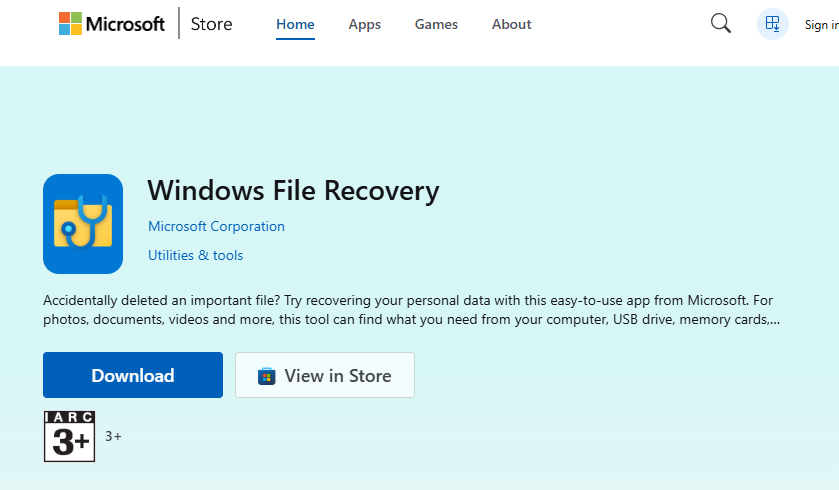
- Step 1: Download Windows File Recovery from the Store.
- Step 2: Open the app, which launches a Command Prompt.
- Step 3: Use the syntax:
winfr source-drive: destination-drive: /regular.- Example: To recover from the C: drive to an external D: drive, type:
winfr C: D: /regular /n \$Recycle.Bin\
- Example: To recover from the C: drive to an external D: drive, type:
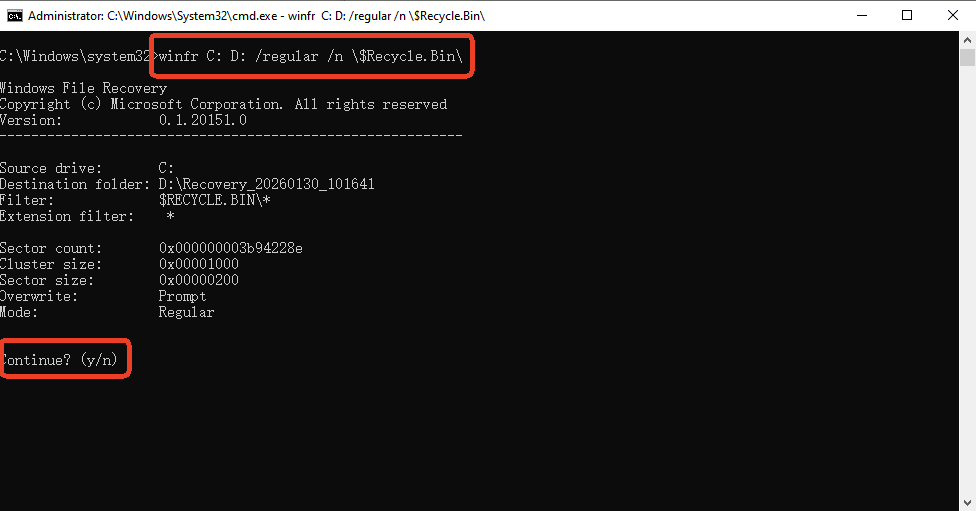
- Step 4: Press Y to start the scan. This tool is effective for NTFS drives but lacks the visual preview of PandaOffice Drecov.
Comparing Data Recovery Methods
To help you choose the best way to windows recover emptied recycle bin files, refer to the table below:
| Feature | File History | PandaOffice Drecov | Windows File Recovery (CMD) |
| Ease of Use | High (Internal) | Very High (Visual Interface) | Low (Technical) |
| Recovery Rate | Limited to Backups | Excellent (Deep Scan) | Moderate |
| USB Support | Poor | Excellent | Good |
| Preview Feature | Yes | Yes (High Resolution) | No |
| Best For | Recent accidental edits | Critical data/Emptied Bin | Free, basic recovery |
Proactive Protection: How to Prevent Future Data Loss
Learning to windows recover emptied recycle bin items is a great skill, but prevention is even better. Here are three professional habits to adopt:
- Adjust Recycle Bin Capacity: Right-click the Recycle Bin -> Properties. Increase the “Custom size” so large files aren’t automatically deleted permanently.
- The “Cloud” Safety Net: Sync your critical folders (Documents, Desktop) to OneDrive or Google Drive. Even if you empty the local bin, these services often keep a “Second-stage Recycle Bin” online for 30 days.
- Use 3-2-1 Backup Strategy: Keep 3 copies of your data, on 2 different media types, with 1 copy kept off-site (or in the cloud).
For more community-driven discussions on this topic, you can check out this Microsoft Tech Community thread where experts discuss specific Windows Insider recovery bugs.
How to undo empty recycle bin windows 10 FAQs
1.Can I recover files if the Recycle Bin was emptied a month ago?
It depends on how much you have used the computer since then. If the drive is nearly full, the “available” space where your files were stored has likely been overwritten. If the drive has stayed mostly idle, your chances to windows recover emptied recycle bin data remain high.
2.Does Windows 11 handle the Recycle Bin differently than Windows 10?
The underlying file system (NTFS) is the same. The methods to windows recover emptied recycle bin files remain consistent across both versions, though the UI for “File History” has slightly changed.
3.Why didn’t my deleted USB files go to the Recycle Bin?
By default, Windows treats external USB flash drives as removable storage. Files deleted from them are “instantly” deleted to save space on the small device. You must use a tool like PandaOffice Drecov to scan the USB’s flash sectors directly.
4.Can I windows recover emptied recycle bin files on an SSD?
It is more difficult on SSDs due to a feature called TRIM, which proactively clears data. However, if you act immediately and turn off the PC, professional tools like PandaOffice Drecov still have a window of opportunity to catch the data before TRIM executes.
Conclusion
Losing data is stressful, but it isn’t always permanent. To successfully windows recover emptied recycle bin contents, the most important rule is to stop writing new data to the drive immediately. Whether you use the built-in File History for a quick fix or rely on the deep-scanning power of PandaOffice Drecov for more complex recoveries, the tools are at your fingertips. By understanding how Windows manages its file index, you can approach data loss with a calm, methodical strategy.






