







I accidentally deleted around 50 image and video files on my android oneplus 5T phone (has lineageOS and TWRP installed, rooted). The phone has internal memory only, no external sdcard. The plan is to use photorec software to recover deleted media files. On my linux pc, used adb pull command for the phone’s /data partition and saved it to the PC as data.img file (around 120gigs). I identified the partition via using already installed TWRP > Advanced > Terminal > and using ‘mount’ command to list partitions. Though I’m wondering if the saved data.img file is encrypted. When I mount it on PC, it lists the folders, but get error when trying to view contents within the folders. Anyhow, I then tried the default settings with photorec software with ‘Free’ setting – no files found.Then tried ‘Whole’ setting – a few gzip files (which error on trying to extract). —from Reddit
Introduction to Recovering Deleted Media Files
What Are Deleted Media Files and Why They Matter
Deleted media files include photos, videos, audio recordings, and other multimedia content that users accidentally or intentionally remove from storage devices. These files often carry significant personal or professional value, such as family memories, business assets, or creative projects. Losing them can be frustrating, especially when no backup is available.
When a file is deleted, it is not immediately erased from the storage device. Instead, the system marks the space as available for new data. This means there is still a chance to recover media files before they are overwritten. Understanding this mechanism is essential for successful recovery.
Modern storage devices—such as SSDs, HDDs, SD cards, and USB drives—handle deleted data differently. For example, SSDs use TRIM technology, which can permanently erase deleted data faster than traditional hard drives. This makes timely recovery even more important.
If you are wondering how to recover media files, the key is to act quickly, avoid writing new data to the affected device, and use appropriate recovery methods.
Why Media Files Get Deleted or Lost
Common Causes Behind Deleted Media Files
There are several reasons why deleted media files occur, and understanding them can help prevent future data loss.
Accidental deletion is one of the most common causes. Users may mistakenly delete files while organizing folders or clearing storage space. Formatting a storage device without proper backup is another frequent issue, often resulting in complete data loss.
System crashes or unexpected shutdowns can also lead to missing or corrupted media files. In some cases, malware or virus attacks may delete or hide files, making them inaccessible. Physical damage to storage devices—such as water exposure or impact—can further complicate recovery.
File system corruption is another critical factor. When the file system becomes damaged, the system may fail to recognize stored media files, even though they still exist on the device.
Understanding these causes not only helps in prevention but also improves the success rate when attempting to recover media files.
How to Recover Media Files: Proven Methods
Method 1: Restore Deleted Media Files from Recycle Bin
One of the simplest ways to recover media files is by checking the Recycle Bin (Windows) or Trash (Mac). When files are deleted using standard methods, they are temporarily stored here before permanent removal.
Steps to follow:
- Open the Recycle Bin on your desktop.
- Browse or search for the deleted media files.
- Right-click the desired file.
- Select “Restore” to return it to its original location.
Test Environment:
- Windows 10/11 system
- Files deleted using “Delete” (not Shift + Delete)
- Local hard drive storage
This method is highly effective but only works if the files have not been permanently deleted or removed from the bin.
⚠️Warning: Emptying the Recycle Bin will permanently remove files, making recovery more difficult.
Method 2: Recover Media Files Using Data Recovery Software
If files are permanently deleted, using professional software is one of the most reliable ways to recover media files.
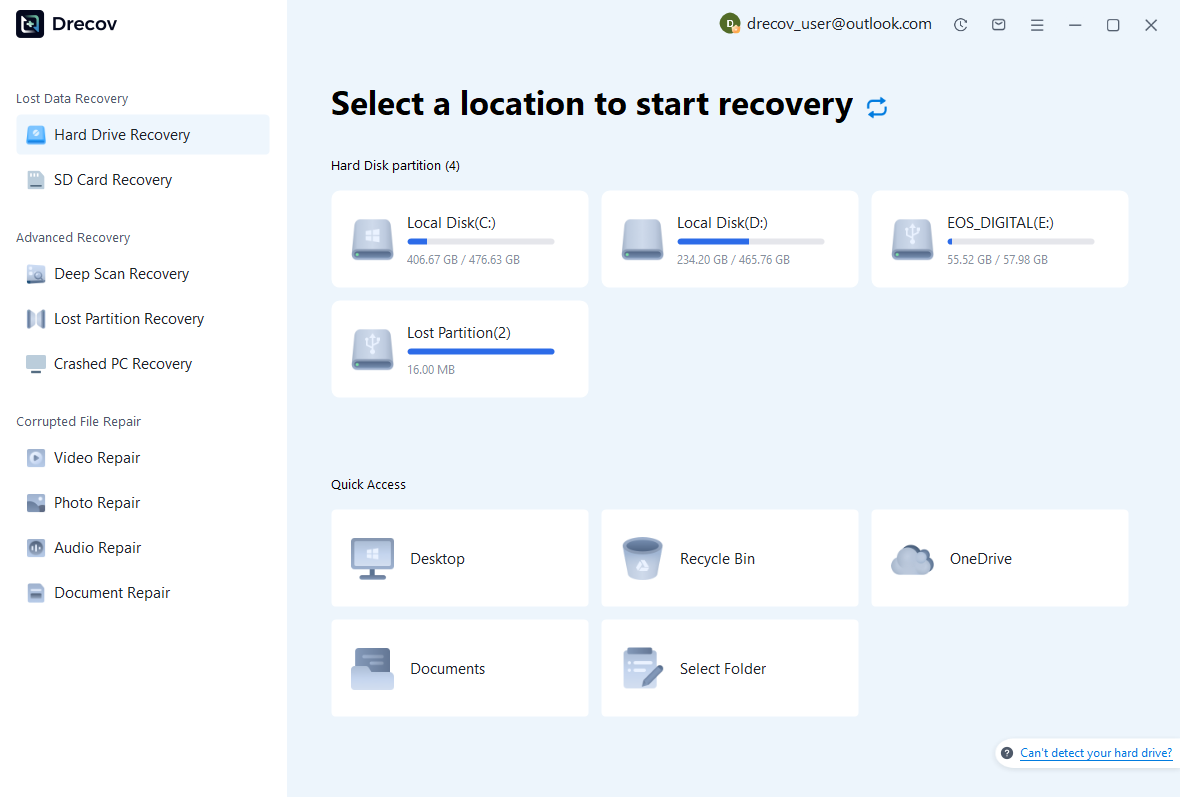
Tools like Pandaoffice Drecov can scan storage devices deeply and locate recoverable data, even after deletion or formatting.
Download DrecovSteps to follow:
- Install Pandaoffice Drecov on a different drive.
- Launch the software and select the target storage device.
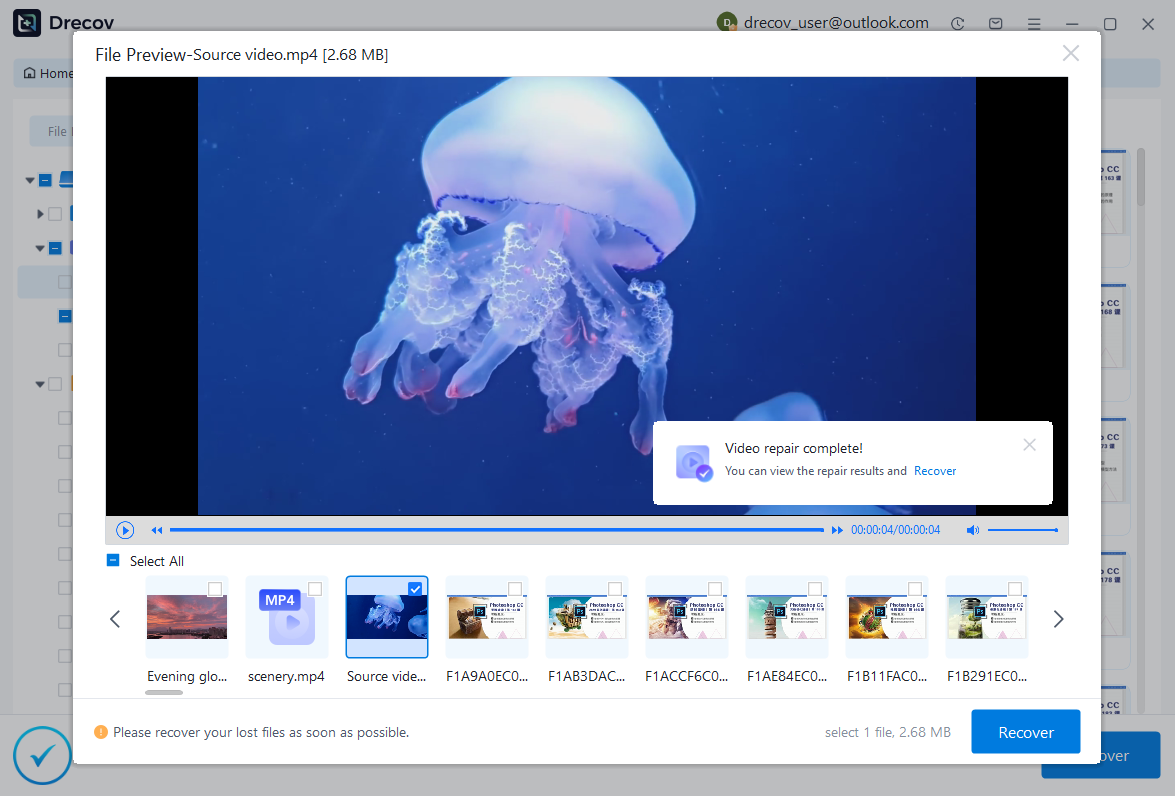
- Start a deep scan to search for deleted media files.
- Preview found files to ensure they are intact.
- Select and recover files to a safe location.
Test Environment:
- Windows 11 system
- Formatted USB drive
- Mixed media files (videos, images, audio)

Why Choose Pandaoffice Drecov?
Pandaoffice Drecov stands out as a powerful and user-friendly solution for handling various data loss scenarios. Whether you need to reset PC to earlier date, perform a recover deleted Blink video, or figure out how do I recover an overwritten Excel file, Drecov provides reliable and efficient recovery tools in one place. It also excels at recovering photos from SD cards, making it ideal for photographers and everyday users alike. Even complex situations like Illustrator unsaved file recovery are handled with advanced scanning algorithms that maximize file retrieval success. With its intuitive interface, deep scan technology, and high recovery rate, Pandaoffice Drecov ensures your lost data can be restored quickly and safely without requiring technical expertise.
This method is especially useful when the Recycle Bin is empty or files are lost due to formatting or corruption.
⚠️Warning: Do not install recovery software on the same drive where data was lost to avoid overwriting files.
Method 3: Restore Media Files from Backup
If you have enabled backup solutions, restoring from backup is a quick and safe way to retrieve deleted media files.
Windows users can use File History, while Mac users can rely on Time Machine. Cloud services like Google Drive or iCloud may also store copies of your media files.
Steps to follow:
- Open your backup system (File History or Time Machine).
- Navigate to the folder where files were stored.
- Select the desired version of the file.
- Restore it to your system.
Test Environment:
- Windows 10 with File History enabled
- External backup drive connected
- Regular backup schedule
This method ensures data integrity since files are restored from previously saved versions.
Method 4: Recover Media Files Using Command Prompt
Advanced users can attempt recovery using built-in system tools like Command Prompt. This method can help retrieve hidden or inaccessible media files.
Steps to follow:
- Connect the affected storage device.
- Open Command Prompt as administrator.
- Type:
chkdsk X: /f(replace X with drive letter). - Use:
attrib -h -r -s /s /d X:\*.* - Check the drive for recovered files.
Test Environment:
- Windows 10 system
- Corrupted USB drive
- Files hidden due to system errors
This method is useful when files are not deleted but hidden due to corruption or malware.
⚠️Warning: Incorrect commands may affect system files. Use carefully.
Factors That Affect Media File Recovery Success
Key Elements That Influence Recovery Results
The success of attempts to recover media files depends on several critical factors.
The most important factor is time. The longer you wait after deletion, the higher the chance that new data will overwrite the lost files. Once overwritten, recovery becomes nearly impossible.
The type of storage device also plays a significant role. HDDs generally offer better recovery chances compared to SSDs due to TRIM functionality. Similarly, SD cards and USB drives may have varying success rates depending on usage.
Another factor is the recovery method used. Basic methods like the Recycle Bin work only in limited scenarios, while professional tools can handle more complex data loss situations.
File size and type also matter. Smaller files are easier to recover, while large video files may be partially corrupted if overwritten.
Understanding these factors helps users choose the most effective approach when learning how to recover media files.
Best Practices to Prevent Future Media File Loss
Simple Habits to Protect Your Media Files
Preventing data loss is always better than trying to recover media files after the fact. Implementing a few best practices can significantly reduce risks.
Regular backups are essential. Use external drives or cloud storage to maintain multiple copies of important files. This ensures that even if one copy is lost, others remain सुरक्षित.
Avoid sudden system shutdowns and safely eject external devices to prevent corruption. Installing reliable antivirus software can also protect against malware-related data loss.
Organizing files properly reduces accidental deletion. Additionally, enabling system features like File History or automatic backups adds an extra layer of protection.
⚠️Warning: Relying on a single storage device increases the risk of permanent data loss.
By following these practices, you can minimize the need to recover media files in the future.
Method 5: Recover Media Files from Formatted Drives
Formatting a storage device often appears to erase all data, but in many cases, the underlying data remains until overwritten. This makes it possible to recover media files even after formatting, provided no new data has replaced the old content.
Steps to follow:
- Stop using the formatted drive immediately.
- Connect the device to a working computer.
- Use a deep scan recovery tool (avoid quick scan).
- Filter results by file type (video, audio, images).
- Preview and recover selected files to another location.
Test Environment:
- Windows 11 system
- Formatted SD card (exFAT)
- DSLR camera media files (MP4, JPG)
Deep scanning works by reconstructing file signatures, which is particularly useful for multimedia formats. However, file names and folder structures may not always be restored.
⚠️Warning: Saving recovered files back to the formatted drive can overwrite remaining recoverable data.
Method 6: Recover Media Files from Corrupted Storage Devices
Corruption can make media files inaccessible even though they still exist on the device. In such cases, repairing the device or extracting readable data becomes essential to recover media files.
Steps to follow:
- Connect the corrupted device to your system.
- Run disk checking tools (like CHKDSK).
- Attempt to repair file system errors.
- Use recovery software to scan the repaired drive.
- Extract accessible media files.
Test Environment:
- Windows 10 system
- Corrupted external HDD
- Interrupted file transfer scenario
This approach works best when corruption is logical rather than physical. If the device has physical damage, professional recovery services may be required.
Method 7: Recover Media Files from External Devices (USB/SD Card)
External devices are more prone to accidental deletion, virus attacks, and improper ejection. Fortunately, they also offer a good chance to recover media files due to their simpler file systems.
Steps to follow:
- Insert the USB drive or SD card into your computer.
- Avoid opening or modifying files on the device.
- Use a recovery tool to scan the external storage.
- Sort results by file type or date.
- Recover files to your computer’s internal drive.
Test Environment:
- Windows 11 laptop
- USB flash drive (32GB)
- Mixed deleted media files
This method is particularly effective for recovering recently deleted files, especially when the device has not been heavily reused.
Common Questions About Recovering Deleted Media Files
Can I Recover Media Files After Permanent Deletion?
Yes, it is often possible to recover media files even after permanent deletion (such as using Shift + Delete). The files remain on the storage device until overwritten by new data.
Using professional recovery software significantly increases the chances of success. However, immediate action is critical. The longer the delay, the lower the probability of full recovery.
How Long Do Deleted Media Files Stay Recoverable?
There is no fixed time limit for recovering deleted media files. The recoverability depends on storage usage rather than time.
If the device is not used after deletion, files may remain recoverable for a long period. However, frequent use or saving new files can overwrite the deleted data quickly.
Why Are Some Recovered Media Files Corrupted?
Recovered files may appear corrupted if parts of the data have already been overwritten. This is common with large video files.
In some cases, recovery tools can only retrieve partial data, leading to playback issues or missing segments. Choosing deep scan options can improve recovery quality.
Is It Safe to Use Free Tools to Recover Media Files?
Free tools can help recover media files in simple cases, but they often have limitations such as restricted file size recovery or fewer supported formats.
For critical or large-scale recovery, professional tools provide better reliability and deeper scanning capabilities.
Key Takeaways for Successful Media File Recovery
Essential Tips for Better Recovery Results
Successfully learning how to recover media files requires a combination of correct timing, proper tools, and safe handling of storage devices.
Always stop using the affected device immediately after data loss. This prevents overwriting and preserves recoverable data. Choosing the right recovery method based on the situation—whether deletion, formatting, or corruption—is equally important.
Using reliable recovery software in complex scenarios significantly improves success rates. However, not all situations guarantee full recovery, especially if data has been overwritten.
Maintaining regular backups remains the most effective strategy to avoid permanent loss. Combining cloud storage with local backups ensures multiple recovery points.
⚠️Warning: Continuing to use a device after data loss can permanently destroy recoverable files.
Conclusion: A Smarter Approach to Recover Media Files
Final Thoughts on Protecting and Restoring Media Data
Recovering deleted media files is entirely possible in many situations, but success depends on how quickly and carefully you respond. From simple solutions like restoring from the Recycle Bin to advanced recovery from formatted or corrupted drives, there are multiple ways to retrieve lost data.
Understanding the root cause of data loss helps you choose the most effective recovery method. Whether you are dealing with accidental deletion, system crashes, or storage corruption, applying the right approach can make a significant difference.
At the same time, prevention should always be a priority. Regular backups, safe device handling, and awareness of risks can greatly reduce the chances of losing important media files.
By following the strategies outlined in this guide, you can confidently recover media files and protect your valuable digital content in the future.





