







The Moment of Dread: “Where Did My Files Go?”
It happens in a flash: you plug in your trusty USB drive, and… nothing. Or worse, you accidentally deleted a vital folder, cleared the Recycle Bin, or were prompted to format the drive. That sinking feeling—the panic that your thesis, essential work documents, or irreplaceable family photos are gone forever—is awful. But take a deep breath. In most cases, your data isn’t truly gone; it’s just unlinked. Understanding this key concept is the first step toward successful USB flash drive data recovery.
⚠️ Essential Safety Tips Before You Start
Before attempting any recovery method, follow these critical rules to prevent overwriting your lost data:
- Stop Using the Drive Immediately: Do not save new files, create new folders, or format the drive. Any write operation could permanently overwrite the sectors holding your lost data.
- Make a Drive Image: For extremely critical data, professionals often create a bit-for-bit image of the failing drive first. This is a copy of the entire drive’s structure, allowing recovery attempts to be made on the copy, preserving the original.
- Use a Different PC for Software: If you must download recovery software, install and run it from a separate computer (or a different disk partition) to avoid writing data onto the affected USB drive.
Practical Paths to USB Flash Drive Data Recovery
When files are deleted, the operating system simply marks the space as “available” without erasing the actual data bits. This makes recovery possible. Here are several effective methods, ranging from simple fixes to powerful software solutions:
1. Command Prompt Chkdsk
Sometimes, the files aren’t deleted; the drive’s file system structure is simply corrupted, making files invisible. The command can often repair these errors: chkdsk
- Access Command Prompt: Press the Windows Key + R, type
cmd, and press Enter.
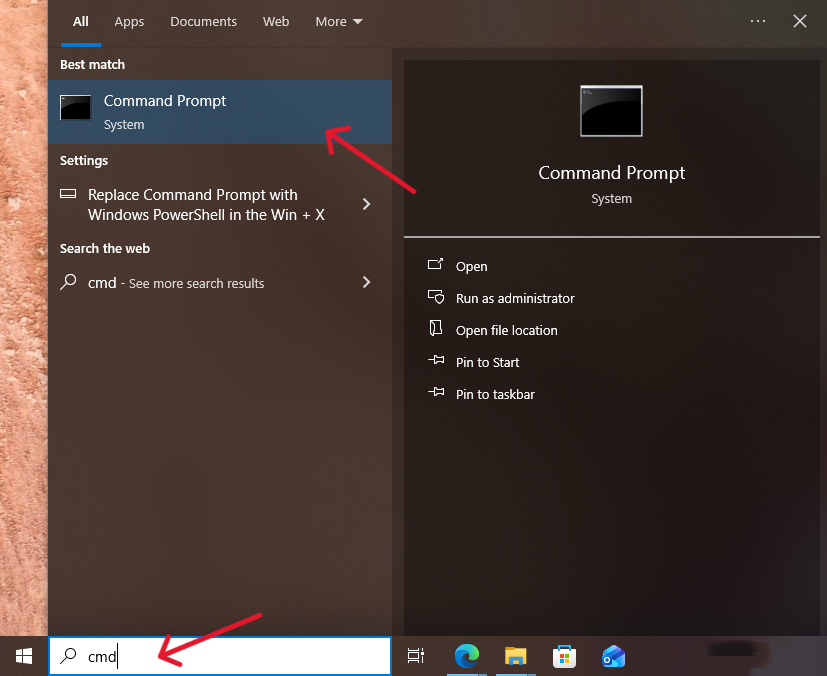
- Run Chkdsk: Type (replace
chkdsk X: /fX with the letter of your USB drive) and press Enter. This command checks for and fixes errors in the file system.
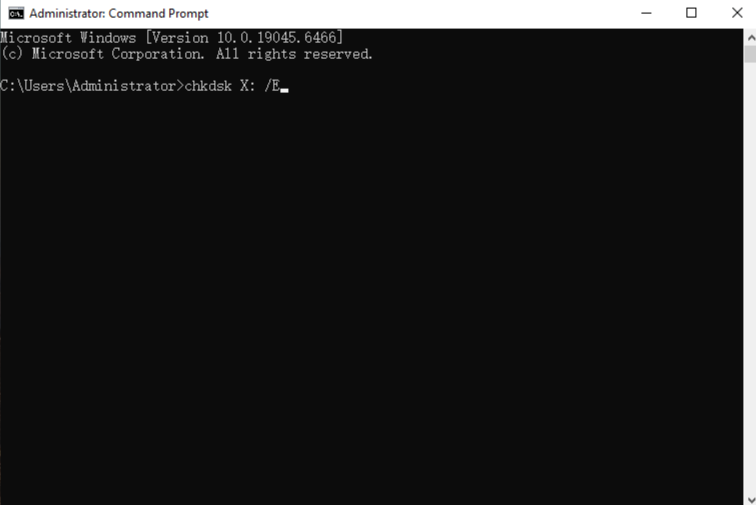
- Wait and Check: Once completed, check your USB drive. Your files might be restored or placed into a new folder named
FOUND.000.
2. The Reliable Tool: PandaOffice Drecov
For files lost due to accidental deletion, emptying the Recycle Bin, disk formatting, or SD card/USB drive errors, a professional tool like PandaOffice Drecov offers an ultra-high data recovery success rate and a straightforward process. It is a highly-recommended, no-code solution for users of all technical levels.
This tool is trusted by many and has established partnerships with known names like Trustpilot, Microsoft Store, TechBullion, and Sourceforge. Furthermore, it performs a local recovery, meaning your data never leaves your computer, ensuring data privacy and security.
Key Benefits:
- Comprehensive Coverage: It supports recovery from accidentally deleted files on your desktop, emptied Recycle Bin, disk formatting, and SD card/USB flash drive data errors.
- Extensive File Support: It retrieves hundreds of common file formats, including images, videos, audio, compressed archives, and executables (EXE).
- Built-in Repair: It can even quickly repair content in files that appear corrupted, unopenable, or display as gibberish/garbled text.
PandaOffice Drecov in 3 Simple Steps:
1.Select Location and Initiate Scan:

- Open the application and select the specific USB drive or location you need to scan (for deleted desktop files or Recycle Bin recovery, select the appropriate option).
- Click “Scan.” The software will perform a deep scan to find all recoverable data fragments.
2.Preview and Filter Results:
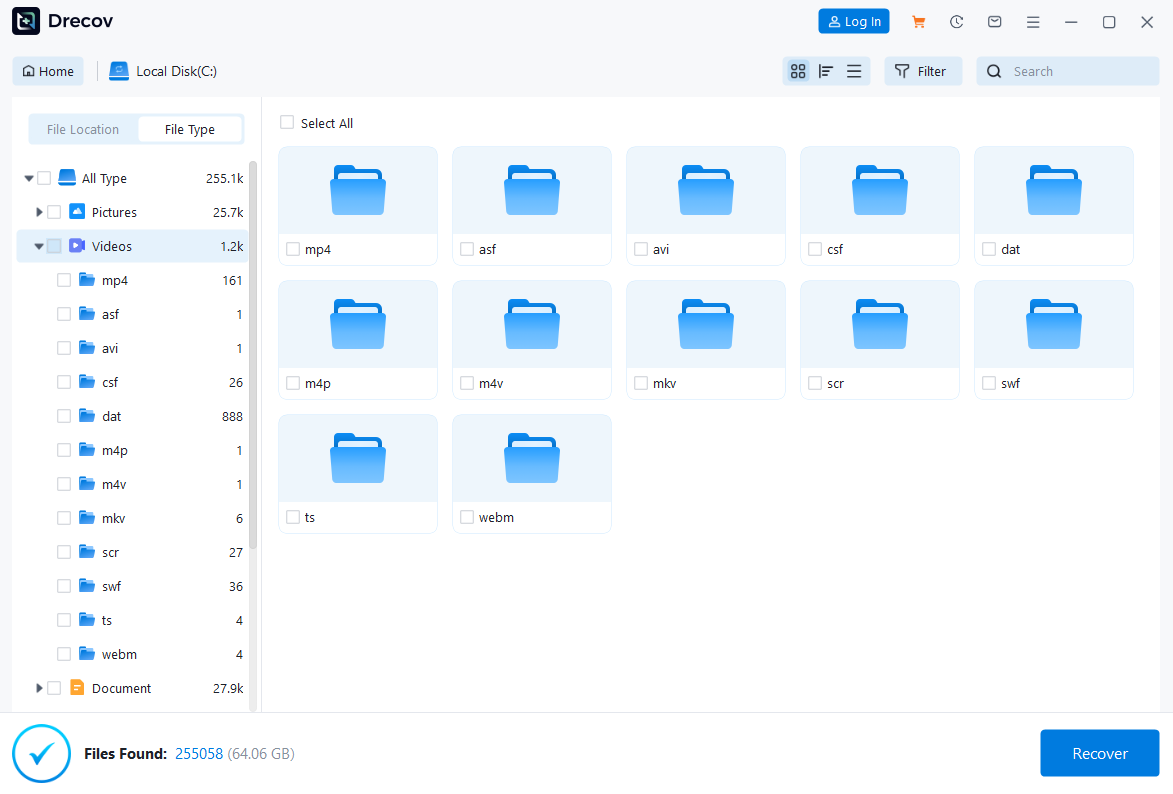
- Once the scan is complete, you can view the files found.
- Use the filter options (e.g., select file types like photos, videos, or documents) to quickly narrow down the results. If recovering from an emptied Recycle Bin, ensure the “Recycle Bin” option is checked/toggled during the initial selection or filtering.
3.Recover and Save:

- Check the boxes next to the files you wish to restore.
- Click “Recover” and select a safe location on a different drive (e.g., your computer’s C: drive) to save the recovered files. This is crucial to avoid overwriting the very data you are trying to recover.
3.Restore from Previous Versions
If the USB drive was previously connected to a Windows PC with System Protection enabled, you might be able to restore the entire folder from a shadow copy:
1.Right-Click the Folder: Navigate to the parent folder where the lost data used to be (or the drive itself).
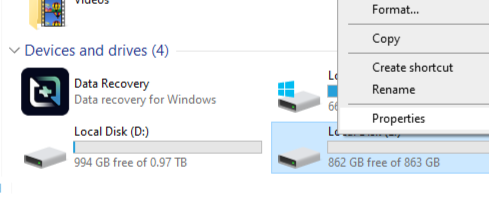
2.Access Properties: Right-click and select Properties.
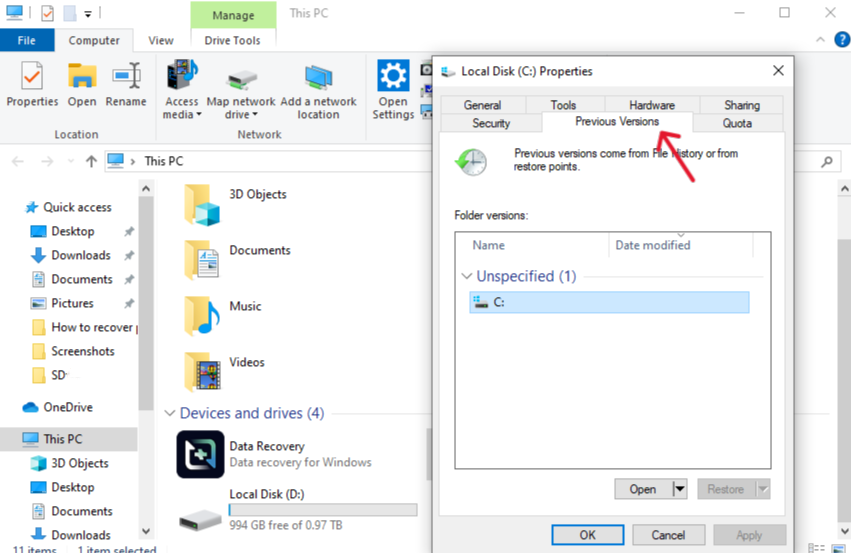
3.Open Previous Versions: Click the Previous Versions tab. Look for versions of the folder or drive that were created before the files were lost.
4.Restore: Select a version and click Restore to get your files back.
💡 The Science of “Unlinking”: How Recovery Works
The core principle behind USB flash disk recovery is surprisingly simple. Think of your USB drive as a massive library.
- The Files: The actual books (your data—the photos, documents, etc.) are scattered across the shelves in various places (the physical memory sectors).
- The File System Table (FAT/NTFS): This is the library’s card catalog. It doesn’t contain the books; it only holds the address (sector number) where each book starts and the order of its pages.
When you delete a file, the operating system doesn’t shred the book. Instead, it only erases the entry from the card catalog and writes a note next to that address saying, “Available space for a new book.” The data (the book) remains intact on the shelves until a new file comes along and writes its data over the old one.
Recovery software like PandaOffice Drecov works by ignoring the card catalog and systematically scanning every single shelf (memory sector) for data patterns that look like the beginning of a file (e.g., a JPEG header or a PDF marker). It then reconstructs the data into a usable file for you to recover and save.
Five Common Questions on USB Flash Disk Recovery
❓ Is it possible to recover data after I performed a Full Format instead of a Quick Format?
While a Quick Format only deletes the File Allocation Table (FAT/MFT) and leaves the actual data intact (making recovery easy), a Full Format (or standard format) is much more destructive.
- What a Full Format Does: A Full Format typically performs a zero-fill, meaning it writes zeroes to every sector of the USB drive. This process effectively and permanently overwrites the original data bits.
- Recovery Possibility: For modern USB drives, especially those using solid-state technology, data recovery after a successful Full Format is extremely difficult, if not impossible, using standard software. Once the data has been zeroed out, it is gone forever.
- The Caveat: Some recovery software may be able to find data if the Full Format process was interrupted or if the utility used did not perform a true zero-fill, but your chances are significantly reduced compared to a Quick Format or accidental deletion.
❓ My USB drive is physically broken (e.g., snapped in half or won’t light up). Can recovery software still help
No. Recovery software like PandaOffice DRecov or others can only address logical data loss (when the data is intact but the file system index is damaged or deleted).
- Physical Damage: If the drive is physically damaged (broken connector, water damage, internal chip failure, etc.), the computer cannot even read the storage chips. Since the drive does not appear in the operating system’s drive list, the software has nothing to scan.
- The Solution: For physical damage, you must seek help from a professional data recovery service or lab. These labs work in sterile clean-room environments to physically repair or replace damaged components (like the circuit board or connector) or bypass them entirely by reading the data directly from the NAND memory chips using specialized tools. This is the most expensive option but is the only way to recover data from a physically failed drive.
❓ Why do I need to save the recovered files to a different drive? Can’t I just save them back onto the USB drive?
This is one of the most crucial rules in USB flash disk recovery and must be strictly followed to ensure success.
- The Risk: When a file is recovered, the recovery software is essentially writing new data—the retrieved file—back onto the storage medium.
- The Conflict: If you try to write the recovered file back onto the same USB drive from which you are recovering, the recovered file might be written into the exact memory space that contains other lost files you haven’t recovered yet. This causes immediate and permanent data overwriting.
- The Rule: To prevent overwriting, you must always select a safe, separate location (e.g., your computer’s C: drive, a different external hard drive, or a cloud service) as the destination for the recovered files.
❓ What are the signs that my USB drive is failing and needs immediate recovery before it dies completely?
Recognizing the warning signs of an impending drive failure is key to performing a preemptive USB flash disk recovery before it’s too late.
| Symptom | Meaning & Action |
| Extremely Slow Access/Transfer | The controller is struggling to read data due to bad blocks. Action: Copy all essential files off the drive immediately. |
| Drive Disconnects Randomly | The connection is unstable, likely due to a faulty connector or overheating component. Action: Try a different USB port or PC, and if it still disconnects, stop using it. |
| Files Suddenly Appear Corrupt | The drive is failing to maintain data integrity, leading to data degradation. Action: Prioritize recovery of critical files using software like PandaOffice Drecov. |
| “Please Insert Disk” Error | The computer recognizes the USB device but cannot detect the memory. This often indicates a severe controller chip failure. Action: This requires immediate professional recovery (see Question #2). |
| Drive Becomes Read-Only | The drive’s controller often enters a “protection mode” to prevent further data loss when it detects too many bad memory blocks. Action: Copy all data off; the drive is at the end of its life. |
❓ My computer keeps asking me to “Format the disk in drive X: before you can use it.” What should I do?
Do NOT click “Format Disk”! This is a classic symptom of a corrupted file system, and formatting will destroy the map to your files.
- Stop and Unplug: Immediately click “Cancel” or close the window, and safely disconnect the USB drive.
- Use Specialized Software: This prompt means the drive’s MFT/FAT table is corrupted. Your data is likely still on the disk. Use a robust data recovery application designed to ignore the corrupted file system and perform a deep, raw scan of the sectors to find and rebuild your files
Conclusion
USB flash drive data recovery is a common challenge, but with the right steps, your chances of success are high. By immediately stopping the use of the drive and utilizing a powerful, simple tool like PandaOffice Drecov, you can quickly move from panic to successfully retrieving your valuable data.






