







Dealing with a formatted SD card can feel like a disaster, but please don’t panic! When you format an SD card, the operating system doesn’t immediately erase the data; instead, it simply marks the space as available for new files. This means you have an excellent chance to recover data from the formatted SD card.
We designed this guide for the everyday computer user, so we will avoid excessive jargon and provide clear, easy-to-follow steps.
Quick Tips to Maximize Your Recovery Success Rate
💡 Before attempting any recovery method, follow these crucial rules to successfully recover data from your formatted SD card:
- Stop Using the SD Card IMMEDIATELY: This is the most critical rule for successful recovery! Do not capture new photos, save new documents, or write any new data to the card. Any new data can permanently overwrite the old files, making them impossible to recover.
- Act Fast: The sooner you attempt the recovery process, the higher your chances of success.
Method 1: Using Professional Data Recovery Software
Professional tools like PandaOffice Drecov Data Recovery Software boast a super-high success rate for recovering data lost due to accidental deletion, emptying the Recycle Bin, disk formatting, or formatted SD card/USB drive issues. It supports the recovery of hundreds of common file formats, including photos, videos, audio, compressed archives, and EXE files. The best part? The entire process is simple enough for anyone to use—no complex coding required.
PandaOffice Drecov Core Advantages:
- High Success Rate: Excellently optimized to recover data from formatted SD card, emptied Recycle Bins, and deleted desktop files.
- Easy-to-Use: A quick, three-step process that even beginners can follow.
- File Repair: Quickly repairs content within files that appear corrupted or unreadable.
- Data Security: The recovery process is local, so you don’t worry about data leaks.
- Trusted Partners: They collaborate with reputable platforms like Trustpilot, Microsoft Store, TechBullion, and Sourceforge.
Three Steps to Quickly Recover Data
Step 1: Download, Install, and Select the Target Device

- Download and Install: Visit the official PandaOffice Drecov website to download and install the software.
🚨 Crucially, install the software on your computer, not on the SD card you want to recover data from!
- Connect and Launch: Insert your formatted SD card into your computer’s card reader. Launch the PandaOffice Drecov program.
- Select Location: In the software interface, you will see a list of connected drives. Select your specific SD card as the target location to recover data from.
Step 2: Choose File Types and Initiate Deep Scan
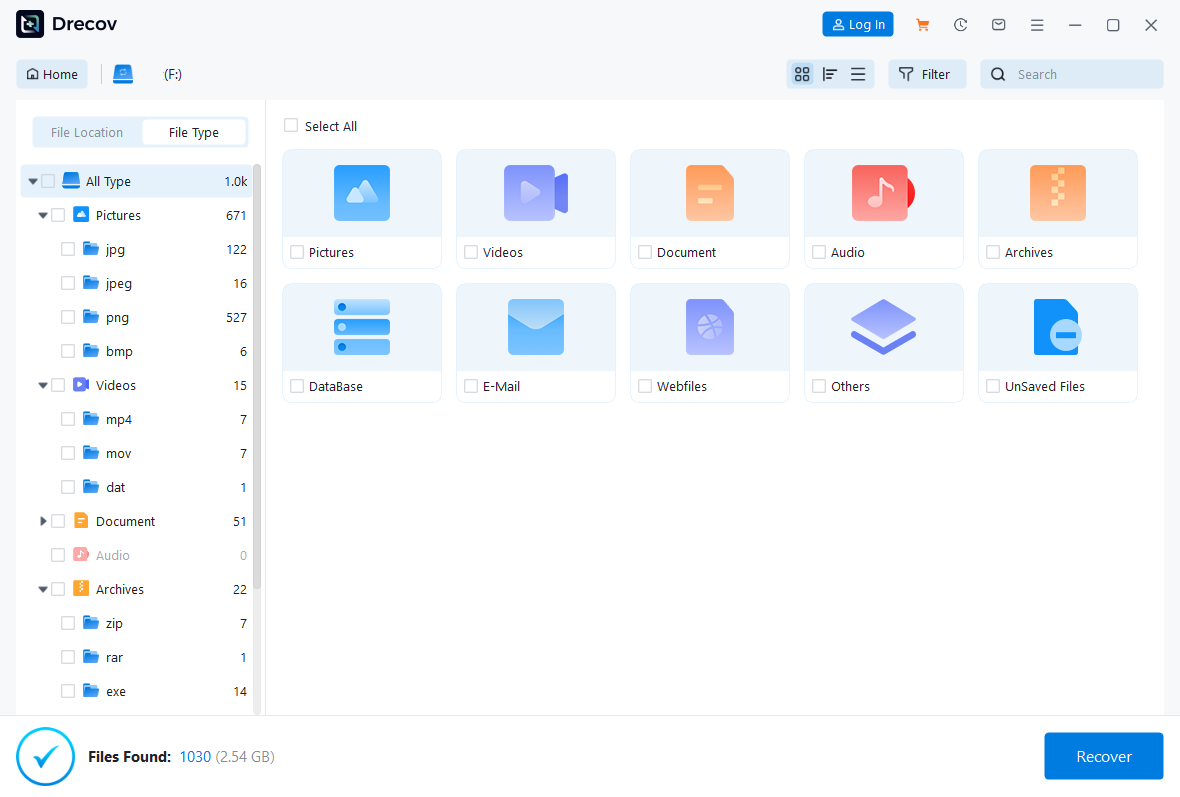
- Select File Types: To speed up the recovery and refine your results, the software prompts you to select the file types you are looking for (e.g., Photos, Videos, Documents). Check all relevant types.
- Start Deep Scanning: Recovery from a formatted SD card usually requires a deep scan. Consequently, ensure you check the software option labeled “Deleted Files,” “Lost Partition,” or “Formatted Recovery.” This specialized mode is essential for finding deeply lost data, which includes files deleted from the desktop or emptied from the Recycle Bin.
- Begin Scan: Click the “Scan” button. The software will begin its comprehensive deep scan of the formatted SD card. Scanning time will vary based on the capacity of your SD card.
Step 3: Preview, Recover, and Safely Save
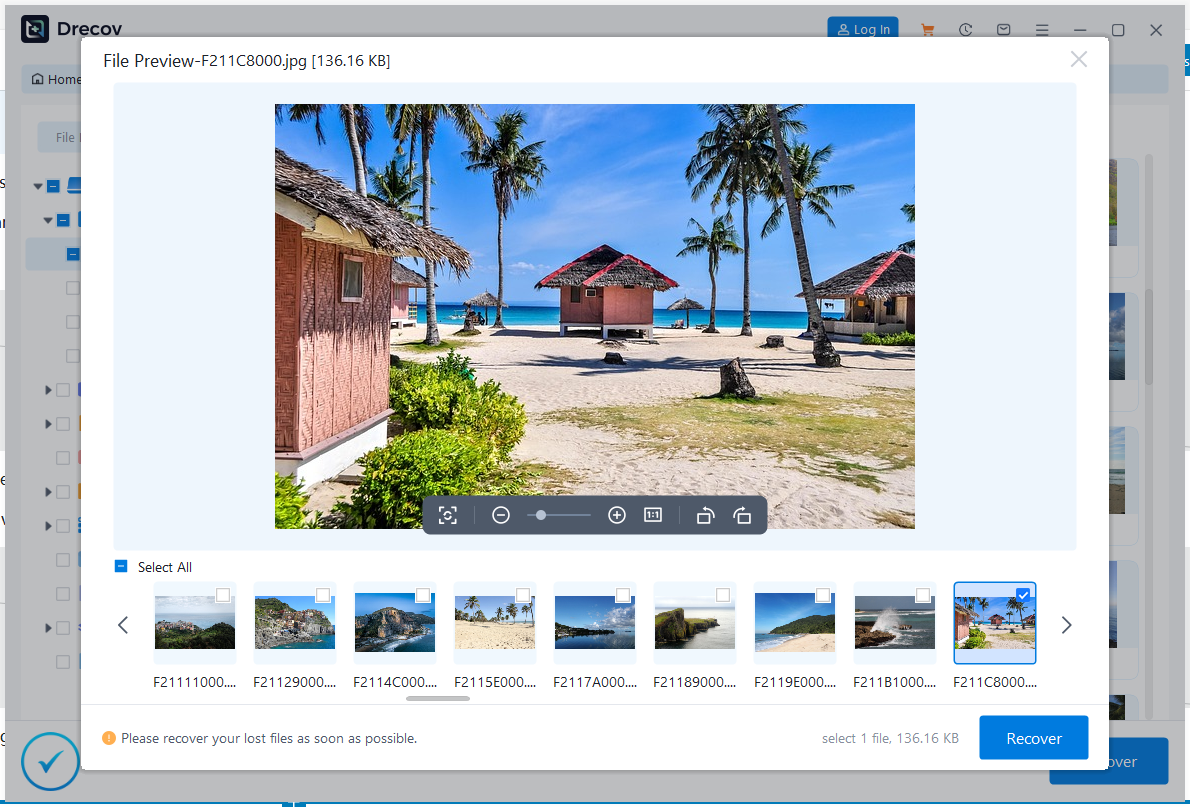
- View and Preview: Once the scan finishes, the software lists all recoverable files. You can view the files and use the preview function (for photos and documents) to confirm they are the correct, uncorrupted versions.
- Select Files: Tick the boxes next to the files and folders you wish to recover from the formatted SD card and click the “Recover” button.
🚨 IMPORTANT: When prompted, choose a safe location on your computer’s hard drive (like your Desktop or Documents folder) to save the recovered files. Never save the recovered data back onto the original SD card, as this risks overwriting other files that are still recoverable computer, not on the SD card you want to recover data from!
Method 2: Check Cloud or Local Backups
Before investing time in recovery software, always check for backups first. This represents the fastest and safest way to recover data you may have lost.
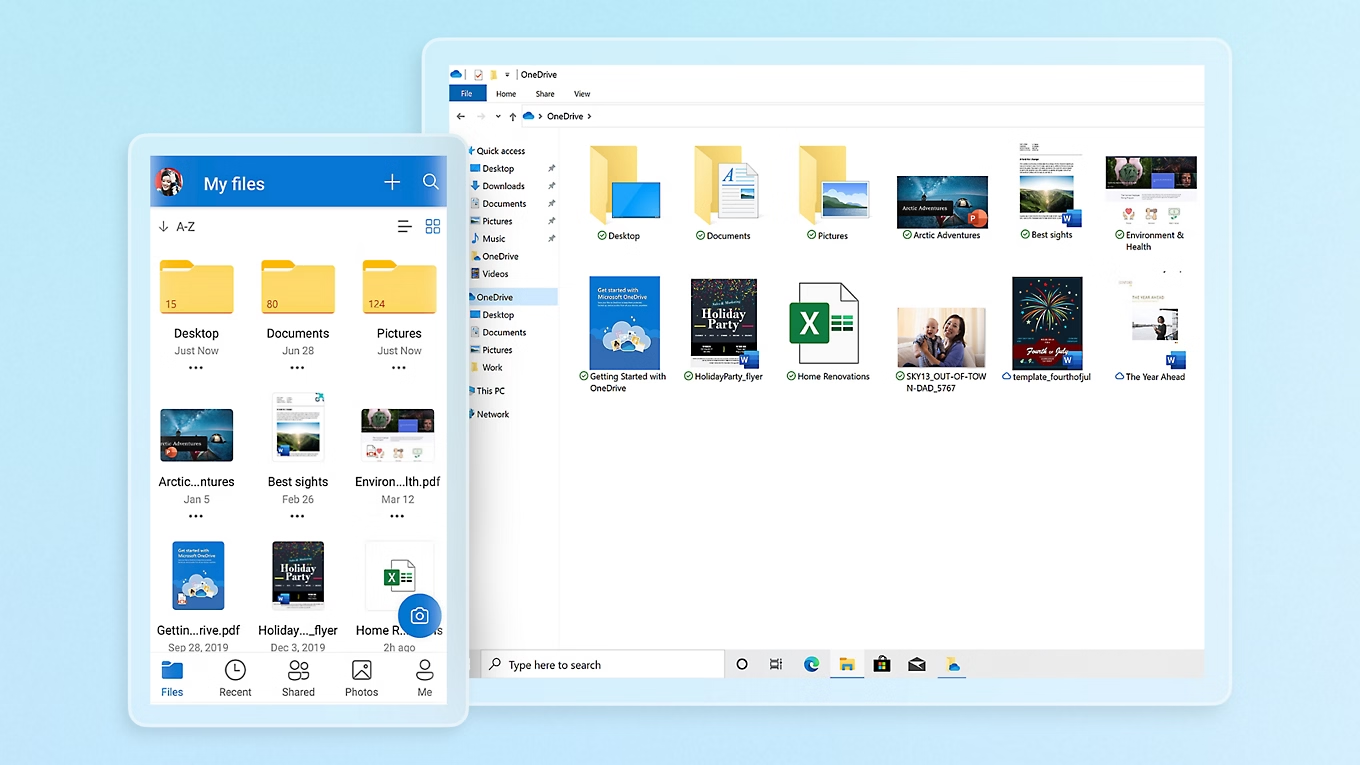
- Cloud Services: Check your Google Photos, Dropbox, or OneDrive accounts. Many phone and camera apps automatically synchronize media before the SD card was formatted.
- Local Backups: Check your computer’s hard drive or an external drive for any folders where you routinely copied the contents of your SD card.
Method 3: Using the Command Prompt (CMD)
This method utilizes the built-in Windows Command Prompt (CMD) tool. It primarily works for files that are merely hidden or marked as system files, but its success rate for data recovery from a formatted SD card is quite low.
🚨 Note: This method is far less effective for recovering data lost due to a full format and is primarily useful for locating hidden files.
Steps by steps:
- Open CMD: Press the Windows Key + R, type
cmd, and press Enter.
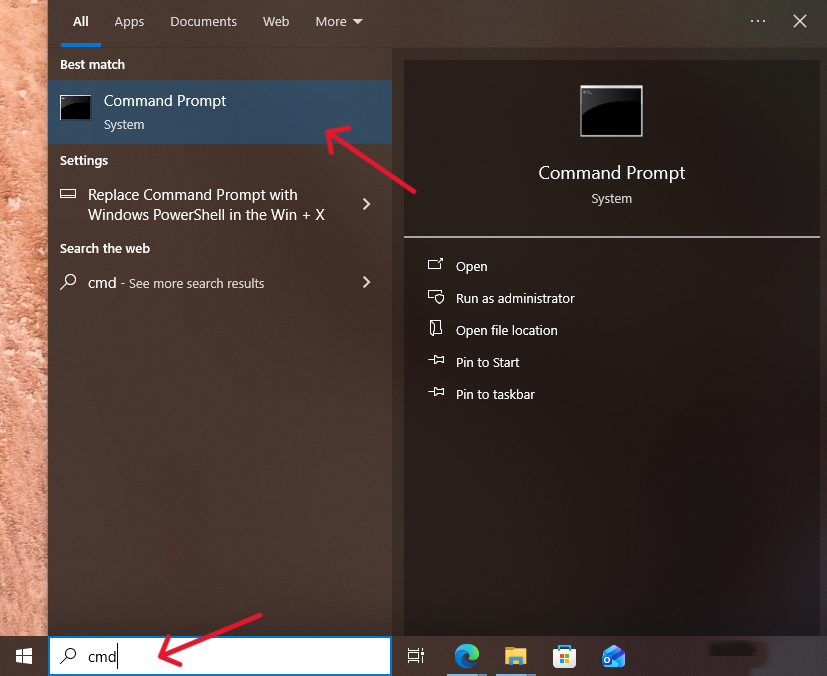
- Enter Command: Type the following command and press Enter, making sure you replace the letter ‘E’ with the actual drive letter of your SD card:
attrib -h -r -s /s /d E:\*.*

- This command attempts to remove the ‘Hidden’ (
-h), ‘Read-only’ (-r), and ‘System’ (-s) attributes from all files (*.*) on the specified drive (E:\). - Check: After the command executes, open File Explorer and check your SD card to see if any files have reappeared.
❓ Common User Questions and Answers
1. Is it truly possible to recover data from a formatted SD card, or is the data permanently gone?
Yes, it is truly possible, provided you act quickly and stop using the card! When you format an SD card, the data isn’t physically erased. Instead, the file system simply removes the “pointers” or links that tell your computer where those files are located. The actual data remains on the card until new data overwrites it. Therefore, by using specialized software like PandaOffice Drecov, you can scan the card’s raw memory sectors and reconstruct the lost files.
2. What is the difference between “Quick Format” and “Full Format” in terms of data recovery success rate?
There is a significant difference:
- Quick Format (High Success Rate): This is the most common method and only takes seconds. It merely rewrites the file system table (the pointers), leaving the actual data blocks intact. Data recovery success is typically very high.
- Full Format (Lower Success Rate): This method takes much longer because the operating system usually writes zeros (or other data patterns) to every sector of the card. This process physically overwrites the data, making recovery much more difficult, if not impossible, depending on the number of overwrite passes. Fortunately, most users perform a Quick Format.
3. Why should I install the recovery software on my computer and not on the formatted SD card?
You must install the software on your computer’s hard drive or an external storage device, never on the formatted SD card itself. If you install the software onto the SD card, the installation files and program data will write new information onto the card. This writing process will permanently overwrite some of the lost data blocks, immediately reducing or even eliminating your chance to recover data from the formatted SD card.
4. How long does it typically take to recover data from a formatted SD card using professional software?
The time depends on two main factors:
- SD Card Capacity: Larger cards (e.g., 256GB or 512GB) take longer to scan than smaller ones (e.g., 32GB or 64GB).
- Computer Speed: Your computer’s processing power and connection speed (USB 2.0 vs. USB 3.0/3.1) also affect scan time.
Generally, a deep scan to recover data from a formatted SD card can take anywhere from 15 minutes for smaller cards up to several hours for very large capacity cards (128GB and above).
5. After recovering the files, is the SD card safe to use again immediately?
Yes, once you have successfully recovered all your needed files and saved them safely to your computer, the SD card is generally safe to use again. However, before reusing it, it is highly recommended to perform a new Quick Format on the card using your camera or phone. This ensures the card has a clean, proper file system structure, which helps prevent future data corruption issues.
Conclusion
When faced with data loss from a formatted SD card, the most reliable strategy is to immediately stop using it and employ a professional data recovery tool like PandaOffice Drecov. Its straightforward, three-step process makes it easy for even novice users to maximize their chances to successfully recover data.






