







I’m reaching out to the community in hopes of finding a solution to a problem I’ve recently encountered. I’ve accidentally permanently deleted some important files from my Windows 10 PC, and I’m desperately trying to recover them. These files were not just moved to the Recycle Bin but were permanently deleted, and now I’m looking for any possible way to recover permanently deleted files on Windows 10.—from Microsoft Store
Understanding Windows File Recovery and Why It Matters
What Is Windows File Recovery and How It Works
Losing files on a computer can be extremely frustrating. Documents, photos, project folders, and important data may disappear due to accidental deletion, formatting errors, or system crashes. Fortunately, modern operating systems provide several solutions to retrieve missing files. One of the most widely discussed tools is Windows File Recovery, a command-line utility created to help restore deleted data.
The windows file recovery tool works by scanning storage devices for traces of files that were previously removed but not yet overwritten. When a file is deleted in Windows, it is not immediately erased from the storage device. Instead, the system marks the storage space as available for reuse. Until new data replaces it, recovery may still be possible.
Many users search for windows file recovery download options when they realize that important data is missing. These tools analyze storage sectors and reconstruct files whenever possible. The effectiveness of a file recovery program windows users rely on depends on several factors, including disk activity and storage type.
In general, a windows recovery file process works best when the lost data has not been overwritten. Quick action significantly increases the chances of successful restoration.
⚠️Warning: Avoid installing recovery tools on the same drive where files were lost, as this may overwrite recoverable data.
Common Reasons Files Disappear in Windows
Typical Causes of Data Loss on Windows Systems
Files may vanish for many different reasons, and understanding the cause helps determine the most effective recovery method. Whether you rely on windows file recovery software or built-in features, identifying the root problem can save time.
One of the most frequent causes is accidental deletion. Users may mistakenly delete folders while cleaning their system or using the Shift+Delete shortcut, which bypasses the Recycle Bin. When this happens, people often look for free windows file recovery solutions.
Another common reason is storage device formatting. A hard drive, SSD, USB flash drive, or memory card may be formatted intentionally or accidentally. Formatting removes file references from the file system, making it appear as if everything has been erased.
System crashes and unexpected shutdowns also contribute to file loss. If Windows stops responding during file transfers or saving operations, the data may become corrupted or disappear entirely.
Malware infections can also damage the file system structure. Some malicious programs delete files, hide them, or encrypt them.
Finally, hardware failure is a major risk. Aging hard drives or unstable external storage devices may suddenly become inaccessible, leaving users searching for file recovery windows methods.
⚠️Warning: If a storage device begins making unusual noises or disconnecting repeatedly, stop using it immediately to prevent permanent data loss.
Is It Possible to Recover Deleted Files on Windows?
Factors That Affect Recovery Success
Many users wonder whether deleted files can truly be restored. The answer is yes—under the right conditions. With proper techniques and tools, window file recovery can often retrieve data that appears lost.
The most important factor is whether the original storage space has been overwritten. When a file is deleted, Windows simply marks its location as reusable. If no new data occupies that space, recovery software may reconstruct the file.
Storage type also affects success rates. Traditional hard disk drives (HDDs) often provide higher recovery chances because data remains on disk sectors until overwritten. Solid-state drives (SSDs), however, sometimes use TRIM technology that automatically clears deleted data blocks.
File system type also matters. NTFS, FAT32, and exFAT systems store metadata differently, which affects how recovery tools scan for lost files.
Additionally, the amount of time that has passed since deletion can influence the outcome. The longer a system continues running and writing new data, the greater the chance that deleted files will be overwritten.
For this reason, users searching for how to use windows file recovery solutions should stop using the affected drive immediately.
⚠️Warning: Continuing to download or save files to the affected drive may permanently destroy recoverable data.
Effective Methods for Windows File Recovery
Method 1: Recover Files Using Windows File Recovery Command Tool
The built-in windows file recovery tool is a command-line program designed by Microsoft to restore deleted files from local storage devices. Although it requires typing commands, it can be very powerful when used correctly.
Test Environment
- Operating System: Windows 11 Pro
- Storage Device: 512GB SSD (NTFS)
- Data Loss Scenario: Deleted folder removed with Shift+Delete
To begin, users must first complete the windows file recovery download from the Microsoft Store. After installation, the tool can be launched through Command Prompt or Windows Terminal.
The general command format looks like this:
winfr source-drive: destination-drive: /mode /switches
For example, if files were deleted from drive C and you want to recover them to drive D, the command might resemble:
winfr C: D: /regular /n \Users\Documents\
The tool then scans the source drive for recoverable data and attempts to rebuild files based on file system records.
While this file recovery program windows users rely on is powerful, it requires familiarity with command-line syntax. Many beginners find the interface difficult to use.
⚠️Warning: Always restore files to a different drive to prevent overwriting recoverable data.
Method 2: Recover Lost Files Using Professional Recovery Software (Pandaoffice Drecov)
Another reliable approach involves specialized windows file recovery software designed with graphical interfaces. These tools simplify the recovery process and allow users to restore files without typing complex commands.
One example is Pandaoffice Drecov, which provides a streamlined interface for scanning drives and recovering lost data.
Download DrecovTest Environment
- Operating System: Windows 10 Home
- Storage Device: 1TB HDD
- Data Loss Scenario: Deleted photo folder from desktop
Steps to recover files:
- Install and launch Pandaoffice Drecov on your computer.
- Select the drive where the files were lost.
- Start the scanning process to search for recoverable files.
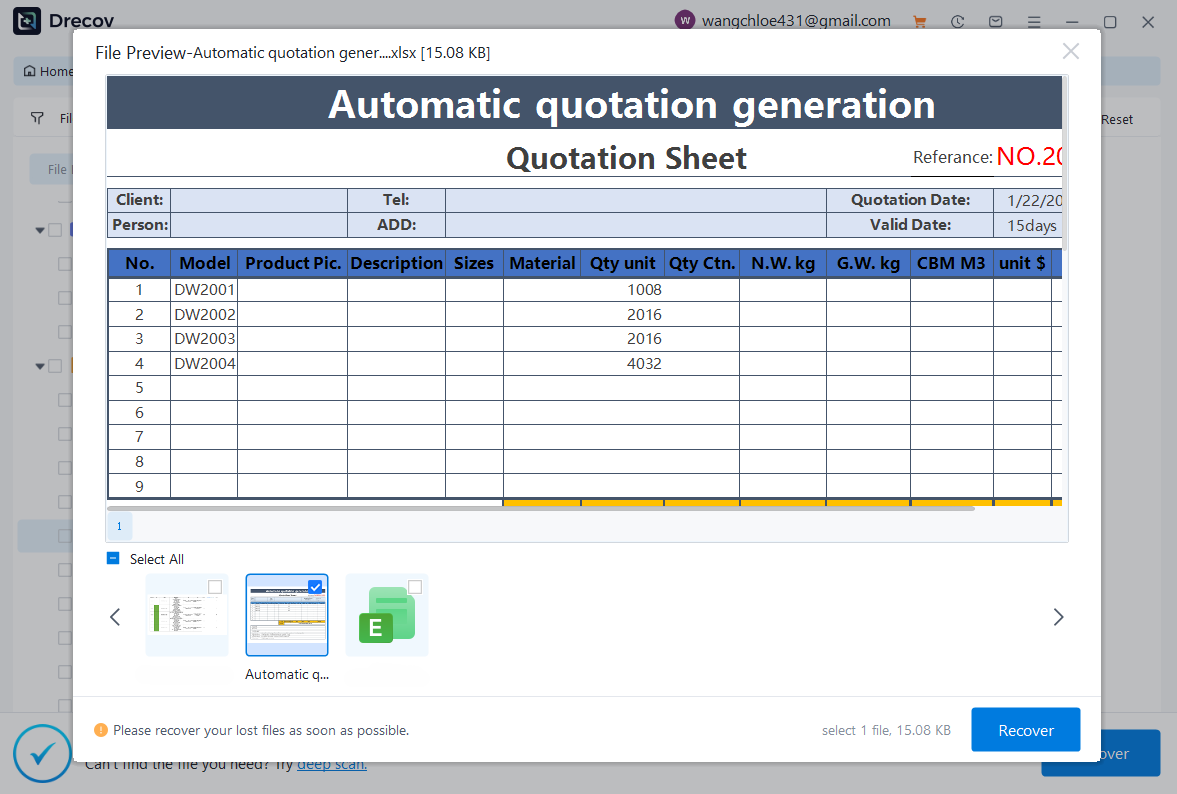
- Preview the results and locate the deleted folder.
- Select the files and choose a different location to restore them.
During testing, the software successfully detected deleted photos and documents that were removed earlier in the day. Its preview function made it easy to confirm which files were recoverable before restoration.


Why Choose Pandaoffice Drecov?
When it comes to recovering lost or deleted files, reliability, speed, and ease of use are paramount. Pandaoffice Drecov stands out as a comprehensive solution for individuals and businesses alike, offering a seamless experience for data recovery. Whether you’ve accidentally formatted a USB drive or lost crucial documents, this software ensures your files are back in your hands quickly and safely.
With Formatted USB Drive Recovery, Drecov effortlessly restores files from drives that have been reformatted, protecting important data from permanent loss. Its advanced scanning engine also excels at Word Document Recovery, retrieving unsaved or deleted documents without compromising formatting or content. For office users, Deleted PowerPoint Recovery and Excel Recovery Files are equally straightforward, letting you recover presentations and spreadsheets critical for work or study.
Beyond individual file types, Drecov covers broader recovery needs. Its Recycle Bin Recovery Software feature allows you to restore files emptied from the Recycle Bin, ensuring that even accidental deletions don’t result in permanent loss. The software’s intuitive interface guides users through each step, making complex recovery processes simple, even for those with minimal technical experience.
Security is another cornerstone of Pandaoffice Drecov. All recovery processes are read-only, meaning your original data remains untouched while the software works to restore files. The high success rate and compatibility with multiple storage devices—from USB drives to external hard drives—make Drecov a versatile tool for any data recovery scenario.
Compared with command-line solutions, graphical windows recovery file utilities reduce the risk of errors and make recovery accessible for beginners.
Method 3: Restore Files from the Recycle Bin
Before using any windows file recovery utility, it is always wise to check the Recycle Bin. Many deleted files remain there unless they were permanently removed.
Test Environment
- Operating System: Windows 10
- Storage Device: 256GB SSD
- Data Loss Scenario: Folder deleted using the Delete key
Steps to restore files:
- Double-click the Recycle Bin icon on the desktop.
- Browse through the list of deleted files and folders.
- Locate the item you want to recover.
- Right-click the file and select Restore.
- The file will return to its original location.
This method is the simplest and fastest form of file recovery windows users can perform. However, it only works when files were not permanently deleted.
Method 4: Recover Deleted Folders Using Windows File History
Windows File History allows users to restore deleted folders from automatic backups without third-party software. It is effective if enabled before data loss.
Test Environment
- Operating System: Windows 11 Pro
- Storage Device: 1TB HDD
- Data Loss Scenario: Project folder deleted accidentally
Steps:
- Connect the external drive used for File History backups.
- Navigate to Settings → Update & Security → Backup → More options → Restore files from a current backup.
- Browse historical versions to locate the deleted folder.
- Select the folder and click Restore to return it to its original location.
⚠️Warning: Outdated backups may not include the most recent changes.
Method 5: Restore Folders via Previous Versions
Windows allows recovery of deleted folders using Previous Versions, which relies on restore points or shadow copies.
Test Environment
- Operating System: Windows 10
- Storage Device: 500GB SSD
- Data Loss Scenario: Work documents deleted
Steps:
- Right-click the folder that previously contained the deleted files.
- Select Restore previous versions.
- Review available snapshots and select the desired version.
- Click Restore to recover the folder to its original location.
⚠️Warning: Restore points must exist; otherwise, this method cannot recover the files.
Method 6: Recover Files from Backup Programs
Using backups is one of the safest ways to restore deleted folders. Professional backup programs ensure that all important folders are saved in a separate location.
Test Environment
- Operating System: Windows 10 Home
- Storage Device: 2TB External HDD
- Data Loss Scenario: Documents folder deleted
Steps:
- Open your backup software and connect the backup storage device.
- Search for the deleted folder within the backup archive.
- Preview contents to confirm files are intact.
- Restore the folder to a different location to avoid overwriting.
⚠️Warning: Never restore to the same drive as the deleted files, to prevent permanent data loss.
Method 7: Recover Files from Cloud Storage Services
Many users synchronize Windows folders with cloud services such as OneDrive, Google Drive, or Dropbox. Cloud services often provide a trash or version history for deleted files.
Test Environment
- Operating System: Windows 11 Home
- Storage Device: 256GB SSD + Cloud sync
- Data Loss Scenario: Desktop folder deleted and synced
Steps:
- Log in to your cloud storage account.
- Navigate to the trash or version history section.
- Locate the deleted folder or previous version of the files.
- Restore the folder to the cloud, which will automatically sync back to your Windows device.
⚠️Warning: Files deleted permanently from the cloud trash may not be recoverable.
Method 8: Recover Files Using Disk Imaging Tools
For advanced users, creating a disk image ensures that recovery can be attempted without modifying the original drive.
Test Environment
- Operating System: Windows 10 Pro
- Storage Device: 1TB HDD
- Data Loss Scenario: Project folder deleted accidentally
Steps:
- Create a full disk image of the affected drive using imaging software.
- Mount the disk image in read-only mode.
- Use a file recovery program windows to scan the image for deleted folders.
- Preview and restore recoverable files to a separate location.
⚠️Warning: Modifying the original drive before imaging may permanently reduce recoverability.
Frequently Asked Questions About Windows File Recovery
How quickly should I attempt file recovery?
Recovery should begin immediately after deletion. Continued use of the affected drive may overwrite deleted data, reducing chances of success.
Are free Windows file recovery tools reliable?
Free tools are effective for recently deleted files and simple recovery cases. For complex data loss, professional software like Pandaoffice Drecov offers higher success rates.
Can SSDs be recovered as easily as HDDs?
SSDs with TRIM enabled may permanently erase deleted data, making recovery harder. Using recovery tools immediately after deletion improves the chance of recovery.
Is it possible to recover files from formatted drives?
Yes, if the data has not been overwritten. Recovery is more successful when professional software is used immediately after formatting.
Do I need technical knowledge to use recovery tools?
Command-line tools require basic knowledge of commands. GUI-based software like Pandaoffice Drecov is beginner-friendly and reduces errors.
Conclusion: Key Takeaways for Windows File Recovery
Recovering deleted files on Windows is achievable with the right tools and precautions:
- Act Quickly: Stop using the affected drive immediately.
- Check Built-in Tools: Recycle Bin, File History, and Previous Versions may restore files without extra software.
- Use Professional Software When Needed: Pandaoffice Drecov is recommended for complex recovery scenarios.
- Maintain Regular Backups: This reduces the risk of permanent data loss.
- Restore to Different Drives: Always avoid restoring files to the same drive as the deleted files.
By combining these strategies, users can successfully perform windows file recovery for documents, folders, media, and other critical data, whether using HDDs, SSDs, or cloud-synced devices.






