







Losing files from a USB flash drive often happens in the blink of an eye—and it’s exactly in moments like these that users start searching for How to Recover Deleted Files on USB Flash Drive Recuva. One careless click, an accidental Shift + Delete, or a rushed formatting operation can instantly wipe out months—or even years—of important work. Photos from a client shoot, scanned contracts, school assignments, or firmware backups may vanish without warning.
At that moment, panic usually sets in. Many users assume that deleted USB files are gone forever. Others rush to copy new data onto the drive, unknowingly reducing their recovery chances.
This guide focuses on a question millions of users search for every year: how to recover deleted files on usb flash drive recuva. More importantly, it goes beyond a single tool. You will learn why USB data can often be recovered, how Recuva works in real-world scenarios, and when professional tools like PandaOffice Drecov deliver better results.
By the end of this article, you will understand USB data recovery from the ground up and know exactly which method fits your situation.
Understanding USB Data Loss: Why Deleted Files Are Often Still There
Before diving into how to recover deleted files on usb flash drive recuva, it helps to understand what really happens when files disappear.
A Simple Analogy: The Library Index Card
Think of your USB flash drive as a large library:
- The books represent your actual files
- The catalog index represents the file system
When you delete a file, the system does not immediately shred the book. Instead, it removes the index card that points to it. The book stays on the shelf until someone else takes that space.
This is why how to recover deleted files on usb flash drive recuva is even possible. As long as new data does not overwrite the original space, recovery tools can locate those “orphaned books” and rebuild access to them.
How USB Flash Drives Store and Delete Data
USB flash drives usually use file systems such as:
- FAT32
- exFAT
- NTFS (less common but supported)
When deletion occurs:
- The file allocation table marks the space as “available”
- The actual data blocks remain intact
- Overwriting happens only when new files occupy that space
This behavior explains why how to recover deleted files on usb flash drive recuva works best when you stop using the USB immediately after data loss.
Critical Rules Before You Start USB Data Recovery
Before attempting any recovery method, follow these rules carefully:
- Stop using the USB flash drive immediately
- Do not copy or save anything to the same USB
- Avoid formatting the drive again
- Run recovery software from your computer, not the USB
Ignoring these steps dramatically reduces success rates—even with the best tools.
Method 1: How to Recover Deleted Files on USB Flash Drive Recuva (Step-by-Step)
Recuva remains one of the most popular free recovery tools for Windows users. Many beginners start with it because of its simple interface and fast scans.This section explains how to recover deleted files on usb flash drive recuva accurately and safely.
What Is Recuva and When It Works Best
Recuva is developed by Piriform (the makers of CCleaner). It works well for:
- Recently deleted files
- FAT32 or exFAT USB drives
- Situations without heavy overwriting
However, Recuva struggles with deep file system damage and formatted drives.
Step-by-Step: How to Recover Deleted Files on USB Flash Drive Recuva
Step 1: Install Recuva on Your Computer
Install Recuva only on your internal drive (C:). Never install it on the USB flash drive you want to recover.
Step 2: Insert the USB Flash Drive
Use a direct USB port on your motherboard. Avoid USB hubs to prevent connection instability.
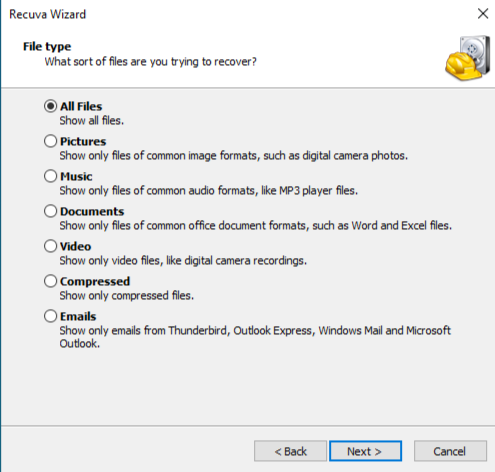
Step 3: Launch Recuva Wizard
Open Recuva and allow the setup wizard to guide you.
- Select “All Files” or a specific file type
- Click Next
Step 4: Choose File Location
Select “In a specific location” and click Browse
Choose your USB flash drive letter (e.g., E:\ or F:)
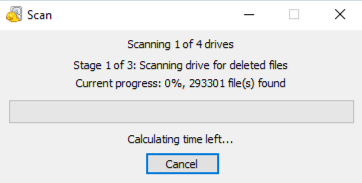
Step 5: Enable Deep Scan
Check “Enable Deep Scan” for better results.
This scan takes longer but finds more lost files.
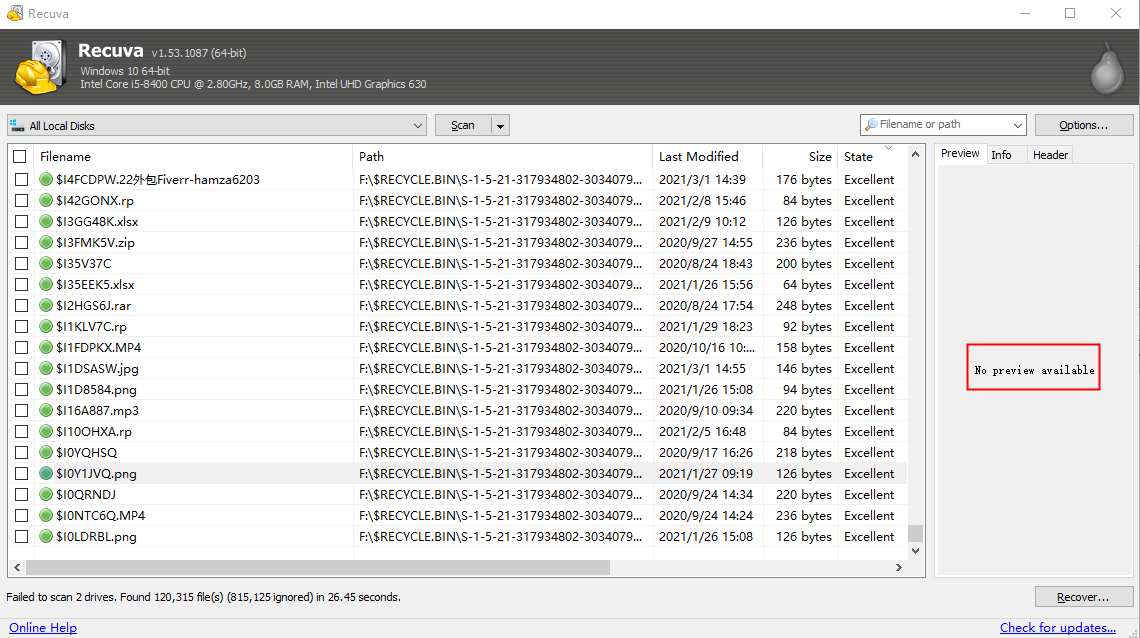
Step 6: Review Scan Results
Recuva shows files with color indicators:
- Green – Excellent recovery chance
- Orange – Partial recovery possible
- Red – Low chance
Step 7: Recover Files Safely
Select the files you need.
Click Recover and save them to your computer, not the USB.
Common Mistakes When Using Recuva
- Recovering files back to the same USB
- Running Recuva without deep scan
- Continuing to use the USB before recovery
Avoid these mistakes to improve success when using how to recover deleted files on usb flash drive recuva.
Method 2: Recovering USB Deleted Data with PandaOffice Drecov
When Recuva cannot locate files—or when the USB has been formatted or corrupted—you need a more advanced solution.This is where PandaOffice Drecov becomes a powerful alternative.
Why PandaOffice Drecov Outperforms Basic Tools
PandaOffice Drecov focuses on deeper scanning algorithms and file structure reconstruction. It handles:
- Formatted USB flash drives
- RAW file systems
- Corrupted partitions
- Missing file tables
For users who fail with how to recover deleted files on usb flash drive recuva, Drecov often succeeds.This tool handles it all, whether you are dealing with:
- Accidental Desktop Deletions: Instantly retrieving files wiped from your local workspace.
- Disk Formatting Errors: Salvaging files from drives that have been completely wiped or reformatted.
- External Media Rescue: Recovering lost data from formatted or corrupted SD cards and USB flash drives.
- Sync Conflict Resolution: Reversing data loss caused by synchronization errors between your PC and the OneDrive cloud.
- Browser Metadata Recovery: Restoring lost Chrome bookmarks and other essential application data.”
PandaOffice Drecov Three-Step Recovery Method
Step 1: Launch and Select USB Flash Drive
Open PandaOffice Drecov and select your USB drive from the device list.

Step 2: Start Deep Recovery Scan
Choose USB Recovery Mode.
Drecov analyzes raw data sectors and rebuilds lost file entries.

Step 3: Preview and Recover Files
Preview files before recovery.
Export recovered files to your internal drive.
At this stage, many users prefer visual confirmation before proceeding. A step-by-step recovery video demonstrates each scan stage clearly—from device detection to final export—helping first-time users avoid costly mistakes and follow the three-step recovery flow with confidence.
Method 3: Using Windows File History and Backup (Limited Scenarios)
If you enabled File History before deletion, you may restore files without third-party tools.
Step-by-Step
- Open Control Panel
- Navigate to File History
- Browse previous backups
- Restore files to a safe location
This method rarely helps USB users but works in controlled backup environments.
Method 4: CMD and CHKDSK (For Logical Errors Only)
CHKDSK fixes file system errors but does not recover deleted files.
Command Example
chkdsk E: /f
Replace E: with your USB drive letter.
Use this method only when files appear missing due to logical errors.
USB Data Recovery Methods Comparison Table
| Method | Best For | Pros | Cons |
|---|---|---|---|
| Recuva | Recently deleted files | Free, easy | Weak deep recovery |
| PandaOffice Drecov | Formatted or corrupted USB | Deep scan, preview | Paid |
| File History | Backup users | Built-in | Rarely available |
| CHKDSK | File system errors | Fast | No real recovery |
PandaOffice Drecov stands out by combining deep recovery with ease of use—especially when how to recover deleted files on usb flash drive recuva fails.
USB Data Loss Prevention: Practical Steps That Actually Work
Prevention saves more data than recovery.
USB Safety Checklist
- Always use “Safely Remove Hardware”
- Avoid using USB drives as permanent storage
- Keep two backups of important files
- Disable write operations after accidental deletion
- Scan USB drives for malware regularly
USB Deleted Data Recovery FAQs
Can Recuva recover files from a formatted USB?
Sometimes, but results vary. PandaOffice Drecov performs better.
How long does USB data recovery take?
Recuva scans take minutes. Deep scans may take hours.
Why does Recuva find deleted USB files but cannot recover them?
This usually happens due to data overwriting or file fragmentation. USB flash drives reuse storage blocks aggressively, especially after deletion. If new data overwrites the original sectors, Recuva may detect file names but fail to reconstruct usable content.
Is it safe to use Recuva on a USB flash drive with bad sectors?
Recuva can scan USB drives with minor bad sectors, but repeated read attempts may worsen hardware degradation. If the USB disconnects frequently or causes system freezes, stop scanning immediately.
Conclusion
Understanding how to recover deleted files on usb flash drive recuva gives users a strong starting point. Recuva works well for simple deletion scenarios and recent data loss. However, when file systems break, formatting occurs, or scans return empty results, advanced tools like PandaOffice Drecov provide deeper recovery capabilities.
The key to success lies in acting quickly, choosing the right method, and avoiding overwriting data. With the knowledge from this guide, you now have a clear roadmap to recover USB data confidently—and prevent future losses.






