







Few experiences are more unsettling for a laptop user than pressing the power button on your Hewlett Packard (HP) laptop and seeing nothing but a black, unresponsive screen. It’s a sudden shock that interrupts work, school, gaming, or creative projects. But don’t panic—a hewlett packard laptop black screen does not always mean your laptop is permanently broken. The issue can range from simple software glitches to serious hardware failures, and knowing the right steps can save you time, money, and stress.
This guide will take you step by step through diagnosing and fixing a hewlett packard laptop black screen, from basic checks and software solutions to advanced hardware inspections and data recovery techniques.
Understanding the HP Black Screen Issue
What Causes a Black Screen?
In 2026, HP laptops remain popular for their reliability and performance, but like all devices, they are prone to display problems at some point in their lifespan. Modern HP devices incorporate complex hardware, including high-resolution displays, dedicated GPUs, and hybrid storage, which occasionally results in startup failures. Understanding the cause and following a systematic troubleshooting approach can often bring your device back to life without professional intervention.
A hewlett packard laptop black screen can be caused by multiple factors. Hardware failures like damaged graphics cards, faulty RAM, or loose internal connections can prevent your screen from displaying properly. Software issues including corrupted operating systems, faulty drivers, or recent updates can also trigger the black screen. Additionally, power-related problems such as drained batteries or power supply malfunctions often prevent the laptop from turning on fully, leading to an unresponsive display.
Think of your laptop like a car. If the dashboard doesn’t light up, it could be a dead battery, a blown fuse, or something more severe in the engine. Similarly, a hewlett packard laptop black screen could be something simple to fix or indicative of deeper hardware failure.
Common Symptoms
Symptoms can vary depending on the root cause. Sometimes the HP laptop appears completely off, with no lights or sounds. In other cases, fans may run and keyboard lights may blink, yet the display remains blank. You might also notice flickering screens, temporary display flashes, or boot loops, where the laptop tries to start but fails repeatedly. Recognizing the pattern is essential to narrow down the cause and guide your troubleshooting.
Initial Checks Before Troubleshooting
Power Supply and Battery
First, ensure your laptop is receiving power. Plug in the charger and check if the charging indicator lights up. If the battery is completely drained, the laptop may not power on, creating the illusion of a hewlett packard laptop black screen. For models with removable batteries, temporarily removing and reinserting the battery can help reset the device.
External Devices
Peripherals like USB drives, external hard drives, or even connected mice can sometimes interfere with the startup process. Disconnect all devices and attempt to power on the laptop. Often, a hewlett packard laptop black screen resolves itself once external interference is removed.
Display Brightness and Settings
It might sound simple, but low brightness settings or accidental use of function keys to disable the screen can cause the display to appear black. Verify brightness settings and check if the laptop responds to Fn + F key combinations designed to toggle the display.
HP laptop black screen after logo
One of the most frustrating scenarios occurs when you see the HP logo, but then the screen goes dark. This usually indicates that the hardware is functioning, but the system is struggling to hand over control to the Windows operating system. If you encounter an HP laptop black screen after logo, follow these steps to troubleshoot the boot process:
- Step 1: Force a restart by holding the power button for 15 seconds.
- Step 2: As the laptop restarts, repeatedly tap the F11 key to open the Windows Recovery Environment.
- Step 3: Select Troubleshoot > Advanced options > Startup Repair. This allows Windows to scan for and fix errors in the bootloader.
- Step 4: If the repair fails, return to Advanced options and select System Restore to revert your laptop to a point when it was working correctly.
If the hewlett packard laptop black screen persists, it might be a driver conflict occurring right as the desktop environment attempts to load.
HP laptop black screen after Windows 11 update
Updates are meant to improve your device, but occasionally they lead to compatibility issues. If you are facing an HP laptop black screen after Windows 11 update, the culprit is often a mismatched graphics driver or a corrupted update file.
- Step 1: Enter Safe Mode. You can do this by interrupting the boot process three times (turning it off as soon as the logo appears) to trigger the Automatic Repair screen.
- Step 2: From the “Choose an option” screen, navigate to Troubleshoot > Advanced options > Startup Settings > Restart.
- Step 3: Press 4 or F4 to start in Safe Mode.
- Step 4: Once in Safe Mode, right-click the Start button and select Device Manager.
- Step 5: Expand Display adapters, right-click your graphics card, and select Properties.
- Step 6: Under the Driver tab, click Roll Back Driver. If that option is grayed out, select Uninstall Device and restart your computer. Windows will try to reinstall a generic driver upon reboot, which often fixes the hewlett packard laptop black screen.
For more official help regarding Windows updates and display issues, you can visit the HP Official Support Page.
how to recover data from HP laptop with black screen
When your laptop refuses to display anything, your primary concern likely shifts from the hardware to the precious files stored inside. If you need to know how to recover data from HP laptop with black screen, you should prioritize a non-invasive software approach before considering hardware extraction.
The most effective way to handle this in 2026 is by using a professional recovery tool that can handle system crashes. If the laptop still powers on but the screen is dead, you can connect an external monitor to view the interface. If the system is unbootable, you will need to use a bootable recovery media.
- Step 1: Use a working computer to download a reliable recovery tool.
- Step 2: Create a bootable USB drive using the software’s “Bootable Media” feature.
- Step 3: Insert the USB into the faulty HP laptop and change the boot order in the BIOS (F10 key) to boot from USB.
- Step 4: Once the recovery environment loads, scan your hard drive for files and export them to an external storage device.
PandaOffice Drecov data recovery software
If the standard Windows tools fail, PandaOffice Drecov data recovery software is a powerful solution designed specifically for complex data loss scenarios, including those caused by a hewlett packard laptop black screen. It supports a wide range of file formats and is optimized for the latest SSD and HDD technologies found in 2026 HP models.
⚠ Warning: Install it on a drive different from the one where your data was lost to prevent overwriting.
Follow these steps to use PandaOffice Drecov data recovery software:
- Step 1: Select Recovery Mode: Launch the program and select the drive associated with your HP laptop. If you have connected the HP drive via a SATA-to-USB adapter, it will appear as an external drive.

- Step 2: Deep Scan: Click the Scan button. PandaOffice Drecov data recovery software will perform a deep sector-by-sector analysis to find deleted or inaccessible partitions.
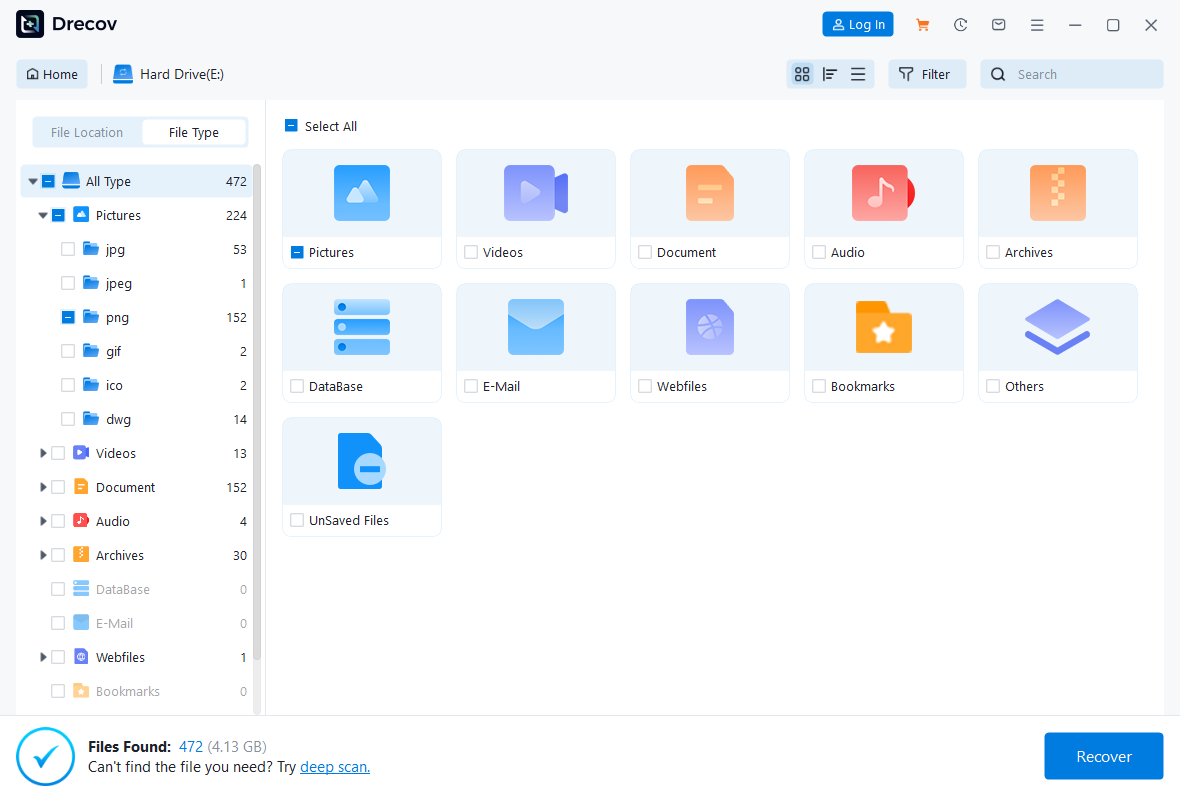
- Step 3: Preview and Filter: Once the scan is complete, use the preview feature to look at images or documents. This ensures the files are intact before you spend time saving them.

- Step 4: Recover: Select the files you need and click Recover. Choose a safe destination (like a cloud drive or a different USB) to save your data.
Warning: Never save the recovered files back onto the same disk that experienced the hewlett packard laptop black screen. This can overwrite other data that has not yet been recovered.
After successfully securing your data, you might find these resources helpful for general Windows maintenance:
- Where is Recycle Bin in Windows 10
- How to get your Google Chrome bookmarks back
- How to disable OneDrive sync
BIOS and Firmware Solutions
Access BIOS/UEFI Settings
The BIOS (Basic Input/Output System) provides the fundamental instructions for your laptop. Access it by pressing Esc or F10 during the initial startup phase. If the BIOS screen appears clearly but the Windows screen remains dark, you have confirmed that your physical screen is working, and the hewlett packard laptop black screen is a software or hard drive configuration issue.
Reset BIOS to Default
Sometimes an incorrect setting in the BIOS can prevent the display from initializing correctly.
- Step 1: Enter the BIOS menu (F10).
- Step 2: Press F9 to “Setup Defaults.”
- Step 3: Press F10 to “Save and Exit.”
Update BIOS Firmware
HP periodically releases BIOS updates to fix bugs and improve hardware compatibility with Windows 11. You can find the latest firmware by searching your model on the Microsoft Support or HP sites. Applying the latest update can resolve a hewlett packard laptop black screen caused by firmware conflicts.
Hardware-Specific Fixes
Check RAM and Memory Modules
Faulty RAM is a leading cause of a hewlett packard laptop black screen where the fans spin but nothing happens.
- Step 1: Power off and unplug the laptop.
- Step 2: Open the back panel and locate the RAM sticks.
- Step 3: Remove the RAM, clean the gold contacts with a soft cloth, and reinsert them firmly.
- Step 4: Try booting with only one stick at a time to identify if one of them is defective.
Test the Laptop Screen
Internal screens can fail due to age or a loose ribbon cable. To test this, connect an external monitor via HDMI. If the external monitor displays the Windows desktop perfectly, then your hewlett packard laptop black screen is strictly a hardware failure of the laptop’s built-in panel.
Inspect GPU or Motherboard Issues
For high-end HP Omen or Victus laptops with dedicated graphics cards, a malfunctioning GPU can cause permanent black screens. If you notice a “beep code” or a blinking Caps Lock light (e.g., 3 long blinks and 2 short blinks), consult the HP manual, as this code often points directly to a motherboard or memory failure.
Advanced HP Diagnostics Tools
HP Hardware Diagnostics
HP provides a built-in diagnostic tool accessible via F2 during startup. This tool runs outside of the Windows environment, making it perfect for troubleshooting a hewlett packard laptop black screen. Run the “System Test” to check the health of your CPU, memory, and drive.
HP Support Assistant
If you can get into Safe Mode or use an external monitor, use the HP Support Assistant software. It offers automatic updates and a “Fix My Display” utility that can recalibrate your screen settings and update drivers automatically.
Preventing Black Screen Issues in the Future
Keep Drivers Updated
Regularly updating your Intel, AMD, or NVIDIA drivers ensures compatibility with the latest Windows patches. This is the single most effective way to avoid an HP laptop black screen after Windows 11 update.
Avoid Overheating
Excess heat can desolder GPU chips or damage the motherboard. Use your HP laptop on flat, hard surfaces to ensure proper airflow. If you use it for heavy gaming, consider a cooling pad to keep internal temperatures stable.
Handle Hardware Carefully
Physical damage from pressure on the laptop lid can cause the liquid crystal in the display to leak or the backlight to fail. Always transport your HP laptop in a padded sleeve to prevent the mechanical stress that leads to a hewlett packard laptop black screen.
FAQs
1. Why does my HP laptop show a black screen after turning it on?
It is usually caused by residual static electricity, a faulty RAM module, or a conflict between the graphics driver and the Windows OS.
2. Can I fix a black screen myself without professional help?
Yes. Performing a “Hard Reset” (holding the power button for 15-30 seconds without power connected) fixes about 50% of these cases instantly.
3. How do I know if my HP laptop screen is dead or it’s a software problem?
Connect the laptop to a TV or monitor via HDMI. If the TV shows your desktop, your laptop’s physical screen is likely broken.
4. What is a hard reset, and why does it help?
A hard reset drains the capacitors on the motherboard. This clears the temporary memory and forces the hardware to re-initialize, which often clears a “frozen” state causing a hewlett packard laptop black screen.
5. Should I update BIOS to fix a black screen?
Only if the laptop is stable enough to complete the update. If the screen goes black during a BIOS update, it could permanently “brick” the motherboard. Use this as a later-stage solution.
Conclusion
A hewlett packard laptop black screen is a stressful event, but it is rarely the end of the road for your device. By methodically moving from simple power checks to driver rollbacks and BIOS resets, most users can resolve the issue at home. If the problem is rooted in a system crash, tools like PandaOffice Drecov data recovery software ensure that even if the OS is gone, your memories and work files remain safe.
In 2026, technology is more resilient than ever. By staying proactive with updates and handling your hardware with care, you can ensure your HP laptop remains a reliable tool for years to come.






