







PandaOffice Drecov is worth downloading when you need a safe local recovery workflow for deleted files, formatted drives, SD cards, USB drives, readable external hard drives, and common computer file loss. It is not the right tool for NAS recovery, password bypass, cloud-only account recovery, or physically failing drives. The practical answer is simple: download Drecov when the source storage is still readable, preview the results before recovery, and save recovered files to a different healthy drive.
This review-style guide explains what Drecov does, how the download and license options work, what features matter, where the limits are, and how to use the software without making the original data loss worse. It follows a product review structure, but it avoids fake recovery rates. Recovery results depend on overwriting, device health, file system damage, and whether a usable copy still exists.
PandaOffice Drecov Overview
PandaOffice Drecov is desktop data recovery software for local storage recovery. The core workflow is intentionally direct: choose the affected location, scan the source, filter or search the results, preview recoverable files, and restore selected files to another drive. That makes it useful for readers who want a guided tool rather than a technical command-line recovery environment.
The best fit is an owner-authorized recovery case where the user controls the computer, card, drive, or folder being scanned. Good examples include accidental deletion, an emptied Recycle Bin, a formatted USB drive, a missing folder on an external hard drive, or photos disappearing from an SD card after a camera or phone error. In those cases, a local scan can still find file records or raw file traces if new data has not overwritten them.
Readers who want a wider tool comparison can also read our Data Recovery Software Review Hub. This article is narrower. It focuses on whether Drecov itself is a sensible download, what to expect from the license, and how to avoid the common mistakes that turn a recoverable case into a harder one.
| Item | Drecov Review Summary |
|---|---|
| Best For | Deleted files, formatted local drives, SD cards, USB drives, external hard drives, and readable computer storage |
| Not For | NAS recovery, password cracking, cloud-only account recovery, overwritten files, or clicking/unstable hardware |
| Main Workflow | Select location, scan, preview, filter, recover to another drive |
| License Style | Fixed-duration access such as 1 Month or 1 Year, plus Lifetime; no automatic renewal after expiration |
| User Type | Home users, office users, creators, students, and small teams with local storage loss |
Free Download And License Options
The download link gives users the installer first, which is the safest way to inspect whether the tool fits the case before committing to a license. A trial or free download should be treated as the evaluation step. Users should check whether the affected source appears, whether the scan can run, and whether the preview shows the files they actually need.
Drecov offers time-based license choices rather than an auto-renewing subscription model. A 1 Month License means the user buys one month of use. A 1 Year License means the user buys one year of use. The Lifetime License is for users who want longer access. The important clarification is that the license does not auto-renew after expiration. The user is buying access for the selected duration, not agreeing to recurring billing.
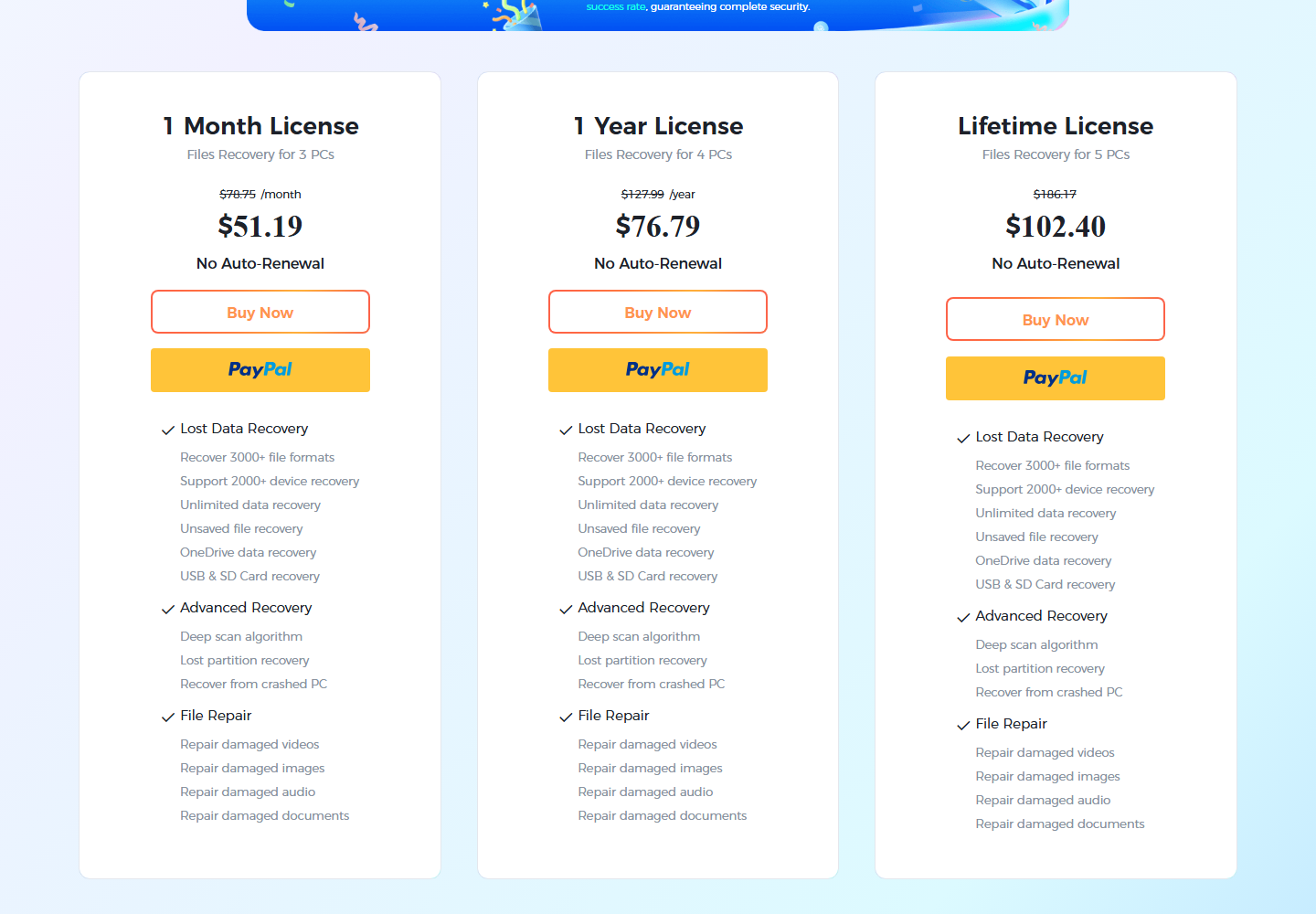
| Plan | What It Means | Best For |
|---|---|---|
| 1 Month License | Short-term access for a current recovery job; expires after the month and does not auto-renew | One urgent data loss case |
| 1 Year License | Longer access for several recovery needs across the year; expires after the year and does not auto-renew | Users who manage multiple devices |
| Lifetime License | Long-term access for users who expect repeated local recovery needs | Families, creators, offices, and support users |
This distinction matters for trust. Many readers see the word month and assume subscription billing. In Drecov’s case, the clearer wording is fixed-duration license. The user pays for access during that period. When the term ends, access expires unless the user chooses to buy again.
Main Features That Matter In Real Recovery
A recovery tool should be judged by the workflow it gives users under pressure. Panic leads people to format drives, reinstall apps, run repair commands, or save recovered files back to the damaged source. Drecov’s value is strongest when it keeps the user focused on the correct local source and lets them preview results before recovery.
| Feature | Why It Matters |
|---|---|
| Quick Scan And Deep Scan | Quick scan can find recent deletion records, while deeper scanning helps when file system records are damaged or missing. |
| File Preview | Preview reduces guesswork and helps users avoid restoring damaged fragments or wrong versions. |
| File Type Filters | Filters by photos, videos, documents, archives, and other types help users cut through noisy scan results. |
| External Device Support | USB drives, SD cards, and external hard drives are common real-world loss sources. |
| Recover To Another Drive | Saving to a separate healthy destination prevents overwriting the original source. |
Built-in recovery paths should still come first when they preserve context. Windows restore points and File History can help in some system cases, as explained in How To Restore Computer To An Earlier Date On Windows. Office files also deserve their own checks before a raw scan, especially AutoRecover and temporary folders; for Excel-specific cases, use How To Recover An Unsaved Excel File Complete Guide.
Drecov becomes useful after those built-in options fail or when the missing data came from a local source that still appears in the system. For example, a formatted camera card may not have a useful built-in version history, but a scan can still locate photo and video traces if the card has not been reused heavily.
Pros And Cons
A fair product review should include limits. Data recovery software is not magic, and strong recommendations become more useful when they clearly explain where the tool fits. Drecov is easy to recommend for supported local recovery. It should not be stretched into unsupported scenarios just to capture broader keywords.
| Pros | Cons Or Limits |
|---|---|
| Straightforward scan and preview workflow | Recovery chances drop after overwriting |
| Useful for local drives, SD cards, USB drives, and external storage | Not positioned for NAS recovery |
| Fixed-duration license choices without auto-renewal | Users must choose the right license duration |
| Good fit for deleted, formatted, and missing local files | Not a password bypass or cloud account recovery tool |
| Preview and filters reduce noisy recovery results | Physically failing drives need professional handling |
The biggest practical advantage is clarity. A user can move from source selection to scan results without studying partition repair commands. The biggest limit is scope. If the device is physically unstable, the safest step may be a clone or professional service rather than another software scan.
Technical Specification And Safety Notes
Drecov should be installed on a healthy system drive or a different drive from the affected source whenever possible. Installing software onto the same drive that lost files can write new data and reduce recovery chances. The same rule applies to recovered output. Do not save recovered files back to the original card, USB drive, or disk being scanned.
| Specification Area | Practical Note |
|---|---|
| Operating Environment | Desktop recovery workflow for local storage cases |
| Supported Sources | Readable computer drives, external drives, USB drives, SD cards, and local folders |
| Recovery Types | Deleted files, formatted storage, missing files, and local file traces where data still exists |
| Unsafe Cases | Clicking drives, severe hardware faults, NAS/RAID cases, password bypass, or cloud-only recovery |
| Output Rule | Recover to a different healthy drive, then verify samples before reorganizing files |
Device detection should be solved before recovery. If an SD card does not appear at all, follow a detection guide such as SD Card Not Detected Fix Micro SD Card Not Detected On PC Easily before scanning. If an external hard drive does not mount on Mac, diagnose the connection and file system first; our How To Fix Lacie Hard Drive Not Showing Up On Mac Complete Guide guide covers that kind of case.
Users should stop scanning when the source disconnects repeatedly, makes unusual noises, reports the wrong capacity, or freezes the computer. Long scans can stress failing hardware. In those cases, recovery software is no longer the safest first step.
How To Recover Data With PandaOffice Drecov
Use Drecov only after protecting the source. That means no formatting, no new downloads to the affected drive, no repair commands, and no saving recovered files to the same storage device. A quiet source gives recovery software more useful evidence to inspect.
- Connect the affected local drive, USB drive, SD card, or external hard drive to the computer.
- Open PandaOffice Drecov and choose the exact source location rather than scanning every drive.
- Start the scan and wait for quick scan and deeper scan results to finish.
- Use file type, path, size, date, and name filters to reduce duplicate or irrelevant results.
- Preview important files before recovery. Check documents, photos, videos, and archives by content.
- Recover selected files to a different healthy drive and verify samples before deleting anything.
After recovery, keep the original source unchanged until the recovered files are checked. Create folders such as confirmed, needs review, duplicates, and damaged. This prevents a user from mixing good files with partial fragments. It also keeps the path open for a second scan if the first recovery does not find everything.
For a small accidental deletion, the full process may take only a few minutes. For a large external drive or memory card, scanning and reviewing can take longer. The correct goal is not to recover the largest number of files. The goal is to recover the right files in usable condition.
Price, Alternatives, Reviews, And FAQ
The pricing question should be tied to the recovery case. A 1 Month License makes sense when the user has one urgent job. A 1 Year License works better for users who manage several devices or expect more than one recovery need. Lifetime access is easier to justify for creators, offices, and users who frequently work with SD cards, external drives, or USB storage.
| Question | Short Answer |
|---|---|
| Is Drecov free to download? | Yes, users can download the installer first and evaluate whether the tool fits the case. |
| Does the 1 Month License auto-renew? | No. It is one month of access. It expires after the term and does not renew automatically. |
| Can Drecov recover NAS data? | No. Do not position Drecov as a NAS recovery tool. |
| Can Drecov recover overwritten files? | No tool can reliably rebuild data that has truly been overwritten. |
| Should recovered files go back to the same drive? | No. Save them to a separate healthy destination. |
Compared with broader recovery suites, Drecov should be framed as a practical local recovery option. It is strongest for readable drives, removable storage, and common user file loss. It is not the answer for every recovery category, and that honesty makes the recommendation more useful.
That practical boundary is the reason this review recommends Drecov for readable local storage cases, not every data loss situation.
For reviewers, the most important final question is not whether the software looks powerful. It is whether the software guides a stressed user toward a safer decision. Drecov is strongest when the case is local, the source is readable, and the user can confirm file quality before export.
A prevention plan should follow every recovery. Enable File History or another backup tool for Windows folders. Keep camera card copies on a separate drive. Export important account data when possible. Store office documents in a folder with version history. Recovery software helps after loss, but a tested backup prevents the same stress from repeating.
After exporting files, users should open samples before changing the original source. Check important documents, photos, videos, compressed files, and project folders. Sort the recovered output into confirmed, duplicates, partial, and needs review. This avoids the common mistake of deleting the source too early.
After Recovery: Verify Before You Celebrate
The article also avoids fixed success-rate claims. A recovery percentage without a test environment can mislead readers. Real results depend on the storage device, file system, overwrite activity, file type, and device health. The honest recommendation is to protect the source, preview results, and recover only to a safe destination.
This review does not claim that Drecov can recover every file. No normal recovery tool can reliably rebuild overwritten data. No software can bypass modern encryption without a valid key. Cloud-only content depends on account recovery, provider retention, and official restore paths. NAS and RAID cases require separate handling and should not be folded into a Drecov recommendation.
What This Review Does Not Claim
For computer folders, built-in recovery should be checked first. Recycle Bin, Previous Versions, File History, OneDrive versions, and app-specific recovery paths may return a cleaner copy. Drecov becomes the next step when those routes do not contain the needed file.
For an external hard drive, Drecov is helpful only when the drive remains readable. If the drive mounts normally and files are missing after deletion or formatting, a scan is reasonable. If the drive clicks, disconnects, or freezes, a long scan may make the situation worse.
For a USB drive that lost files, Drecov should scan the USB device itself. A broad whole-computer scan wastes time and creates duplicates. The user should filter by the missing file types first, then use folder paths and dates to narrow the result list.
For a formatted SD card, Drecov can be useful after the card stops being used. The user should remove it from the camera or phone, connect it to the computer, and scan the card directly. Saving recovered photos to the computer drive or another external drive protects the card from new writes.
Common Drecov Download Scenarios
A paid license is most reasonable when the preview confirms valuable files. If no useful preview appears, users should review the source choice, try built-in backups, or stop if the device looks unstable. Buying software should not replace diagnosis.
Users should compare several versions when duplicates appear. Scan results may include original files, thumbnails, temporary copies, cached files, and fragments. The newest file is not always the best one. Size, date, path, and preview all matter. For important work documents, recovering several candidates is often safer than choosing only one.
Preview is the strongest evidence that a recovery attempt is worth continuing. A file name alone is not enough. The user should check whether photos open correctly, documents contain readable text, videos play a sample section, and archives can be tested after recovery. A file that appears in the results may still be incomplete or damaged.
What Preview Results Tell You
A lifetime license is easier to justify when data recovery is part of the user’s normal workflow. Creators, photographers, IT helpers, teachers, and office administrators often deal with many removable devices. Long-term access can be simpler than deciding again during every emergency.
A one-year license fits users who manage several devices. A family may have laptops, camera cards, USB drives, and external disks. A small office may face accidental deletion several times a year. In those environments, the yearly option gives more time to handle separate recovery incidents without rushing.
A one-month license fits a single urgent case. It is useful when the user needs to recover files from one computer, one external drive, or one card and does not expect repeated recovery work. Because it does not auto-renew, it also avoids the concern that a short emergency purchase will become an ongoing subscription.
How To Choose The Right License Duration
The most important rule is to stop writing to the source. Do not download Drecov to the same drive that lost files. Do not copy new photos to the same SD card. Do not export recovered files to the same USB drive. Local recovery works best when old file traces remain undisturbed.
Write down the affected device, the file types, the approximate deletion time, and anything that happened after the loss. This small log helps prevent mistakes. It also makes scan review easier because the user can filter by type, date, size, or path rather than opening thousands of unrelated results.
Before downloading any recovery software, identify the source of the loss. A deleted desktop folder, a formatted SD card, a missing USB drive folder, and a damaged external disk are different cases. Drecov is useful when the data once lived on local storage that the computer can still read. The software cannot recover files that only existed inside an online account and never touched local storage.
Before You Download: Case Checklist
Reviewer Notes For Safer Decisions
The safest purchasing decision is made after a preview, not before. Users should first confirm that the affected source appears, that the scan can read it, and that important files show meaningful names, sizes, dates, thumbnails, or previews. A license is easier to justify when the needed files are visible and the recovery destination is ready. This also reduces buyer regret because the user knows what problem the software is solving.
The same logic applies to alternatives. A free undelete tool may be enough for a very recent deletion on a healthy drive. A technical tool may be better for partition repair. A professional lab may be the safer choice for unstable hardware. Drecov belongs in the middle of that decision path: guided local recovery for readable storage where previews and filters can confirm value before export.
Final Verdict
Download PandaOffice Drecov when your missing files came from a supported local source and that source is still readable. The tool gives users a clear way to scan, preview, filter, and recover files without pretending to solve unsupported NAS, password, cloud-only, or hardware-failure cases. Choose the 1 Month, 1 Year, or Lifetime license based on how often you expect to need recovery access, and remember that fixed-duration licenses do not auto-renew.






