







Start with the container: A .7z file is an archive container commonly handled by 7-Zip and other tools that explicitly support the format. Windows’ built-in archive support varies by version and feature set, so a dedicated extractor may provide clearer testing and split-volume handling. Keep the downloaded archive unchanged while troubleshooting. Keep the archive intact while you distinguish tool support from password, volume, or corruption trouble.
Confirm that the file is really a 7z archive
Before opening an unexpected archive, verify who sent it, scan it with current security software, and inspect the extension with File Explorer set to show file-name extensions. A file named report.7z.exe is an executable, not an archive. Do not disable security controls merely because extraction is blocked.
Install a trusted extractor from its official source. In File Explorer, right-click the archive, choose the extractor’s open or extract command, and select a new destination folder on a drive with enough free space. Opening lets you inspect names; extraction writes the contained files. The official 7-Zip project documents the extractor used for this archive format. See the official documentation before relying on menus or behavior that may vary by Windows or Office release in the multipart-archive check.
Choose an extractor from a trusted source
| What you observe | What it changes | Safest response |
|---|---|---|
| A stable, readable source | For a password-protected archive, obtain the exact password from the sender. | For a password-protected archive, obtain the exact password from the sender. Encryption is designed to resist bypass; data-recovery software cannot reveal a forgotten archive password. |
| A limited or file-specific failure | For split archives, place every part in one folder and start with the first volume. | For split archives, place every part in one folder and start with the first volume. Missing or renamed parts commonly cause unexpected-end or data errors. |
| Instability or a destructive next step | Use the extractor’s Test command before repeatedly extracting. | Use the extractor’s Test command before repeatedly extracting. A clean test supports the archive’s structure; a CRC or data error may indicate corruption, a bad download, wrong password, or storage read trouble. |
Test the container before extracting and retain every numbered volume. Record the starting condition and the outcome in the multipart-archive check. If a test reduces access or introduces instability, return to protection instead of stacking another change on top in the multipart-archive check.
Extract the archive without changing the original
For a password-protected archive, obtain the exact password from the sender. Encryption is designed to resist bypass; data-recovery software cannot reveal a forgotten archive password.
For split archives, place every part in one folder and start with the first volume. Missing or renamed parts commonly cause unexpected-end or data errors.
Use the extractor’s Test command before repeatedly extracting. A clean test supports the archive’s structure; a CRC or data error may indicate corruption, a bad download, wrong password, or storage read trouble.
Archive handling is clearer beside this related Drecov article, a second task-specific resource, and this recovery-safety reference.
⚠ Warning: Install it on a drive different from the one where your data was lost to prevent overwriting.
Recover a Deleted 7z Archive With Drecov
Drecov is relevant to a 7z problem only when the archive or its split volumes were deleted from stable local storage. It can scan Windows-accessible disks and removable media, narrow results by name, path, date, or type, preview supported files, and restore candidates to another device. It cannot supply an archive password, recreate a missing encrypted volume, or repair the 7z container. Begin at the Drecov Windows recovery page when that precise loss branch applies to the multipart-archive check.
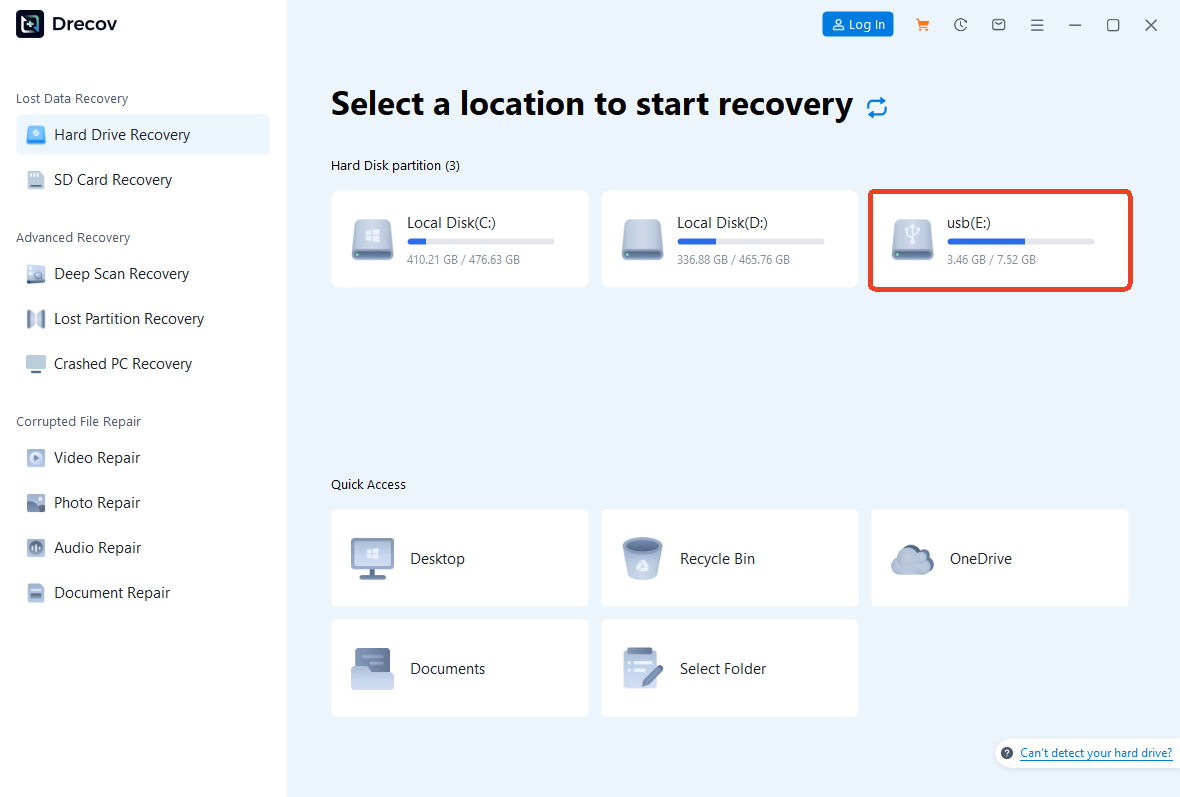
Step 1: Select the archive’s former storage location
Open Drecov from a different drive and target the folder, disk, USB device, or memory card that held the deleted .7z set. Include every split volume in the recovery goal.

Step 2: Look for recent archive deletion first
Quick Scan may retain names and paths for a newly deleted archive. Filter .7z and numbered extensions without downloading a replacement onto the same source.

Step 3: Search deeper only when reads remain ordinary
Deep Scan can find older records or signatures when the first pass misses them. End the attempt if removable media disconnects, slows severely, or throws repeated errors.
Step 4: Compare candidates before extracting anything
Use former path, filename, date, and size. Preview supported surrounding files for context; encrypted 7z contents may not be previewable and a found container can still be incomplete.
Step 5: Restore every required volume to healthy storage
Recover the archive set to another device, check Drecov Folder or Recovery Folder, and run the extractor’s Test command there. Keep the raw restored set while evaluating CRC or missing-volume errors.
Diagnose CRC, Data, and Unexpected-End Errors
Obtain a fresh verified download
Re-download from the original trusted source and compare file size or published checksum when available. Do not overwrite the only suspect copy.
Move only from readable storage
Copy an archive from a flaky network share or removable drive to healthy local storage only if the source reads consistently. If the device disconnects or throws read errors, preserve or image it first.
Shorten the extraction path
Extract to a short path such as a new folder near the root of a healthy data drive when path length or permissions are involved. Do not run unknown executables from the extracted set.
Recover all parts before testing
If the archive itself was deleted, recover the .7z and every split part before testing. Repairing an incomplete archive cannot recreate absent encrypted blocks.
An archive listing can survive while one encrypted or compressed member is damaged; run a full test.
Verify the extracted set
Run Test, compare the extracted item count with the archive listing, open representative files, and retain the original archive until the result is backed up.
Hold every archive volume until extracted files pass content checks.
Read 7z error language precisely
A CRC error means the extracted data did not match the integrity value stored for that member. Data Error can reflect corruption or an incorrect password for encrypted content. Unexpected end of data often points to a truncated download or missing split volume. Cannot open file as archive suggests that the header is unavailable, the file is not actually a supported archive, or the container is badly damaged. Keep the exact wording because each message leads to a different check.
Split sets require naming continuity. A .7z.001 file commonly begins the sequence, followed by .002 and later parts. All pieces must be in the same folder and remain unchanged. Start the operation from the first volume. If a sender supplied checksums, verify every part before extraction. Repair utilities may salvage limited unencrypted content from some damaged archives, but they cannot reconstruct absent encrypted blocks. Preserve the set and obtain a clean replacement when possible.
Recover the complete archive set to another healthy device before running Test. Work on a duplicate folder. Confirm that numeric volume suffixes are continuous. Check each part’s size against the sender’s record. Enter the password carefully and distinguish a password error from CRC failure. Test all members, not only the first directory. Extract into an empty folder with ample space. Count files and compare total size with the archive listing. Open several large and small members. Keep the container set until the extracted data is backed up and the sender confirms completeness.
Preserve the chain from original evidence to verified copy
Archive recovery succeeds or fails as a complete set. Record the first split volume, every numbered continuation, the password source, the archive size, and the storage device that held it. Put that record on separate storage in the multipart-archive check. It gives each later action a defined target and prevents a successful-looking workaround from hiding an unresolved dependency in the multipart-archive check.
Preserve the earliest available copy before testing in the multipart-archive check. Create a working duplicate for commands, extraction, conversion, or application checks in the multipart-archive check. When a test changes the duplicate, keep the changed version under a new name in the multipart-archive check. This makes comparison possible and leaves the starting evidence available in the multipart-archive check.
Use run test, compare the extracted item count with the archive listing, open representative files, and retain the original archive until the result is backed up as the acceptance test. Repeat it after a restart or reconnect in the multipart-archive check. Also inspect a second representative item that exercises a different part of the workflow in the multipart-archive check. A single successful launch cannot establish that every dependency or file is sound in the multipart-archive check.
End the current path when one archive part is absent, storage reads deteriorate, or the only container would be modified. Preserve logs and recovered copies at that point in the multipart-archive check. A specialist can work more effectively from a clear device history and untouched evidence than from a source changed by several undocumented repairs in the multipart-archive check.
Before deleting the 7z source
Collect the archive filename, exact size, download source, password source, and every split part. Copy the set to a healthy test folder. Preserve the untouched download while the extractor works on a duplicate.
Run Test before Extract. Stop when a volume is missing or reads become unstable. Recover the complete set elsewhere, then compare member counts and open samples before deleting any original.
Handle passwords, split volumes, and nested folders
Retain checksums, passwords, and every split volume with important archives. A backup earns trust only after representative files open from the restored copy in the multipart-archive check. Store the recovery instructions somewhere that does not depend on the affected computer in the multipart-archive check.
Show file extensions. Confirm the sender. Scan the archive. Keep every volume together. Start with the first part. Use the exact password. Run Test first. Extract into an empty folder. Check available space. Count the output. Open several large members. Retain the untouched archive. These checks make the result easier to trust and the failure easier to diagnose.
Conclusion
Opening a 7z file requires a trusted compatible extractor, the right password, and every required volume. Test the archive before extraction. If the container was deleted, Drecov may restore it from stable storage to another device, but only the extractor’s full test can establish that the recovered archive is complete.
⚠ Warning: Install it on a drive different from the one where your data was lost to prevent overwriting.





