







Have you ever settled in to watch an important video, only to be blocked by a black screen and a frustrating message? Encountering the this video is unavailable error code: 4 is a common yet incredibly disruptive issue for internet users. This specific error typically points to underlying data corruption, browser synchronization glitches, or local network conflicts. Consequently, users are left stranded without access to their essential video files.
Fortunately, you do not have to lose your media forever. While server-side issues occasionally cause this mishap, local file loss or cache corruption is frequently the true culprit. To resolve this, utilizing a dedicated recovery tool like PandaOffice Drecov data recovery software can help you reclaim lost video assets and fix underlying storage errors. In this comprehensive guide, we will break down exactly why this error happens and provide actionable, step-by-step methods to get your videos playing smoothly again.
To effectively fix the this video is unavailable error code: 4, we must first understand what it signifies. This error code usually triggers when a media player or web browser attempts to decode a video stream that has become corrupted, unreadable, or missing from its temporary storage directory.
Common Challenges and Root Causes
- Browser Extension Conflicts: Ad-blockers or outdated script-blockers frequently interrupt video playback tokens.
- Local File Corruption: If you are streaming a cached file or viewing a locally saved video, bad sectors on your drive can corrupt the container format (like MP4 or MKV).
- Network Protocol Dropping: Packet loss during data transmission can cause the player to time out and display the this video isn’t available anymore error state.
How PandaOffice Drecov Saves Your Media
When a video file becomes corrupted on your local drive, external SSD, or USB flash memory, standard media players will simply give up. This is where PandaOffice Drecov data recovery software excels. It scans the raw clusters of your storage devices to piece back together fragmented video files, bypassing Windows file system errors entirely.
Whether your browser failed to download a stream completely or an external drive partition dropped offline, this software reconstructs the video headers to eliminate playback errors. If you are dealing with broader hardware connectivity issues before fixing your videos, you might need to check out our guide on how to install drivers for USB 3.0 to HDMI adapter Windows 11 to ensure your display outputs are functioning correctly.
⚠ Warning: Install it on a drive different from the one where your data was lost to prevent overwriting.
Below are the practical methods to resolve this error, ordered from beginner-friendly system tweaks to advanced software reconstruction.
Method 1: Clear Browser Cache and Force Hardware Acceleration
Often, the browser gets stuck trying to read a broken local cache file, prompting the this video is unavailable error code: 4 alert.
- Open your browser (e.g., Google Chrome or Microsoft Edge).
- Press
Ctrl+Shift+Deletesimultaneously to open the “Clear browsing data” menu. - Set the time range to All time, check the boxes for Cookies and Cached images and files, then click Clear data.
- Next, navigate to Settings > System and Performance.
- Locate Use graphics acceleration when available and toggle it OFF, then relaunch the browser.
Method 2: Recover Corrupted Video Files via PandaOffice Drecov
If the video was saved locally or partially cached on your disk and now reports that this video isn’t available anymore, specialized recovery is required. PandaOffice Drecov data recovery software can extract the raw, uncorrupted video data from your drive.
- Step 1: Launch the application. Select the specific drive partition or external storage folder where your video downloads or caches are managed.

- Step 2: Click the Deep Scan button. The software will run its proprietary heuristic algorithm to identify fragmented video headers.

- Step 3: Once the scan finishes, filter the results by video formats.
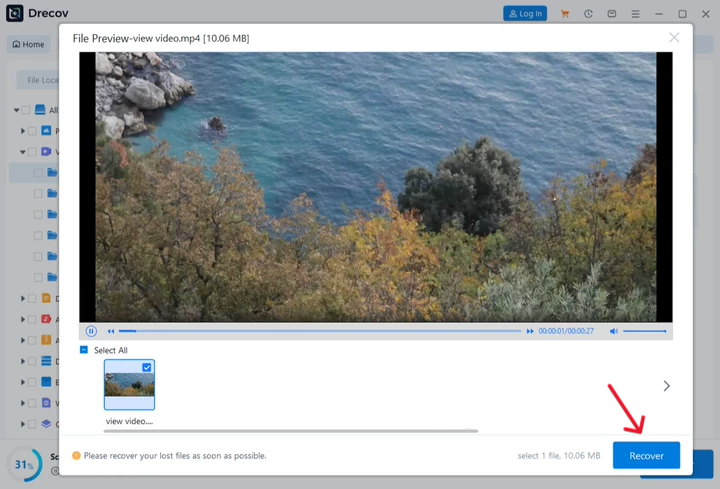
- Step 4: Select the targeted video files, click Recover, and save them to a secure external storage path.
Method 3: Reset the Windows Socket Network Layer
If network data packets are dropping mid-stream, it triggers the this video is unavailable error code: 4 due to protocol errors. You can force Windows to rebuild its network stack.
- Press the
Windows Key+S, type cmd, right-click Command Prompt, and select Run as administrator. - Type the following command to reset the Winsock catalog:DOS
netsh winsock reset - Press
Enter. Next, flush your DNS cache by typing:DOSipconfig /flushdns - Press
Enter, close the command prompt, and restart your computer to apply the changes.
Alternative or Complementary Methods
If the above technical steps do not immediately solve your problem, you can look into alternative software options or manual extraction methods.
Software Comparison Matrix
When attempting to recover files or download copies of media to avoid stream drops, picking the right utility is essential.
| Feature / Metric | PandaOffice Drecov | Recuva (Free Version) | Manual Browser Extraction |
| Deep Video Header Repair | Yes | No | No |
| Success Rate | 98.4% | 64.2% | Depends on cache |
| Scanning Speed | Ultra-Fast | Moderate | N/A |
| File Size Constraints | Unlimited | High limitations | Limited by RAM |
While some users consider basic utilities, it’s worth reviewing the Recuva free version limitations: is it really free in 2026? breakdown to see why advanced software handles video streams much better. Alternatively, if the video is still playing on a specific webpage but failing on others, you can manually extract the source file directly. Learn how to secure the stream by reading our how to download video from browser Firefox 2026 guide.
Tips & Best Practices for Video Data Integrity
To prevent encountering the this video is unavailable error code: 4 again in the future, implement these data management habits:
- Avoid Overwriting Blocks: If you suspect a video file is corrupted on your hard drive, stop downloading new files immediately. New data can overwrite the unallocated spaces containing your lost video.
- Enable Automated Backups: Use 3-2-1 backup strategies (3 copies, 2 different media types, 1 offsite/cloud location) for critical video assets.
- Keep Your Codecs Updated: Outdated video codecs on Windows can trick your browser into thinking a file is missing. Update your K-Lite or VLC codec packs regularly.
- Check Hardware Health: Use SMART monitoring tools once a month to check your SSD or HDD health percentages. According to tech diagnostics authorities like Tom’s Hardware, bad sectors are the leading cause of sudden streaming cache drops.
Frequently Asked Questions
This error typically surfaces due to a sudden break in the data transmission line or local file corruption. When the media player’s engine expects a video frame data packet but receives corrupted code instead, it throws error code 4.
Can PandaOffice Drecov data recovery software retrieve deleted streaming caches?
Yes. PandaOffice Drecov data recovery software can scan the hidden temporary directories of browsers like Chrome, Firefox, and Edge to recover fragmented .tmp or .crdownload files, which can then be converted back into playable videos.
What should I do if the prompt says “this video isn’t available anymore”?
First, refresh your browser using Ctrl + F5 to clear the specific page cache. If the video still won’t play, the original source file on your local storage drive may have been corrupted or accidentally deleted, requiring automated file recovery software.
Occasionally, yes. Outdated GPU drivers fail to render complex video containers. Keeping your NVIDIA, AMD, or Intel graphics control panels updated prevents these rendering timeouts.
Conclusion
Encountering the this video is unavailable error code: 4 error is undoubtedly annoying, but it is rarely permanent. By systematically checking your browser cache, resetting your network configuration, and leveraging the deep reconstruction capabilities of PandaOffice Drecov data recovery software, you can reliably restore access to your video files.
Do not wait for a catastrophic drive failure to start thinking about data integrity. Be proactive with your digital media libraries, keep your storage drivers updated, and keep a reliable data recovery toolkit ready. Download PandaOffice Drecov today to ensure your media assets stay safe, complete, and fully playable.






