







My question is in regards to my SSD; I understand my Windows 11 OS is stored on my SSD, and I am wondering if there is a way to fully format my SSD, and essentially transform it to an entirely blank state (similar to how an SSD would be if I purchased it directly from a manufacturer without any pre-downloaded software). Consequently, I followed an additional set of instructions I stumbled upon, and created a Windows Key using a removable USB disk (a separate disk from which I saved my HDD files on), but I have not found any answer or instructions on how to fully format my SSD if Windows 11 is currently stored on said SSD (or if it is even possible). Thank you in advance for all replies; I really appreciate the time and effort!—from Microsoft Store
Understanding SSD Formatting
What Does Formatting an SSD Mean?
Formatting an SSD is the process of preparing the drive to store data by organizing it with a file system. Essentially, when you format an SSD, you erase existing data structures and set up a clean framework for new files. This step is crucial, whether you’re dealing with a new SSD or one that has been previously used. In Windows, formatting involves choosing a file system—commonly NTFS for Windows environments or exFAT for cross-platform compatibility.
When performing ssd format, the process goes beyond simply deleting files. It resets the drive’s file allocation table, allowing the system to write data efficiently. For users wondering how to format a ssd, understanding the underlying mechanics can help prevent data loss. Formatting also provides an opportunity to correct logical errors, improve performance, and ensure compatibility with Windows 10 or 11.
It’s important to note that while formatting removes references to data, it does not always fully erase the underlying content. This is why tools like Pandaoffice Drecov are invaluable if accidental formatting occurs, allowing users to recover important documents. By mastering how to initialize ssd and perform proper formatting, users ensure optimal SSD performance and longevity.
Why Formatting is Necessary for SSDs
Formatting an SSD is essential for several reasons. First, it prepares the drive for Windows installation or data storage. Without proper formatting, the operating system may fail to recognize the SSD, and data transfers can be inefficient or unstable. Additionally, formatting helps address file system errors, bad sectors, and residual data that may affect the SSD’s read/write speeds.
For users asking how do you format a ssd, the answer lies in compatibility and performance. A freshly formatted SSD ensures that Windows can access the storage efficiently, reducing the chances of crashes or corrupted files. It also standardizes the file system, which is particularly important if the SSD was previously used in another system or with a different operating system.
Another reason to format is security. When repurposing or selling a drive, formatting ensures previous data is no longer accessible. However, accidental formatting doesn’t necessarily mean permanent loss, as Pandaoffice Drecov allows retrieval of formatted documents safely. Understanding the importance of formatting a ssd helps users make informed decisions about their data and SSD maintenance.
Risks and Precautions Before Formatting
Although formatting ssd drive is a routine task, it carries certain risks. The most obvious is data loss. All information stored on the SSD will be erased unless it’s backed up beforehand. Users must ensure critical files are saved to another drive or cloud storage before beginning the process. Additionally, improper formatting or selecting the wrong file system can lead to compatibility issues with Windows 10 or 11.
Physical risks are minimal, but logical errors such as interrupting the formatting process or using faulty cables can result in incomplete formatting, leaving the SSD unstable. Questions like how to format a ssd windows 10 often come up, highlighting the need to follow step-by-step instructions carefully.
Precautions include verifying SSD health, ensuring backups, and using reliable software or built-in Windows tools. In case of accidental data deletion during formatting, Pandaoffice Drecov can recover lost documents efficiently. Proper preparation minimizes risk, making the formatting process safe and effective for both new and used SSDs.
Preparing to Format Your SSD
Checking SSD Health and Backup Options
Before performing any ssd format, it’s essential to assess the drive’s health. Tools like Windows’ built-in SSD diagnostic utilities or third-party apps allow you to check for bad sectors, read/write errors, and remaining lifespan. Knowing the SSD’s condition helps prevent formatting a failing drive, which could exacerbate data loss or hardware issues.
Equally important is backing up your data. Even if the SSD appears healthy, formatting will erase all information. Users should copy essential files to another storage medium, such as an external hard drive or cloud service. If files are accidentally lost during formatting a ssd, Pandaoffice Drecov provides an effective solution to recover formatted documents, making it a must-have for cautious users.
Backing up also helps when formatting a new ssd that has been preloaded with software or temporary files. By ensuring everything is safely stored elsewhere, users can proceed with confidence, knowing their valuable data is protected. Preparing the drive in advance simplifies the process and reduces the likelihood of errors during formatting.
How to Initialize SSD Before Formatting
Initialization is the first step in preparing an SSD for use. This process creates the drive’s partition table, which Windows uses to locate and organize data. When asking how to initialize ssd, users should open Disk Management in Windows 10 or 11, locate the new SSD, and select “Initialize Disk.”
Choosing the correct partition style—MBR or GPT—is critical. GPT is recommended for modern systems and Windows 10/11, as it supports larger drives and advanced features like UEFI booting. MBR may still be used for older systems or compatibility reasons. Proper initialization ensures a smooth format ssd drive process and avoids errors such as unallocated space or inaccessible partitions.
After initializing, the SSD appears in Windows as unallocated space. From here, users can format it, creating a clean file system ready for data storage. By combining initialization with proper formatting, you maximize the SSD’s efficiency and reliability. For any accidental data loss during this stage, Pandaoffice Drecov ensures your documents can be restored easily.
Recommended Tools for Formatting SSDs
Windows provides built-in tools like File Explorer, Disk Management, and Command Prompt to handle formatting ssd tasks. Each tool has its advantages: File Explorer is simple for quick formatting, Disk Management provides advanced options for partitions, and CMD allows precise control via commands.
While these tools are sufficient for most users, having a reliable recovery tool like Pandaoffice Drecov is recommended. If errors occur or data is accidentally deleted during formatting, this software can recover lost documents efficiently. Choosing the right combination of tools ensures that format an ssd is both safe and effective.
For those wondering how to format a new ssd or how to format a ssd in windows 10, these tools offer step-by-step guidance. Using built-in solutions reduces the risk of corrupting the drive, while recovery tools provide a safety net in case of mistakes. Proper preparation and the right tools are key to a smooth SSD formatting experience.
Methods to Format SSD in Windows
Using Windows File Explorer to Format SSD
One of the simplest ways to format ssd drive is through Windows File Explorer. After opening Explorer, right-click the SSD you want to format and select “Format.” You can choose a file system—typically NTFS for Windows—and assign a volume label to the drive. This method is straightforward, making it ideal for beginners asking how to format a ssd or how do you format a ssd.
While File Explorer formatting is quick, it is limited in customization. Users cannot adjust partition sizes or access advanced options, which may be necessary for larger SSDs or dual-boot setups. Despite this, formatting a ssd via Explorer is sufficient for most general storage needs. Always ensure that critical data is backed up before proceeding, as formatting erases all files.
After formatting, the SSD is ready to store new files, install software, or serve as a secondary drive. For those who accidentally format without backup, Pandaoffice Drecov can recover formatted documents, allowing users to retrieve important files safely. Using this approach balances ease of use with safety and efficiency.
Using Windows Disk Management Tool
For more control over the ssd format, Windows Disk Management provides advanced options. Access the tool by right-clicking “This PC” and selecting “Manage” > “Disk Management.” Here, users can create new partitions, adjust sizes, and format multiple drives at once. This is particularly useful when learning how to format a new ssd.
Disk Management allows you to choose between MBR or GPT partition styles, ensuring compatibility with Windows 10 or 11. It also provides options like quick format, which skips scanning for bad sectors, or full format for thorough checking. For larger SSDs, these options can help optimize performance and prevent future errors.
As always, back up important data before proceeding. If any files are accidentally deleted, Pandaoffice Drecov allows fast and reliable recovery. Understanding the capabilities of Disk Management ensures a smooth formatting ssd process and better long-term SSD maintenance.
Formatting a SSD via Command Prompt (CMD)
Command Prompt offers precise control for those familiar with Windows commands. By opening CMD as administrator, users can type commands such as “diskpart,” followed by “list disk” to identify the SSD. After selecting the disk, typing “clean” removes all partitions, and “create partition primary” sets up a new partition ready for formatting.
This method is preferred for users asking how to format a ssd windows 10, as it allows full control over the process. It also enables recovery planning, since it is easy to undo certain steps before final formatting. However, incorrect commands can result in accidental data loss, making backup essential. Pandaoffice Drecov can restore files if mistakes happen.
Using CMD is ideal for advanced users who need to manage multiple drives or implement precise formatting strategies. Combined with proper initialization, it ensures the SSD is ready for high-performance storage tasks.
Formatting a New SSD
Step-by-Step Guide to Format New SSD
Formatting a new SSD involves several key steps. First, initialize the drive through Disk Management, selecting GPT or MBR partition style. Next, create a new partition and assign a volume label. Then, choose the file system, usually NTFS, and perform the format. For those wondering how to format a new ssd, these steps provide a clear, structured approach.
After formatting, verify the drive appears in File Explorer with full storage capacity. This ensures the SSD is ready for data storage or operating system installation. Using a reliable recovery tool like Pandaoffice Drecov is recommended if mistakes occur during formatting.
Properly following these steps enhances SSD performance, prevents errors, and prolongs the drive’s lifespan. Beginners asking how to format a ssd in windows 10 will find this method accessible and efficient.
Common Issues When Formatting a New SSD
Even new SSDs can encounter issues during formatting ssd drive. Common problems include unallocated space, incompatible file system selection, or Windows failing to recognize the drive. These issues often stem from incorrect initialization or partition errors.
Another common concern is accidental deletion of data. While new SSDs usually do not contain important files, preloaded software or temporary data may be lost. Pandaoffice Drecov provides a solution for recovering such data, ensuring that nothing critical is permanently lost.
Regularly updating Windows drivers and verifying SSD health before formatting can prevent most errors. Understanding potential pitfalls makes formatting a ssd smoother and ensures optimal performance.
How to Format a SSD in Windows 10
Windows 10 offers several options to format ssd effectively. Users can employ File Explorer for quick formatting, Disk Management for advanced partition control, or CMD for precision. The process involves initializing the SSD, selecting a file system, and completing the format.
For those asking how to format a ssd windows 10, following these steps ensures compatibility and efficient storage. Always back up files, even on new drives, to avoid accidental loss. Pandaoffice Drecov is recommended for any recovery needs during this process.
After Formatting SSD
Verifying SSD Status After Formatting
After completing formatting a ssd, it’s important to verify its status. Check the SSD in Disk Management or File Explorer to ensure full capacity is recognized. Run diagnostic tools to confirm that the drive is free of errors and performing optimally.
This step ensures that your SSD is ready for regular use and prevents data loss from unnoticed errors. Users should also confirm that partitions are correctly aligned, particularly for high-performance NVMe SSDs. Proper verification ensures longevity and stability of your format ssd drive.
Recovering Formatted Data with Pandaoffice Drecov
Accidental formatting does not mean permanent data loss. Pandaoffice Drecov specializes in recovering formatted documents, making it an essential tool for any SSD user. Whether files were deleted during formatting ssd or partitions were accidentally wiped, Drecov can scan and restore important documents quickly and securely.
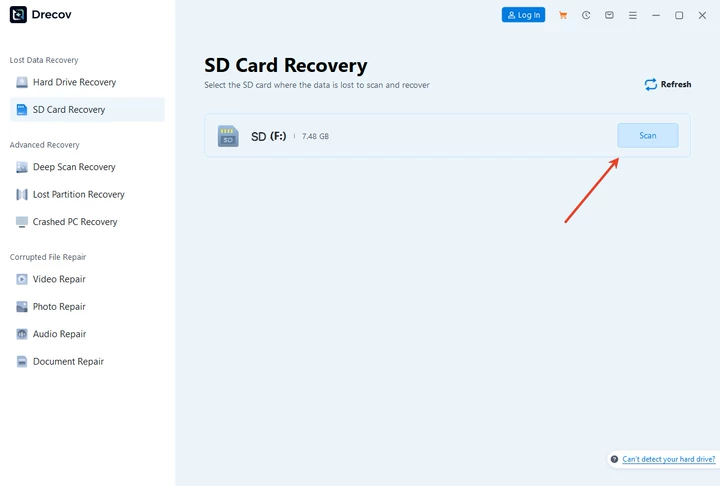
Download DrecovUsing Drecov is straightforward: install the software, select the SSD, perform a scan, and preview recoverable files. Users only pay if satisfied with the recovery results. This approach ensures that even mistakes during format an ssd can be rectified, providing peace of mind for both new and experienced users.


Tips for SSD Maintenance After Formatting
Regular SSD maintenance prolongs performance and prevents future errors. Avoid filling the drive to full capacity, perform occasional TRIM commands, and keep firmware up to date. Regularly backing up important files also minimizes data loss risk.
Additionally, monitor SSD health using Windows tools or third-party apps. Proper maintenance ensures smooth operation after formatting a ssd and helps maintain optimal speed and reliability.
FAQs About SSD Formatting
How Do You Format a SSD Without Losing Data?
Formatting inherently erases data, so backing up is crucial. Alternatively, creating a disk image or using recovery tools like Pandaoffice Drecov ensures that files can be restored after format ssd drive.
Can a Formatted SSD Be Recovered?
Yes, a formatted SSD can often be recovered if data has not been overwritten. Pandaoffice Drecov specializes in recovering formatted documents safely and efficiently.
How Often Should You Format an SSD?
Formatting should be done only when necessary, such as before OS installation, after serious errors, or when repurposing the drive. Frequent formatting is not recommended, as it may slightly reduce SSD lifespan. Proper maintenance reduces the need for repeated formatting.





