







When you install Windows 11, the system automatically assigns a default hard drive for saving applications, documents, downloads, and system files. While this works for many users, it often becomes a problem when the primary drive runs out of space or when you want better performance from an SSD or a larger secondary disk. Knowing How to Change Default Hard Drive settings correctly can significantly improve system efficiency and storage management.
Many users mistakenly believe changing the default storage location is risky or requires reinstalling Windows. In reality, Windows 11 provides multiple safe methods to change default hard drive behavior without affecting system stability. These methods allow you to redirect where new files are stored, move apps to another disk, or even switch the main system drive entirely.
⚠️ Warning: Making storage changes without backups can lead to data loss. Always back up critical data before modifying drive settings.
This guide explains every practical way to change default hard drive Windows 10 and Windows 11, covering system settings, app storage, user folders, and advanced scenarios. We will also discuss how disk-related changes can impact recovery needs, including when you may need to recover external hard drive data due to mistakes or hardware failure.
Whether you’re upgrading storage, optimizing performance, or fixing low disk space errors, this article gives you a complete, step-by-step solution.
A related question: is there any way to get the Open File and Save As APIs to treat a semicolon as a colon? That way, I could type d;\wk\etc. if the above issue is not solvable. Typing the colon tends to slow things down a bit for me, as my fingers stumble over the shift key. Clumsiness aka mild disability. Please note: I have already set Settings / System / Storage / Where New Content is Saved to D:, but this does not address the above problem. Also, I have set the Word default to D:\wk, which helps a bit, but not with other non-Office sw.—from Microsoft Store
What Does “Default Hard Drive” Mean in Windows 11?
Before attempting to change default hard drive settings, it’s important to understand what Windows actually considers “default.” The default drive is not always the same as the system drive (usually C:), and misunderstanding this distinction often causes configuration errors.
System Drive vs Default Storage Drive
The system drive contains Windows 11 itself, essential boot files, and core system components. By contrast, the default hard drive refers to the location where Windows automatically stores:
- New documents
- Downloads
- Apps from Microsoft Store
- Media files like photos and videos
By default, Windows assigns all these locations to the system drive. Over time, this leads to storage congestion, slower performance, and limited space for updates.
⚠️ Warning: Changing default locations does not move existing system files unless explicitly configured.
Understanding this separation helps users make informed decisions when they want to change default hard drive Windows 10 or Windows 11 without breaking system functions.
Why Windows Uses One Drive as Default
Windows prioritizes simplicity and compatibility. Assigning a single default drive reduces configuration complexity and avoids permission conflicts. However, modern systems often include multiple drives, making customization both possible and beneficial.
Common Reasons to Change the Default Hard Drive
Users choose to change default hard drive settings for different reasons, ranging from performance upgrades to storage optimization. Recognizing your motivation helps determine the safest and most effective method.
Low Storage Space on the System Drive
The most common reason is insufficient free space. Windows updates, app installations, and temporary files can quickly fill the system drive, triggering warnings and performance issues.
Redirecting default storage to a secondary drive prevents constant cleanup and improves long-term stability.
Upgrading to SSD or Larger HDD
Many users install a new SSD for speed or a high-capacity HDD for storage. Changing the default hard drive ensures that new data benefits from these upgrades without manual file management.
⚠️ Warning: Improper migration can result in missing files or broken shortcuts.
Better Data Organization and Backup Strategy
Separating system files from personal data simplifies backups and recovery. If Windows fails, data stored on a secondary drive remains accessible and easier to recover.
This strategy is also helpful when you later need to recover external hard drive data or migrate to a new computer.
Method 1: Change Default Save Location Using Windows 11 Settings
The safest and most user-friendly way to change default hard drive Windows 11 is through built-in storage settings. This method does not affect system boot files and is ideal for most users.
Steps to Change Default Storage Locations
- Open Settings
- Go to System > Storage
- Select Advanced storage settings
- Click Where new content is saved
- Choose a new drive for:
- Apps
- Documents
- Music
- Photos & videos
Once saved, Windows automatically uses the selected drive as the new default location.
⚠️ Warning: Some apps may still require installation on the system drive.
Advantages and Limitations
This method is safe, reversible, and does not require technical knowledge. However, it only applies to new content and does not move existing files unless you manually transfer them.
Despite this limitation, it remains the recommended first step for anyone learning How to Change Default Hard Drive safely.
Method 2: Change Default User Folder Locations Manually
For users who want deeper control, Windows allows manual relocation of user folders such as Documents, Downloads, Desktop, and Pictures. This method directly impacts where files are stored by default.
How to Move User Folders to Another Drive
- Open File Explorer
- Right-click a user folder (e.g., Documents)
- Select Properties > Location
- Click Move and choose a new drive
- Confirm file transfer
This method changes the default hard drive for specific file categories and automatically updates system paths.
⚠️ Warning: Interrupting the move process can corrupt files.
Why This Method Is Popular
It ensures both existing and future files reside on the new drive. Users who previously used change default hard drive Windows 10 often prefer this familiar approach.
Potential Risks When Changing Default Hard Drive Settings
While changing default storage is generally safe, mistakes can lead to missing files, permission issues, or even data loss. Understanding risks helps prevent problems.
Common Mistakes to Avoid
- Moving system folders to removable drives
- Disconnecting drives during file transfers
- Skipping backups before changes
These errors often lead users to seek ways to recover external hard drive data later.
⚠️ Warning: Always verify drive health before making changes.
In complex cases, recovery tools or professional solutions may be required to restore lost files.
When Storage Changes Lead to Data Loss
Sometimes, changing drive settings coincides with hardware failure, formatting errors, or accidental deletion. In these cases, recovery becomes necessary.
Using Pandaoffice Drecov for Drive-Related Data Recovery
Pandaoffice Drecov is designed to recover files lost during storage changes, drive migrations, or accidental deletions. It supports recovery from:
- Internal hard drives
- External hard drives
- SSDs used as default storage
⚠️ Warning: Install recovery software on a different drive to avoid overwriting data.
Pandaoffice Drecov provides a reliable solution when default drive changes go wrong.
Method 3: Change the Default Hard Drive by Moving Installed Apps
Beyond file storage, applications also consume significant disk space. Windows 11 allows users to move certain apps to another drive, effectively helping change default hard drive usage without reinstalling the operating system. This method is especially useful when the system drive is an SSD with limited capacity.
How to Move Apps to Another Drive in Windows 11
To relocate supported apps:
- Open Settings
- Go to Apps > Installed apps
- Select an app that supports relocation
- Click Move
- Choose a new drive and confirm
After the move, Windows will load the app from the new location, reducing pressure on the system’s default hard drive.
⚠️ Warning: Not all applications can be moved. Core system apps and some third-party programs are fixed to the system drive.
Benefits of App Relocation
This method helps balance disk usage and improves system responsiveness. Users transitioning from change default hard drive Windows 10 will find this process familiar, though Windows 11 offers better control and clearer options.
However, this approach does not change where future apps are installed by default unless combined with storage setting adjustments covered in Part 1.
Method 4: Change the System Default Hard Drive by Cloning Windows 11
If your goal is to fully replace the system drive—such as upgrading from an HDD to an SSD—you’ll need to clone the operating system. This method effectively redefines the default hard drive for Windows 11 at the system level.
Why Cloning Is Necessary
Windows cannot simply “move” itself to another drive. Cloning creates an exact copy of the operating system, installed programs, and system settings on a new disk, allowing you to boot from it directly.
The general process includes:
- Preparing the new drive
- Cloning system data
- Changing boot priority in BIOS
- Verifying system stability
⚠️ Warning: Incorrect cloning or boot configuration may cause Windows to fail to start.
After Cloning: What Changes
Once the new disk is set as the primary boot device, it becomes the true default hard drive. All system operations, updates, and storage behaviors will now rely on this drive.
If errors occur during this process and files go missing, recovery tools like Pandaoffice Drecov can assist in retrieving lost data from the original or cloned drive.
Using an External Hard Drive as the Default Storage Location
Some users attempt to change default hard drive settings by assigning an external drive for file storage. While this is technically possible, it requires caution.
How External Drives Fit into Default Storage Settings
Windows allows external drives to be selected for saving new content via storage settings. This can be helpful for large media files or temporary data.
However, external drives:
- Can be disconnected accidentally
- May experience power interruptions
- Are more prone to file corruption
⚠️ Warning: Never assign system folders or app installations to removable drives.
Recovery Risks and Considerations
If an external drive fails or is removed improperly, files may become inaccessible. In such cases, users often need to recover external hard drive data using recovery software or professional services.
Pandaoffice Drecov supports recovery from external hard drives, making it a valuable safeguard when external storage is part of your default setup.
Windows 10 vs Windows 11: Differences in Default Hard Drive Management
Although Windows 10 and Windows 11 share similar storage concepts, there are important differences in how users change default hard drive Windows 10 versus Windows 11.
Key Improvements in Windows 11
Windows 11 introduces:
- Clearer storage navigation
- Better app relocation support
- Improved drive health monitoring
These enhancements make How to Change Default Hard Drive settings more intuitive and less error-prone.
What Remains the Same
Core concepts—such as user folder relocation and system drive separation—remain unchanged. Users upgrading from Windows 10 can apply familiar methods with minor interface adjustments.
⚠️ Warning: Settings migrated from Windows 10 may not always reflect optimal Windows 11 configurations.
Rechecking default storage locations after upgrading is strongly recommended.
What to Do If Files Are Lost After Changing Default Hard Drive
Despite careful planning, files can still be lost during drive changes due to accidental deletion, formatting, or hardware issues. Knowing how to respond quickly improves recovery success.
Immediate Steps After Data Loss
- Stop using the affected drive
- Avoid reinstalling software on that disk
- Check Recycle Bin and backups
- Begin recovery as soon as possible
⚠️ Warning: Continued use may overwrite recoverable data.
Recovering Files with Pandaoffice Drecov
Pandaoffice Drecov is designed to recover files lost during disk configuration changes. It can scan:
Download Drecov- Old system drives
- Newly assigned default drives
- External storage devices

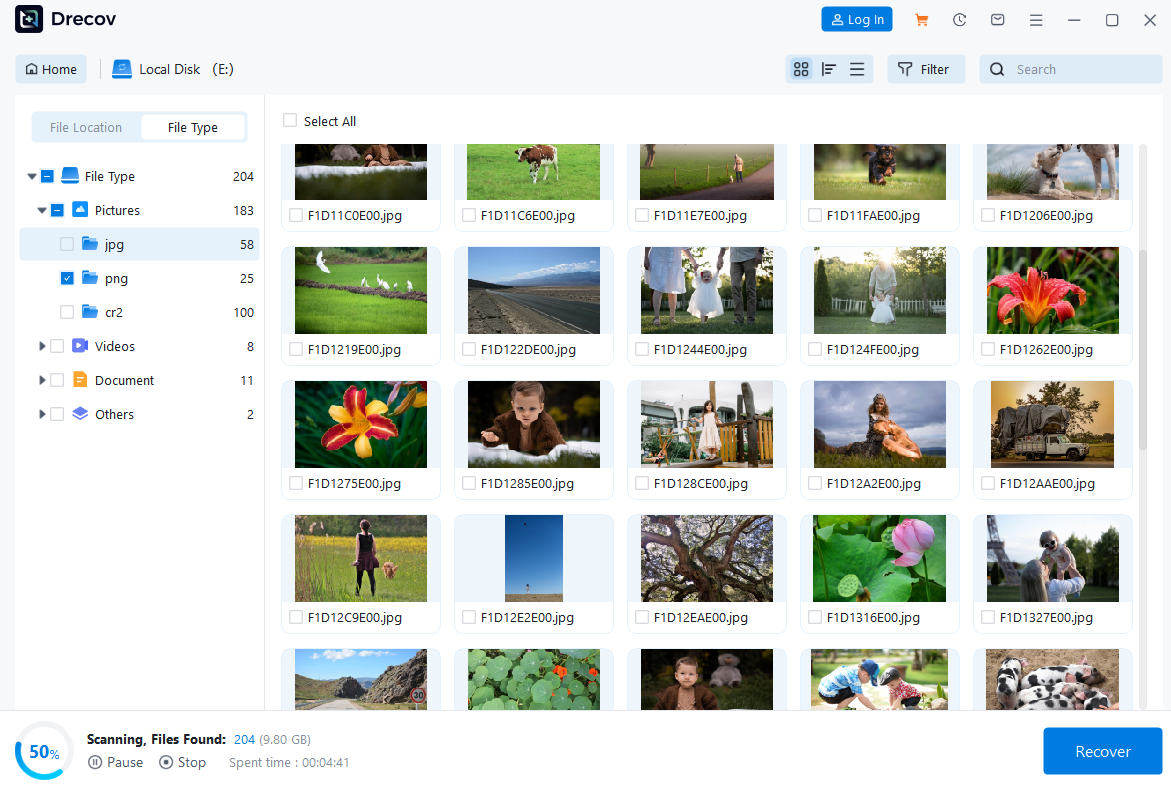

This makes it a reliable solution when users need to recover external hard drive data or restore files lost during default drive changes.
Best Practices to Safely Change Default Hard Drive Settings
To minimize risk and avoid recovery scenarios altogether, following best practices is essential.
Recommended Safety Checklist
- Back up important files before changes
- Verify disk health
- Avoid moving system-critical folders
- Label drives clearly
- Test changes gradually
⚠️ Warning: Never rush large file transfers or system migrations.
Applying these practices ensures a smoother experience when you change default hard drive configurations.
Frequently Asked Questions About Changing Default Hard Drive
Can I change the default hard drive without reinstalling Windows?
Yes. Storage settings, folder relocation, and app movement allow changes without reinstalling Windows.
Does changing default hard drive affect performance?
It can improve performance if you move storage to faster drives like SSDs.
What if I lose files during the process?
Recovery tools such as Pandaoffice Drecov or professional recovery services can help retrieve lost data.
Conclusion: The Right Way to Change Default Hard Drive in Windows 11
Learning How to Change Default Hard Drive in Windows 11 empowers users to manage storage efficiently, improve performance, and reduce system drive overload. From simple storage settings to full system drive replacement, each method serves a different need.
By understanding the risks, using safe practices, and knowing how to recover data when needed, users can confidently change default hard drive Windows 10 and Windows 11 without fear of data loss.
⚠️ Final Warning: Always prioritize backups before making storage changes.






