







This guide provides a comprehensive look at the mechanics of data loss and recovery. If you have ever stared at a freshly formatted USB drive in horror, wondering, “Can I recover files after quick format?” the answer is a resounding “Yes” in most scenarios. Because a quick format only wipes the file index rather than the actual data, your lost documents, photos, and videos remain hidden in the storage sectors, waiting for the right tools to bring them back to life.
1. The Anatomy of a Quick Format: Why Recovery is Possible
To understand how you can retrieve your data, you must first grasp what happens during a format. Imagine your USB drive is a massive library. A Quick Format does not burn the books; it simply shreds the card catalog at the front desk. The shelves (the data sectors) are still full of books, but the librarian (the Operating System) now thinks the library is empty and is ready to stack new books over the old ones.
The “Overwriting” Enemy
The most critical factor in successful recovery is stopping all activity. The moment you save a new file to that USB, the system begins writing over the “invisible” old data. Once a sector is overwritten with new binary code, the original information is gone forever.
2. Method 1: The Professional Standard – Using PandaOffice Drecov
When you need a balance between deep-scanning power and a user-friendly interface, PandaOffice Drecov stands out as a specialized solution for logical data loss. It utilizes advanced algorithms to reassemble file fragments that the operating system can no longer see.
Why Choose This Tool?
PandaOffice Drecov is particularly effective because it bypasses the corrupted file system and communicates directly with the storage controller. This allows it to identify file signatures (like the unique headers of a PDF or a JPEG) even when the directory structure is completely missing.This makes it an indispensable tool for a wide range of data loss scenarios, including:
- Accidental Desktop Deletions: Instantly retrieving files wiped from your local workspace.
- Disk Formatting Errors: Salvaging files from drives that have been completely wiped or reformatted.
- External Media Rescue: Recovering lost data from formatted or corrupted SD cards and USB flash drives.
- Sync Conflict Resolution: Reversing data loss caused by synchronization errors between your PC and the OneDrive cloud.
- Browser Metadata Recovery: Restoring lost Chrome bookmarks and other essential application data.”
Step-by-Step Recovery Process
- Step 1: Connection and Preparation. Insert your formatted USB drive into a functional computer port. Ensure the computer recognizes the hardware, even if it appears empty in your file explorer.
- Step 2: Launch and Target Selection. Open PandaOffice Drecov. On the main dashboard, you will see a list of available drives. Select the USB drive that underwent the format.

- Step 3: Initiating the Deep Scan. Click the “Scan” button. The software will perform a dual-phase scan: a quick scan for surface-level remnants and a “Deep Scan” that analyzes every individual sector for file signatures.

- Step 4: Previewing the Results. One of the best features here is the preview function. Browse through the found items. If you can see the thumbnail of a photo or the text of a document, the file is intact.

- Step 5: Safe Restoration. Check the boxes next to the files you need. Click “Recover.”
Crucial Warning: Always save the recovered files to your computer’s internal hard drive or a different USB, never back onto the formatted one.
3. Method 2: The Command Line Approach
If you prefer not to install third-party software immediately, you can attempt to use the Windows Command Prompt. This method is best if the files aren’t actually “gone” but are merely hidden or if the file system index is just slightly glitched.
Step-by-Step Recovery Process
- Step 1: Open CMD. Press
Windows + R, typecmd, and hit Enter. Make sure to run it as an Administrator.

- Step 2: Identify the Drive Letter. Note the letter assigned to your USB (e.g., Drive G:).
- Step 3: Execute the Attribute Command. Type the following command:
attrib -h -r -s /s /d G:\*.*(Replace ‘G’ with your actual drive letter). - Step 4: Wait for Processing. The system will attempt to strip “Hidden,” “Read-only,” and “System” attributes from any files it can still find in the directory.
- Step 5: Check the Drive. Refresh your USB folder. If the format was extremely “shallow,” some files might reappear in a new, unnamed folder.
4. Method 3: Utilizing Windows File Recovery
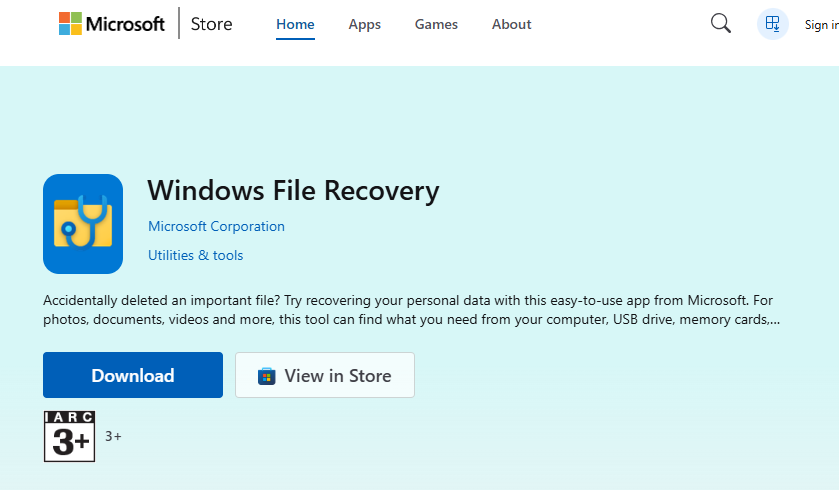
Microsoft offers a free, albeit more technical, command-line utility available in the Microsoft Store called “Windows File Recovery.” It is more powerful than the basic attrib command but requires precise syntax.
Step-by-Step Recovery Process
- Step 1: Install the App. Download “Windows File Recovery” from the Microsoft Store.
- Step 2: Choose Your Mode. For a formatted USB (FAT32 or exFAT usually), you should use the Extensive mode, which looks for specific file signatures.
- Step 3: Enter the Syntax. The command looks like this:
winfr G: C:\RecoveryDestination /extensive. - Step 4: Review the Log. The tool will create a folder on your C: drive and attempt to dump everything it finds there.
- Step 5: Sort the Data. Because this method often loses original filenames, you will need to manually go through the recovered files to identify them.
5. Critical Warnings and Best Practices
To maximize your chances of success, keep these three “Golden Rules” in mind:
- Avoid the “Free Software” Trap: Many websites offer “100% Free” tools that are actually malware. Stick to reputable brands like PandaOffice or official Microsoft utilities.
- The SSD Exception: If your USB “drive” is actually an external SSD, recovery is significantly harder due to a feature called TRIM. Once formatted, an SSD actively tries to erase data in the background to maintain speed. Work quickly!
- Physical Damage: If your USB is making a clicking sound or getting extremely hot, software cannot help you. You should contact a professional laboratory.
Comparative Summary
| Method | Difficulty | Success Rate | Best For |
| PandaOffice Drecov | Low (Point & Click) | Very High | Most users; complex formats |
| Command Prompt | Medium | Low | Hidden files/minor errors |
| Windows File Recovery | High (Coding-style) | Medium | Tech-savvy users on a budget |
6.Can I recover files after quick format FAQs
1. Does a quick format permanently delete everything?
No, it does not. A quick format only destroys the file system’s “address book.” The actual binary data of your photos and documents remains on the storage sectors. Until new files occupy those specific physical locations, the original data is theoretically recoverable.
2. How long do I have to recover my files?
Time is less important than activity. You could wait a year and still recover data if the drive sits in a drawer. However, if you continue using the drive, the system may overwrite the “free space” within seconds. The golden rule is to stop using the device immediately.
3. Can I recover files after quick format if I already saved new data?
It depends on the volume. If you saved a small text file on a 64GB drive, most of your old data is likely safe. If you copied a 20GB movie library, large portions of your deleted data are likely corrupted or gone forever.
4. Why is recovery harder on an SSD than a USB flash drive?
Most modern SSDs use a command called TRIM. When you format an SSD, TRIM tells the controller to proactively “clean” the cells to maintain high write speeds. This physical erasure happens in the background, making software recovery much more difficult compared to traditional HDDs or basic USB sticks.
5. Is there a difference between “Quick Format” and “Full Format”?
Yes. A Quick Format only resets the file system index. A Full Format (in Windows Vista and later) scans the entire drive for bad sectors and writes zeros to every single data block, which makes data recovery virtually impossible via software.
Conclusion
Losing data to a quick format is a stressful experience, but it is rarely a permanent one. When users frantically ask, “can i recover files after quick format?” they are often relieved to learn that their data is still physically present on the drive. By understanding this underlying logic, you can take the necessary steps to retrieve your lost information. Whether you choose the streamlined efficiency of PandaOffice Drecov or the manual control of system commands, your primary goal remains the same: stop writing new data and start scanning immediately.





