







Imagine this: You’ve spent weeks perfecting a presentation or organizing years of family vacation photos on your favorite thumb drive. You plug it in, ready to share your work, but a momentary lapse in judgment leads you to hit “Delete” on the wrong folder—now you are frantically searching for how to recover deleted files from usb. Or worse, a message pops up: “The disk in drive G: needs to be formatted.” Your heart sinks. Is that data gone forever?
The short answer is no. Whether you accidentally deleted files or encountered a file system error, mastering the process of how to recover deleted files from usb is a skill that can save your digital life. In this guide, we will dive deep into the mechanics of flash storage and explore the most effective ways to bring your files back from the brink.
The Science Behind the “Delete” Button
Before we jump into the “how,” we need to understand the “why.” When you delete a file from a USB flash drive, the computer doesn’t instantly shred the data into zeros and ones. Instead, it performs a bit of “logical housekeeping.”
Flash drives use a File Allocation Table (FAT32, exFAT) or NTFS system to track where files live. When you delete a file:
- The operating system marks the space that the file occupied as “available.”
- The file’s entry in the directory index is hidden.
- The actual data remains on the NAND flash memory chips until new data overwrites it.
Think of it like a library catalog. Deleting a file is like removing the index card from the drawer; the book is still on the shelf, but the librarian doesn’t know where to find it anymore. As long as you don’t put a “new book” (new data) in that exact spot, the old one is recoverable.
Crucial First Steps: The “Do No Harm” Rule
Before attempting any recovery method, follow these golden rules to maximize your success rate:
- Stop Using the Drive Immediately: Every second the drive is plugged in, the OS might write temporary files or logs to it, potentially overwriting your deleted data.
- Do Not Format: If prompted to format, click “Cancel.” Formatting creates a new file system structure that makes recovery much harder.
- Recover to a Different Location: Never save recovered files back onto the same USB drive. Always save them to your PC’s internal hard drive first.
Method 1: Harnessing the Power of Windows Command Prompt (CMD)
If your files are hidden due to a minor file system glitch or a basic virus, you can often “unhide” them without third-party software. This method focuses on the attrib command.
- Step 1: Connect your USB drive to the computer and identify its drive letter (e.g., E:, F:, or G:).

- Step 2: Press
Win + S, type cmd, right-click it, and select Run as Administrator. - Step 3: Type the drive letter followed by a colon (e.g.,
E:) and hit Enter.
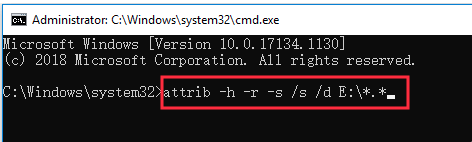
- Step 4: Type the following command:
attrib -h -r -s /s /d *.*and press Enter.
Pro Tip: This command removes the “Hidden,” “Read-only,” and “System” attributes from all files and directories on the drive. If your files were just masked, they will reappear in a new folder.
Method 2: Professional Recovery with PandaOffice Drecov
When standard commands fail, you need a specialized tool that can scan the raw sectors of your NAND flash memory. PandaOffice Drecov is specifically engineered for high-speed USB recovery, utilizing a “Deep Scan” algorithm that reconstructs fragmented file headers.
Here is how to recover deleted files from usb using this professional-grade utility:
- Step 1: Selecting the Target Drive
- Launch the software. On the main dashboard, you will see a list of available drives. Select your USB drive under the “Removable Devices” section.

- Step 2: Initiating the Scan
- Click the “Scan” button. The software will first perform a “Quick Scan” to find recently deleted files. It will then automatically transition into a “Deep Scan,” which searches the drive sector-by-sector for lost partitions and formatted data.

- Step 3: Previewing the Results
- One of the standout features of PandaOffice Drecov is the real-time preview. You can click on images, PDFs, or Word documents while the scan is still running to verify their integrity.

- Step 4: Selective Recovery
- Check the boxes next to the files you wish to retrieve. Click the “Recover” button and choose a destination folder on your computer’s desktop or an external hard drive (not the source USB).
Why choose PandaOffice Drecov?
Unlike generic tools, it features a unique “Signature Search” technology that recognizes over 1,000 file formats, ensuring that even if the file system is corrupted beyond repair, your data can still be identified by its binary signature.This makes it an indispensable tool for a wide range of data loss scenarios, including:
- Accidental Desktop Deletions: Instantly retrieving files wiped from your local workspace.
- Disk Formatting Errors: Salvaging files from drives that have been completely wiped or reformatted.
- External Media Rescue: Recovering lost data from formatted or corrupted SD cards and USB flash drives.
- Sync Conflict Resolution: Reversing data loss caused by synchronization errors between your PC and the OneDrive cloud.
- Browser Metadata Recovery: Restoring lost Chrome bookmarks and other essential application data.”
Method 3: Utilizing Windows File Recovery
For those who prefer a Microsoft-native solution, the Windows File Recovery app is a solid command-line option for Windows 10/11 users.
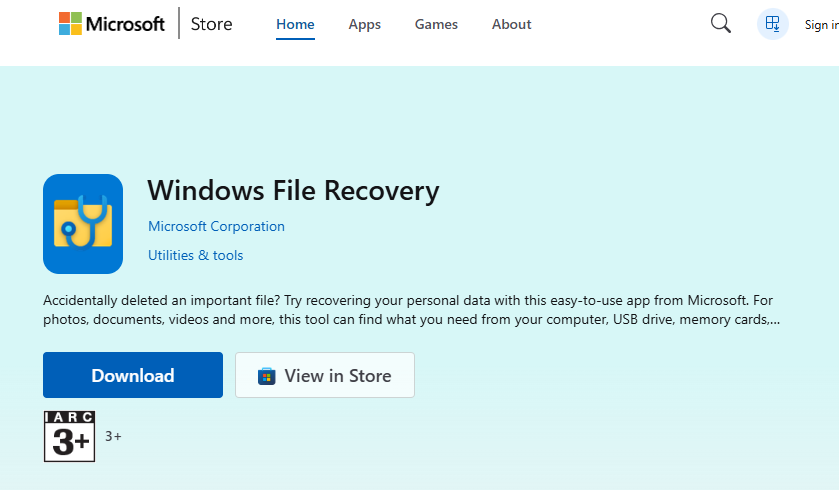
- Step 1: Download the app from the Microsoft Store.
- Step 2: Open the app, which launches a Command Prompt window.
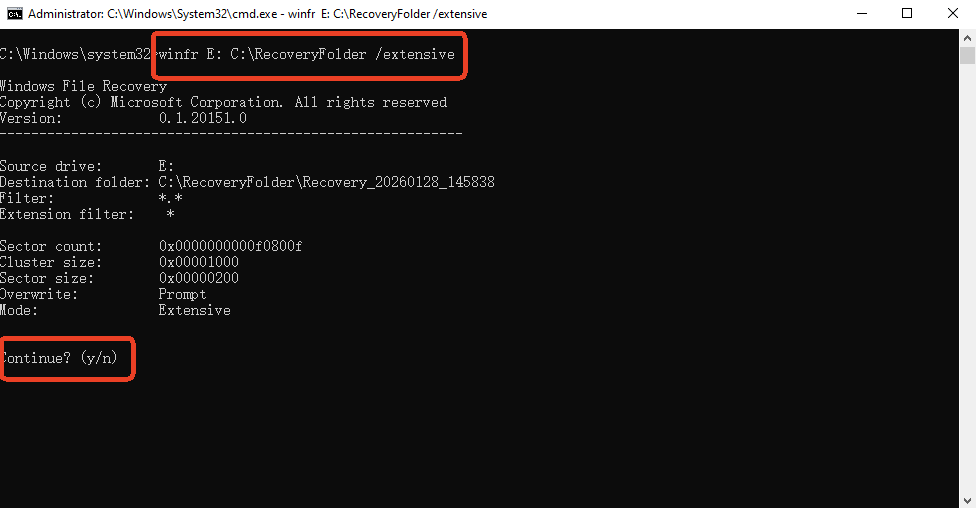
- Step 3: Use the “Regular” or “Extensive” mode. For USB drives (usually FAT32/exFAT), use “Extensive” mode.
- Command:
winfr E: C:\RecoveryFolder /extensive(Replace E: with your USB letter and C:\RecoveryFolder with your backup folder).
- Command:
Warning: This tool lacks a graphical interface and a preview function, making it a “blind” recovery process that may take significantly longer than PandaOffice Drecov.
Method 4: Restoring from “Previous Versions”
If you previously enabled File History on your Windows machine while the USB was plugged in, you might be in luck.
- Step 1: Navigate to the folder where your USB files were originally located.
- Step 2: Right-click inside the folder or on the USB drive icon in “This PC.”
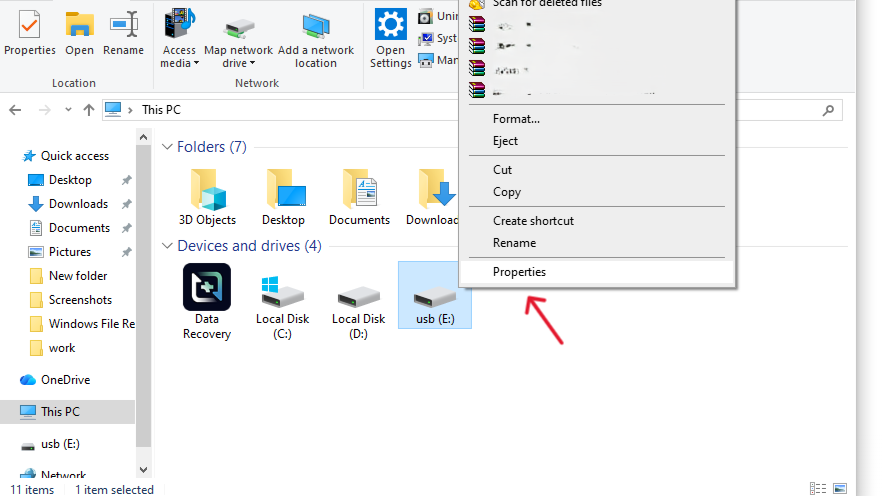
- Step 3: Select Properties and click the Previous Versions tab.
- Step 4: If a backup exists, select a version dated before the deletion and click Restore.
Comparative Analysis of Recovery Methods
To help you decide how to recover deleted files from usb effectively, here is a breakdown of the methods discussed:
| Method | Success Rate | Difficulty | Best For | PandaOffice Drecov Advantage |
| CMD (Attrib) | Low | Moderate | Hidden/Virus-hidden files | CMD cannot recover truly deleted data; Drecov can. |
| PandaOffice Drecov | Highest | Easy | Deleted, Formatted, Corrupted data | User-friendly GUI, Deep Scan, and File Preview. |
| Windows File Recovery | Medium | Hard | Tech-savvy users on Win 10+ | Drecov provides a visual interface vs. complex CLI. |
| Previous Versions | Low | Easy | Users with active backups | Most users don’t back up USBs to File History; Drecov doesn’t need a backup. |
Preventive Measures: Protecting Your Future Data
Recovery is a cure, but prevention is the vaccine. Follow these steps to ensure you never lose data again:
- The “Rule of Three”: Always keep three copies of important data—two on different media (USB and PC) and one off-site (Cloud).
- Enable Automatic Backups: Use tools like OneDrive or Google Drive to sync your USB “Work” folders automatically when plugged in.
- Always Eject Safely: Never pull a USB drive out while the light is flashing. Use the “Safely Remove Hardware” icon in the system tray to prevent file system corruption.
- Hardware Refresh: USB flash drives have a limited number of “write cycles.” If your drive is over 5 years old, migrate your data to a new one.
- Periodic Health Checks: Use
chkdskonce a month to scan for bad sectors before they become a problem.
How to recover deleted files from usb FAQ
1.Can I recover files from a physically broken USB?
If the computer does not recognize the drive at all (no sound or light), it is likely a hardware failure. In this case, software like PandaOffice Drecov cannot help; you must contact a professional data recovery lab to perform chip-off recovery.
2.How to recover deleted files from usb if it was formatted?
Formatting wipes the file directory but not the data. You should use the Deep Scan mode in PandaOffice Drecov. It will bypass the new (empty) file system and look for the original file signatures left on the disk.
3.Is it possible to recover files deleted years ago?
It depends on usage. If the USB drive sat in a drawer and was never used after the deletion, the success rate is high. If you continued using it, the old data has likely been overwritten by new files.
4.Does “Shift + Delete” make a difference?
On a USB drive, there is no “Recycle Bin.” Every deletion is effectively a “Shift + Delete.” This means you will almost always need recovery software to get the files back.
Conclusion
Losing data is stressful, but it doesn’t have to be permanent. By understanding that your files remain on the drive even after deletion, you can approach the situation with a calm, tactical mindset. Whether you use the manual CMD route or opt for the comprehensive, high-success approach of PandaOffice Drecov, the key is to act quickly and avoid writing new data to the drive.
By following the preventive measures outlined today, you can turn a potential digital disaster into a minor speed bump. Remember: stop, scan, and save to a new location!






