







Formatting an SD card on Windows is a task most users perform without much thought—until important documents suddenly disappear. Whether you are fixing errors, changing the file system, or preparing an SD card for a new device, understanding how to format an SD card correctly on Windows is essential. A single wrong click can result in the loss of Word documents, PDFs, spreadsheets, and other critical files.
This comprehensive, Windows-only guide explains how to format an SD card safely, explores common file systems such as FAT32, exFAT, and NTFS, walks through multiple proven formatting methods, and outlines what to do if your SD card is formatted by mistake. It also covers formatted document recovery, helping Windows users understand how lost files can often be recovered even after accidental formatting.
Could someone guide me through the steps on how to format sd card on Windows 11? Also, if you could recommend the best file system for general use (photos, videos, and documents), that would be really helpful. Thanks in advance for your help!—from Microsoft Store
What Does Formatting an SD Card Mean on Windows?
When you format an SD card in Windows, the operating system removes the existing file system structure and creates a new one. The file system acts as an index that tells Windows where files are stored and how they should be accessed.
It is important to understand that formatting usually does not immediately erase the actual data stored on the SD card. Instead, Windows removes the references pointing to each file’s location. Until new data overwrites those storage sectors, the original files often remain physically intact.
Because of this behavior, document recovery after formatting an SD card is frequently possible, especially if the SD card has not been reused and recovery is attempted quickly.
Why Do Users Format SD Cards on Windows?
Windows users format SD cards for many legitimate reasons. Understanding these scenarios explains why formatting accidents are so common.
Common Reasons for Formatting an SD Card
- Fixing file system errors or corruption that prevents devices from reading the card correctly.
- Preparing an SD card for cameras, smartphones, or tablets, ensuring full compatibility.
- Changing the file system for better compatibility across devices and operating systems.
- Removing malware, viruses, or suspicious files that may have infected the SD card.
- Reusing an SD card for a new project or device.
- Accidental formatting during disk cleanup or system maintenance.
In professional environments, formatting is often performed routinely, which increases the risk of selecting the wrong drive or forgetting to back up important documents.
Important Things to Do Before Formatting an SD Card
Before you format an SD card on Windows, taking a few precautions can prevent irreversible data loss.
1. Back Up Important Files First
If the SD card is still readable, always copy important documents to a safe location, such as:
- Your Windows system drive
- An external hard drive
- A secure cloud storage service
Even a quick backup can save hours of recovery work later. It is recommended to verify the backup by opening a few files to ensure they are intact before formatting the SD card.
2. Stop Using the SD Card After Accidental Formatting
If the SD card has already been formatted by mistake, stop using it immediately. Saving new files, installing apps, or even browsing the card may overwrite recoverable data. Every new write operation decreases the chance of successful recovery.
3. Check the SD Card’s Real Capacity
Some formatting problems occur due to counterfeit or damaged SD cards that falsely report larger capacities. Windows may fail to format or display incorrect sizes if the card is unreliable. Using tools like H2testw or ChipGenius can verify the card’s true capacity.
4. Ensure Sufficient Power and Stable Connection
Formatting requires uninterrupted access to the SD card. Avoid formatting on laptops with low battery or unstable card readers. A sudden power loss during formatting can corrupt the SD card permanently.
Understanding File Systems: FAT32, exFAT, and NTFS
Choosing the correct file system is a critical step when formatting an SD card on Windows. Each file system has specific advantages and limitations.
FAT32
- Best for SD cards up to 32GB
- Maximum compatibility with cameras, TVs, and embedded devices
- 4GB maximum file size limit
- Ideal when users need universal compatibility across older devices
- Cannot handle files larger than 4GB
exFAT
- Designed for large-capacity SD cards (SDXC)
- Supports large files and modern storage needs
- Cross-platform support (Windows and macOS)
- Ideal for high-resolution video recording and large photo libraries
NTFS
- Optimized for internal Windows hard drives
- Supports advanced permissions, encryption, and large files
- Not recommended for SD cards used in cameras or portable devices
- Overhead may reduce performance on flash memory
For most users, FAT32 or exFAT is the safest choice, depending on card size and device compatibility.
How Do You Format an SD Card on Windows?
Windows provides several built-in methods to format an SD card. Each approach serves a different purpose depending on the condition of the card.
Method 1: Format Using File Explorer
This is the simplest and most user-friendly method.
Steps:
- Insert the SD card into your Windows computer.
- Open File Explorer.
- Right-click the SD card drive and select Format.
- Choose a file system (FAT32 or exFAT) based on compatibility.
- Select Quick Format unless a full scan is needed.
- Click Start and confirm.
Tips:
- Verify the drive letter to avoid formatting the wrong disk.
- Quick Format is sufficient for most cases; Full Format scans for bad sectors but takes longer.
- Close other applications during formatting to prevent interruptions.
Method 2: Format Using Disk Management
Disk Management provides more control and is useful if File Explorer cannot see the card.
Steps:
- Press Windows + X and select Disk Management.
- Locate the SD card by its size and right-click the partition.
- Choose Format and select the desired file system.
- Confirm the operation.
Advantages:
- Can format SD cards not visible in File Explorer
- Allows partition deletion and recreation
- Can specify allocation unit size for performance optimization
Method 3: Format Using Command Prompt (CMD)
Command Prompt is ideal for stubborn SD cards that refuse normal formatting.
Steps:
- Press Windows + R, type
cmd, and press Enter. - Type
diskpartand press Enter. - Enter
list diskto display all connected drives. - Identify the SD card by its size.
- Type
select disk X(replace X with the correct number). - Enter
cleanto remove all partitions. - Type
create partition primary. - Enter
format fs=fat32 quick(orformat fs=exfat quickfor larger cards). - Type
assignto mount the drive. - Exit DiskPart.
⚠️ Warning: Selecting the wrong disk will erase important data permanently.
Advanced Tips:
- Use
attributes disk clear readonlyif the card is write-protected. - Double-check the disk number to avoid accidental data loss.
- CMD allows formatting SD cards >32GB to FAT32, which File Explorer may not allow.
Quick Format vs Full Format: Understanding the Difference
Quick Format
- Removes only file system references, leaving data physically intact.
- Very fast, typically under a minute for small SD cards.
- High recovery success rate, making it ideal when accidental formatting occurs.
- Recommended when SD card is in good condition and no bad sectors are suspected.
Full Format
- Removes file system references and scans for bad sectors.
- Takes significantly longer depending on SD card capacity.
- May overwrite parts of the storage, lowering recovery chances.
- Recommended if SD card shows errors or corruption and you want to ensure reliability.
Tip: If you anticipate needing document recovery, always use Quick Format. Full Format should only be used to verify and repair physical storage errors.
What Happens to Documents After Formatting an SD Card?
After formatting:
- Files disappear from view in Windows Explorer.
- Storage space is marked as available.
- Actual document data often remains intact in the memory cells.
Why This Matters
- Until overwritten, documents such as Word, Excel, PowerPoint, and PDF files can often be recovered.
- Avoid using the SD card immediately after formatting to maximize recovery success.
- Even after a Full Format, partial recovery may be possible depending on the SD card type and formatting method.
Recovering Formatted Documents with PandaOffice Drecov (Windows)
PandaOffice Drecov is a Windows-based document recovery tool designed for restoring lost files from SD cards after accidental formatting.
Supported Scenarios
- Accidental SD card formatting
- Changing file systems (FAT32 ↔ exFAT)
- Corrupted or unreadable SD cards
- Interrupted file transfers
Recoverable File Types
- Word documents (DOC, DOCX)
- Excel spreadsheets (XLS, XLSX)
- PowerPoint presentations (PPT, PPTX)
- PDF files
- Other common office formats
Step-by-Step Recovery Process
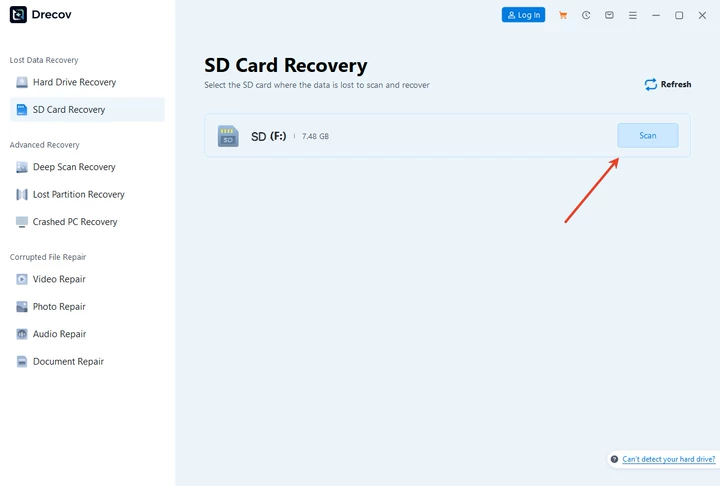
Download Drecov- Insert the SD card into your Windows PC.
- Launch PandaOffice Drecov
- Select the SD card as the target device.
- Start a full scan to detect recoverable documents.
- Preview recoverable files to verify integrity.
- Restore files to a different drive to avoid overwriting.


Advanced Tips for Recovery
- Stop using the SD card immediately after accidental formatting.
- Do not attempt multiple recovery attempts on the same card until the first scan completes.
- Use a reliable card reader to reduce read errors.
- Save recovered files to a separate drive or external storage.
- For large-capacity cards, allow scans to complete fully for higher success rates.
Common SD Card Formatting Problems on Windows
1. SD Card Is Write-Protected
- Check the physical lock switch.
- Remove protection via CMD:
diskpart→select disk X→attributes disk clear readonly.
2. SD Card Won’t Format
- Try CMD formatting with
diskpart. - Use Disk Management to recreate partitions.
- Test with a different card reader.
- Check for hardware failure if problems persist.
3. SD Card Shows Incorrect Size
- May indicate a counterfeit or failing card.
- Verify real capacity with tools like H2testw.
- Recreate partitions using Disk Management.
4. SD Card Corruption
- Logical corruption can often be fixed by formatting, but all references to files are lost.
- Use recovery software promptly to retrieve lost documents.
Formatting vs Deleting Files: Key Differences
| Action | Effect on Files | Recovery Potential |
|---|---|---|
| Deleting files | Removes individual file references | Often recoverable unless overwritten |
| Formatting | Removes entire file system references | Recoverable if Quick Format and card not reused |
Formatting affects all stored data at once, making recovery more urgent if done accidentally.
Professional Scenarios Involving SD Card Formatting
Corporate Workflows
Employees often reuse SD cards for reports, presentations, and internal documentation. Mistakes commonly occur during system cleanup or device switching. Proper backup policies and recovery software are essential.
Education and Academic Use
Students may store research papers, theses, or large project files on SD cards. Accidental formatting before submission deadlines can be catastrophic without timely recovery.
Legal and Administrative Documents
Contracts, forms, scanned records, and case files stored on SD cards are vulnerable to accidental formatting. Fast recovery and secure backups are crucial for compliance.
Photography and Videography
Professional photographers and videographers often store high-resolution images or video clips on SD cards. Losing original files due to formatting can lead to substantial financial and creative losses. Recovery strategies must be quick and reliable.
Scientific and Research Use
Researchers store experimental data and simulation results on SD cards. Data loss can delay projects and experiments, making SD card recovery an essential part of lab data management protocols.
Advanced Formatting Control Using Windows Disk Tools
Rebuilding Partition Tables
- Delete and recreate partitions using Disk Management.
- Resolve persistent formatting issues and ensure proper file system allocation.
Using DiskPart Attributes
- Remove read-only attributes that prevent formatting:
diskpart
list disk
select disk X
attributes disk clear readonly
- Enables successful formatting of write-protected SD cards.
Frequently Asked Questions (FAQ)
1. How do you format an SD card safely on Windows?
Confirm the correct drive letter, back up all important data, and avoid interruptions during formatting. Use Quick Format for faster and safer operations.
2. How do I format an SD card without losing data?
Back up files to another drive or cloud. Formatting always removes file system references, so direct formatting without backup will result in apparent data loss.
3. Can documents be recovered after formatting?
Yes, if Quick Format was used and the SD card hasn’t been reused. Recovery success decreases if the card is written to afterward.
4. Can formatting fix corruption?
Logical corruption such as damaged file systems can often be repaired through formatting. Files will be removed from the index, but the physical data may remain.
5. Does formatting damage SD card lifespan?
Occasional formatting is safe. Repeated formatting and excessive writes may reduce the lifespan of flash memory cells.
6. Is Quick Format better than Full Format?
Quick Format preserves recoverable data and is much faster. Full Format scans for bad sectors but may overwrite data, lowering recovery chances.
7. Can Windows format write-protected SD cards?
Not directly. Remove write protection physically or via DiskPart before attempting to format.
8. How long does recovery take?
Depends on SD card size and file quantity. Small cards may take minutes; larger cards can take up to an hour or more.
9. Should recovery software be installed on the SD card?
No. Install recovery software on a separate drive to prevent overwriting recoverable files.
10. Can SD cards be reused after recovery?
Yes, once all files have been safely restored, the SD card can be formatted and reused.
11. Are documents easier to recover than videos?
Yes, documents are smaller and structured, making recovery faster and more reliable than large media files.
12. How to fix a card that won’t format?
Try CMD formatting, Disk Management partition recreation, different card readers, or check for hardware failure.
Final Thoughts
Formatting an SD card on Windows is routine but carries real risks when important documents are involved. Understanding how to format an SD card, choosing the correct file system, and knowing the difference between Quick and Full Format significantly reduces permanent data loss risk.
If an SD card has been accidentally formatted, acting quickly is critical. By stopping further use and choosing a document-focused recovery solution like PandaOffice Drecov, users can often recover Word documents, PDFs, and spreadsheets successfully—even after accidental formatting.





