







Picture this: You’ve finally had enough of the “Disk Full” notifications and the persistent pop-ups. You decide it’s time to learn how to delete OneDrive once and for all. You head to the Control Panel, hit “Uninstall,” and breathe a sigh of relief. Then, you look at your Desktop. It’s empty. Your “Documents” folder? A ghost town.
Welcome to the Sync Trap. Most users think of OneDrive as a simple external hard drive in the sky. In reality, it’s more like a parasitic twin. It weaves itself into your Windows file system, hijacking your default library paths. When you delete the app or “Unlink” it incorrectly, Windows often loses the map to your own files.
But don’t panic. Whether you are currently staring at an empty folder or planning a clean exit, I’m here to show you how to reclaim your digital sovereignty—and how to onedrive recover deleted files if the cloud decides to take your data down with it.
Part 1: The Anatomy of Data
To understand how to delete OneDrive without losing your mind, you need to understand the “Shadow vs. Entity” principle.
OneDrive uses a feature called Files On-Demand.
- The Shadow: These are the files you see in File Explorer with a blue cloud icon. They aren’t actually on your hard drive; they are just “placeholders” (indexes).
- The Entity: These are files with a green checkmark, physically sitting on your local disk sectors.
When you uninstall OneDrive, the “Shadows” often vanish because the pointer to the cloud is severed. Even worse, if you delete files to “save space” before unlinking, OneDrive’s two-way sync might delete the “Entity” from your local drive too.
The Good News: Even if a file is “deleted” from your disk during a messy uninstallation, the data isn’t instantly vaporized. It remains in the “free space” of your sectors until new data overwrites it. This is exactly where professional tools like PandaOffice Drecov work their magic—they ignore the “map” (File System) and look directly at the “land” (Disk Sectors).
Part 2: How to Delete OneDrive (The “Clean Exit” Workflow)
Don’t just rip the band-aid off. Follow this sequence to ensure your files stay where they belong.
Method 1: The Correct Decommissioning (Manual)
Before you touch the “Uninstall” button, you must sever the tether.
- 1. Unlink This PC: Right-click the OneDrive icon > Settings > Account > Unlink this PC. This stops the active “suicide pact” between your local folder and the cloud.
- 2. Move the Data: Manually copy files from the
C:\Users\[Username]\OneDrivefolder back to your localC:\Users\[Username]\DocumentsorDesktopfolders. - 3. The Final Strike: Only now should you go to Settings > Apps > Installed Apps and select Uninstall.
Method 2: System-Level Retrieval (The Native Safety Net)
If you’ve already deleted something and need to onedrive recover deleted files immediately:
- The Online Recycle Bin: Log into OneDrive.com. Files deleted via sync usually sit here for 30 days.
- The Second-Stage Recycle Bin: If the first bin is empty, look for the “Second-stage recycle bin” link at the bottom of the web page.
Before moving to advanced tools, always check the cloud first. You can follow Microsoft’s guide on how to find lost or missing files in OneDrive. However, keep in mind that if your files were purged from the Second-stage recycle bin, native options end there.
Method 3: System-Level Retrieval via CMD & PowerShell
If your files vanished after an uninstallation, they might not be “deleted” in the traditional sense—they might be orphaned or trapped in a hidden system state. Before you give up and run PandaOffice Drecov, try these “Hardcore” recovery commands.
1. The “Attrib” Command: Unmasking Ghost Files
Sometimes, OneDrive leaves files on your disk but marks them as “System” and “Hidden” during a failed unlinking process. They exist, but File Explorer is literally forbidden from showing them to you.
- The Command:
attrib -h -r -s /s /d "C:\Users\YourName\OneDrive\*.*" - The Breakdown:
-h: Clears the “Hidden” attribute.-r: Clears the “Read-only” attribute (which prevents you from moving them).-s: Clears the “System” attribute./s&/d: Processes matching files in the current folder and all subdirectories.
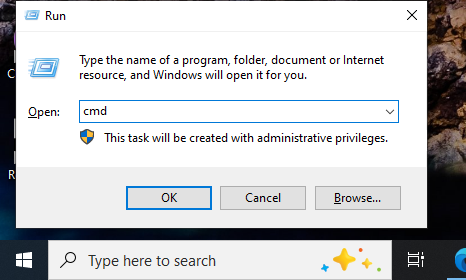
[PRO TIP]: Run CMD as Administrator. If this command returns a long list of “Access Denied,” it means the OneDrive security descriptors are still locking the folder—a prime indicator that you need a sector-level bypass like Drecov.
2. Checking the “Reparse Points” (The Virtual Map)
OneDrive uses “Reparse Points” to create those cloud placeholders. If you deleted the app but the reparse points remain, Windows will try to “call” a program that no longer exists, resulting in a crash or an empty folder.
- The Check:
dir /al /s - The Fix: You can use the
fsutilcommand to manage these points, but be warned: this is “open-heart surgery” for your file system. If you see<SYMLINKD>or<JUNCTION>pointing to a OneDrive path that doesn’t exist, your file pointers are broken.
3. The PowerShell “Force Sync” (If the App is Still Present)
If you haven’t fully deleted the app yet but files are missing, use PowerShell to force a local download of everything before you pull the plug.
- The Script:PowerShell
Get-ChildItem -Path "C:\Users\YourName\OneDrive" -Recurse | ForEach-Object { attrib $_.FullName +p } - The Goal: This forces the “Attribute P” (Pinned), which commands Windows to fetch the physical “Entity” from the cloud and store it locally.
Part 3: Why CMD Often Hits a Dead End
While CMD is powerful, it has one fatal flaw: It can only see what the File Allocation Table (FAT) or NTFS Master File Table (MFT) allows it to see.
If you deleted OneDrive and the OS already marked those sectors as “Free Space”:
dirwill show nothing.attribwill find nothing.copywill fail.
This is the “Logic Gap.” CMD works on the Logical Level (the map), but PandaOffice Drecov works on the Physical Level (the actual dirt). If the map is burned, Drecov ignores it and scans the terrain to find the actual data clusters.
| Feature | CMD / PowerShell Recovery | PandaOffice Drecov |
| User Level | Advanced / Expert | Beginner Friendly |
| Logic | Fixes attributes and paths | Reconstructs deleted sectors |
| Risk | High (one wrong command = wipe) | Zero (Read-only scanning) |
| Success on Deleted Data | 0% (if MFT is cleared) | 95%+ (via Deep Scan) |
Part 4: The Professional Lifesaver — PandaOffice Drecov
This is where PandaOffice Drecov steps in. Unlike the native Recycle Bin, Drecov doesn’t care about cloud states or app installations. It performs a Deep Sector Analysis to find the “Entities” left behind.
How to use PandaOffice Drecov to recover OneDrive leftovers:
- Step 1: Deploy and Scan. Install PandaOffice Drecov (ideally on a different drive to avoid overwriting data). Select your
C:drive or the specific path where your OneDrive folder used to live.

- Step 2: Filter by Path. Use the “Path” filter to look for
Users/YourName/OneDrive. Drecov is specifically optimized to recognize the cache structures left behind by cloud sync engines.

- Step 3: Preview and Resuscitate. This is the clincher. Drecov allows you to Preview images and documents before hitting “Recover.” This ensures you aren’t just recovering corrupted metadata.

- Step 4: Secure Export. Save your recovered files to an external drive or a different partition.
Prevention & Pro-Tips: Setting Up “Local Redundancy”
If you are learning how to delete OneDrive because you hate the cloud, you need a local backup strategy.
- [PRO TIP] The 3-2-1 Rule: Keep 3 copies of data, on 2 different media, with 1 copy offsite (perhaps a different cloud provider that doesn’t “hijack” your folders).
- Registry Cleanup: After deleting OneDrive, remnants often stay in the File Explorer sidebar. Navigate to
HKEY_CLASSES_ROOT\CLSID\{018D5C66-4533-4307-9B53-224DE2ED1FE6}in the Registry Editor and setSystem.IsPinnedToNameSpaceTreeto 0.
How do i delete onedrive FAQs
Q1: I uninstalled OneDrive, but my Desktop icons are still gone! Where are they?
A: They are likely stuck in the C:\Users\YourName\OneDrive\Desktop path. Windows didn’t move them back to the local path. If that folder is empty, use PandaOffice Drecov immediately to scan for deleted sectors in that specific directory.
Q2: Will deleting OneDrive from my PC delete my files in the cloud?
A: If you Unlink first, no. If you just delete files while the blue icon is active, yes, they will be deleted everywhere.
Q3: How do I recover files if the OneDrive Recycle Bin was emptied?
A: You can’t use Microsoft’s tools anymore. Your only hope is a sector-level recovery tool like PandaOffice Drecov that scans your local hard drive’s “free space.”
Q4: My files are back, but they won’t open (Corrupted). Why?
A: This usually happens when the file was partially overwritten. PandaOffice Drecov’s “Deep Scan” mode is designed to reconstruct these fragments better than standard undelete tools.
Q5: Can I stop OneDrive from coming back?
A: Yes. After uninstalling, use the Group Policy Editor (gpedit.msc) to navigate to Computer Configuration > Administrative Templates > Windows Components > OneDrive and enable “Prevent the usage of OneDrive for file storage.”
Conclusion
Learning how to delete OneDrive is a rite of passage for many PC enthusiasts who want total control over their data. However, the “Sync Trap” is real, and it’s ruthless.
Always Unlink before you Uninstall. But if you’ve already made the leap and realized your digital life has vanished into thin air, don’t despair. The data is still there, hidden in the magnetic whispers of your hard drive.






