







Many organizations face the need to switch between Microsoft vs Google Workspace to optimize collaboration and productivity. Migrating data from Google Workspace to Microsoft 365 requires careful planning to ensure emails, contacts, calendars, and documents are transferred completely. This guide explains the Google Workspace to Microsoft 365 migration process step by step and introduces professional tools like Pandaoffice Drecov to back up and recover critical data.
⚠️Warning: There is a risk of data loss during migration. Always perform a complete backup before starting.
You can migrate batches of users from Google Workspace to Microsoft 365 or Office 365, allowing a migration project to be done in stages. This migration requires that you provision all of your users who will be migrated as mail-enabled users outside of the migration process. You must specify a list of users to migrate for each batch. All procedures in this article assume that your Microsoft 365 or Office 365 domain is verified and that your TXT records have been set up. For more information, see Set up your domain (host-specific instructions).
Understanding Google Workspace vs Office 365
Before starting migration, it’s important to understand the differences between Workspace vs Office 365:
- Google Workspace: A cloud-based collaboration platform including Gmail, Google Drive, Google Calendar, and Docs, emphasizing real-time teamwork.
- Microsoft 365: Includes Outlook, OneDrive, Teams, and Office apps, supporting both cloud and local productivity, with enterprise-grade security and management.
Knowing these differences helps in planning migration. For example, Google Docs files must be converted to Microsoft Office formats, and Google Calendar events mapped to Outlook Calendar.
⚠️Warning: Verify storage limits and permission settings on the destination platform to avoid data loss.
Step 1: Backup Google Workspace Data
Backing up all Google Workspace data before migration is essential. If something goes wrong, you can recover data safely.
Backup Process
- Use Google Takeout or the Admin Console to export Gmail, Drive, Calendar, and Contacts.
- Save exported files in a secure location, such as an external drive or corporate server.
- Optionally, scan exported data with Pandaoffice Drecov to ensure no files are missing or corrupted.
Completing a backup ensures a safe migration. Backing up Google Workspace is the foundation for success.
⚠️Warning: Avoid modifying source data before migration; changes may lead to inconsistencies or loss.
Step 2: Plan Your Migration Strategy
The migration strategy directly affects efficiency and success. Companies should choose full, phased, or hybrid migration based on their needs.
Factors to Consider
- Number of users and department structure
- Mailbox size and storage limits
- File types and conversion requirements
- Migration time windows and business continuity
A solid strategy minimizes disruption and ensures employees maintain access to critical data during migration.
⚠️Warning: Different migration modes require varying IT support; allocate resources in advance.
Step 3: Configure Microsoft 365
Before migration, prepare Microsoft 365:
- Create user accounts corresponding to Google Workspace users.
- Verify domain settings to ensure correct mail routing.
- Configure OneDrive and SharePoint storage permissions.
- Set up Outlook and Exchange Online sync options.
Proper configuration prevents access issues and ensures a smooth transition.
⚠️Warning: Misconfiguration can cause email loss or sync failures; follow instructions carefully.
Step 4: Migrate Gmail Emails
Emails are critical. Use Microsoft 365 migration tools or IMAP to migrate Gmail accounts.
Steps
- In Microsoft 365 Admin Center, select Migration → IMAP Migration.
- Enter source Gmail account credentials and authorization token.
- Select the mailboxes to migrate and map to target accounts.
- Start migration and monitor progress.
After migration, verify mail integrity and ensure Outlook sync is complete.
⚠️Warning: Migration may take hours or days depending on mailbox size.
Step 5: Migrate Google Drive Files
Google Drive files must be converted to Office formats before moving to OneDrive or SharePoint.
Steps
- Export Drive files via Google Takeout or use a migration tool to import into Microsoft 365.
- Verify permissions and sharing settings are correct.
- Scan migrated files with Pandaoffice Drecov to ensure nothing is lost or corrupted.
- Assign files to the correct OneDrive or SharePoint folders.
⚠️Warning: Unconverted Google Docs may not be editable in Microsoft 365; format conversion is required.
Step 6: Migrate Google Calendar Events
Calendars are vital for business continuity. Migrating Google Calendar to Outlook ensures meetings and schedules are preserved.
Steps
- Export Google Calendar as an
.icsfile via Google Calendar settings. - Open Microsoft 365 Outlook, go to File → Open & Export → Import/Export.
- Select Import an iCalendar (.ics) file and choose the exported file.
- Verify all events, reminders, and recurring meetings are correctly imported.
⚠️Warning: Some complex recurring events may need manual adjustment after import.
Step 7: Migrate Contacts
Migrating contacts ensures that all important email addresses and business relationships are preserved.
Steps
- Export contacts from Google Workspace as a
.csvor vCard file. - Open Outlook, go to File → Open & Export → Import/Export.
- Select Import from CSV or vCard, and map fields to Outlook format.
- Validate that contacts appear correctly in Outlook and are synced to Microsoft 365.
For permanently deleted or missing contacts during export, Pandaoffice Drecov can scan local backups or devices to recover lost entries.
⚠️Warning: Field mapping errors can cause incorrect names or emails; always preview before final import.
Google Shared Drives or Team Drives contain collaborative documents. Migrating them to SharePoint or OneDrive ensures all team files are accessible.
Steps
- Identify shared drives and export files via Google Takeout or migration tool.
- Import files into SharePoint document libraries or team OneDrive accounts.
- Reassign permissions to mirror original sharing settings.
- Use Pandaoffice Drecov to check for missing or corrupted files post-migration.
⚠️Warning: Failure to correctly map permissions may prevent team members from accessing files.
Step 9: Test Migration and Validate Data Integrity
After migrating emails, files, calendars, and contacts, test for completeness.
Steps
- Confirm that all users can access migrated emails and files.
- Randomly verify calendars and recurring events.
- Test sharing permissions for documents and drives.
- For any missing items, use Pandaoffice Drecov to restore lost data from backups.
This validation ensures migration success and minimizes operational disruptions.
⚠️Warning: Skipping validation may result in unnoticed data loss, affecting business continuity.
Post-Migration Best Practices
After migration, implement preventive measures to maintain data integrity.
Recommendations
Enable continuous backups for Microsoft 365 using both cloud and local options.
Monitor user activity and sync issues for the first few weeks.
Train employees on Microsoft 365 tools and file management.
Maintain a local backup of critical files and contacts.
Use Pandaoffice Drecov periodically to recover accidentally deleted data or corrupted files.
⚠️Warning: Not implementing post-migration monitoring may lead to unnoticed sync issues or lost data.
Advanced Migration Tips
For enterprises with large datasets or complex structures, consider these tips:
- Staged Migration: Move users in batches to reduce load and monitor each batch for errors.
- Hybrid Approach: Maintain some Google Workspace users temporarily during transition.
- Data Conversion: Pre-convert Google Docs, Sheets, and Slides to Office formats to minimize post-migration editing.
- Email Routing: Set up proper mail routing rules to prevent delivery issues during migration.
These steps reduce downtime and ensure seamless migration.
⚠️Warning: Large migrations may require IT support or third-party services for troubleshooting.
How Pandaoffice Drecov Supports Migration
Pandaoffice Drecov complements the migration process by providing:
- Selecting the right recovery software is essential when unexpected data loss occurs. Pandaoffice Drecov provides a powerful, secure, and efficient solution designed to handle a wide range of storage failure scenarios across different devices.
- Advanced Recovery for SD Cards and Hard Drives
- Pandaoffice Drecov supports recovering photos from an SD card as well as performing professional hard drive recovery. Whether files were accidentally deleted, a storage device was formatted, or data was lost due to corruption, its deep scan technology thoroughly analyzes storage sectors to locate recoverable content. The software is compatible with internal drives, memory cards, and various file systems, ensuring flexible recovery options in different environments.
- Reliable Support for Recovering External Hard Drives
- The software also specializes in recovering external hard drives that become inaccessible due to accidental formatting, partition loss, or file system damage. It automatically detects connected devices and performs comprehensive scans without altering original data, helping improve recovery success rates.
- Efficient Recovery of Deleted Photos
- One of its strongest capabilities is recovering deleted photos, even after permanent deletion from the Recycle Bin. The built-in preview feature allows users to verify files before restoration, ensuring accurate and controlled recovery.
- With strong scanning performance, broad device compatibility, and an intuitive interface, Pandaoffice Drecov offers a dependable and professional solution for modern data recovery needs.

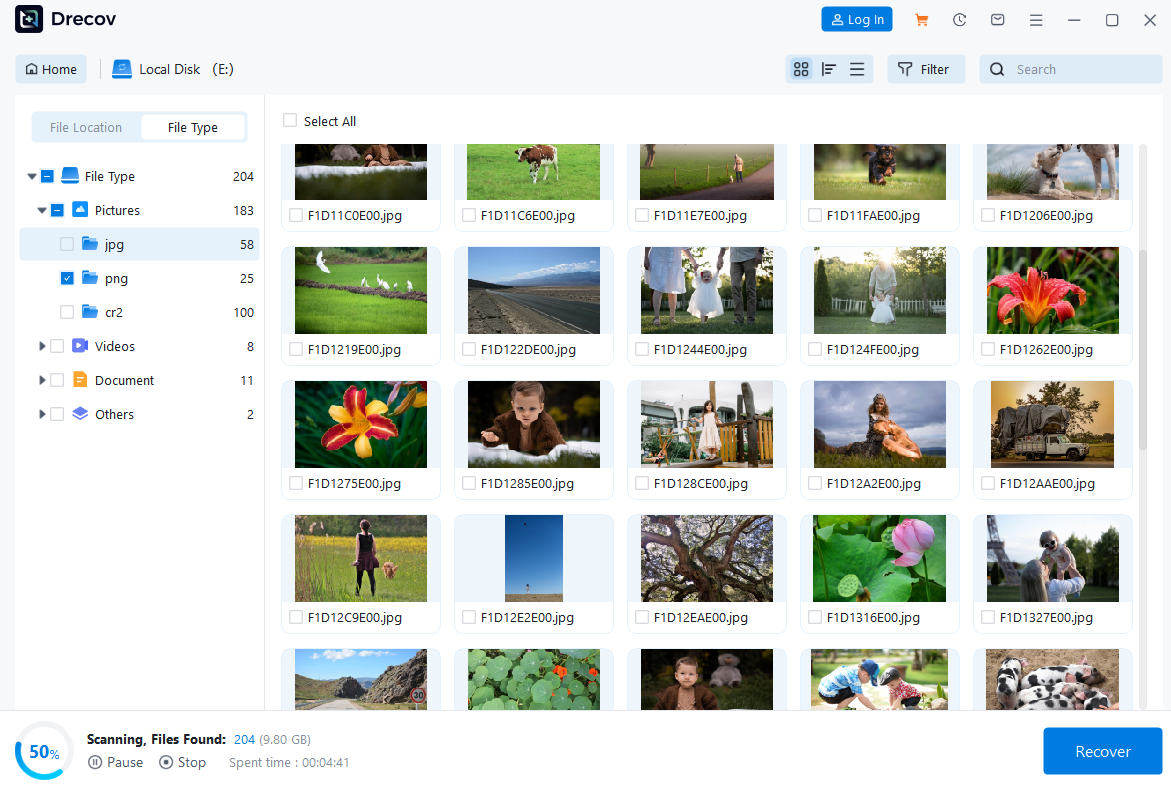

Using Drecov ensures that no critical business data is permanently lost, providing an extra safety net for the migration process.
Conclusion
Migrating from Google Workspace to Microsoft 365 involves multiple steps: backup, strategy planning, configuration, email migration, file migration, calendar and contact transfer, shared drive migration, testing, and post-migration monitoring. Combining built-in migration tools with professional recovery software like Pandaoffice Drecov ensures data integrity and reduces the risk of loss.
By following these steps, enterprises can achieve a seamless transition from Google Workspace to Microsoft 365 while maintaining operational continuity, data security, and employee productivity.






