







Imagine it is 2 AM. You have spent the last three weeks perfecting a presentation that determines your career trajectory. You plug your trusty USB drive into your laptop, expecting to see your folders, but instead, a chilling Windows prompt appears: “You need to format the disk in drive G: before you can use it.” Or worse, the drive opens, but it is completely empty. Your heart sinks. You need that data now, but you are on a restricted work computer or a public terminal where you cannot install third-party applications.
This scenario is more common than you think. Whether it is a “RAW” file system error, an accidental deletion, or a virus hiding your files, the urge to recover files from usb without software becomes a desperate necessity. But is it actually possible to perform a rescue mission using only the tools built into Windows? The answer is a resounding yes, and in this guide, we will explore exactly how the magic happens behind the scenes.
Why Do Files Vanish? Understanding USB Data Loss
Before we dive into the “how-to,” let’s look at why USB drives fail. Understanding the context helps you choose the right recovery path. Common scenarios include:
- The “Unplugged” Disaster: Pulling a USB out while it’s still writing data often leads to a corrupted File Allocation Table (FAT).
- The Ghost Virus: Some malware doesn’t delete files; it simply changes their attributes to “Hidden” and “System,” making the drive look empty.
- The RAW Transformation: When the file system metadata is damaged, Windows can no longer read the structure, labeling it as “RAW” and demanding a format.
The Library Metaphor: How Data Recovery Works
To understand how we recover files from usb without software, think of your USB drive as a massive Library.
When you save a file, the “Librarian” (the File System, like FAT32 or NTFS) does two things:
- It stores the actual book (the data) on a shelf.
- It writes an entry in the Library Catalog (the Index) explaining exactly where that book is.
When you delete a file or the drive becomes corrupted, the “books” are usually still sitting on the shelves. The problem is that the “Librarian” has lost the catalog or crossed out the entry. As long as you don’t bring in “new books” (new data) to stack on those same shelves, the old information remains. Using built-in Windows commands is like manually walking through the aisles to find the books without the help of the catalog.
Phase 1: Direct System Methods to Recover Files from USB Without Software
If you want to recover files from usb without software, you must use the Windows built-in command-line interfaces. These methods are powerful because they bypass the graphical user interface (GUI) which might be restricted or failing to show the truth.
Method 1: The CMD “Attrib” Command
This is the most effective way to recover files from usb without software when a virus has hidden your data.
- Step 1: Plug your USB drive into your computer. Identify the drive letter (e.g., Drive
G:). - Step 2: Press
Win + Ron your keyboard, typecmd, and press Enter.

- Step 3: In the black command prompt window, type your drive letter followed by a colon (e.g.,
E:) and hit Enter.
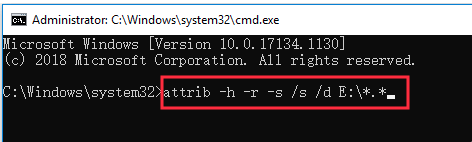
- Step 4: Type the following command precisely:
attrib -h -r -s /s /d *.*- -h: Clears the Hidden attribute.
- -r: Clears the Read-only attribute.
- -s: Clears the System attribute.
- /s: Processes matching files in the current folder and all subfolders.
- /d: Processes folders as well.
- Step 5: Wait for the command to finish. Check your USB drive; your files should reappear in a folder with no name or a generic title.
Warning: Do not close the window until the blinking cursor returns to a new line. Interrupting this process can cause directory errors.
Method 2: Check Disk Command
If your computer says the drive is inaccessible, you can attempt to recover files from usb without software by repairing the file structure via chkdsk.
- Step 1: Open the Command Prompt as an Administrator (Right-click “Start” -> Command Prompt (Admin)).
- Step 2: Type
chkdsk D: /f(ReplaceDwith your actual USB drive letter).
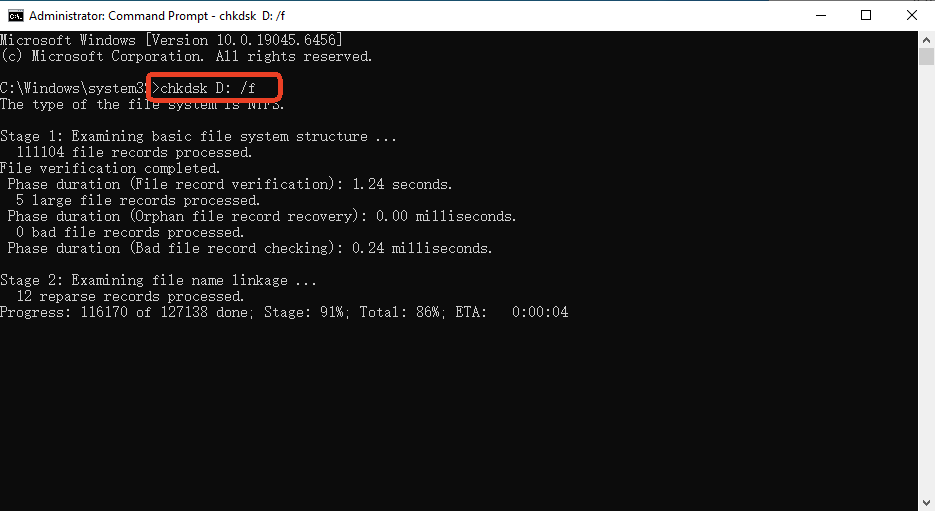
- Step 3: The system will scan the drive for logical errors and fix the index (the “Library Catalog”).
- Step 4: If prompted to “convert folders to files,” type
Yfor yes. This often recovers fragments of data that were previously unreadable.
Phase 2: When System Tools Fail — Professional Recovery with PandaOffice Drecov
Sometimes, the “shelves” in the library are so disorganized that manual commands cannot find the data. In these instances, attempting to recover files from usb without software might lead to a dead end. This is where a dedicated, lightweight tool like PandaOffice Drecov becomes essential. It is designed to deep-scan the “shelves” even when the “catalog” is completely destroyed.
Why Choose PandaOffice Drecov?
Unlike standard Windows tools, PandaOffice Drecov uses advanced algorithmic scanning to identify file signatures (like the unique headers of a JPG or a PDF) directly from the raw binary data.
How to Use PandaOffice Drecov: A Step-by-Step Guide
- Step 1: Select the Target Drive. Upon opening the software, you will see a list of available drives. Select your USB drive from the “External Drives” section.

- Step 2: Initiate the Deep Scan. Click the “Scan” button. Drecov will first perform a Quick Scan to find deleted items, followed immediately by a Deep Scan to reconstruct files from a formatted or RAW USB.

- Step 3: Filter and Preview. One of the best features of Drecov is the “Preview” function. You can click on images or documents during the scan to see if they are intact before you spend time recovering them.

- Step 4: Secure Recovery. Select the files you wish to save and click “Recover.”
Critical Tip: Never save the recovered files back onto the same USB drive. Always save them to your computer’s Desktop or a different drive to prevent “overwriting” the very data you are trying to save!
Comparing Recovery Strategies
To help you decide whether to recover files from usb without software or use a professional tool, refer to this comparison:
| Feature | CMD / Attrib Method | CHKDSK Method | PandaOffice Drecov |
| Complexity | Low (Text commands) | Moderate | Very Low (User-friendly) |
| Success Rate | High for hidden files | Moderate for corruption | Very High for all scenarios |
| Risk Factor | Minimal | Low | Zero (Read-only scan) |
| Recovery Type | Attribute correction | File system repair | RAW / Deleted / Formatted |
| Best For | Malware/Virus issues | Drive “Not Accessible” | Empty drives or deleted files |
Proactive Protection: How to Prevent USB Data Loss
While knowing how to recover files from usb without software is a vital skill, prevention is far more efficient. Follow these steps to safeguard your data:
- Enable “Quick Removal” Policy: In Windows, you can set your USB to “Quick removal” mode via Device Manager. This disables write caching, which means you are less likely to corrupt data if you pull the drive out without clicking “Eject.”
- The 3-2-1 Backup Rule: Never keep the only copy of a file on a USB drive. Keep 3 copies of your data, on 2 different types of media, with 1 copy stored off-site (or in the cloud).
- Routine Disk Checking: Every month, run a manual scan on your USB drive using Windows Defender to ensure no “Hidden” attribute viruses are present.
- Use High-Quality Hardware: Cheap, unbranded USB drives often use “B-grade” flash memory chips that fail without warning. Invest in reputable brands for critical work.
Frequently Asked Questions
Q1: Can I recover files from usb without software if I formatted the drive?
Formatting usually wipes the “Catalog.” While CMD methods rarely work after a full format, PandaOffice Drecov can still find the data because it scans the sectors directly, ignoring the new, empty catalog.
Q2: My USB drive letter doesn’t show up in CMD. What should I do?
If the drive letter is missing, you may need to go to “Disk Management” (diskmgmt.msc), right-click the USB, and select “Change Drive Letter and Paths” to assign it a letter like G: or H:.
Q3: Is it safe to recover files from usb without software on a Mac?
Macs use “Terminal” instead of CMD. The commands are different (e.g., defaults write com.apple.finder AppleShowAllFiles YES). However, for the highest success rate across both platforms, PandaOffice Drecov is recommended as it handles multiple file systems like APFS, HFS+, and FAT32.
Conclusion
Losing data from a USB drive is a stressful experience, but it doesn’t have to be a permanent one. Whether you choose to recover files from usb without software using the built-in Command Prompt or opt for the comprehensive power of PandaOffice Drecov, the key is to act quickly and stop writing new data to the drive immediately. By understanding the underlying logic of how files are stored and indexed, you turn a high-stakes crisis into a manageable technical task.





