







In a modern enterprise, a storage failure is not merely a technical glitch; it is a business interruption event with measurable fiscal impact. Whether it is a SQL database becoming unreadable or a project manager’s external SSD reporting as “uninitialized,” the clock starts ticking the moment data becomes inaccessible. For the Chief Information Officer (CIO) or the Lead Systems Engineer, the fundamental question shifts from “what happened” to “how to recover hard drive integrity as fast as possible.”
This technical white paper outlines the standard operating procedures (SOPs) for data restoration, ensuring that IT departments can mitigate risks and execute a successful recovery without compromising the underlying hardware.
Section 1: The Physics of Logical Preservation
To master how to recover hard drive data, an administrator must understand the abstraction layers of storage. When a file is “deleted” in an enterprise environment (NTFS, ReFS, or APFS), the operating system performs a logical deallocation.
The Metadata vs. Payload Relationship
Think of your hard drive as a sophisticated logistical warehouse.
- The Metadata Layer (The Manifest): This contains the file names, permissions, and timestamps.
- The Payload Layer (The Inventory): This is the raw binary data sitting on the magnetic platters or NAND flash cells.
When an employee accidentally formats a drive, the OS typically overwrites only the Manifest. The Inventory remains on the shelves. However, modern features like TRIM on SSDs or Background Garbage Collection can physically wipe this data quickly to maintain drive performance. Therefore, the first commandment of corporate data recovery is Immediate Power Isolation. Any continued operation allows the “Automatic Janitor” of the drive to permanently erase the very assets you are trying to save.
Section 2: Preparation and Risk Mitigation Protocols
Before attempting a rescue, the IT team must establish a sanitized recovery environment.
1. Hardware Write-Blocking
In a professional forensic or corporate recovery scenario, the “Patient Drive” should never be mounted in a “Write” state. Using a hardware write-blocker ensures that the OS doesn’t write metadata like System Volume Information or Desktop.ini onto the drive, which could overwrite lost files.
2. The Golden Rule of Target Destinations
Under no circumstances should the recovery software be installed on the source drive. Furthermore, the “Save” location for recovered data must be a verified, high-speed network volume or a separate physical drive. This prevents a “Feedback Loop” where the recovered file overwrites the next file in the recovery queue.
Section 3: Tiered Recovery Methodologies
Method 1: Administrative Restoration (Volume Shadow Copy)
For external drives that are frequently connected to workstations with System Protection enabled, Windows may have captured a point-in-time snapshot.
- Step 1: Connect the drive and identify the target directory.
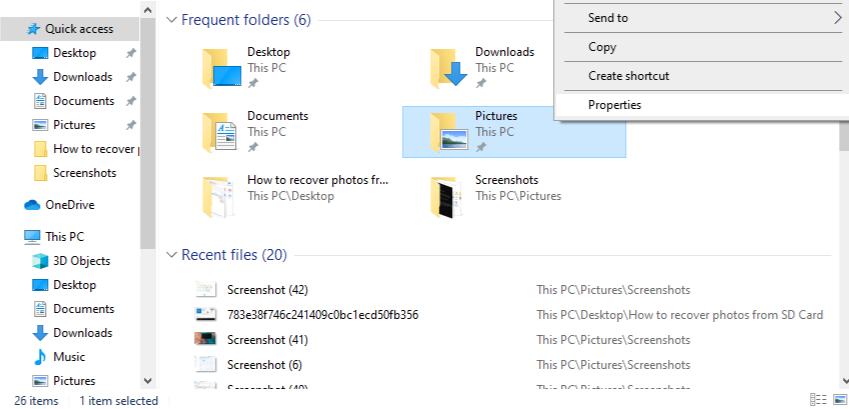
- Step 2: Right-click the folder and select Properties.
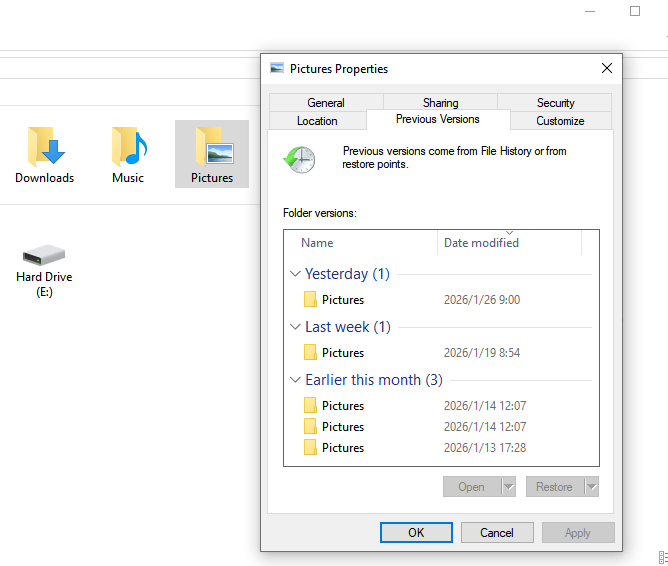
- Step 3: Open the Previous Versions tab. This tab queries the Shadow Copy service.
- Step 4: If a relevant snapshot exists, select Restore To… and point it to a secure server location.
Method 2: Enterprise Recovery with PandaOffice Drecov
When logical structures like the Master File Table (MFT) are corrupted, or a “Quick Format” has been executed, administrative tools will fail. This is where PandaOffice Drecov becomes the primary tool for the recovery of critical hard drive assets.
Professional Workflow for PandaOffice Drecov:
- Step 1: Environment Setup. Launch PandaOffice Drecov on a dedicated recovery workstation. Ensure the workstation has sufficient RAM (16GB+) to handle large scan logs.
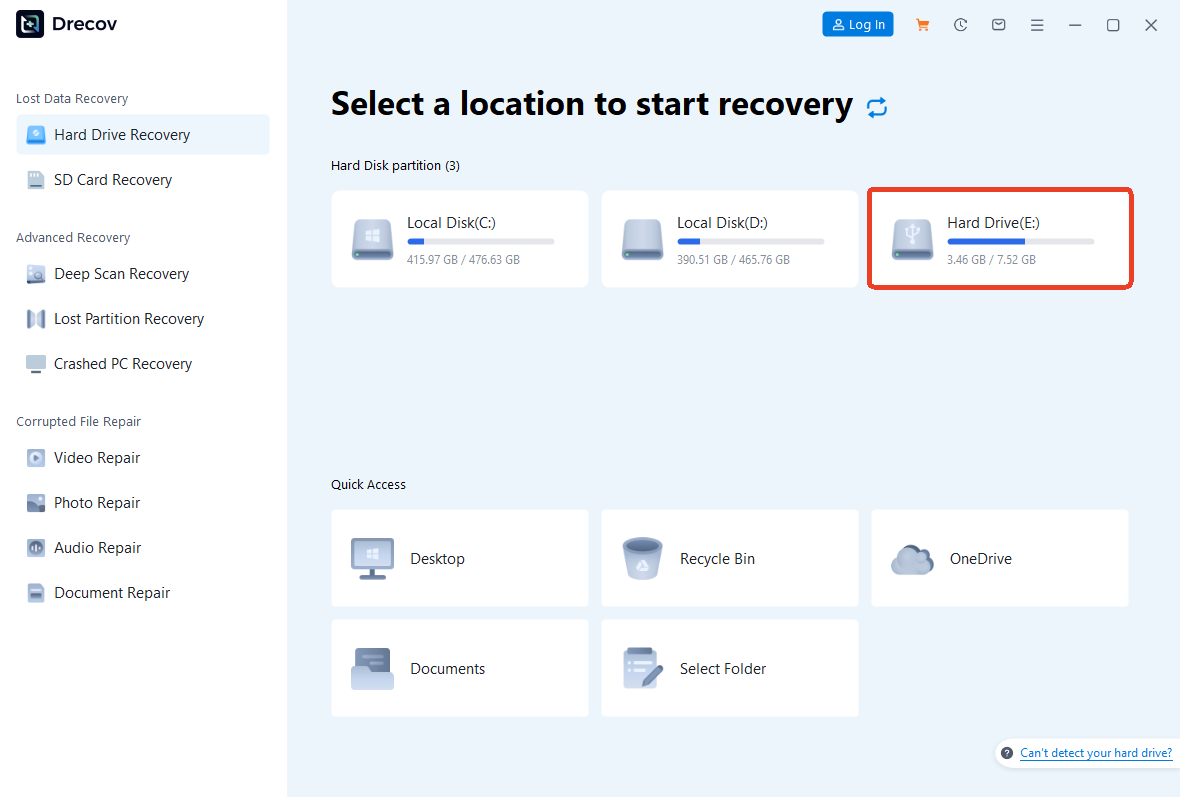
- Step 2: Drive Stabilization. Connect the external drive via a stable USB 3.1 or Thunderbolt bridge. In the PandaOffice Drecov interface, locate the drive under the “External Devices” category.
- Step 3: Sector-Level Analysis. Select the drive and initiate a Deep Scan. Unlike basic utilities, Drecov performs a raw sector-by-sector analysis, searching for “Magic Bytes”—unique hexadecimal signatures that identify file types (e.g.,
50 4B 03 04for .docx files).
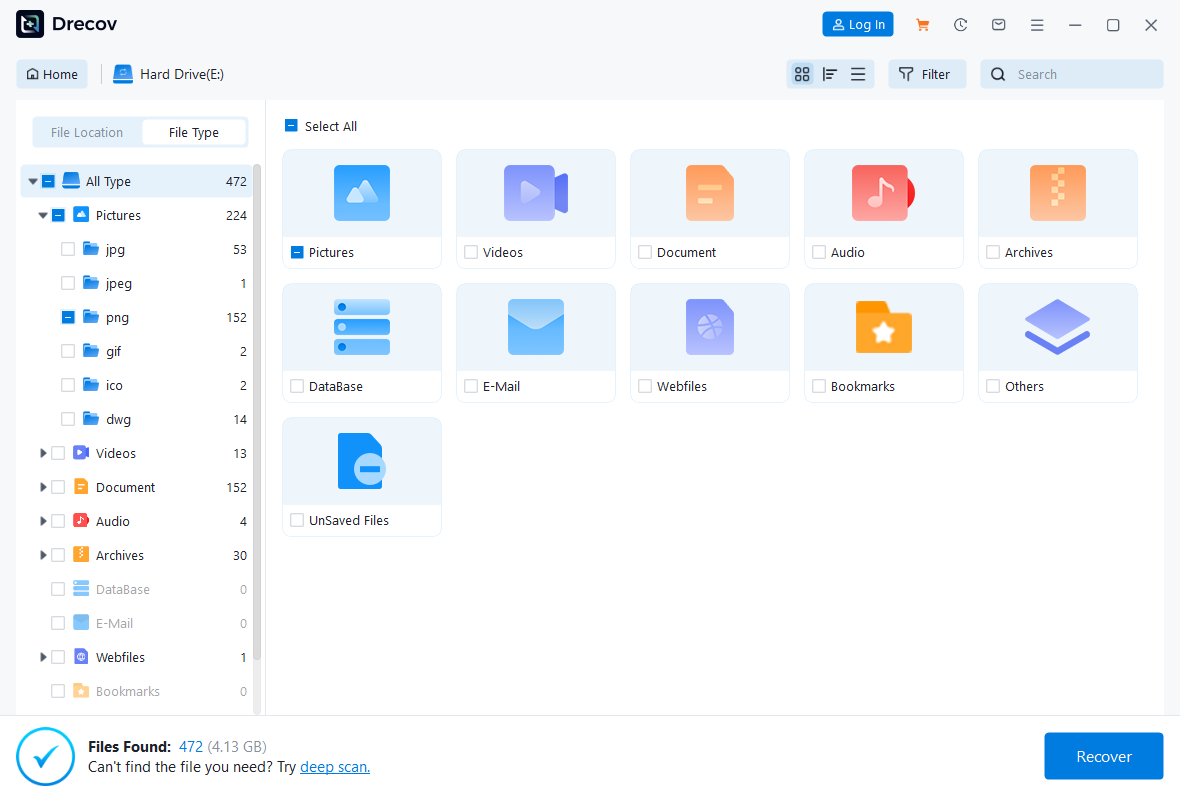
- Step 4: Real-time Filtering. As the scan progresses, use the Search and Filter panel. For a corporate audit, filter by file extension (
.xlsx,.pdf,.dwg) or by specific file size ranges to ignore system noise.

- Step 5: Pre-Restoration Validation. Double-click the high-priority files to invoke the Integrated Previewer. This is a vital step in how to recover hard drive data, as it allows the technician to verify if the file headers are intact before committing to a full restoration.
- Step 6: Orchestrated Recovery. Select the verified files and click Recover. Choose a destination on the company’s secure NAS or an encrypted internal volume.
Method 3: Command-Line Reconstruction (CLI)
In scenarios where a drive reports as “Empty” due to attribute manipulation (often caused by script-based malware), the Command Prompt offers a direct path to visibility.
- Step 1: Open the elevated Command Prompt (Run as Administrator).
- Step 2: Enter the drive’s letter (e.g.,
E:) and press Enter.
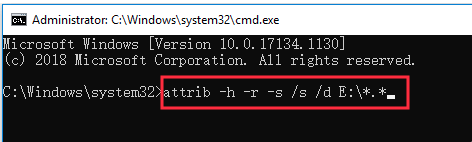
- Step 3: Execute:
attrib -h -r -s /s /d *.*.-h: Removes the Hidden attribute.-r: Removes the Read-only attribute.-s: Removes the System attribute.
- Step 4: Review the root directory for a folder named
RECYCLERor similar, where the data may have been relocated.
Method 4: Registry and Driver Resolution
If the external drive is not appearing in the OS, the problem may be a registry-level mounting error.
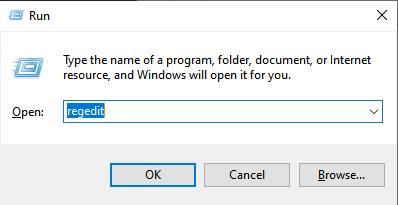
- Step 1: Press
Win+R, typeregedit.
- Step 2: Navigate to
HKEY_LOCAL_MACHINE\SYSTEM\CurrentControlSet\Services\USBSTOR.
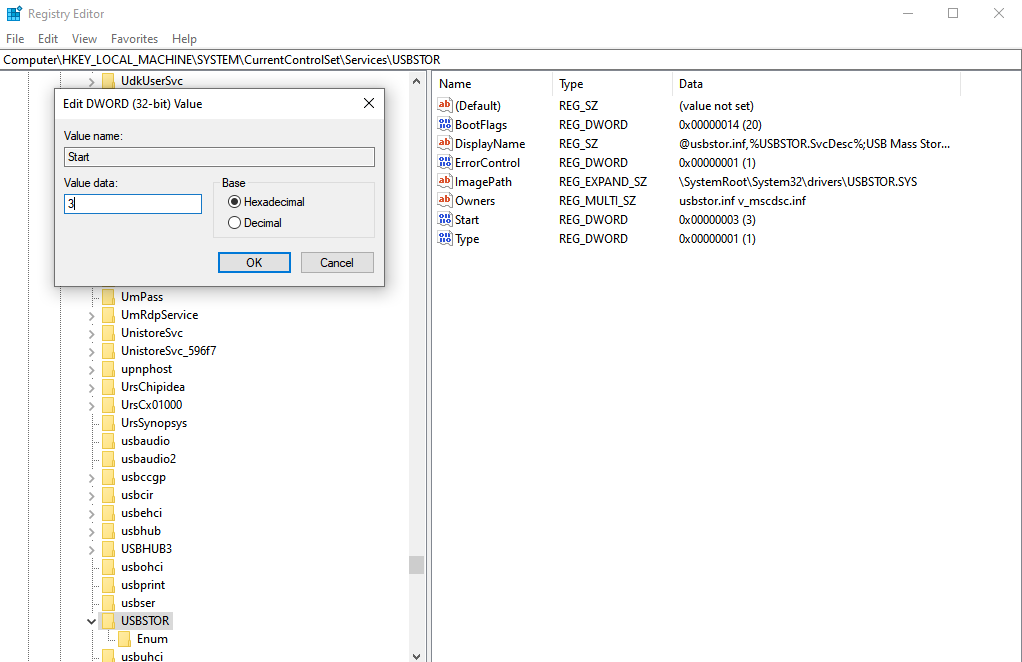
- Step 3: Ensure the
Startvalue is set to3. If it is set to4, the drive is administratively disabled. - Step 4: Re-scan for hardware changes in Disk Management (
diskmgmt.msc).
Section 4: Quantitative Comparison of Recovery Protocols
For procurement and IT decision-making, it is essential to compare the efficacy of different approaches to how to recover hard drive data.
| Protocol | Recovery Depth | Speed | Risk Level | Professional Use Case |
| PandaOffice Drecov | Forensic-Grade | Fast | Minimal | Standard for accidental formatting and partition loss. |
| Windows Shadow Copy | Surface-Level | Instant | Zero | Accidental file overwrites by employees. |
| CLI / Attrib | Metadata Only | Fast | Low | Visibility issues caused by malware/permissions. |
| Registry Editing | Connection Only | Fast | High | When the drive is physically healthy but invisible to OS. |
| Physical Lab Service | Full Physical | Slow | High (Cost) | Mechanical failure, fire, or water damage. |
The Professional Consensus: PandaOffice Drecov bridges the gap between free utilities and expensive lab services. Its non-destructive scanning ensures that it remains a safe first-line response for any corporate IT department.
While the steps above specifically target your browser data, the true strength of this tool lies in its ability to handle much more than just a few lost URLs. Whether you are dealing with a simple mistake or a major system glitch, it provides a comprehensive safety net for your entire digital life. Here is a look at the versatility and security you can expect:
- Versatility: It recovers photos, videos, audio, compressed files (ZIP/RAR), and even system files like EXEs.
- Accidental deletion from your computer desktop.
- Files lost after emptying the Recycle Bin.
- Data loss from disk formatting.
- Accidental deletion or formatting of SD cards/U disks.
- Sync error occurring with deleted OneDrive files
- Privacy First: All recovery happens locally on your machine, so you don’t have to worry about your private data leaking to the web.
Section 5: Business Continuity and Preventive Governance
Learning how to recover hard drive data is only half the battle. A truly resilient organization focuses on Prevention.
1. Automated HTML Bookmark Archiving
In many industries, the collective research of a team is stored in browser bookmarks. If a project drive fails, the “knowledge map” is lost.
- Professional Procedure: Use a Group Policy Object (GPO) to automate the export of browser bookmarks.
- Manual Method: Navigate to Bookmarks Manager > Export to HTML. Store these HTML files on a centralized, backed-up file server.
2. The 3-2-1-0 Data Strategy
Standardize your backup infrastructure around these four pillars:
- 3 Copies: One primary and two backups.
- 2 Media Types: E.g., On-premise HDD and Cloud Object Storage (S3).
- 1 Off-site: Physically or geographically separated.
- 0 Errors: Verified through weekly automated restoration testing.
3. Drive Lifecycle Management
External drives should be treated as “consumable” assets with a 36-month lifespan. Implement a rotation policy to replace drives before the “Mean Time Between Failures” (MTBF) threshold is reached.
How to Recover Hard Drive (FAQs)
Q: Can we recover data if the drive says “You need to format the disk before you can use it”?
A: Yes. This message usually indicates a corrupted partition table. Do NOT click format. Launch PandaOffice Drecov, and it will be able to read the files even if the partition is marked as RAW.
Q: Does PandaOffice Drecov work on encrypted enterprise drives?
A: It works if the drive is unlocked. You must provide the BitLocker or VeraCrypt password/key first; once the drive is mounted and decrypted, Drecov can perform its scan.
Q: How do we handle “Clicking” sounds on a hard drive?
A: This is a mechanical failure. Software cannot fix this. Power down the drive immediately and contact a specialized hardware recovery lab.
Conclusion
Data loss is a high-stakes challenge, but it is not an insurmountable one. By understanding the underlying principles of how to recover hard drive assets, an enterprise can pivot from a state of crisis to a state of resolution. The key is a disciplined approach: isolate the drive, avoid write operations, and utilize high-fidelity software like PandaOffice Drecov to reconstruct the lost logical data.
When you combine these recovery tactics with rigorous prevention measures—such as maintaining HTML bookmark backups and adhering to the 3-2-1-0 backup rule—you create a digital environment that is not just secure, but resilient. Data recovery is a critical skill for any IT professional, and with the right tools, it is a problem that has a definitive solution.






