







Every hard drive has a story to tell, but sometimes, that story reaches a chapter we never intended to write—the moment you desperately need to know how to recover deleted files from hard drives after an accidental deletion.
Meet Sarah, a freelance photographer. After a grueling fourteen-hour shoot at a mountain wedding, she returned home to organize thousands of high-resolution images. In her exhaustion, she attempted to move a folder from her external hard drive to her backup server. Instead, a slip of the finger and a distracted “Yes” to a confirmation prompt sent the entire “Wedding_Finals” folder into the digital void. The Recycle Bin was empty. The drive sat there, humming quietly, unaware that it had just “erased” months of professional reputation.

Sarah’s story isn’t unique. Whether it is a student’s thesis, a small business’s tax records, or a decade of family videos, the panic is the same. But as any good storyteller knows, every tragedy has a potential for a happy ending—if you know how to recover deleted files from hard drives.
The Secret Life of Deleted Data: A Tale of Ghostly Footprints
To understand how to recover deleted files from hard drives, we must peek behind the curtain of the operating system. Think of your external hard drive as a massive, sprawling city.
Every file you save is a house built on a specific plot of land. To keep track of where everyone lives, the city has a Master Registry. When you “delete” a file, the city council doesn’t come in with a wrecking ball and demolish the house. That would be a massive waste of energy. Instead, they simply remove the house’s address from the Master Registry and take down the “Occupied” sign.
The house is still there. The furniture is inside. The lights are even still on. But as far as the “City” (your computer) is concerned, that land is now “Vacant.” The danger begins when the city decides to build a new skyscraper (a new file) on that same plot of land. Once the new foundation is poured over the old house, the original data is gone forever. This is the heart of how to recover deleted files from hard drives: we must find the “unlisted” houses before the construction crews arrive.
Chapter 1: The Golden Rules of Digital Survival
Before Sarah could save her wedding photos, she had to follow the “First Laws of Recovery.” These are the non-negotiable steps that separate success from permanent loss.
- Freeze the Scene: The moment you realize data is missing, stop using the drive. If it’s an external drive, safely eject it. Every byte you write to that drive is a potential wrecking ball for your deleted files.
- Avoid the “Home Field” Trap: Never install recovery software on the same drive that lost the data. If your external drive is the patient, your computer’s internal drive is the operating table. Keep them separate.
- Check the “Lost and Found”: Before using heavy-duty tools, check for “Shadow Copies” or “Previous Versions.” On Windows, right-clicking a folder and selecting Properties > Previous Versions can sometimes reveal a ghostly backup of your files.
Chapter 2: The Rescue Missions
Method 1: The Quick Recovery (Recycle Bin & Local Backups)
In our story, Sarah checked the Recycle Bin, but external drives often bypass this safety net, permanently deleting files (or so it seems). However, if you are lucky, your system might have cached a version of the folder.
- Step 1: Plug in the drive and right-click the area where the file was.
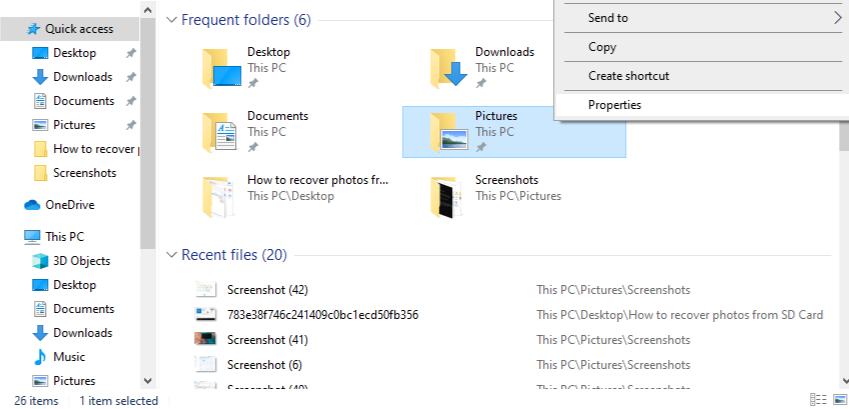
- Step 2: Select Properties and look for the Previous Versions tab.
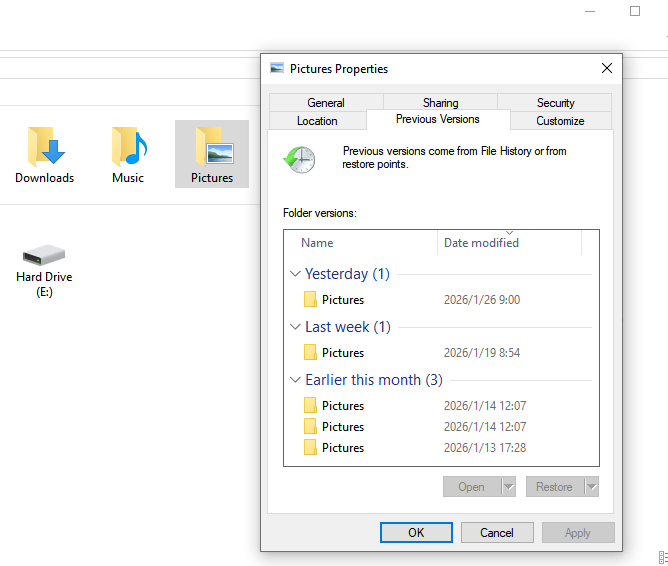
- Step 3: If a version from yesterday exists, click Restore. If not, the “City Registry” is truly wiped, and we need professional help.
Method 2: The Hero of the Story – PandaOffice Drecov
When Sarah realized the built-in tools were useless, she turned to a professional-grade recovery specialist: PandaOffice Drecov. This tool doesn’t care about the “Master Registry”; it scans the “City” block by block, looking for the architectural signatures of your missing files.
How Sarah used PandaOffice Drecov to save her career:
- Step 1: Deployment. Sarah downloaded PandaOffice Drecov onto her MacBook’s internal SSD—not the external drive.
- Step 2: Connection. She connected the external hard drive and launched the software.
- Step 3: Identification. In the clean, intuitive interface, she selected the external drive .
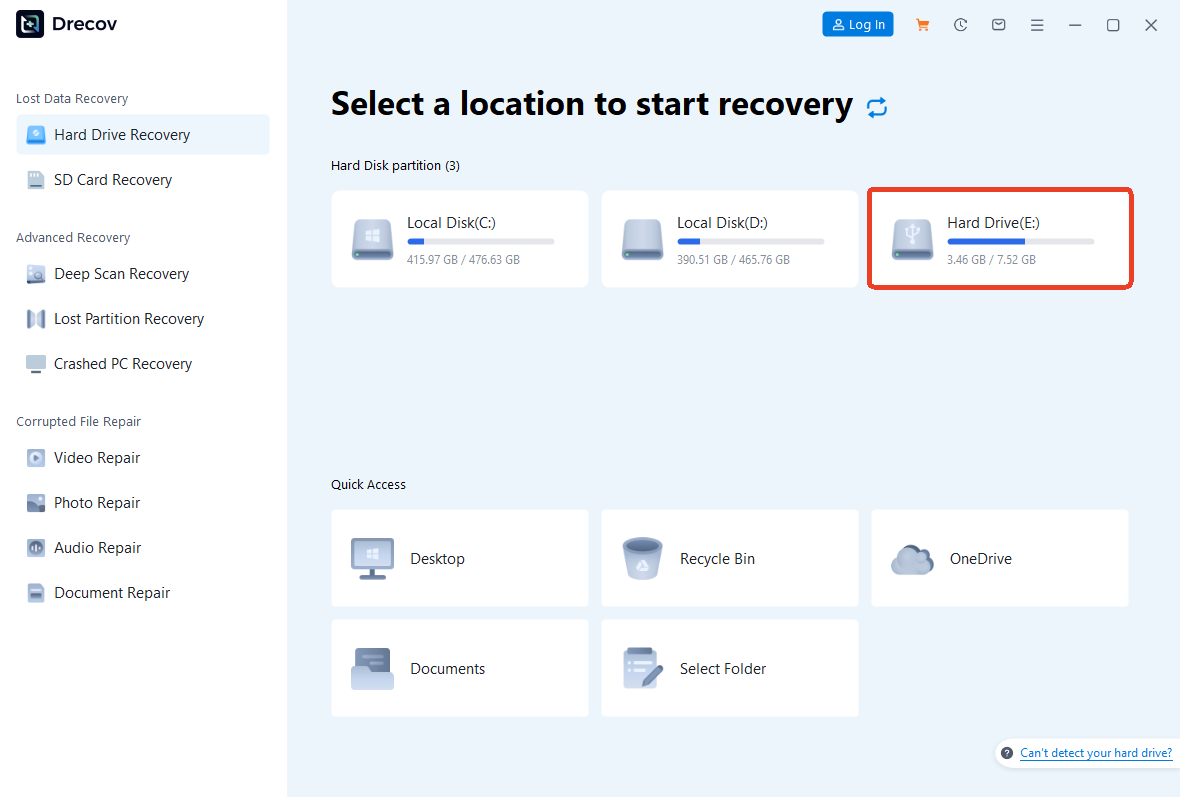
- Step 4: The Deep Scan. She clicked Scan. The software began a “Deep Scan,” which is essentially a digital archaeology dig. It ignored the corrupted index and looked for the unique headers of
.CR2and.JPGfiles.

- Step 5: The Filtering. While the scan hummed along, Sarah used the Filter tool to isolate only “Image” files. This saved her from sifting through thousands of system temp files.

- Step 6: The Preview. This is the “Eureka” moment. Sarah double-clicked a file and it’s clear preview appeared on her screen. This confirmed the data was intact!
- Step 7: The Final Restoration. She selected all the wedding photos and clicked Recover.
Crucially, she chose a folder on her Internal Desktop to save the recovered files. She never saved them back to the external drive until the process was 100% complete.
Method 3: The Manual Override (Command Prompt)
As Sarah dug deeper into her rescue mission, she discovered that Windows has a hidden “trapdoor” for those who aren’t afraid of a little text-based communication. This is the Command Prompt (CMD). It is the digital equivalent of manual override—no buttons, no icons, just you and the machine code. While it’s not as thorough as PandaOffice Drecov for finding “ghost” files, it is excellent for fixing a drive that has simply “lost its way.”
- Step 1: Summon the Terminal. Press
Win + S, typecmd, and—this is crucial—right-click it to select Run as Administrator.
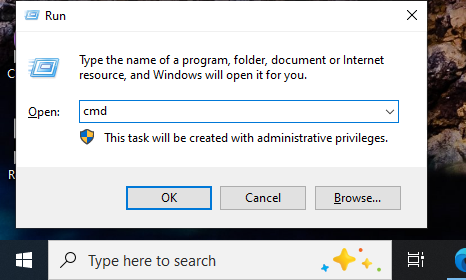
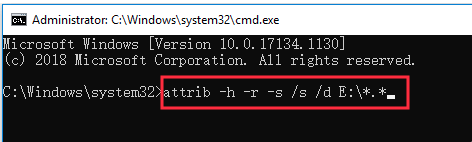
- Step 2: The Command of Authority. To check if the files are simply hidden or stuck in a logical loop, type the following command (replace
G:with your external drive letter):attrib -h -r -s /s /d E:\*.*- What this does: It tells the drive to remove the “Hidden,” “Read-only,” and “System” attributes from every file, potentially bringing “invisible” data back into the light.
- Step 3: The Deep Repair (Chkdsk). If the files are missing because the drive’s “City Map” is torn, type:
chkdsk E: /f
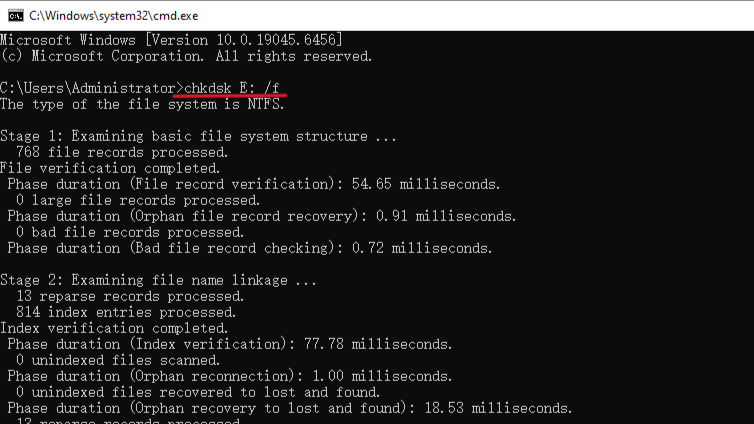
Warning: This command tries to fix the file system. However, be careful! If the drive is physically failing, this can sometimes overwrite the very data you are trying to save.
The Narrative Twist: While CMD is a powerful free tool, Sarah found it lacked the “eyes” to see truly deleted files. It could find a house that was hidden behind a bush (hidden attributes), but it couldn’t find a house that had been removed from the registry entirely. For that, she still needed the forensic power of PandaOffice Drecov.
Chapter 3: Comparing the Path to Recovery
Every tool has its place in the story. Below is a comparison of the methods available for those wondering how to recover deleted files from hard drives.
| Recovery Path | Success Probability | Technical Difficulty | Narrative Context |
| PandaOffice Drecov | Extremely High | Easy (Point-and-click) | The reliable hero that saves the day when all else fails. |
| Recycle Bin / Undo | Very Low | Minimal | A lucky break, but rarely works for external drives. |
| Command Prompt (CMD) | Medium | High (Needs syntax) | The “Hacker” approach; powerful but risky for beginners. |
| Physical Lab Recovery | High (for broken hardware) | Expert Only | The expensive “Special Ops” team for crushed or burnt drives. |
The PandaOffice Drecov Advantage: In Sarah’s case, the software’s ability to “preview” files before committing to recovery saved her hours of uncertainty. It bridges the gap between high-end forensic power and user-friendly design.
While the steps above specifically target your browser data, the true strength of this tool lies in its ability to handle much more than just a few lost URLs. Whether you are dealing with a simple mistake or a major system glitch, it provides a comprehensive safety net for your entire digital life. Here is a look at the versatility and security you can expect:
- Versatility: It recovers photos, videos, audio, compressed files (ZIP/RAR), and even system files like EXEs.
- Accidental deletion from your computer desktop.
- Files lost after emptying the Recycle Bin.
- Data loss from disk formatting.
- Accidental deletion or formatting of SD cards/U disks.
- Sync error occurring with deleted OneDrive files
- Privacy First: All recovery happens locally on your machine, so you don’t have to worry about your private data leaking to the web.
Chapter 4: Writing a Safer Future (Prevention)
Sarah learned her lesson. A story should only be a “thriller” if you choose it to be, not because your data is at risk. Here is how you can ensure your data story is a peaceful one.
1. The Art of the HTML Bookmark Backup
Your research and web history are the bookmarks of your life. Don’t lose them!
- Step 1: Open your browser and press
Ctrl + Shift + O. - Step 2: Click the “Organize” or “Three Dots” menu.
- Step 3: Select Export Bookmarks to HTML file.
- Step 4: Save this to a cloud drive immediately. This ensures that even if your hard drive catches fire, your digital map remains.
2. The 3-2-1 Rule: The Ultimate Narrative Arc
To prevent ever needing to ask how to recover deleted files from hard drives again, follow this structure:
- 3 copies of your data.
- 2 different types of storage (e.g., External Drive + Cloud).
- 1 copy stored off-site (e.g., at your parents’ house or encrypted in the cloud).
How to Recover Deleted Files from Hard Drives FAQs
1.If I formatted my drive by accident, is the data still there?
Yes! A “Quick Format” is just like erasing the table of contents in a book. The chapters are still there. Use PandaOffice Drecov’s “Deep Scan” to find them.
2. Can I recover files from a drive that won’t turn on?
If there is no power (no lights, no spinning), software cannot help you. You will need a physical repair specialist.
3. How do I know if a file is “overwritten”?
If you try to preview a file in PandaOffice Drecov and it shows scrambled colors or an error, that file has likely been partially overwritten. This is why speed is essential.
Conclusion
Ultimately, Sarah’s journey teaches us that while data loss feels like a finality, it is often just a temporary displacement in the digital narrative. The secret of how to recover deleted files from hard drive lies in the critical window between deletion and replacement. By treating your hard drive as a living landscape where “ghost” data remains until overwritten, you gain the power to intervene before the story is truly lost. Whether you are a professional photographer or a student saving a thesis, the strategy remains the same: freeze the drive, avoid the source of the error, and deploy a specialized tool like PandaOffice Drecov to bridge the gap between “deleted” and “destroyed.”
By combining the surgical precision of high-end recovery software with a disciplined 3-2-1 backup strategy and regular HTML bookmark exports, you effectively write an insurance policy for your digital life. No longer must a simple click lead to a catastrophic ending. With the right tools and the knowledge of how to recover deleted files from hard drive, you hold the pen to your own data’s future, ensuring that every important file, memory, and project is preserved for the chapters yet to come.






