








4.9 from 100,000+ reviews

Easy Recovery
Powerful Features for
Easy Recovery
Scan accessible external hard drives for deleted or lost files, preview supported file types, and save recovered data to another drive.
Deep Scan Technology
Search for recoverable files on an accessible external hard drive. Scan time and results depend on the drive condition and amount of data.

Preview Function
Preview supported file types before purchasing a recovery license. Check the files you need before saving them.

Safe Recovery
Avoid saving new data to the affected external drive. Save recovered files to a separate disk to reduce the risk of overwriting lost data.

Easy to Use
Follow four steps: connect your drive, scan for lost files, preview the results, and save recovered files to another disk.
reasons for loss
Common External Hard Drive Recovery Scenarios
Check your external drive condition before scanning. Software recovery requires a drive that can be detected and read; physical damage needs professional assessment.
deleting important files

Accidental Deletion
Deleted files from an external hard drive may bypass the Recycle Bin. Stop writing new data and scan for recoverable files before they are overwritten.
Formatting Errors
After accidentally formatting an external hard drive, stop using it and scan for remaining files. Recovery depends on the format method and subsequent use.

Errors
Virus Attacks

Virus Attacks
External hard drives infected with viruses or malware, resulting in file corruption or loss.
preventing data access

Drive Not Detected
Check the cable, power supply, and whether the drive appears in Disk Management. Do not initialize or format it. If it clicks, has physical damage, or remains undetected, stop using it and seek professional help.
RAW or Inaccessible Drive
An external drive may appear as RAW or ask to be formatted. If the software can detect and read it, scan for files before attempting repairs or formatting.

file system corruption
Partition Loss

Partition Loss
A missing or damaged partition can make files inaccessible. Avoid creating new partitions and scan the detected external drive for recoverable data.
reasons for loss
Video Tutorials
Watch recovery tutorials, including a guide to scanning internal and external hard drives with PandaOffice Drecov.
How to Recover Deleted/Formatted Data on Windows
Learn how to scan for deleted or formatted files and preview recovery results with PandaOffice Drecov.
Detailed
installation
quickly
data recovery
How to Recover Lost USB Drive Data | PandaOffice Drecov Step-by-Step
This quick tutorial shows you how to recover them with PandaOffice Drecov—simple, straightforward, and no tech expertise required!
step by step
deletion/format/corruption
USB drive recovery
How to Recover Deleted Files Windows 11
This no-nonsense guide shows you 5 proven ways to get your data back—from built-in Windows tools to deep recovery with PandaOffice Drecov—no tech skills required!
computer file recovery
delete file recovery
How to Recover Data from Hard Drive (Internal/External)
See how to select a hard drive, scan for lost files, and review recovery results.
hard drive recovery
Internal/External
4 steps
How to Recover Data from an External Hard Drive
Connect, scan, preview, and save. Keep the affected drive free of new data throughout recovery.
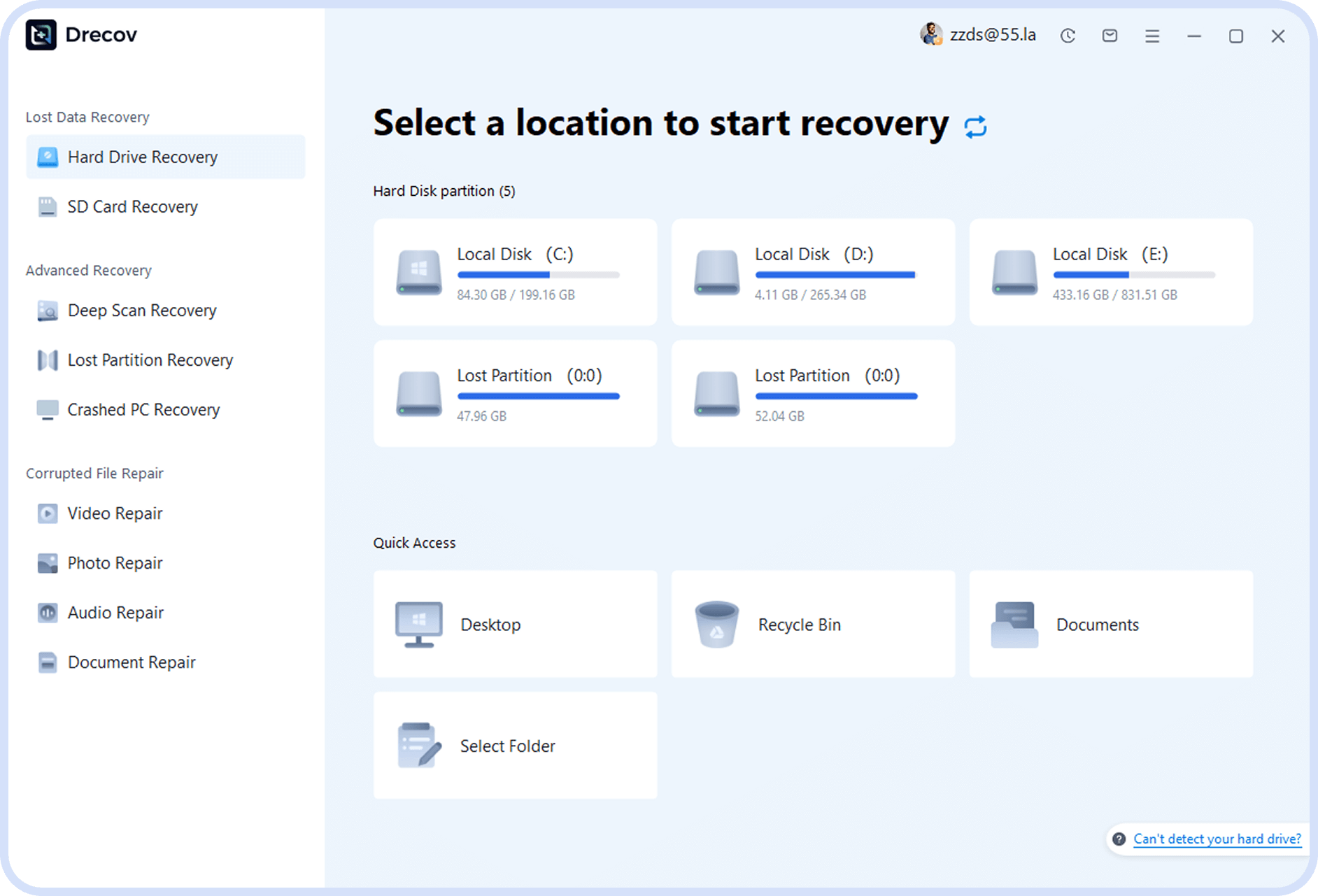
Step 1
Connect and Check Your Drive
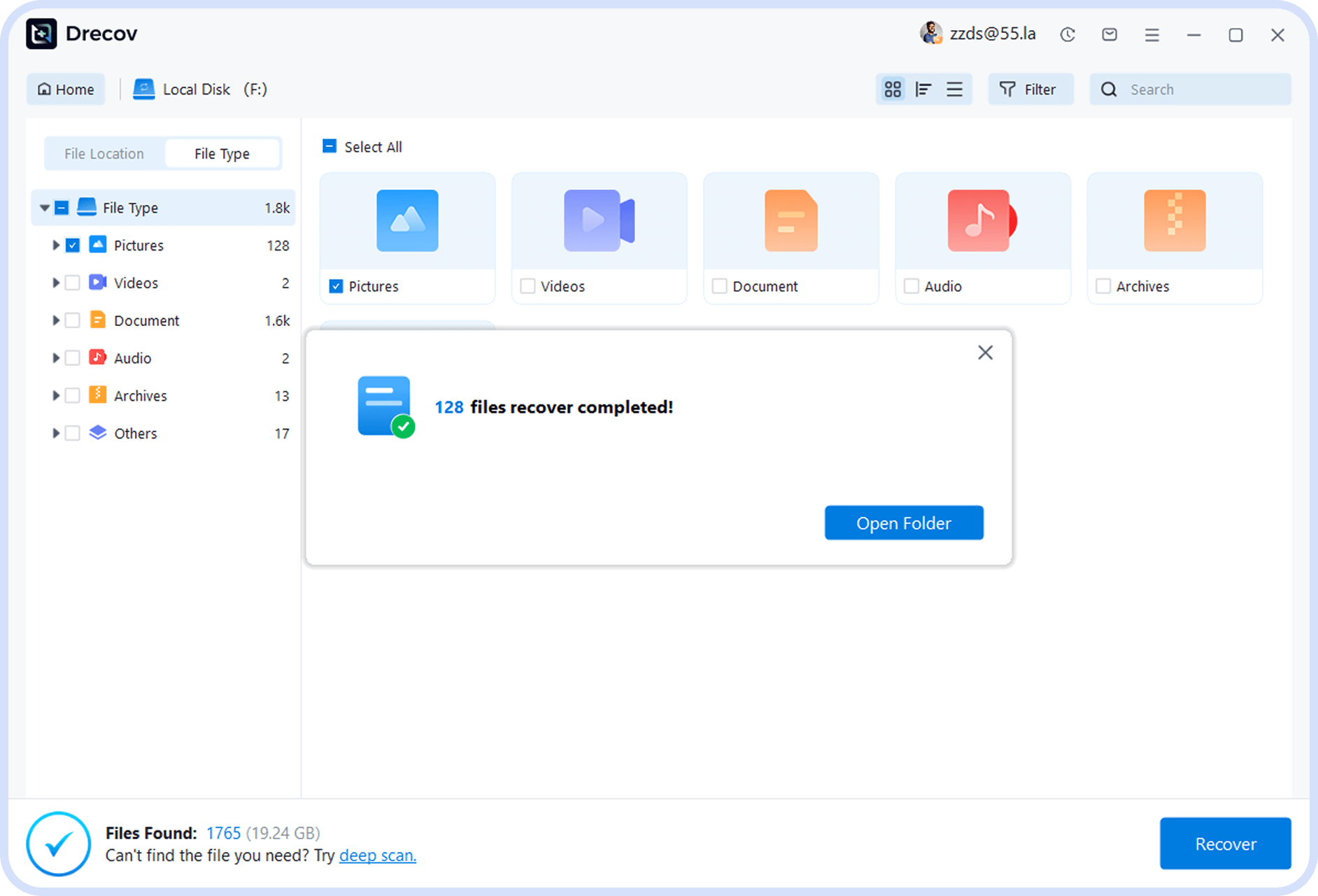
Connect the external hard drive to your computer and check that Drecov can detect it. Install the software on a different drive. Do not initialize or format the affected disk.
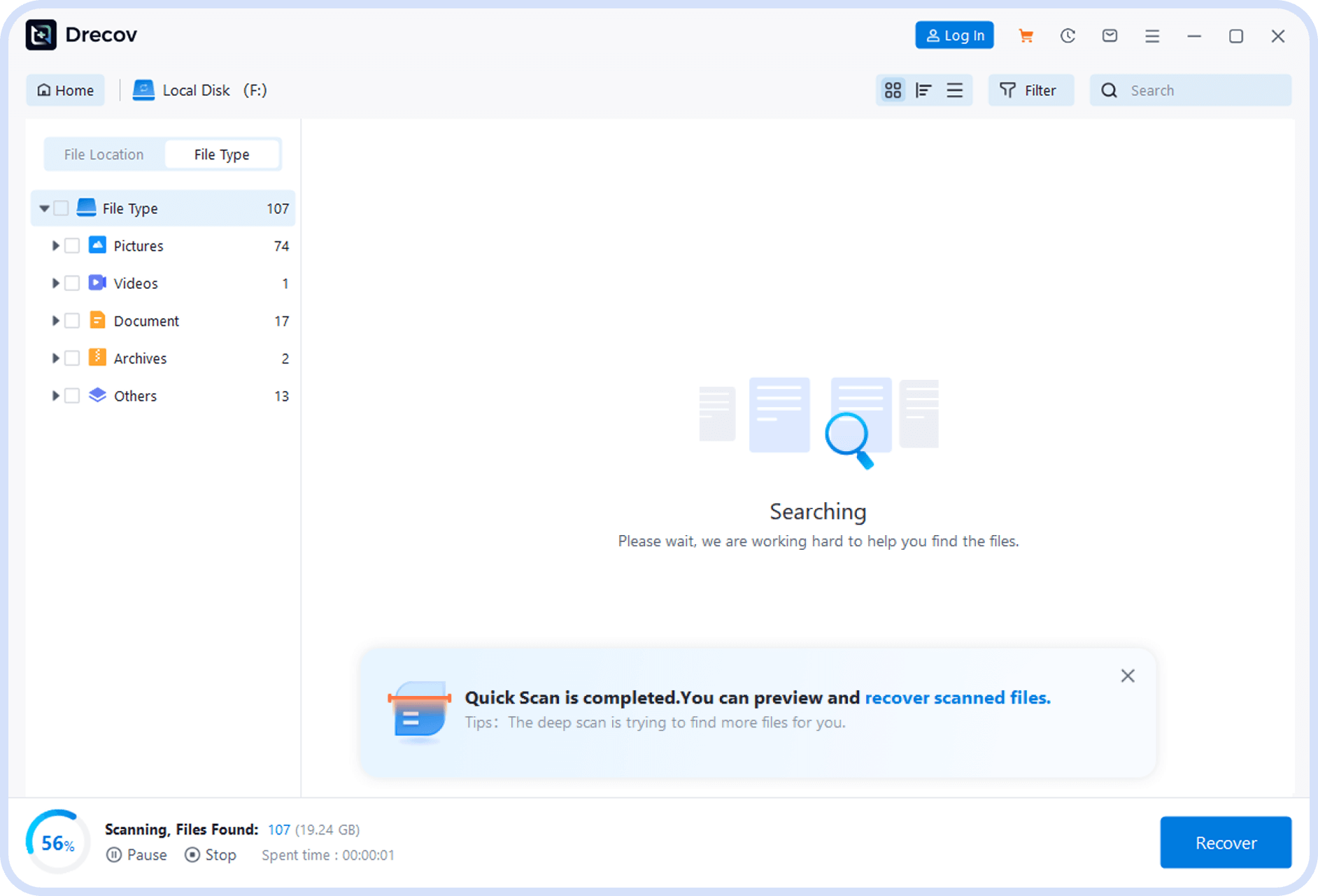
Step 2
Scan External Hard Drive
Select the affected external drive or partition in Drecov and start scanning for lost files. Scan duration varies with the drive size and condition.
Step 3
Preview and Select Files
After scanning is complete, preview recoverable files and check the files you need to recover.
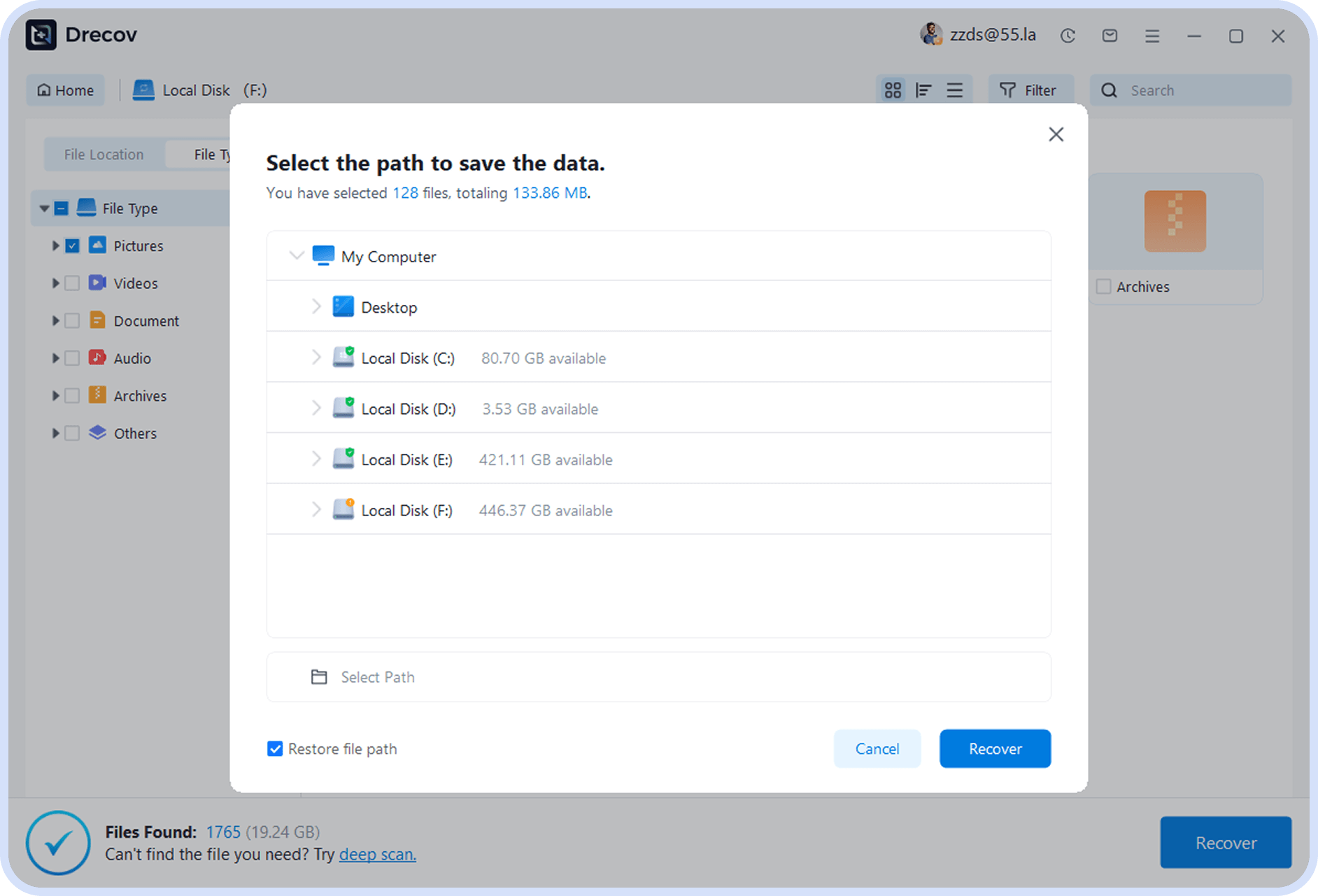
Step 4
Recover Files
Choose a different drive as the save location, then recover the selected files. Open the saved files to check the recovery results.

Before You Start
Stop using the affected external drive, check available backups, and preview scan results before purchasing. If the drive clicks or repeatedly disconnects, stop scanning and consult a professional recovery service.
Support
External Drives and Other Supported Devices
Start with your external hard drive. Other storage devices are listed below; recovery depends on whether the device can be detected and read.






type
Supported File Types
Search for documents, photos, videos, and other files. Preview availability varies by file type and condition.










reason
Why Choose PandaOffice Drecov?
Check recoverable files before purchasing and keep recovery results separate from the affected drive.
01
Scan for Lost Files
Scan an accessible external hard drive for recoverable files after deletion, formatting, or logical errors. Results vary with the drive condition.
02
Free File Preview
Preview supported file types before purchasing. Review the results to decide whether the files you need are available.
03
Save to Another Drive
Read-only mode operation that does not cause secondary damage to original data, protecting your data security.
Testimonial
Real User Reviews for External Hard Drive Data Recovery
See what other users say about our data recovery software
Charles
“Very useful software! My external hard drive suddenly became unrecognizable, and this software successfully recovered all my important files with simple operation.”
3 years License
2024-05-30
Ava
“I formatted my hard drive and then realized I hadn’t backed up important files. I tried this software with little hope, and most files were recovered. Very satisfied.”
1 year License
2023-07-20
Angelina
“As a photographer, I accidentally deleted an entire photo album. This software helped me recover years of precious photos. Thank you so much! Fast scanning speed and high recovery rate.”
10 Month License
2025-01-30
Asked Questions
Frequently
Asked Questions
Answers about deleted files, formatted drives, RAW disks, and external hard drive recovery.
Check available backups first. To recover deleted files from an external hard drive, stop saving new data to it, connect it to your computer, and scan the detected drive with Drecov. Preview supported files and save recovered data to a separate disk. Deleted files that have been overwritten may not be recoverable.
Formatted external hard drive recovery may be possible if the original data is still present. Stop using the drive and avoid formatting it again. Scan for remaining files, preview the results, and save recovered data elsewhere. Overwriting, secure erasure, or SSD TRIM can prevent recovery; original filenames and folders may not be preserved.
For RAW external hard drive recovery, do not accept a prompt to format the disk. If Drecov can detect and read the drive, scan it for recoverable files, preview supported file types, and save selected files to another disk. Recover important data before attempting file system repairs.
External hard drive recovery software needs the drive to be detected and readable. Check the USB cable, power supply, and Disk Management first. If Drecov detects the drive, scan and preview the results without initializing or formatting it. If the drive remains undetected, clicks, or repeatedly disconnects, stop using it and seek professional assessment.
Drecov offers free scanning and preview of supported file types so you can review the results before purchasing. A recovery license is required to save recovered files. External hard drive data recovery results depend on the drive condition and whether lost data has been overwritten; a license does not guarantee that every file can be restored.
knowledge
External Hard Drive Data Recovery Articles
Explore external hard drive recovery methods, common problems, and practical next steps.


5 Critical Things
August 31,2025
How to Restore Lost Files from Hard Drive | For Free
Learn how to restore lost files from hard drive with step-by-step methods, Windows tools, and safe recovery software for corrupted or deleted data.

5 Critical Things
August 31,2025
How to Recover Hard Drive: A Technical Protocol
This enterprise-focused guide outlines a technical protocol for how to recover hard drive data. It covers immediate drive isolation, step-by-step restoration using PandaOffice Drecov for deep-sector scanning, and professional CLI techniques.

5 Critical Things
August 31,2025
How Data Recovery from External Hard Drive: A Practical Guide
This article explores data recovery from external hard drive in depth, explaining how data loss occurs, how recovery works, and comparing practical methods

Recovery Guide
February 6, 2026
How to Recover External Hard Drive? | Free Software
Diagnose an external hard drive safely, try practical free recovery methods, and learn when a scan is appropriate before repairing or reusing the device.

5 Critical Things
August 31,2025
How Do I Recover Files from An External Hard Drive?
Learn how do I recover files from an external hard drive with step-by-step guidance using PandaOffice Drecov and Recuva.