







External hard drives are one of the most commonly used devices for storing important files such as documents, photos, videos, and backups. However, external hard drives are not immune to data loss. Whether it’s due to accidental deletion, corruption, formatting, or mechanical failure, losing data from an external hard drive can be a nightmare. Fortunately, Data Recovery from External Hard Drive is often possible with the right tools and techniques.
In this guide, we’ll walk you through the process of recovering lost or corrupted files from your external hard drive, and show you how to use PandaOffice Drecov to restore your valuable data quickly and safely.
Common Reasons for Data Loss from External Hard Drive
Before we dive into the recovery process, it’s important to understand some of the most common causes of data loss on external hard drives:
- 📌Accidental Deletion:Files can be accidentally deleted while cleaning up space or due to a mistaken operation.
- ✨Disk Formatting:Sometimes users format the external hard drive either intentionally or unintentionally, causing data loss.
- 📌Corruption:File system corruption can occur due to improper disconnection of the drive, system crashes, or malware attacks.
- ✨Physical Damage:External hard drives are prone to physical damage from drops, electrical surges, or wear and tear.
- 📌Virus/Malware Attacks:Malicious software can corrupt or delete files from the external hard drive.
How to Recover Data from External Hard Drive
Step 1: Stop Using the External Hard Drive
Once you realize your files are lost or corrupted—whether from accidental deletion, formatting, or drive malfunctions—the first and most crucial step for Data Recovery from External Hard Drive is to stop using the external hard drive immediately. This isn’t a random tip; it’s the key to avoiding permanent data loss.
- External hard drives don’t “erase” lost files outright—they just mark their storage space as “available for reuse.” The original data fragments are still intact.
- Continuing to use the drive (saving new files, browsing, installing software) will let new data overwrite those fragments.
- Once overwritten, no recovery tool can retrieve the original files.
Skip any unnecessary operations on the drive—this simple step maximizes your chances of recovering precious data with tools like PandaOffice Drecov.
Step 2: Choose the Right Data Recovery Tool
Choosing the right tool is vital in ensuring the success of data recovery. PandaOffice Drecov is one of the best data recovery software available today, designed to recover files from external hard drives, USB drives, SD cards, and more.
PandaOffice Drecov offers features like:
- Deep Scan to recover files after formatting or corruption.
- Quick Scan for recovering accidentally deleted files.
💡Support for a wide range of file types including documents, photos, videos, and more.
Step 3: Connect Your External Hard Drive
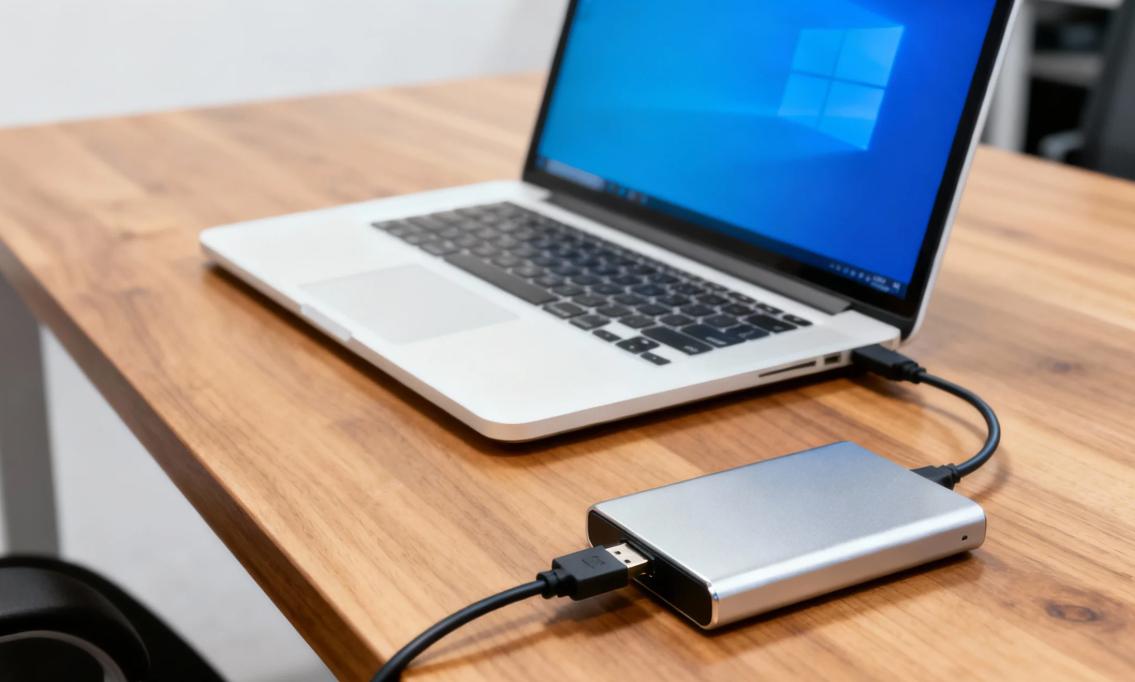
Plug your external hard drive into your computer and ensure that it’s recognized by the system. If your external hard drive is not showing up, try connecting it to a different port or use a different cable. If the drive is still inaccessible, try using PandaOffice Drecov to scan and recover the data.
Step 4: Install and Run PandaOffice Drecov
- Download and install PandaOffice Drecov on your computer.
- Launch the software and select your external hard drive from the list of available drives.
- Choose whether to perform a Quick Scan or Deep Scan depending on the nature of your data loss.
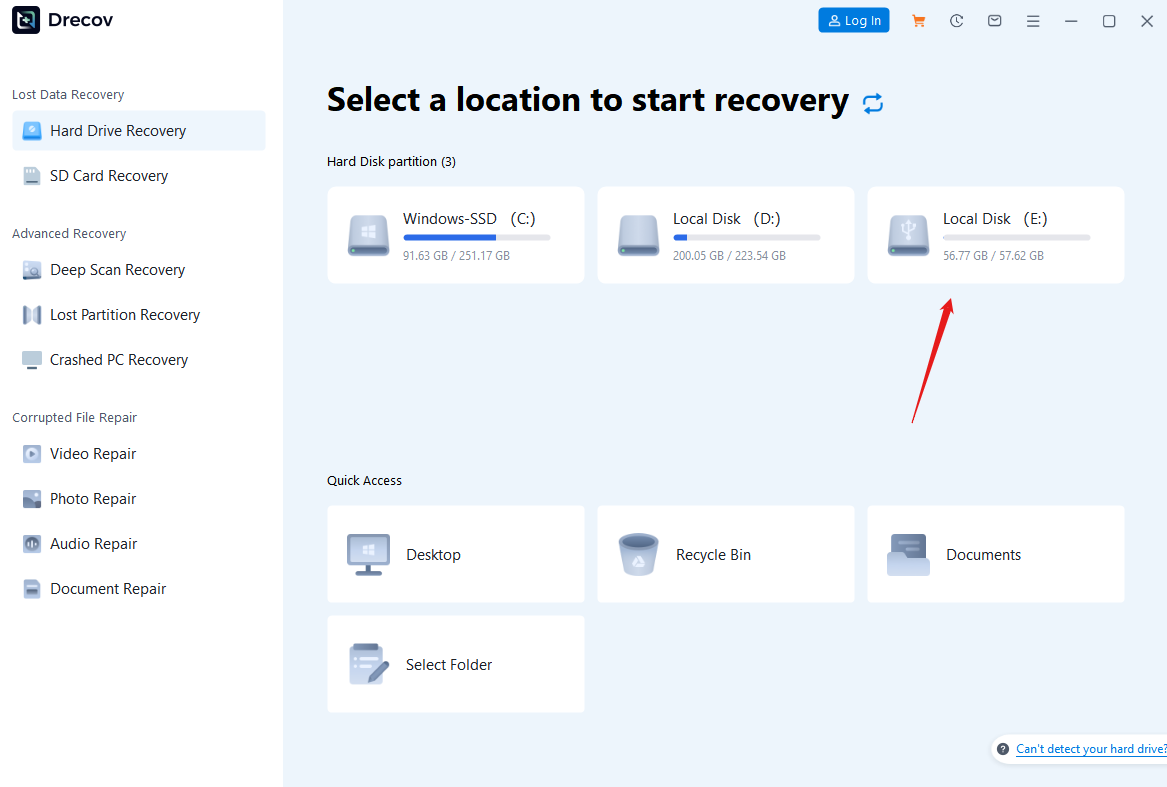
- Quick Scan is ideal for recovering recently deleted files.
- Deep Scan is recommended for recovering files from formatted, damaged, or corrupted drives.
Step 5: Start Scanning and Preview Files
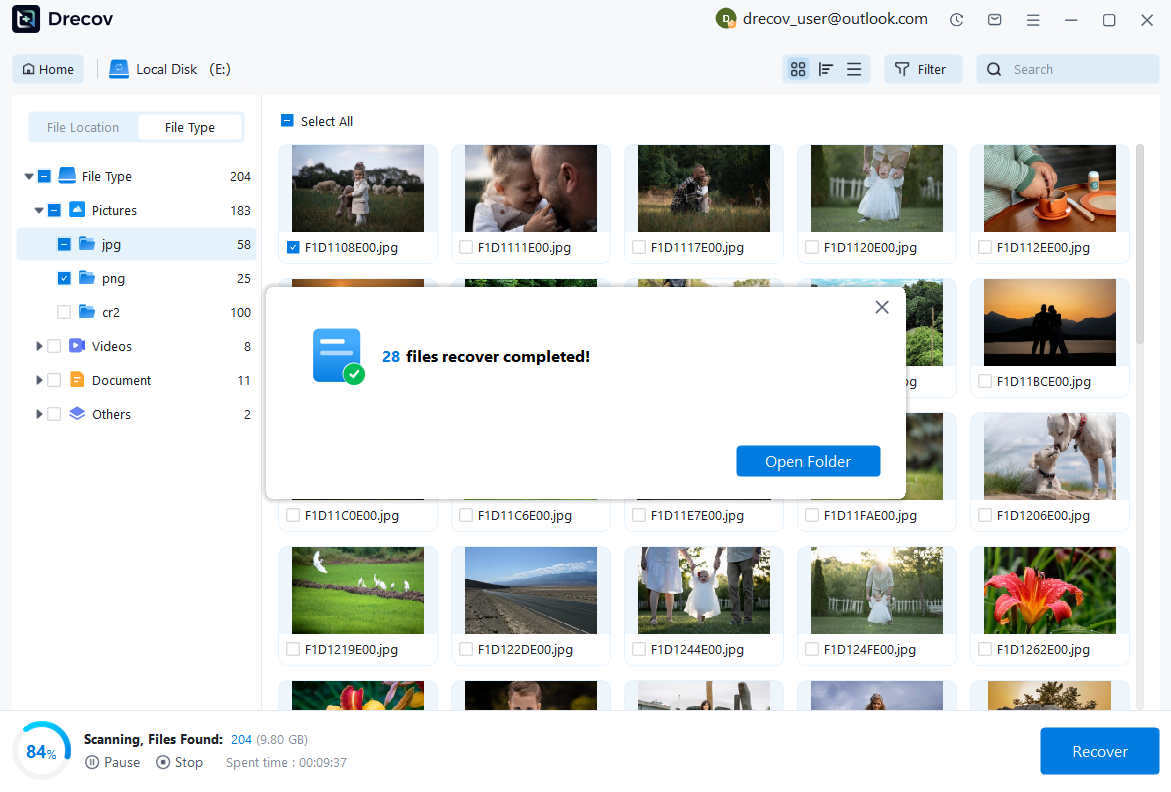
Click the Scan button and let the software do its job—this is a core step in Data Recovery from External Hard Drive. The scan might take some time depending on the size and condition of the external hard drive. Once the scan is complete, you’ll be presented with a list of recoverable files. PandaOffice Drecov allows you to preview the files before you recover them, so you can be sure you are restoring the right files.
Step 6: Recover the Files
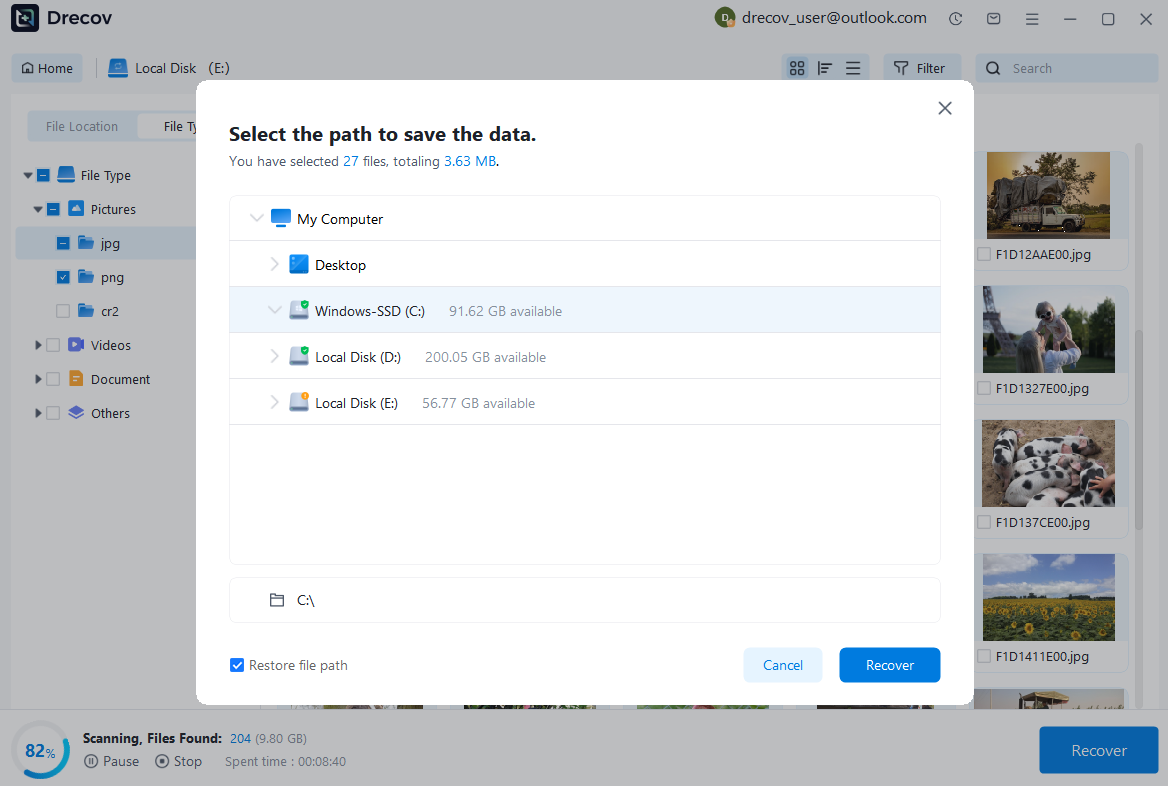
Select the files you want to recover and click Recover. Choose a safe location on your computer or another external drive to save the recovered files. Do not save the files back to the same external hard drive, as this could overwrite other recoverable data.
Tips for Preventing Future Data Loss from External Hard Drive
While data recovery is often possible, it’s always better to prevent data loss in the first place. Here are some tips to help protect your files:
- ✅Regular Backups:Back up your important files regularly to another external drive, cloud storage, or both.
- ✅Proper Ejection:Always eject your external hard drive properly from your computer to prevent corruption and data loss.
- ✅Use Antivirus Software:Keep your antivirus software up to date to protect against viruses and malware that can damage your files.
- ⚠️Avoid Physical Damage:Store your external hard drive in a safe place, away from physical hazards such as moisture, extreme temperatures, or excessive force.
- ✅Disk Health Monitoring:Use software to monitor the health of your external hard drive. This can help detect issues before they lead to data loss.
Why Choose PandaOffice Drecov for Data Recovery from External Hard Drive?
PandaOffice Drecov is a reliable and powerful tool for recovering lost data from external hard drives. Here are a few reasons why it’s a great choice for data recovery:
- Wide Device Compatibility: Works with all types of external hard drives, USB drives, SD cards, and more.
- User-Friendly Interface: Even beginners can easily recover lost files without any technical knowledge.
- High Recovery Rate: PandaOffice Drecov offers an excellent success rate in recovering lost files, even from damaged or formatted drives.
- Preview Files: Preview files before recovering them to ensure you are restoring the right data.
- Safe and Secure: The software ensures that your recovered files remain safe, with no risk of further damage to your external hard drive.
Conclusion
Data loss from external hard drives can happen to anyone, but it doesn’t have to be the end of the road. With the right tools like PandaOffice Drecov, Data Recovery from External Hard Drive becomes quick and easy. By following the steps outlined in this guide, you can ensure the best chances of success in retrieving your valuable data through reliable Data Recovery from External Hard Drive.
Don’t wait until it’s too late—download PandaOffice Drecov today and master Data Recovery from External Hard Drive to get back your lost files.
Call to Action
If you’re ready to recover your lost files, don’t hesitate to download PandaOffice Drecov now! Get started with a free scan and see how easy it is to restore your files from any external storage device. Keep your data safe and protected with the ultimate data recovery solution.






