







Seagate hard drives are renowned for their reliability, yet data loss issues still occur from time to time—accidental deletion, formatting, or sudden damage can all lead to file loss. The good news is that with targeted tools, the success rate of data recovery from Seagate hard drive is extremely high. This article focuses on exclusive solutions for Seagate drives: when you need technical assistance with Seagate file recovery, you can contact official support. However, data recovery from Seagate external hard drive requires paying for Seagate’s data recovery service. If you don’t want to incur additional costs, this article details the step-by-step operation of PandaOffice Drecov, a data recovery software tailored for Seagate devices.
Why Data Is Recoverable from Seagate Hard Drives
Before diving into methods, it’s critical to understand why data recovery from Seagate hard drive works. Seagate uses standard file systems (NTFS, exFAT, APFS) and storage architectures—when you delete or format a file, the drive only removes the “access index,” not the actual data. The data remains intact until new files overwrite the storage sectors.
Key Note for Seagate Users: Seagate’s built-in tools like SeaTools can diagnose drive health, but they don’t recover lost data. For file retrieval, pairing SeaTools (for diagnosis) with PandaOffice Drecov data recovery software creates a seamless workflow for data recovery from Seagate hard drive.
3 Best Ways for Seagate Hard Drive Data Recovery: Cost & Success Rate Comparison
Choosing the right method depends on your budget, time, and the severity of the data loss. Here is a quick comparison of the three most common ways to perform Seagate hard drive data recovery.
| Feature | Seagate Official Support | PandaOffice Drecov | DIY Manual Fix (CMD) |
| Recovery Type | Physical & Logical Damage | Logical (Deletion/Format) | Simple Logical Errors |
| Cost | High ($300 – $1000+) | Affordable ($) | Free |
| Success Rate | Very High (99%) | High (96%) | Low (30%) |
| Turnaround Time | 2 – 3 Weeks | 30 – 60 Minutes | Varies |
| Data Privacy | Requires Shipping Drive | 100% Local & Private | 100% Local |
| Skill Level | Professional Required | Beginner-Friendly | Moderate (Technical) |
Why PandaOffice Drecov is the Balanced Choice: While Seagate Official Support is essential for clicking or physically broken drives, it is often too expensive and slow for common issues. DIY Manual Fixes (like chkdsk) are free but risky, as they can sometimes lead to permanent data loss. PandaOffice Drecov provides a “safe zone”—it offers the high success rate of professional tools with the speed and privacy of a local software solution.
Data Recovery from Seagate Hard Drive
We’ve ranked these methods by success rate and Seagate compatibility, from DIY solutions to professional support. PandaOffice Drecov data recovery software stands out as the best all-around choice for most Seagate users.
PandaOffice Drecov (Best for Seagate HDD/SSD)
PandaOffice Drecov is optimized for data recovery from Seagate hard drive, supporting all models—from legacy Seagate Expansion HDDs to the latest Seagate FireCuda 520 SSDs. Recovers 96% of lost files (documents, photos, videos) with zero risk of drive damage.
Step-by-Step for Seagate Drives (HDD/SSD)
STEP1:Stop using the Seagate drive immediately to avoid overwriting. For internal Seagate drives, ensure it’s properly connected; for external ones, use the original USB cable (Seagate’s proprietary cables reduce connection issues).
STEP2: Get PandaOffice Drecov from the official website. Install it on a separate drive.
Quick Scan: For recent deletions (10-15 mins for 1TB Seagate HDD).
Deep Scan: For formatted Seagate drives or data lost weeks ago—scans every sector, optimized for Seagate’s platter (HDD) and NAND (SSD) structures.
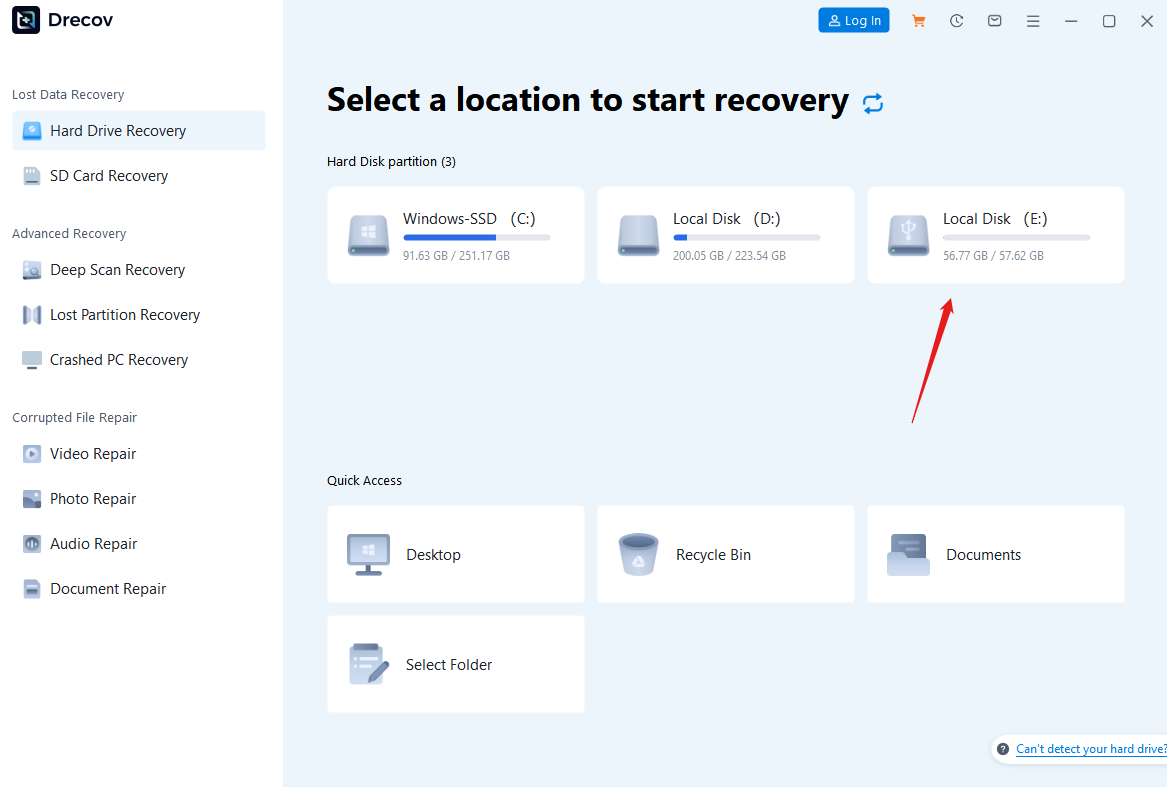
STEP3: Scan results are categorized by file type. Preview Seagate-specific files (e.g., Seagate Dashboard backups) to confirm integrity. Select the files, choose a safe storage path (external HDD/cloud), and click “Recover.”
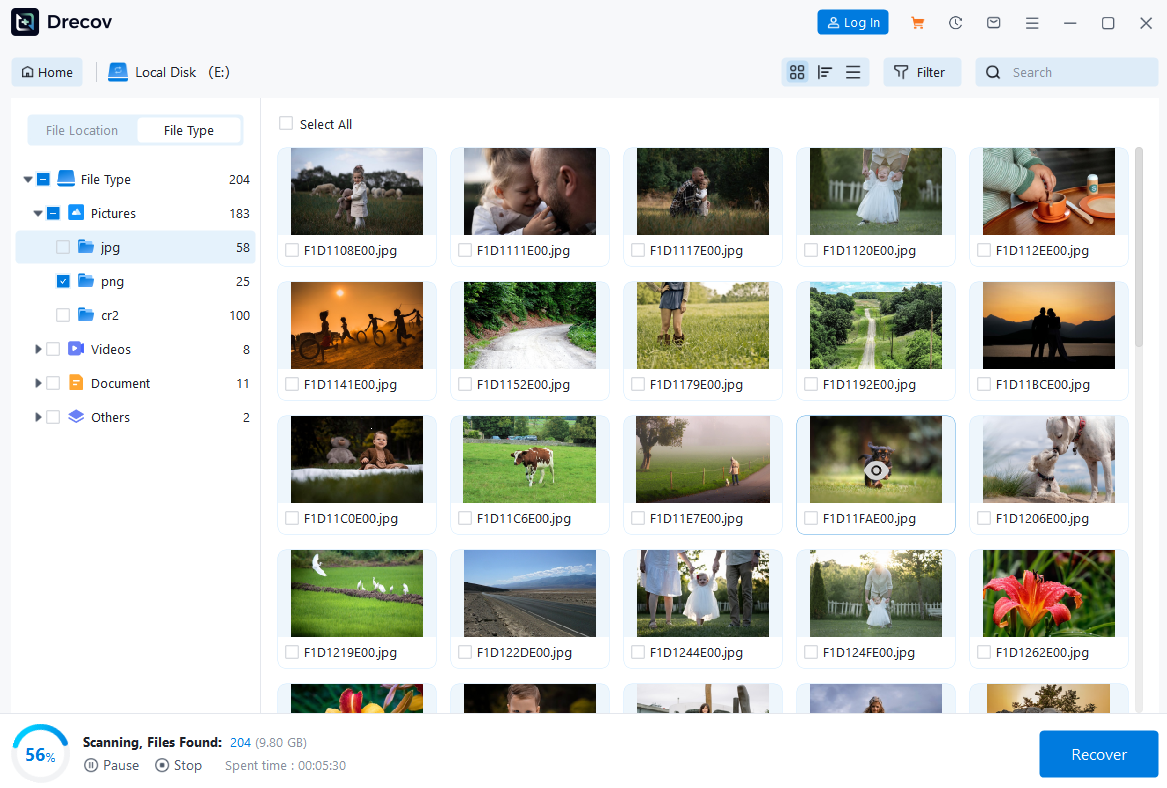
Why Choose PandaOffice Drecov for Seagate Hard Drive Data Recovery?
- ✅ Recover lost files, photos, documents, videos, and more (supports over 250 file types).
- ✅ Retrieve data from hard drives, USB drives, memory cards, and other storage devices.
- ✅ Support for formatted recovery, lost partition recovery, system crash recovery, RAW recovery, and beyond.
- ✅Compatible with most hard drive brands, including Seagate, Western Digital, Toshiba, Hitachi, Sandisk, and others.
Real-World Seagate Recovery Scenarios
Scenario 1: The “Error 0x80070570” on Seagate Expansion Desktop
Many users encounter Error 0x80070570 when trying to copy or delete files from their Seagate Expansion or Backup Plus drives. This code typically means “The file or directory is corrupted and unreadable.”
- The Cause: Often caused by an unsafe ejection or sudden power loss, leading to a corrupted File Allocation Table (FAT) or MFT on NTFS drives.
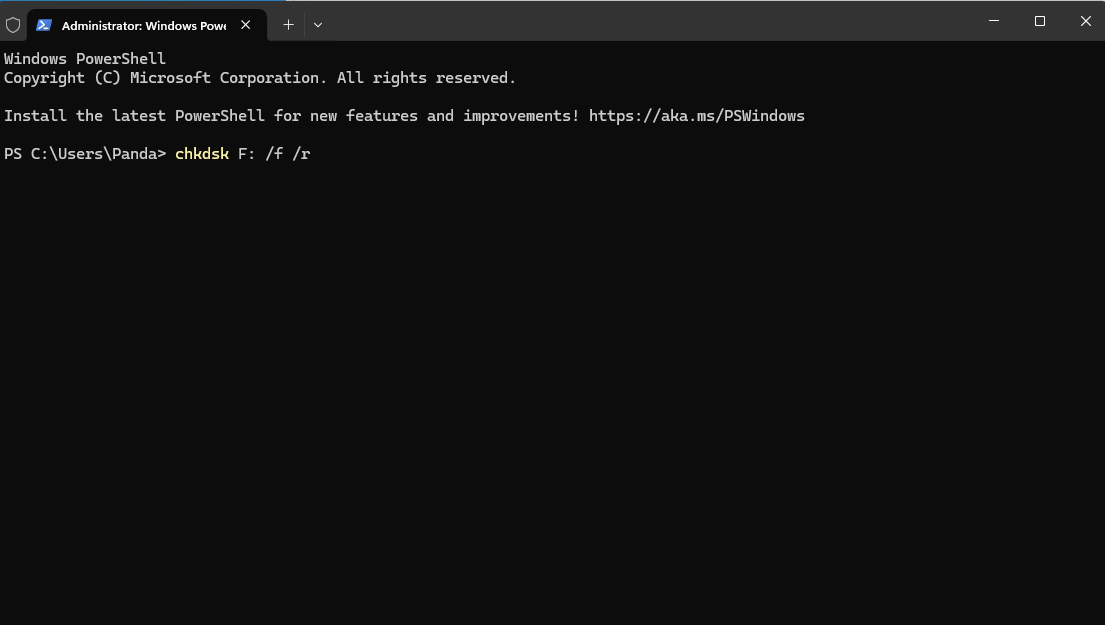
- The Solution: 1. Check Connection: Swap the USB 3.0 cable. Seagate’s proprietary cables can sometimes lose signal integrity. 2. Run CMD as Admin: Type
chkdsk X: /f(replace X with your Seagate drive letter). 3. Advanced Recovery: Ifchkdskfails or says “The type of the file system is RAW,” do not format it. Use PandaOffice Drecov to perform a “Raw Recovery” to bypass the corrupted file system and extract your data directly from the sectors.
Scenario 2: Seagate Backup Plus Slim Not Recognized (Blinking Light)
A common issue with the Seagate Backup Plus Slim model is that the LED light blinks, the drive spins, but it doesn’t appear in “This PC.”
- The Diagnosis: Open Disk Management. If the drive shows up as “Unallocated” or “Not Initialized,” the partition table is likely damaged.
- The Solution:
- Driver Refresh: Right-click “Universal Serial Bus controllers” in Device Manager and uninstall the “USB Mass Storage Device” related to Seagate, then replug.
- Partition Recovery: Since the drive is physically spinning, the data is safe. Launch PandaOffice Drecov, select the “Lost Partition” scan mode. It will identify the old partition boundaries and restore the original folder structure of your Backup Plus Slim in minutes.
Protect Your Seagate Hard Drive: Core Tips to Avoid Data Loss
Preventing data loss is simpler than data recovery from Seagate hard drive. Follow these Seagate-specific best practices:
• Use Seagate Dashboard: Enable the backup feature in Seagate Dashboard to upload critical data to the cloud, achieving dual protection for your files.
• Run SeaTools Diagnostics Monthly: Detect bad sectors early—Seagate mechanical hard drives are prone to platter failures when overheated.
• Eject External Drives Properly: When using an external Seagate hard drive, always disconnect it via the “Safely Remove Hardware” function to avoid firmware damage.
• Avoid High-Temperature Environments: Keep Seagate SSDs and mechanical hard drives away from direct sunlight. FireCuda series SSDs are particularly sensitive to high temperatures.
FAQs About Data Recovery from Seagate Hard Drive
Do NOT initialize the drive immediately, as this may overwrite existing data. First, connect the drive to another working computer to check if the same message appears. If the issue persists, use PandaOffice Drecov data recovery software to scan and extract data. If the software fails to resolve the problem, contact a professional data recovery service.
Unusual noises like clicking typically indicate hardware issues (e.g., damaged read/write heads, platter failures). Immediately power off the drive and stop using it to avoid irreversible damage from the heads scratching the platters. Self-recovery is extremely difficult in this case. We recommend contacting Seagate Support directly – they can attempt data recovery in a Class 100 cleanroom by replacing compatible parts. Do NOT disassemble the drive yourself.
The top priority is to stop all write operations on the drive (e.g., creating new files, copying/pasting data) to prevent overwriting the deleted files. Next, use PandaOffice Drecov software to scan and recover the data.
This issue is usually caused by firmware failures or file system corruption. First, run a diagnostic with Seagate’s official tool, SeaTools – it can fix some basic firmware-related issues. If that doesn’t work, use data recovery software to scan the drive and extract data. You can also visit the Seagate official website to download the corresponding firmware package for your drive model and manually update it to resolve firmware crashes.
Never save the recovered files back to the problematic Seagate hard drive – this may overwrite residual data that hasn’t been recovered yet. Instead, save the files to another working external hard drive, USB flash drive, or a healthy partition on your computer’s local disk.

Final Thoughts on Data Recovery from Seagate Hard Drive
Seagate drives are reliable, but data loss is inevitable. For most users, data recovery from Seagate hard drive starts with PandaOffice Drecov—it’s Seagate-optimized, easy to use, and offers free scan/preview (pay only if you recover files).
Pair it with monthly SeaTools checks and regular backups to keep your Seagate data safe. If you’re facing data loss now, download PandaOffice Drecov and start scanning your Seagate drive—your files are likely still recoverable!






