







Data loss from hard drives (HDD/SSD) is a common nightmare, but the good news is most lost data is recoverable with the right tools and methods—especially reliable hard drive data recovery software. Whether it’s accidental deletion, formatting, or logical errors, understanding how data is stored, lost, and retrieved is key to successful recovery. This comprehensive guide covers core principles, practical methods, prevention tips, and FAQs to solve all your “data recovery from hard drive” concerns.
1. Can I Recover Lost Data from a Hard Drive?
The short answer: Yes, in most cases—especially for logical failures like accidental deletion, formatting, or file system corruption. For such scenarios, hard drive data recovery software is often the most efficient and cost-effective solution. The recovery success rate depends on two critical factors:
- ❌Whether the lost data has been overwritten by new files (once overwritten, recovery becomes nearly impossible).
- ✅The type of hard drive failure (logical issues have 60-90% success rate with software; physical damage needs professional intervention).
For mechanical hard drives (HDD), recovery is more feasible as deleted data remains intact until overwritten. For solid-state drives (SSD), enablement of the TRIM function may erase data permanently, so immediate action is crucial.
2. Core Principles: How Data Is Stored, Lost, and Recovered
2.1 Hard Drive Data Storage Principles
Data storage mechanisms differ between HDD and SSD, but both rely on logical address management:
- Mechanical Hard Drive (HDD): Data is stored as magnetic patterns on rotating platters. A read/write head floats above the platter to record binary data (0s and 1s) by altering magnetic orientations. Each data block gets a unique logical address managed by the file system (e.g., NTFS, exFAT).
- Solid-State Drive (SSD): Uses NAND flash chips with floating-gate transistors to trap electrons. The controller chip handles wear leveling (evenly distributing writes) and garbage collection, while logical addresses map to physical flash cells.
2.2 Data Loss Principles
Data is rarely “deleted permanently” immediately—loss typically occurs in two ways:
- Logical Loss: The most common type, caused by accidental deletion, formatting, file system corruption, or virus attacks. The OS only removes the “access index” (file allocation table entry) and marks the space as “reusable,” but the actual data remains on the storage medium—this is where hard drive data recovery software excels.
- Physical Loss: Results from hardware damage like platter scratches, read/write head failure, spindle motor jams, or firmware corruption. This damages the physical storage medium, making data inaccessible without professional repair.
2.3 Data Recovery Principles
Recovery tools—especially professional hard drive data recovery software—work by bypassing the corrupted logical address system to directly scan the underlying storage medium:
- They identify intact data blocks via file signatures (e.g., JPEG’s “FF D8” header).
- Reconstruct the original file structure by mapping scattered data blocks.
- Extract and save the recovered data to a safe location, avoiding overwriting the source drive.

3. Effective Hard Drive Data Recovery Methods
We rank methods by success rate and ease of use, from DIY solutions to professional services:
3.1 Use Professional Hard Drive Data Recovery Software (Best for Logical Loss)
Ideal for accidental deletion, formatting, RAW partitions, or file system corruption—works for both HDD and SSD (if TRIM is disabled).
Recommended Tool: PandaOffice Drecov (optimized for all hard drive brands including Seagate, Western Digital, Toshiba).
Key Advantages: 96% recovery success rate, supports 250+ file types (documents, photos, videos), and no risk of drive damage.
Step-by-Step Operation:
1.Stop using the affected drive immediately to prevent overwriting.
2.Install the software on a separate drive (not the faulty one) and launch it.
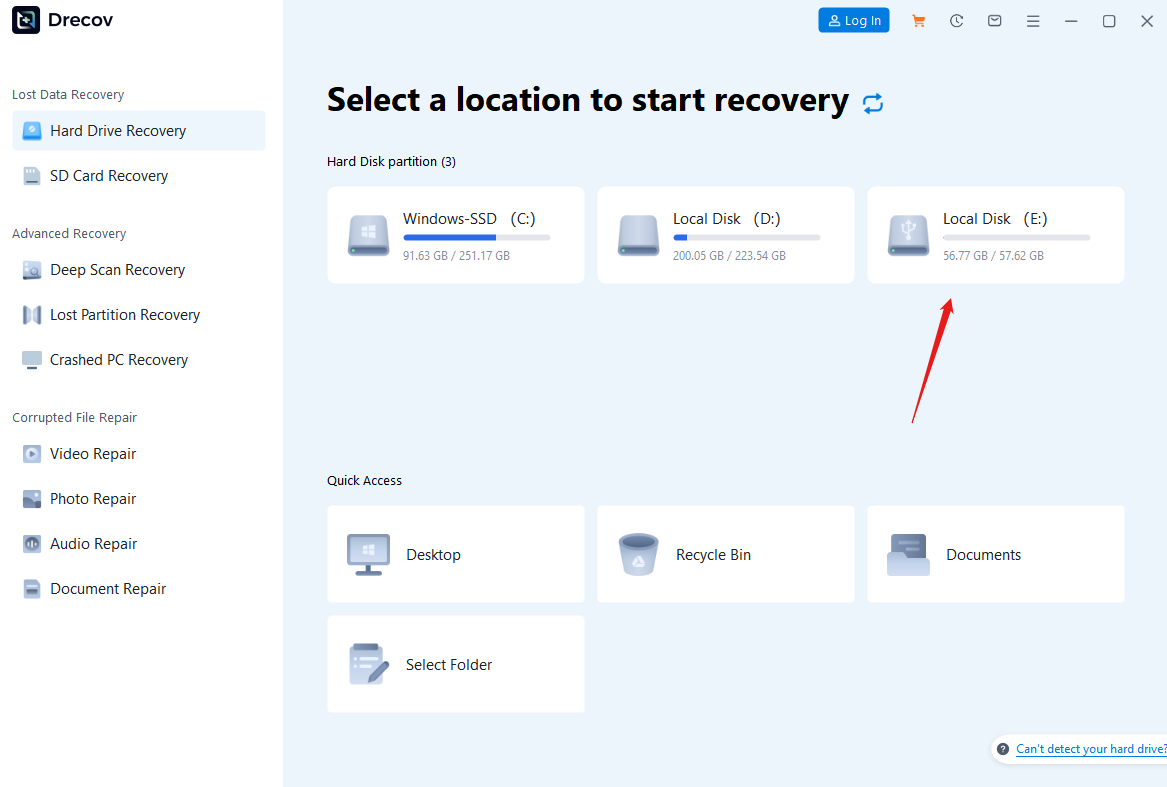
3.Select the target drive: Choose “Quick Scan” for recent deletions (10-15 mins for 1TB HDD) or “Deep Scan” for formatted/lost partition recovery.

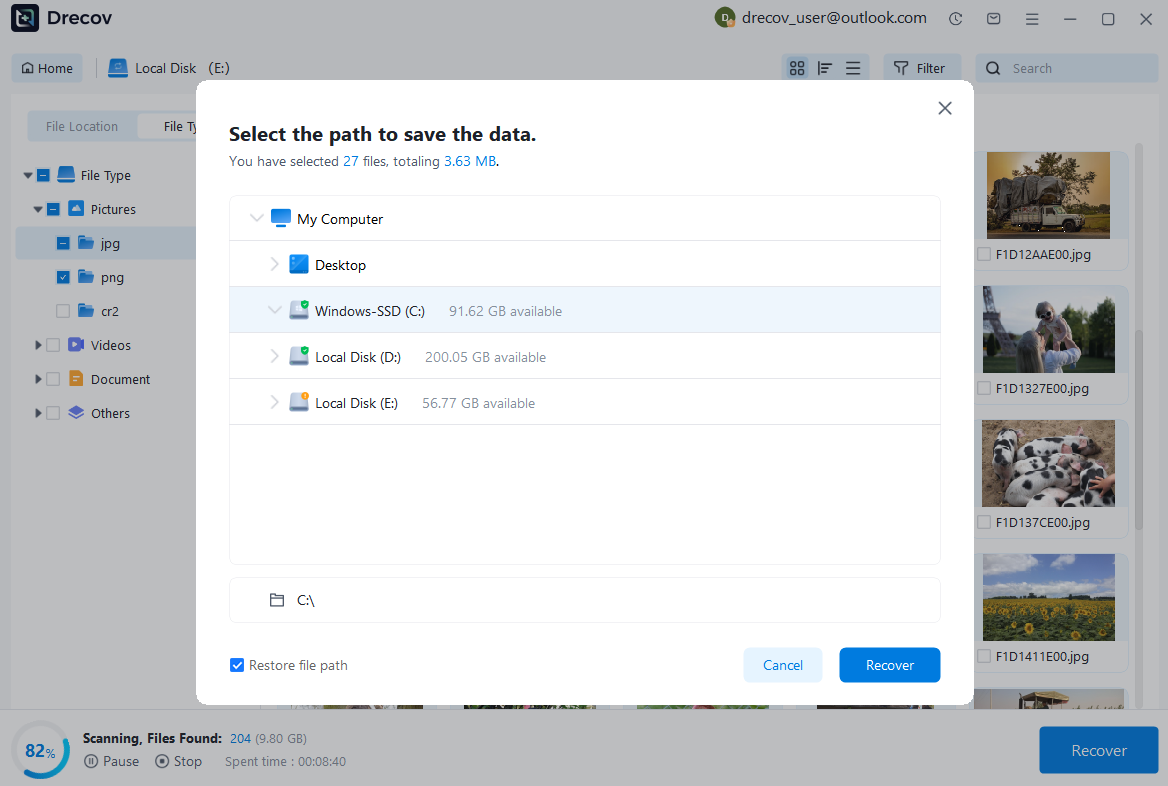
4.Preview and recover: Filter scan results by file type, preview to confirm integrity, and save recovered files to an external drive or cloud storage.
3.2 System Built-in Tools (For Minor Logical Errors)
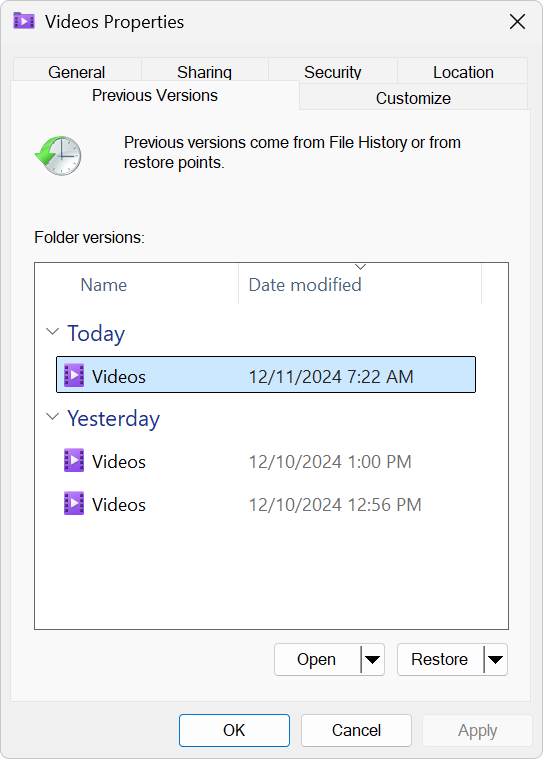
- Windows: Use chkdsk (repair file system errors) or “Previous Versions” (restore files from system restore points).
- Mac: Utilize “Disk Utility” to repair disk permissions or APFS file system corruption.
⚠️Limitations: Only effective for minor file system issues; cannot recover permanently deleted files—use hard drive data recovery software for better results.
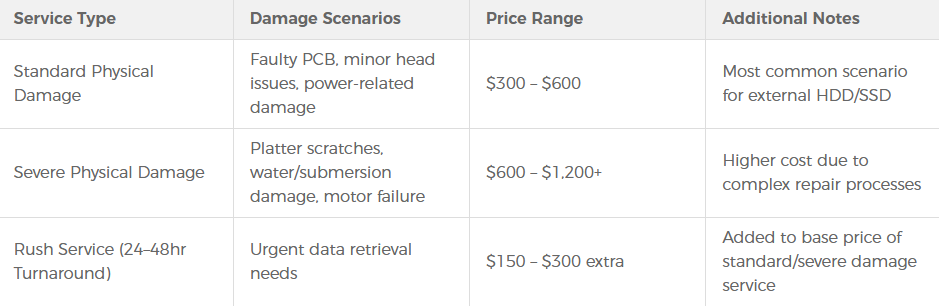
3.3 Professional Data Recovery Services (For Physical Damage)
Seek professional help if:
- The drive makes unusual noises (clicking, buzzing), fails to power on, or shows “not initialized” errors.
- Software recovery fails or the drive has physical damage (platter scratches, motor failure).
Choose services with ISO 14644-1 Class 5 cleanrooms (for platter operations) and expertise in firmware repair (e.g., using tools like PC-3000). Ensure they sign a data confidentiality agreement.
4. How to Prevent Hard Drive Data Loss
Prevention is better than recovery—follow these practices to protect your data:
- ✅Implement Regular Backups: Use the 3-2-1 backup rule: 3 copies of data, 2 on different local drives, 1 offsite (cloud storage or external HDD). Enable automatic backups via Windows Backup or Seagate Dashboard.
- ✅Monitor Drive Health: Use SMART tools (e.g., SeaTools for Seagate drives) to check for early warnings like bad sector growth or high temperature.
- ✅Handle Drives Carefully: Avoid dropping or shaking HDDs (especially during operation) and keep drives away from high temperatures and humidity.
- ✅Safe Operation Habits: Always eject external drives via “Safely Remove Hardware” to prevent file system corruption. Avoid sudden power cuts with an UPS.
- ✅Maintain System Security: Install antivirus software to protect against ransomware and malware that can encrypt or delete data.
5. FAQs About Hard Drive Data Recovery
Quick scans take 10-30 minutes for 1TB drives; deep scans may take 1-6 hours. Physical recovery can take 3-7 days depending on damage severity.
Yes, if no new data was written. Use data recovery software for quick formatting; full formatting may reduce success but still allows partial recovery.
Possible reasons include partial overwriting, file system damage, or incomplete scan. Try deep scan mode or professional tools for better results.
Some free tools have limited functionality or may contain malware. Opt for reputable paid tools like PandaOffice Drecov or free trials of trusted software.
A clicking sound indicates physical damage (e.g., faulty read/write head). Stop using the drive immediately and contact a professional service—DIY recovery may worsen platter scratches.
Final Thoughts
Data recovery from hard drive is highly feasible with timely action and the right tools. For most users, professional data recovery software like PandaOffice Drecov is the most cost-effective solution for logical loss. For physical damage, don’t hesitate to seek professional help to avoid permanent data loss. By combining regular backups, drive health monitoring, and safe usage habits, you can minimize the risk of data loss. If you’re facing data loss now, stop using the drive and start the recovery process immediately—your files are likely still recoverable!






