







Recovering data from a solid-state drive (SSD) is feasible but depends on data loss scenarios (e.g., accidental deletion, formatting, TRIM status, physical damage) and requires targeted methods. Below is a step-by-step guide to data recovery from solid state drive (SSD), including tools, operating steps, and key precautions, tailored for both general users and technical scenarios
Key Prerequisite: Check TRIM Status First
TRIM is a core feature of SSDs that automatically erases data marked as “deleted” to optimize performance. Data recovery from a Solid State Drive (SSD) can be quite challenging if TRIM is enabled and the lost files have been overwritten by new data.
- How to check TRIM status:
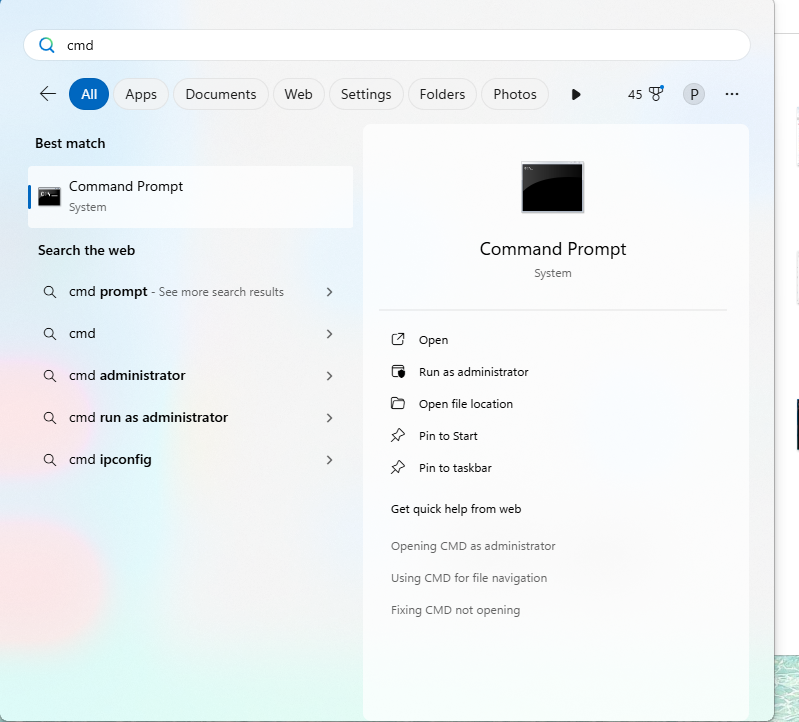
- Windows: Click the Windows logo in the bottom-left corner to open the Start Menu. Type “cmd” or “Command Prompt” in the top search box. Right-click the “Command Prompt” result and select “Run as administrator.”
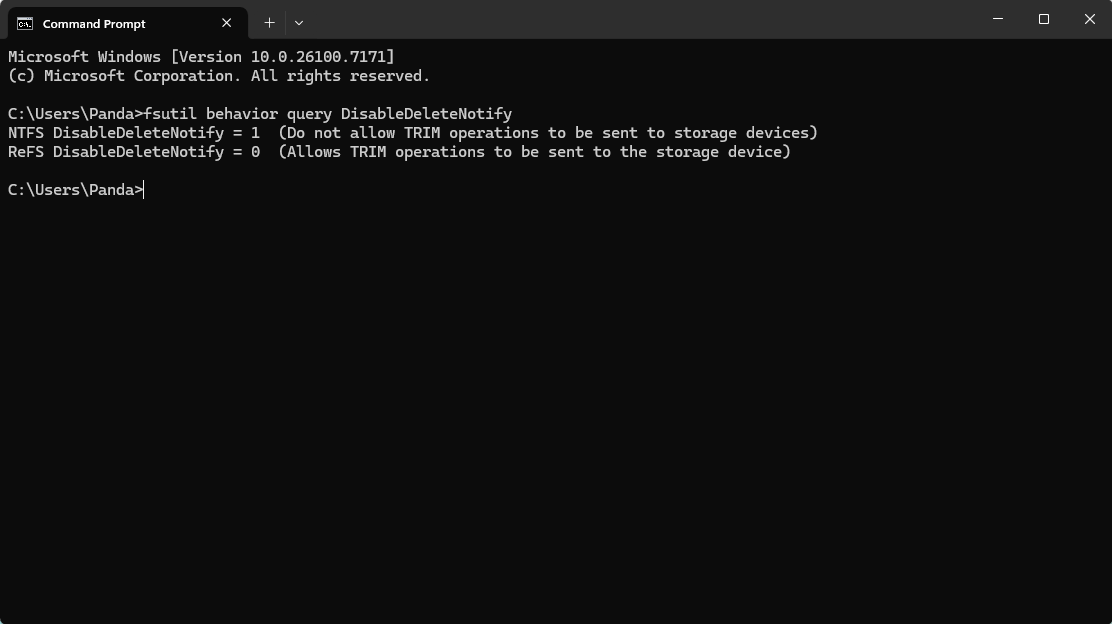
- In the Administrator Command Prompt window, directly enter the command:
fsutil behavior query DisableDeleteNotifyPress Enter after typing. - After pressing Enter, a result will appear:If the value displayed is
0, TRIM is enabled.If the value displayed is1, TRIM is disabled.
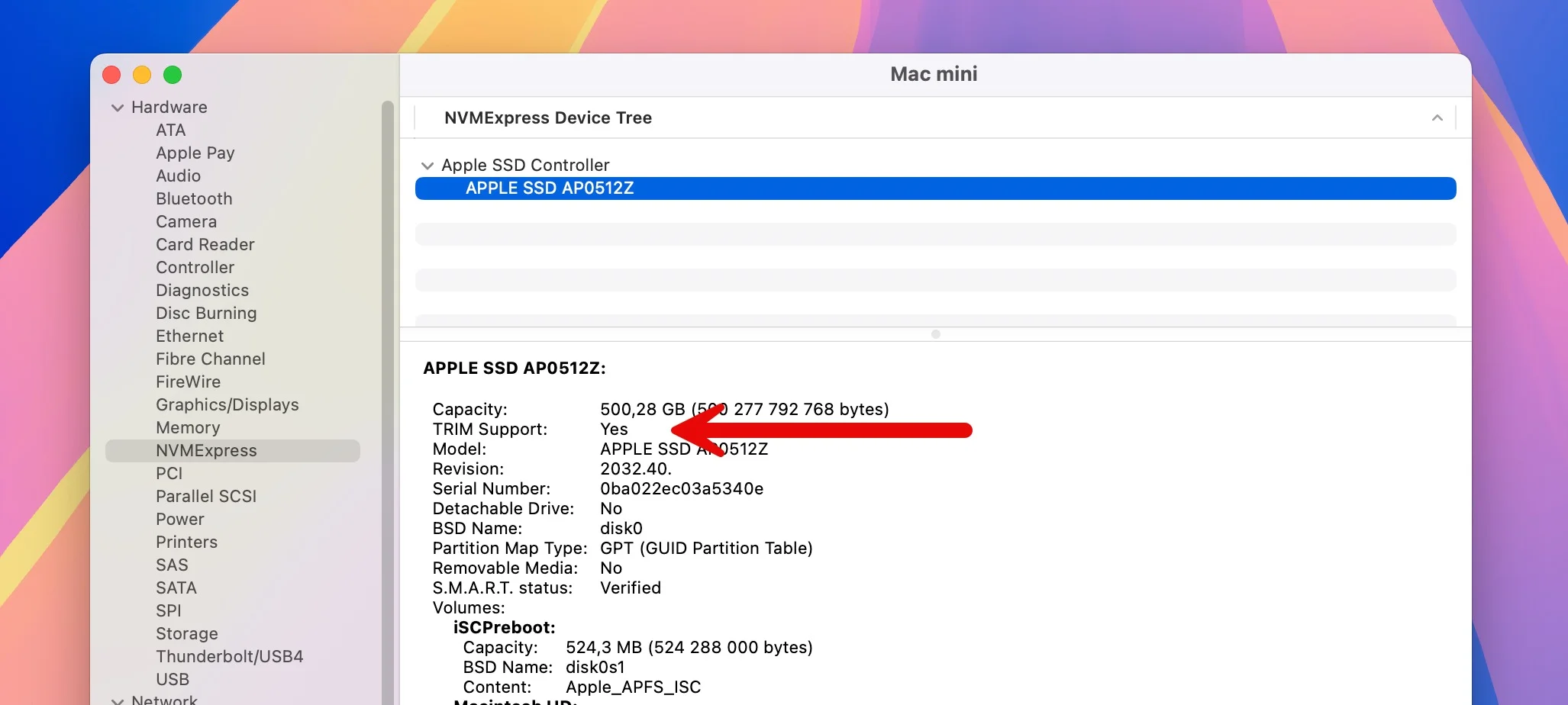
- Mac: Open Terminal → Enter
system_profiler SPSerialATADataType | grep "TRIM Support"→ If “Yes”, TRIM is enabled.
Method 1: SSD Data Recovery Software (Recommended for Logical Errors)
For accidental deletion, formatting, or file system corruption (without physical damage), we recommend using professional SSD-supported data recovery software — this is the core advantage of Solid State Drive (SSD) data recovery. PandaOffice Drecov is highly recommended, as it has been specially optimized for SSD data recovery.
Step-by-Step Operation
- Stop Using the SSD Immediately
Avoid writing new data (e.g., saving files, installing software) to prevent overwriting lost data.
- Connect the SSD
For external SSDs, connect to your PC/Mac via USB; for internal SSDs, ensure it’s properly recognized by the system.
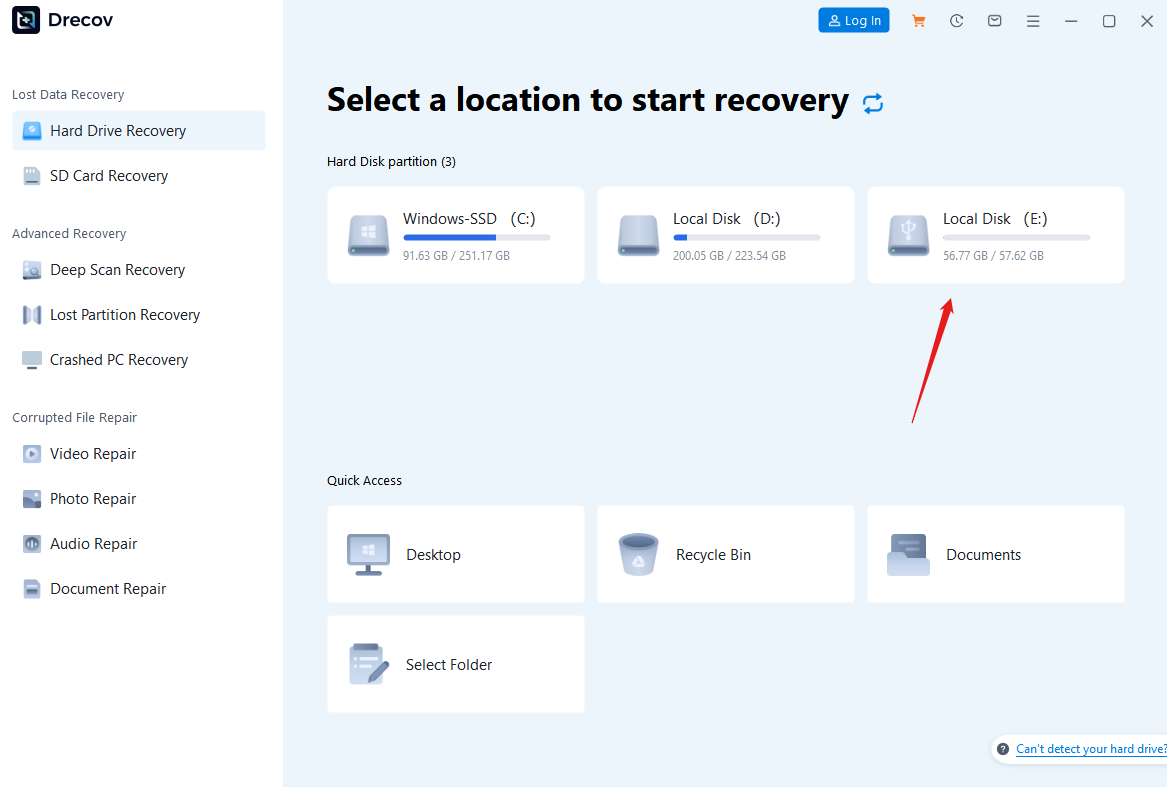

- Launch PandaOffice Drecov
Select the “Hard Drive Recovery” mode (specialized for NAND flash storage).
Choose the target SSD from the device list and click “Scan”.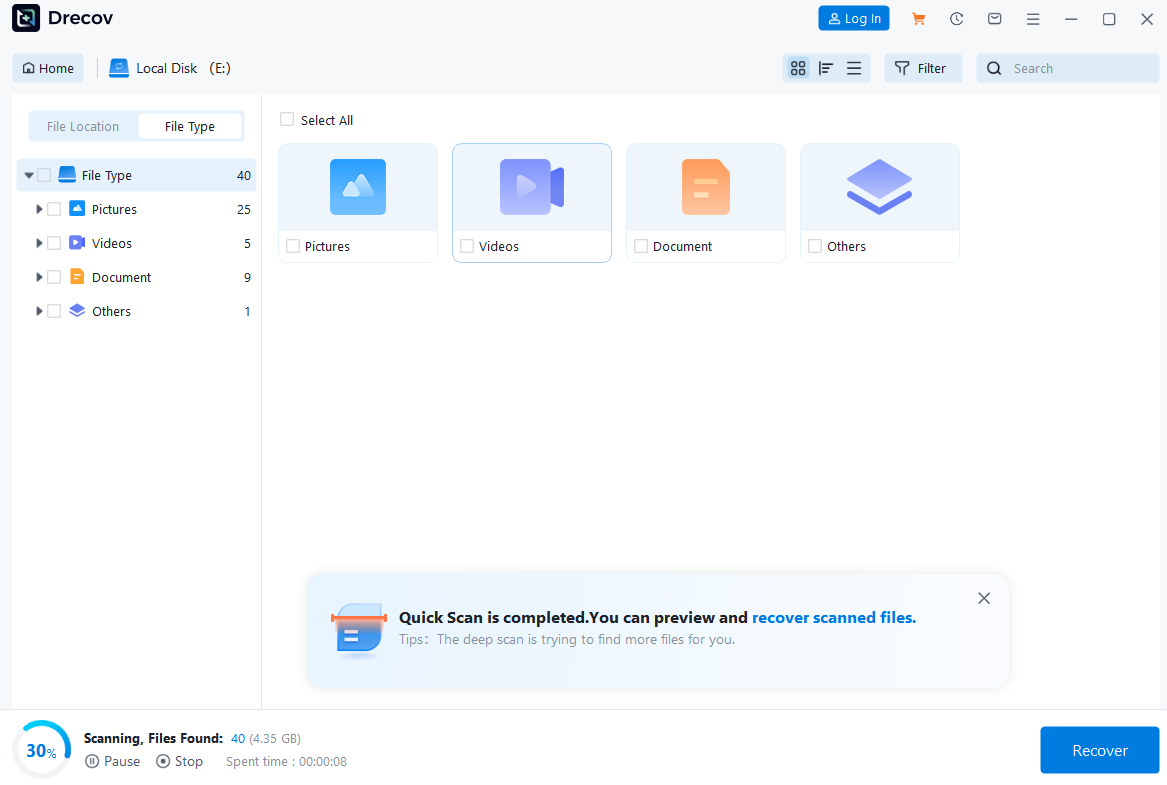

- Select Scan Type
Quick Scan: Locates recently deleted files in 3–5 minutes (ideal for files lost within hours/days).
Deep Scan: Scans SSD’s raw NAND flash sectors, and recovers hidden/lost data (for formatted drives or data lost weeks ago).

- Preview and Recover
Scan results are categorized by file type (documents, photos, videos, etc.). Preview files to confirm integrity.
Select target files and click “Recover” → Save recovered data to a different storage device to avoid overwriting the SSD.

Why Choose PandaOffice Drecov for SSD?
- ✅ Deep Scan Technology: Uncover older and more comprehensive data with this advanced scanning capability.
- ✅ High Compatibility: Supports NVMe, SATA, M.2 SSDs, and file systems (NTFS, FAT32, exFAT, APFS).
- ✅ Secure & Non-Destructive: No modification to original SSD data; 98%+ recovery success rate for logical errors.
Method 2: System-Built-in Tools (Free for Minor Issues)
For recent deletions or minor file system errors, try OS-native tools (limited functionality but no cost):
Windows Users
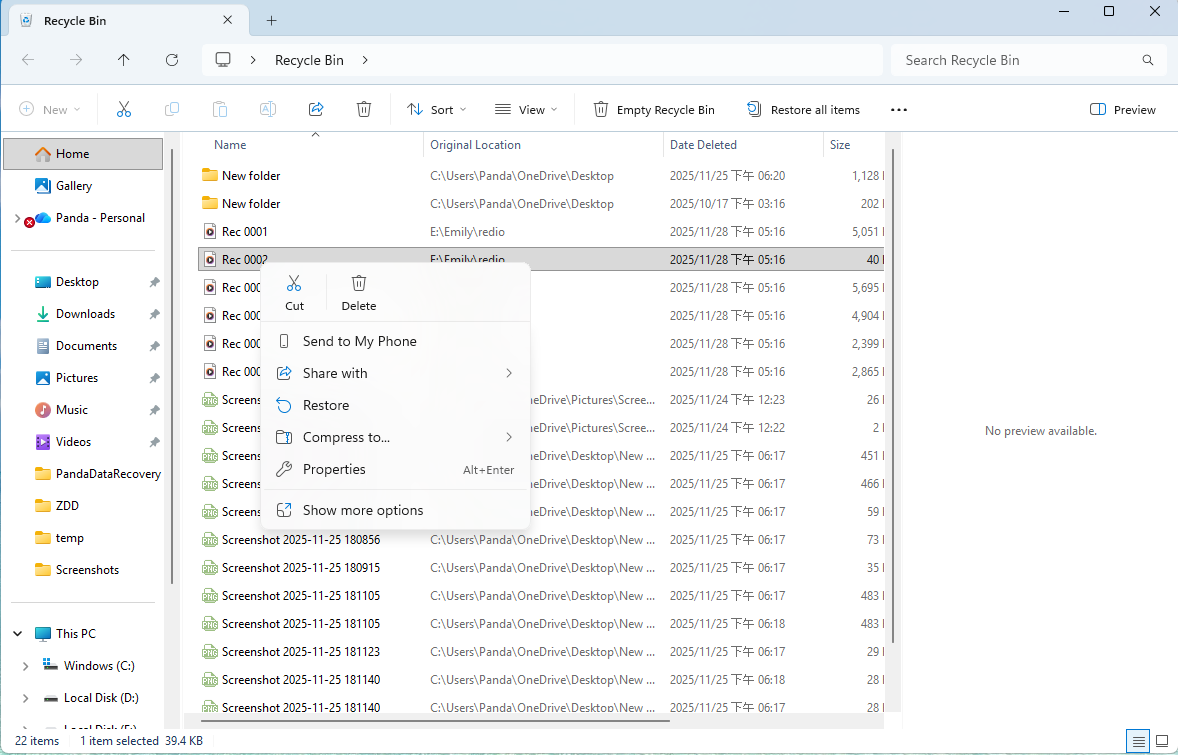
- Recycle Bin Recovery: If you didn’t use “Shift+Delete”, check the Recycle Bin → Right-click the file → “Restore”.
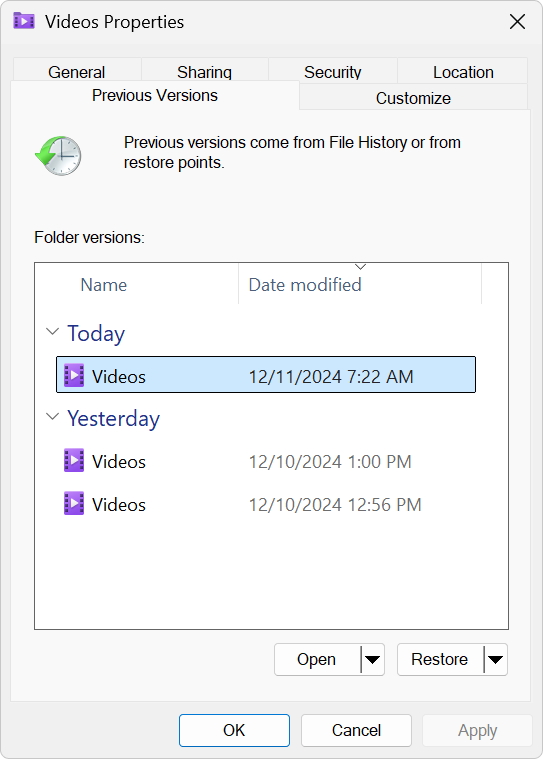
- Previous Versions: Navigate to the folder where files were stored → Right-click → “Properties” → “Previous Versions” → Select a restore point (requires System Protection enabled on the SSD).
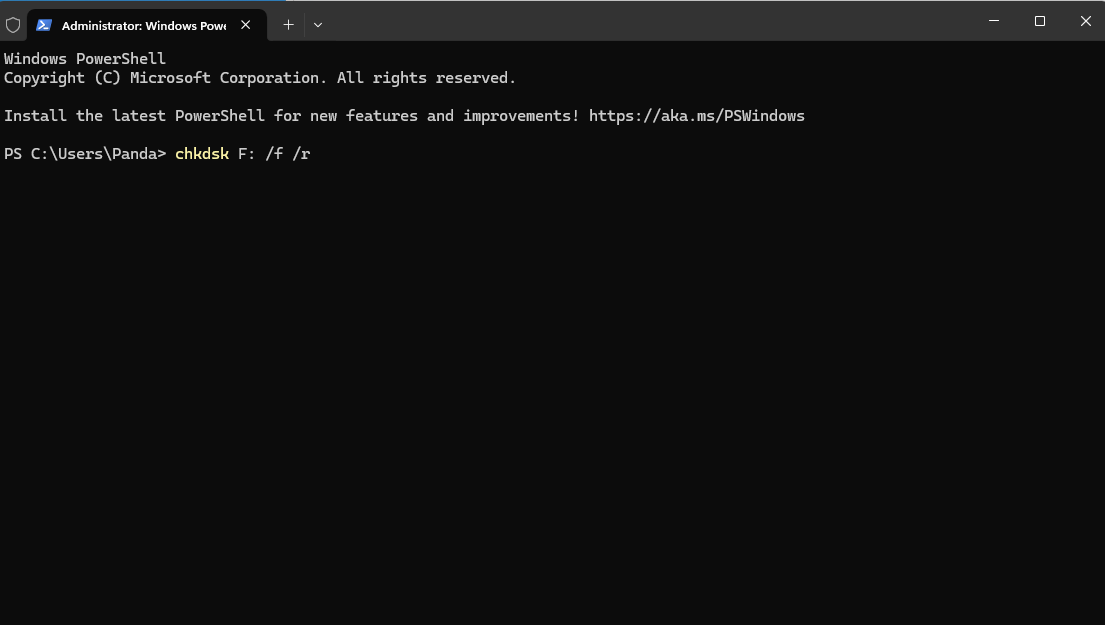
- CHKDSK Command: Fix file system corruption → Open Command Prompt as admin → Enter
chkdsk X: /f(X = SSD drive letter) → Restart PC to complete repair.
Mac Users
- Trash Recovery: Open Trash → Drag files to desktop to restore (if not emptied).
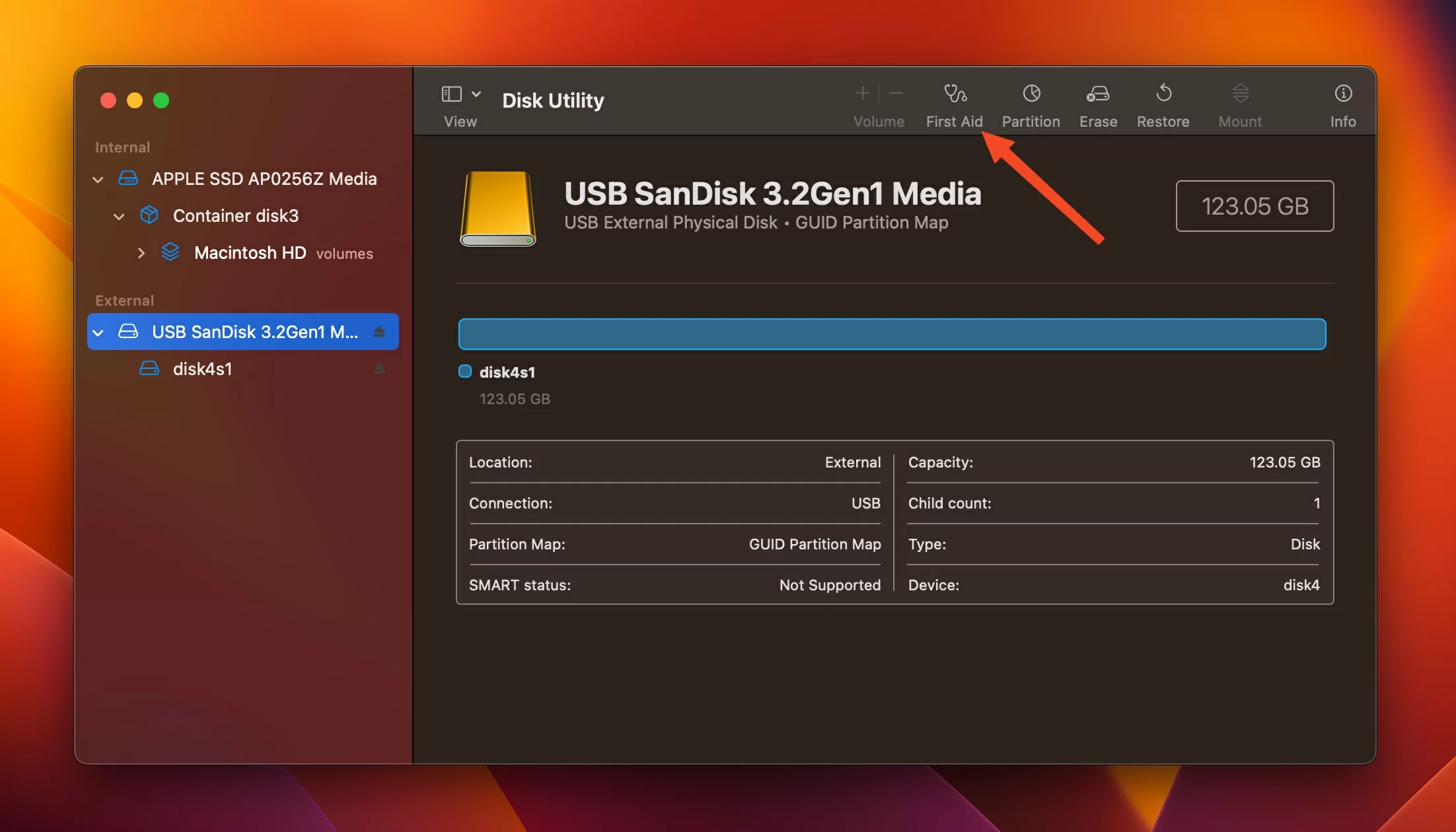
- Disk Utility First Aid: Open “Applications > Utilities > Disk Utility” → Select SSD → Click “First Aid” to repair logical errors.
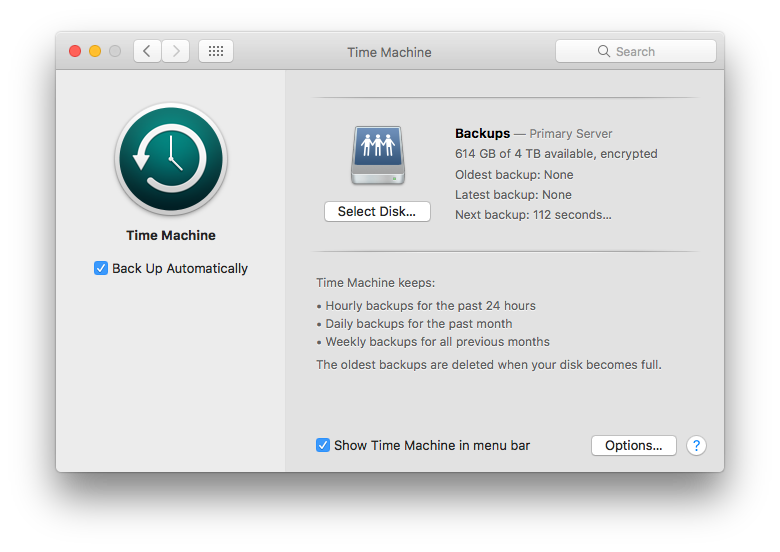
- Time Machine Backup: If you enabled Time Machine, connect the backup drive → Use “Time Machine” to restore files from a previous backup.
Method 3: Professional Data Recovery Services (For Physical Damage/TRIM-Overwritten Data)
If the SSD has physical damage (e.g., not recognized by PC, clicking noises, burnt PCB) or data was erased by TRIM and overwritten, software tools won’t work for data recovery from solid state drive (SSD). Contact a professional service with these qualifications:
- A dust-free cleanroom (to disassemble SSD without damaging NAND chips).
- Experience with SSD-specific recovery (e.g., NVMe controller repair, flash chip data extraction).
- “No Data, No Fee” guarantee.
Pricing Reference
| Service Type | Damage Scenario | Price Range |
| Logical Recovery (TRIM Bypass) | Accidental deletion/formatting (TRIM enabled) | $$300 –$$600 |
| Physical Recovery | Faulty controller, damaged flash chips | $$600 –$$1,500+ |
| Rush Service (24–48hrs) | Urgent data retrieval | $$150 –$$300 extra |
Note: Prices vary by SSD type (NVMe/SATA), storage capacity, and data urgency.
Critical Precautions for SSD Data Recovery
- Disable TRIM Immediately: After data loss, turn off TRIM to stop SSD from erasing data (Windows:
fsutil behavior set DisableDeleteNotify 1; Mac: Use third-party tools like “Trim Enabler” to disable). - Avoid Formatting/Repartitioning: Formatting or changing SSD partitions will overwrite data and reduce recovery chances for data recovery from solid state drive (SSD).
- Use a Different Storage Device for Recovery: Never save recovered files back to the original SSD.
- Act Fast: SSD data erasure (via TRIM or overwriting) is irreversible—start recovery within 24–48 hours for the best results.
FAQs About Data Recovery from Solid State Drive (SSD)
It depends on scan type and SSD capacity: Quick Scan takes 3–15 minutes for small SSDs (≤500GB), while Deep Scan may take 1–3 hours for 1TB+ SSDs. PandaOffice Drecov’s optimized algorithm speeds up the process by 30% compared to standard tools.
Yes, but success depends on whether data was overwritten. PandaOffice Drecov’s TRIM Bypass technology can retrieve data marked for deletion (success rate 70%–80%) if you act within 24–48 hours of data loss.
Logical recovery costs are similar, but physical data recovery from solid state drive (SSD) is often pricier (starting at $600) due to SSD’s complex NAND flash architecture and controller repair requirements.
Software tools can’t fix physical damage (e.g., burnt PCB, damaged flash chips). You’ll need a professional service with dust-free cleanrooms to extract data from the SSD’s components—success rate ranges from 50%–70%.
Summary of Recovery Methods
| Scenario | Recommended Method | Success Rate |
| Accidental deletion (TRIM disabled) | PandaOffice Drecov Quick Scan / Recycle Bin | 90%+ |
| Formatting/file system corruption | PandaOffice Drecov Deep Scan | 85%+ |
| Physical damage (not recognized) | Professional Data Recovery Service | 50%–70% |
| Data overwritten by new files | Almost Impossible | <10% |
For most users, PandaOffice Drecov is the most cost-effective and efficient choice for data recovery from solid state drive (SSD), especially for logical errors and TRIM-related scenarios. Always back up critical data regularly (e.g., via cloud storage or external drives) to avoid permanent loss.






