







Samsung hard drives—whether the reliable 870 EVO SSD, robust 8TB HDD, or portable T7 Touch—are trusted by millions for storing photos, work documents, and critical backups. But when data suddenly vanishes due to accidental deletion, formatting, or drive errors, data recovery from Samsung hard drive becomes the top priority. The good news? With the right strategies and tools, your lost files are often recoverable—and this guide breaks down exactly how to do it.
Why Data Recovery from Samsung Hard Drive Is Usually Possible
Before panicking, it’s essential to understand why data recovery from Samsung hard drive works. Like all storage devices, Samsung drives don’t immediately erase data when files are deleted or the drive is formatted. Instead, they only remove the “file index” that tells the system where data is stored. The actual files remain intact in the drive’s sectors until new data overwrites them.
3 Effective Methods for Data Recovery from Samsung Hard Drive
The best method depends on your scenario—whether the drive is logically damaged (no physical issues) or has hardware problems. We’ll start with the most accessible solution for most users.
Method 1: Use Professional Software (Best for Logical Issues)
For accidental deletion, formatting, or file corruption (the most common cases), professional recovery software is the fastest and most cost-effective way to handle data recovery from Samsung hard drive. PandaOffice Drecov stands out here—it’s specifically optimized for Samsung’s drive technology, supporting both HDDs and SSDs, including models with Samsung Magician software installed.
Why PandaOffice Drecov Works for Samsung Drives
- Samsung-Optimized Scan: It is tailored to recognize Samsung’s unique file system structures (NTFS, exFAT, APFS) and uses in-depth file system analysis to access residual raw data, even with common Samsung SSD controller-related data reading challenges.
- 96% Recovery Success Rate: Proven to retrieve photos (JPEG, RAW), videos (MP4, MOV), and documents from formatted or corrupted Samsung drives—even the encrypted T7 Touch, as long as you enter the correct password to enable decryption first.
- Safe & Risk-Free: Operates in read-only mode, so it never damages your Samsung drive or overwrites recoverable data—critical for avoiding permanent loss.
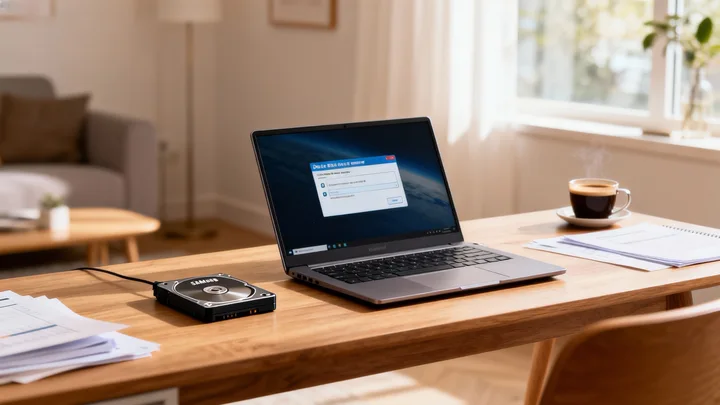
Step-by-Step to Recover Data with PandaOffice Drecov
1️⃣Stop Using the Samsung Drive:
Any new file save or drive operation could overwrite lost data—unplug external Samsung drives (like T7) or avoid using internal ones immediately.
2️⃣Install PandaOffice Drecov:
Download the PandaOffice Drecov software from the official website and install it locally (do not store it on a Samsung hard drive).

3️⃣Select the Samsung Drive:
Launch the software, and it will automatically detect your Samsung HDD/SSD. Select it and choose “Quick Scan” (for recent data loss) or “Deep Scan” (for formatted drives or old files).

4️⃣Preview and Recover:
After scanning, filter files by type (e.g., “Photos” or “Documents”). Preview to confirm integrity, then click “Recover” and save files to a safe location (not the Samsung drive).

Method 2: Use Samsung’s Built-in Tools (For Backup Users)
If you enabled Samsung’s backup features before data loss, you can skip third-party tools for data recovery from Samsung hard drive. Here’s how:
For Windows
- Restore via File History
- Confirm feature status: Press
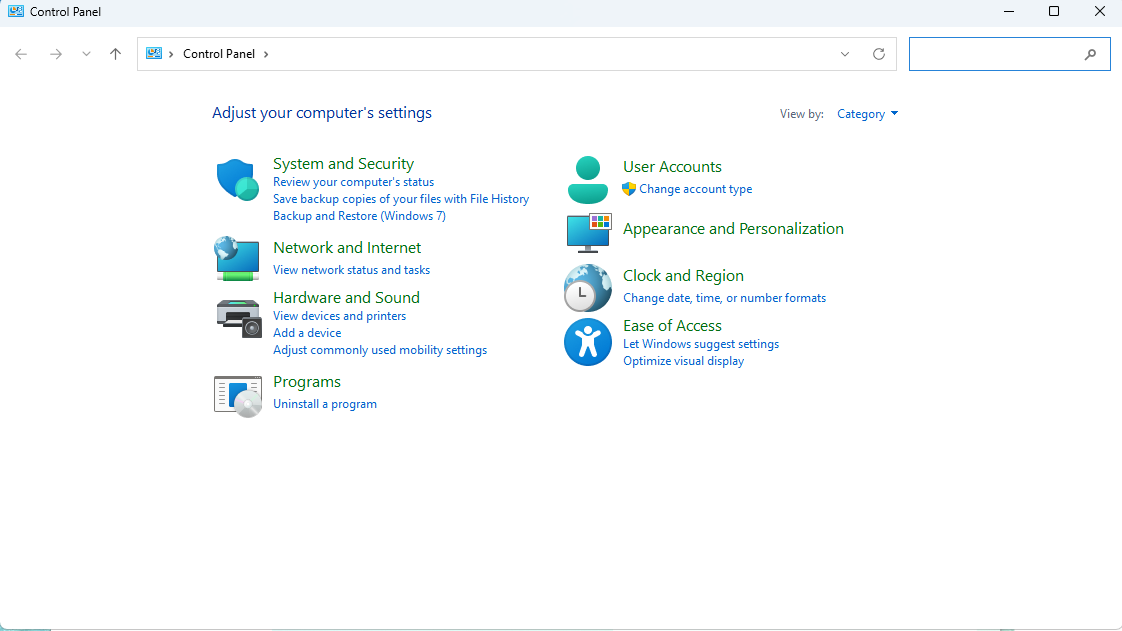
Win+Son the desktop to open the search bar, type “Control Panel” and launch it. Navigate to “System and Security” > “Save backup copies of your files with File History” to check if the feature is enabled and linked to a backup drive.

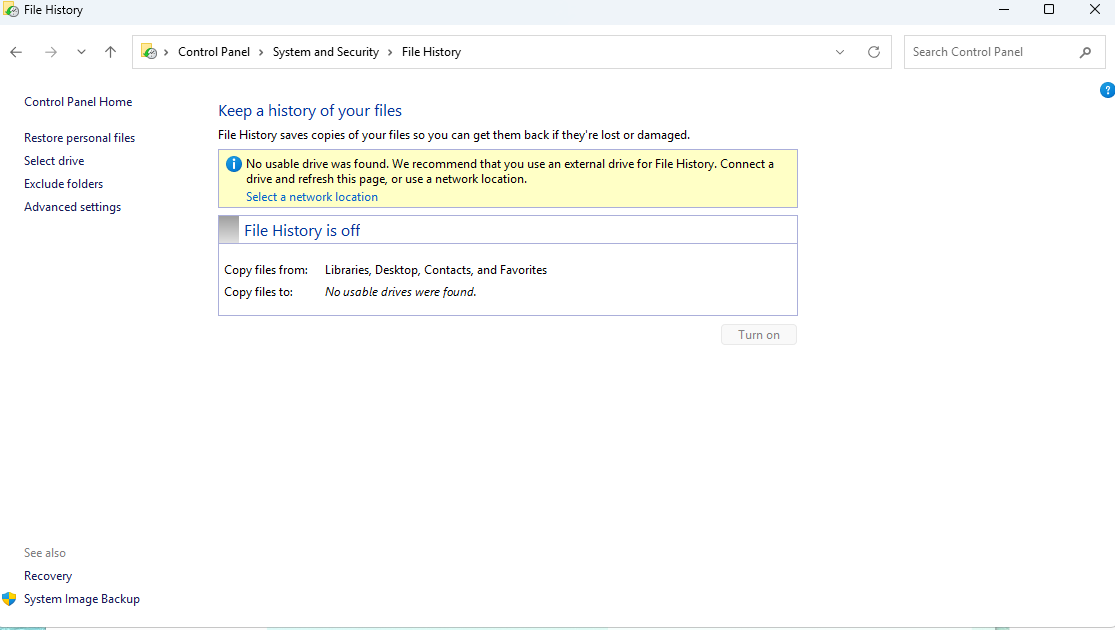
- Access the restore interface: If enabled, click “Restore personal files” on the left sidebar. Alternatively, open File Explorer, right-click the original folder of the lost files, and select “Restore previous versions”.
- Select and restore files: The interface will display file versions from different backup points. Use the left/right arrows below to switch time points and find the desired files. Select the files and click the green “Restore” button to revert them to the original location. To change the save path, expand “Restore” and choose “Restore to…”.
For macOS (Time Machine)
- Preparation: Connect the Time Machine backup drive (which stores the Samsung hard drive backup) to your Mac.
- Access Time Machine: Two ways to enter: Click the Time Machine icon (counterclockwise arrow) in the top menu bar and select “Enter Time Machine”. If the icon is not visible, open “System Settings”, find “Time Machine”, and click “Enter Time Machine” on the interface.
- Locate target files: The interface will show a backup view with a timeline. Drag the timeline on the right or use arrows to go back to the backup point where the Samsung hard drive files were intact, then browse to find the corresponding files or folders.
- Perform restoration: Select the files to recover and click the “Restore” button at the bottom of the window. If there is a file with the same name in the target location, the system will prompt to replace, skip, or keep both—choose as needed to complete the restoration.
Limitation: Only works if you set up backups in advance. If not, move to Method 1 or 3 for data recovery from Samsung hard drive.
Method 3: Professional Data Recovery Services (For Physical Damage)
If your Samsung drive makes clicking noises, fails to connect to the computer, or shows “uninitialized” errors, it may have physical damage (e.g., faulty HDD head or SSD chip failure). In this case, DIY tools won’t work—you need a professional service for data recovery from Samsung hard drive.
| Failure Level | Example of Failure Description | Professional Action / Operation | Estimated Price Range (USD) | Critical Considerations (Do’s) |
|---|---|---|---|---|
| Level I: Light Logical | File system corruption (RAW format), lost partition table, accidental quick format | Deep software scan, partition table repair | $300 – $800 | Prioritize free evaluation to confirm that standard software cannot achieve recovery |
| Level II: Firmware/Electrical | Undetectable by the system, no response when powered on, incorrect capacity display | Firmware repair, Printed Circuit Board (PCB) replacement and adaptation | $600 – $1,500 | Power off immediately; verify that the service provider has electronic-level repair capabilities |
| Level III: Mechanical/Cleanroom (HDD) | Hard drive making clicking noises, head crash, seized motor | “Platter opening” operation and head replacement in an ISO 14644-1 Class 5 Cleanroom | $1,000 – $3,500+ | Maintain the device in its current state, do not power it on. Must verify the service provider’s Cleanroom Certification |
| Level IV: Chip-Level (SSD) | SSD controller chip failure, NAND chip read/write errors | Chip-level operations, reading and reassembling data from NAND chips | $1,200 – $5,000+ | Sign a Non-Disclosure Agreement (NDA), as the operation involves underlying chips and requires higher data security standards |
Look for services with ISO 14644-1 Class 5 cleanrooms (to avoid dust damage during) and experience with Samsung drives. Many offer free evaluations—only pay if they successfully recover your data.
Critical Do’s and Don’ts for Data Recovery from Samsung Hard Drive
Do’s
- ✅Act fast: The sooner you start recovery, the lower the chance of data overwriting.
- ✅Use a reliable power source: For external Samsung drives (like T7), avoid low-battery connections that can cause scan interruptions.
- ✅Save recovered files to a different drive: Never save files back to the Samsung drive you’re recovering from.
Don’ts
- ❌Don’t run “CHKDSK” blindly on a failing Samsung drive: If the drive has physical issues or severe file system crashes, this tool may write data to the drive and worsen corruption. But for minor logical errors (e.g., index errors from sudden disconnection), CHKDSK can be an effective fix.
- ❌Don’t open the drive casing: Samsung drives are precision-engineered—opening them without a cleanroom will destroy recoverable data.
- ❌Don’t use untrusted software: Free tools with no Samsung optimization may steal data or damage your drive.
FAQs About Data Recovery from Samsung Hard Drive
Yes, the success rate is very high.
No. Samsung Magician is not designed for data recovery.
1TB Samsung HDD takes 15-30 minutes with Quick Scan; a 4TB SSD with Deep Scan may take 1-2 hours. The time depends on drive size and scan type—PandaOffice Drecov’s progress bar lets you track status in real time.
Maybe. Dry the drive thoroughly (do not use a hair dryer) and send it to a professional service immediately. Water damage often affects the circuit board, which can be repaired in a cleanroom to retrieve data.
The possibility of recovery will be significantly reduced, but it is not entirely impossible.
Conclusion: Protect Your Samsung Drive Data
Data recovery from Samsung hard drive is rarely a lost cause—whether you’re dealing with a formatted SSD or a corrupted portable drive. PandaOffice Drecov simplifies the process, with Samsung-specific optimization that beats generic tools.To prevent problems before they occur, we recommend combining data recovery operations with proactive protection: use Samsung Magician to monitor the hard drive’s health status and avoid data loss issues at the source.
If your Samsung drive has lost data, don’t wait—download PandaOffice Drecov now to start scanning. With its high success rate and Samsung-focused design, your files are just a few clicks away from being recovered.






