







Your internal hard drive (HDD or SSD) stores all your critical data—from work documents and family photos to important project files. But what if those files suddenly disappear due to accidental deletion, formatting, or hard drive corruption? The good news is that data recovery from internal hard drive is absolutely feasible in most cases. This guide will answer all your questions about internal hard drive data recovery, provide step-by-step solutions, and teach you how to prevent data loss permanently.
1. Can I Recover Lost Files from an Internal Hard Drive?
The short answer is yes—and the success rate largely depends on two factors: whether the lost data has been overwritten and the cause of data loss. Here’s why recovery is possible:
- When you delete a file or format an internal hard drive, your operating system only removes the “index” of the file, not the actual data. New data does not overwrite the data stored on the hard drive’s sectors until it is written.
- Common data loss scenarios like accidental deletion, emptying the Recycle Bin/Trash, partition loss, or logical corruption (e.g., RAW file system) are all recoverable with the right tools.
⚠️ Critical Note: If your internal hard drive is making strange noises (clicking, grinding) or is physically damaged (e.g., dropped, waterlogged), stop using it immediately. Physical damage requires professional data recovery services, while continued use may destroy recoverable data.
2. 3 Effective Methods for Data Recovery from Internal Hard Drive
We’ve ranked these methods by ease of use, cost, and success rate—perfect for both beginners and advanced users. For most common scenarios, using professional software is the best choice.
Method 1: Use PandaOffice Drecov (Recommended for 90% of Scenarios)
PandaOffice Drecov is a powerful yet user-friendly data recovery tool designed specifically for internal hard drive recovery. It supports both mechanical hard drives (HDD) and solid-state drives (SSD), and works seamlessly with Windows 10/11. Unlike free tools with limited functions, it offers deep scanning to retrieve even hidden or fragmented files.
Step-by-Step Guide to Use PandaOffice Drecov:
1️⃣Download and Install: Get PandaOffice Drecov from the official website . Install it on a different partition or external drive (never install on the internal hard drive with lost data—this avoids overwriting).
2️⃣Select the Target Drive: Launch the software, then choose the internal hard drive partition where your data was lost (e.g., C: Drive, D: Drive).
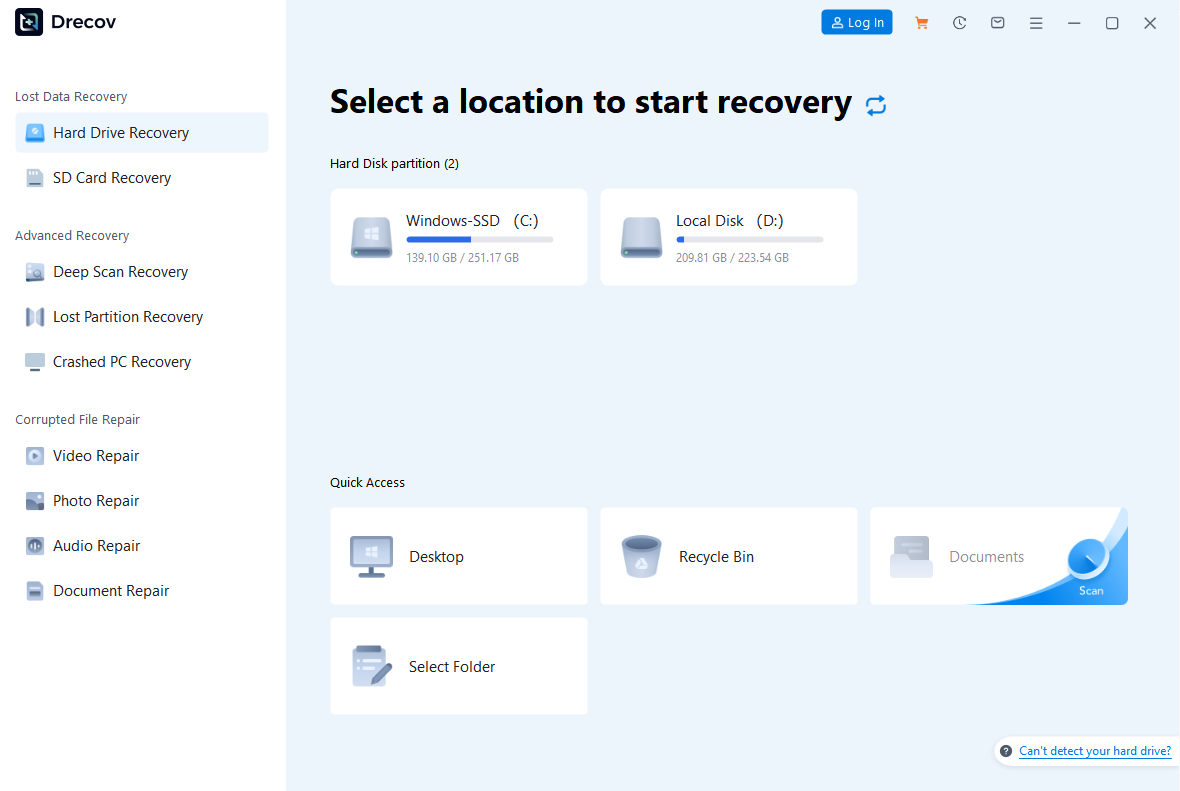
3️⃣Choose Scan Mode: Use Quick Scan for recent data loss (e.g., accidental deletion within 24 hours)—it takes 5-10 minutes and quickly finds recoverable files.Use Deep Scan for complex scenarios (e.g., formatting, RAW drive, partition loss)—it scans every sector of the hard drive and recovers up to 95% of lost data.
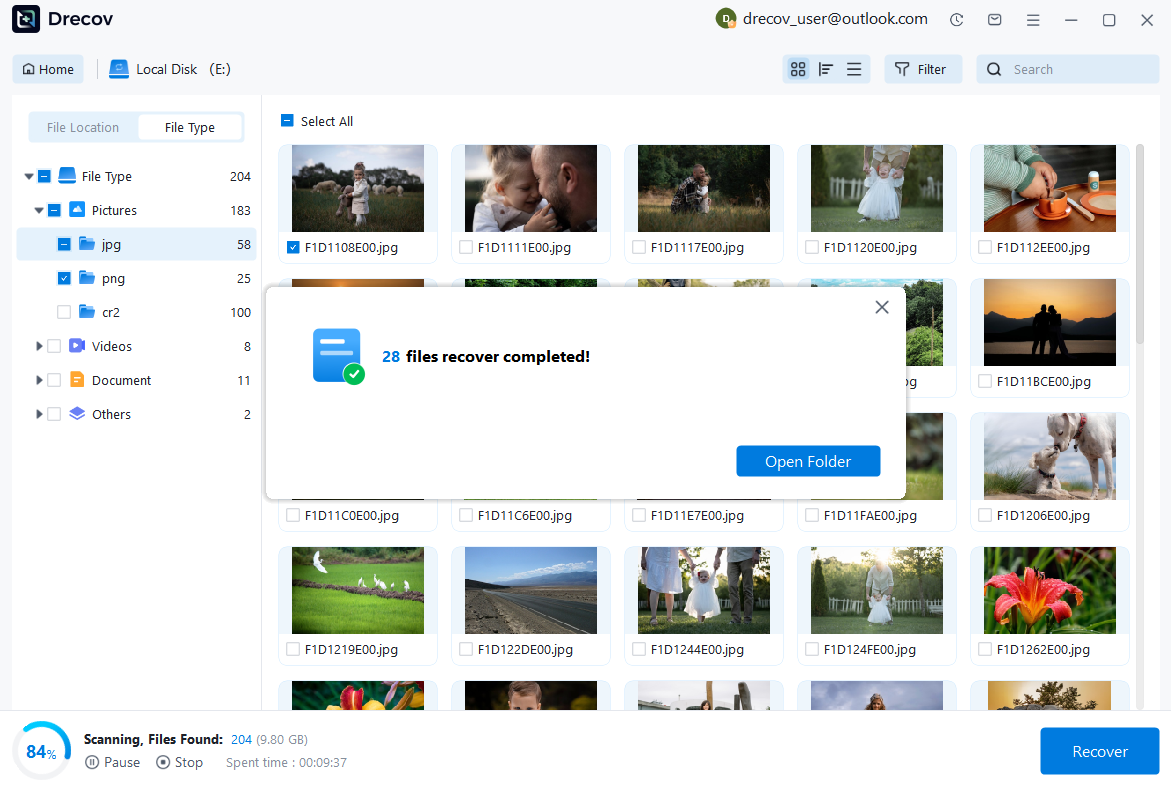
4️⃣Preview and Recover: After scanning, preview files (supports Word, photos, videos, etc.) to confirm their integrity. Select the files you need, then choose a safe storage path (external drive or other partition) and click “Recover.”

Why Choose PandaOffice Drecov? It offers free scanning and file preview—you only pay if you’re satisfied with the recoverable results. Additionally, we have an exceptional customer support team and technical team that will address your specific questions and provide tailored solutions.
Method 2: Use Built-in System Tools (Only for Simple Scenarios)
Windows and Mac have built-in tools for basic data recovery, but they only work if you’ve enabled backup features in advance. They’re free but have strict limitations.
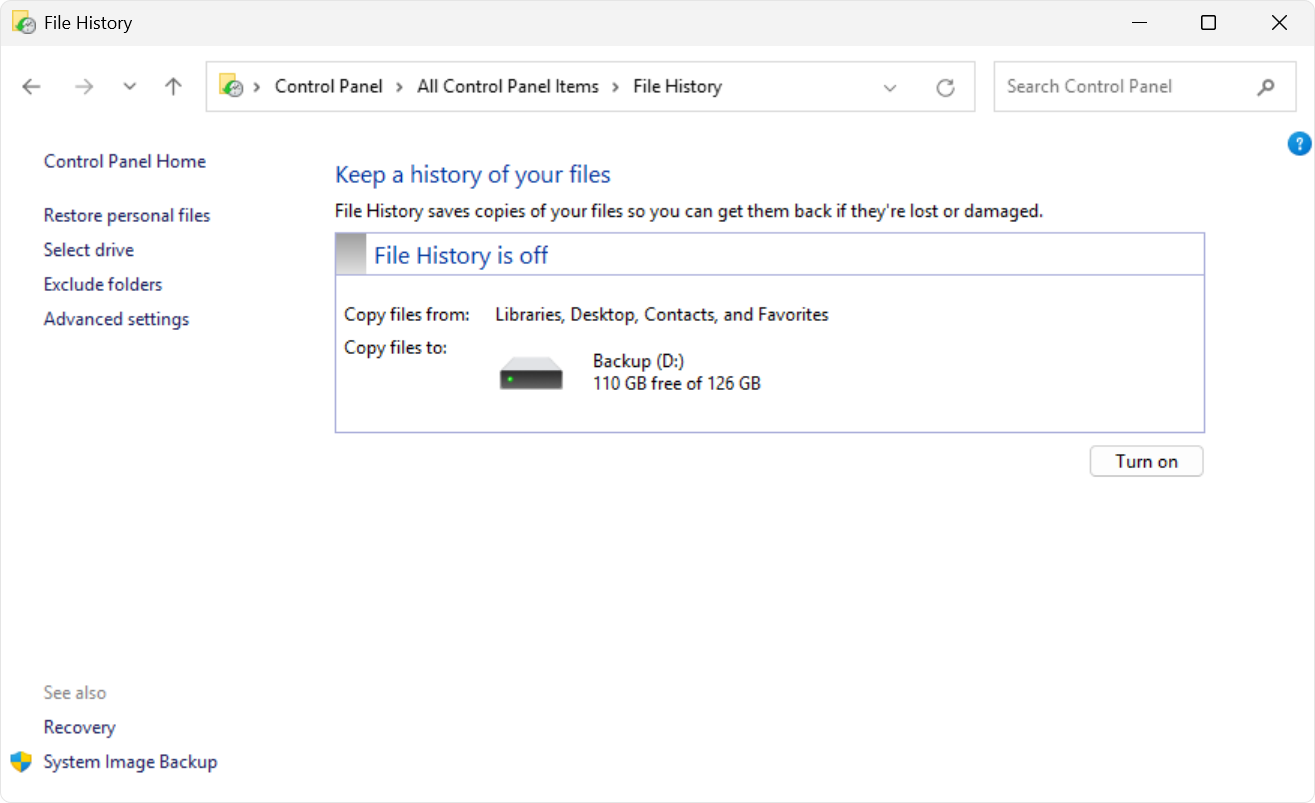
- Windows: File History: Go to “Control Panel > File History > Restore personal files.” This only works if you’ve set up File History to back up your internal hard drive before data loss.
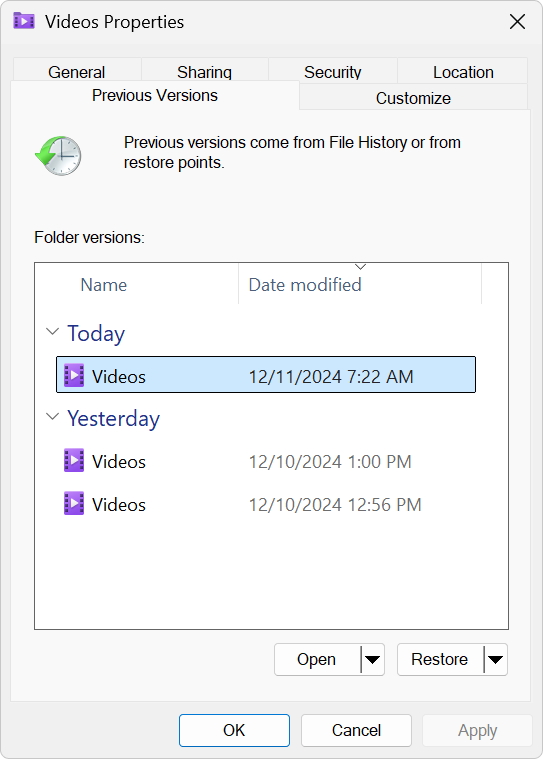
- Mac: Time Machine: Connect the Time Machine backup drive, open the folder where the lost files were stored, and use the “Time Machine” icon to browse previous versions and restore files.
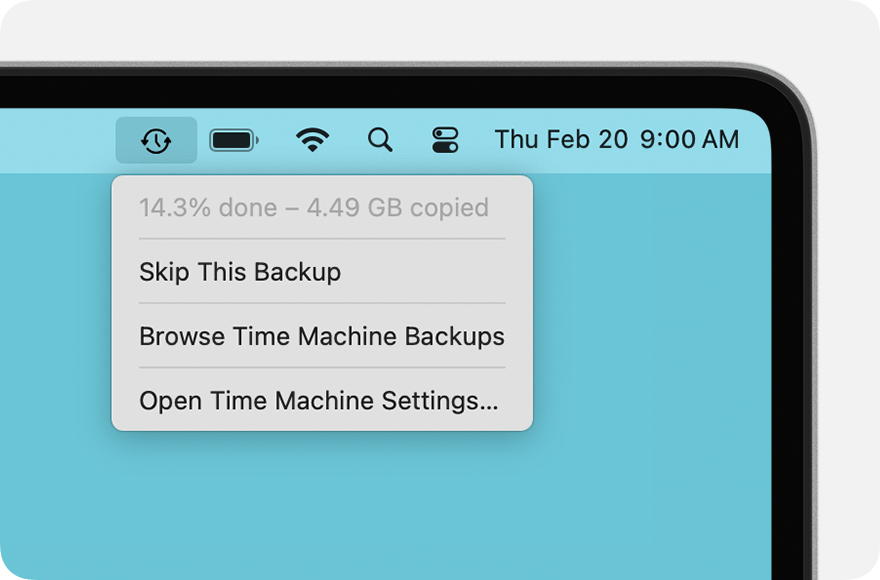
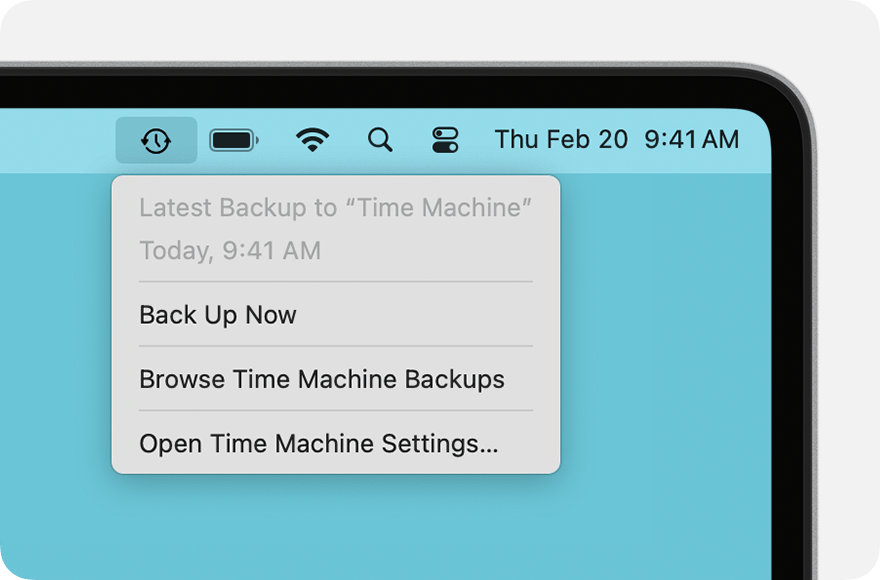
⚠️ Limitation: These tools can’t recover data from formatted drives or RAW partitions. If you haven’t enabled backups, skip this method.
Method 3: Professional Data Recovery Services (For Physical Damage)
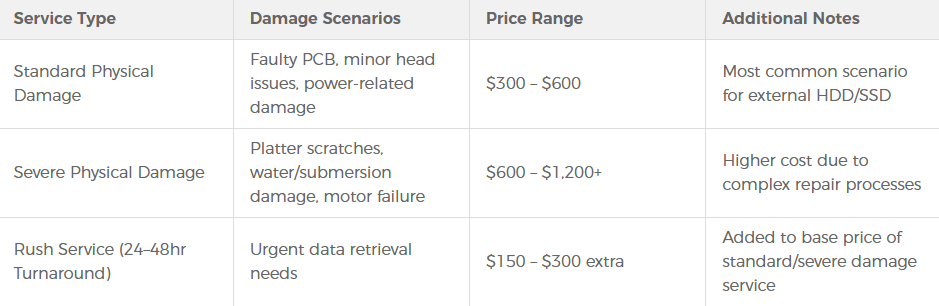
If your internal hard drive has physical issues (e.g., platter failure, circuit board damage) or stores high-value data (e.g., enterprise databases), contact a professional service. They use dust-free labs and specialized equipment to extract data from damaged drives.
Pros✅: Can handle physical damage; high success rate for irreplaceable data. Cons❌: Expensive ($200-$2000), takes 3-7 days, and risks data leakage. We recommend using PandaOffice Drecov first—if it fails, then turn to professional services.
3. How to Avoid Data Loss from Internal Hard Drive
Preventing data loss is easier and cheaper than recovering data. Follow these 4 tips to protect your internal hard drive data:
Tip 1: Use Google Drive/Microsoft OneDrive for Pre-Backup
Leverage the automatic backup features of Google Drive or Microsoft OneDrive to set up daily/weekly scheduled sync for important files on your external hard drive. The system will automatically back up data to the cloud or a designated local storage location, creating data redundancy. Even in case of accidental deletion, formatting, or other issues, you can directly restore files with one click from the cloud drive’s “Version History” or “Recycle Bin”—no additional scanning required.
Tip 2: Use Your Internal Hard Drive Properly
- Avoid sudden computer shutdowns (especially during file transfers) to prevent file system corruption.
- Don’t fill the internal hard drive to full capacity—leave at least 10% free space to ensure smooth operation and reduce the risk of data fragmentation. [External Link: How to Defrag an Internal Hard Drive]
- Install reliable antivirus software to prevent virus/malware attacks that delete or encrypt data (e.g., ransomware).
Tip 3: Monitor Internal Hard Drive Health
Use tools like CrystalDiskInfo (Windows) or Disk Utility (Mac) to check your hard drive’s SMART status (Self-Monitoring, Analysis, and Reporting Technology). Pay attention to indicators like “Bad Sectors” and “Remaining Life”—if warnings appear, back up data immediately and replace the hard drive.
Tip 4: Separate System and Data Partitions
Partition your internal hard drive: use the C: Drive (Windows) or Macintosh HD (Mac) only for the operating system and software, and store personal data (documents, photos) on other partitions (e.g., D: Drive). This way, even if you need to reinstall the system after a crash, you won’t erase your data.

4. Common FAQs About Data Recovery from Internal Hard Drive
Q1: How long does internal hard drive data recovery take?
The recovery time depends on the scan mode and hard drive capacity: A quick scan for a 1TB hard drive takes 5-30 minutes, while a deep scan takes 1-3 hours. PandaOffice Drecov uses an optimized scanning algorithm, which is 30% faster than similar tools, saving you time.
Q2: Can data be recovered from a formatted internal hard drive?
Yes! Formatting only deletes file indexes, not the actual data itself. PandaOffice Drecov’s deep scan function can recover over 90% of files from the formatted hard drive, as long as no new data is written to it. It’s recommended to stop using the drive immediately after formatting to avoid data overwriting.
Q3: Is there a difference between SSD and HDD data recovery?
There is a significant difference, and the core lies in the SSD’s TRIM feature. This feature automatically identifies and erases unused data blocks. If TRIM is enabled, data is permanently deleted much faster, making recovery far more difficult. You require tools that support SSD characteristics for recovery, and you must perform operations before the drive permanently erases the data. HDDs rely on read heads to access data on platters, and their recovery success rate is more stable as long as there’s no physical damage to the platters. After data loss, SSD users should immediately shut down their computers to reduce the risk of data erasure.
Q4: Why can’t all lost files be recovered?
Common reasons include:
- Data has been overwritten by new files;
- The hard drive has severe physical damage;
- Files are encrypted by malware.
To improve recovery success, stop using the internal hard drive after data loss and use professional tools like PandaOffice Drecov for deep scanning.
Q5: Are free data recovery tools reliable for internal hard drives?
Most free tools have strict limitations: They can only recover small files (usually less than 500MB), support limited file formats, and often miss fragmented data. Some tools may even come with adware or pose data theft risks. PandaOffice Drecov offers a free preview feature—you can scan and preview all recoverable files for free, and pay only after confirming the results, avoiding blind investment.
5. Conclusion
Internal hard drive data recovery is no longer a complex issue—with PandaOffice Drecov, even beginners can retrieve lost files in a few simple steps. Whether it’s accidental deletion, formatting, or RAW partition issues, this tool provides a fast, secure, and cost-effective solution.
Remember: The best data recovery strategy is prevention. Use the automatic backup features of Google Drive and Microsoft OneDrive, monitor your hard drive’s health status in real time, and develop standardized usage habits to avoid data loss at the source.If you’re facing internal hard drive data loss, download PandaOffice Drecov now for a free scan—you may be just one click away from recovering your lost files!






