







Here is the comprehensive guide on how to recover deleted files in Windows, rewritten with a natural, native-level English flow. It maintains the required keyword density while ensuring the tone is professional yet accessible.
We’ve all been there. You’re clearing out old clutter to save disk space, or perhaps you’re moving files in a hurry, and suddenly—click—your most important project is gone. You frantically check the desktop, but it’s nowhere to be found. You empty the Recycle Bin out of habit, and then the cold realization sets in: “I actually needed that.”
At this moment, your heart sinks. But before you spiral into a panic, here is the good news: your data isn’t necessarily gone for good. If you act quickly, there is a very high probability you can get it back. So, if you are wondering how to recover deleted files in Windows, sit tight. This guide will walk you through the “why,” the “how,” and the professional tools that can save your day.
The Science of “Disappearing” Data: It’s Not Actually Gone
To understand how to recover deleted files in Windows, you first need to understand how Windows treats “deletion.”
Think of your hard drive like a massive library with a giant index at the front. When you delete a file (even when you empty the Recycle Bin), Windows doesn’t immediately grab an eraser and scrub the physical data off the disk. Instead, it simply walks over to the index and crosses out the entry.
The result? The space that the file occupied is now marked as “Available.” To the operating system, that space is now a blank canvas where new data can be written. However, until a new file actually comes along and overwrites that specific spot, the original data remains physically intact on the drive. It’s just “invisible” to you. This is exactly why data recovery is possible.
The Golden Rule: Stop Everything!
Before we dive into the steps, there is one non-negotiable rule you must follow. If you want to know how to recover deleted files in Windows successfully, you must stop using the computer immediately.
Since the “deleted” file is sitting in space marked as available, any new activity—downloading a Chrome update, saving a new Word doc, or even browsing the web—could trigger Windows to write new data over your lost file. Once that space is overwritten, the original data is destroyed forever.
📌 Pro Tip: Always recover files to a different drive (like a USB flash drive) than the one they were originally stored on to prevent accidental overwriting.
Proven Strategies: How to Recover Deleted Files in Windows
Method 1: The “Ctrl + Z” and Recycle Bin Basics
It sounds simple, but you’d be surprised how often the easiest fix is the one we overlook.
- The Undo Shortcut: If you literally just deleted the file, press
Ctrl + z. Windows will often undo the last action and pop the file right back.
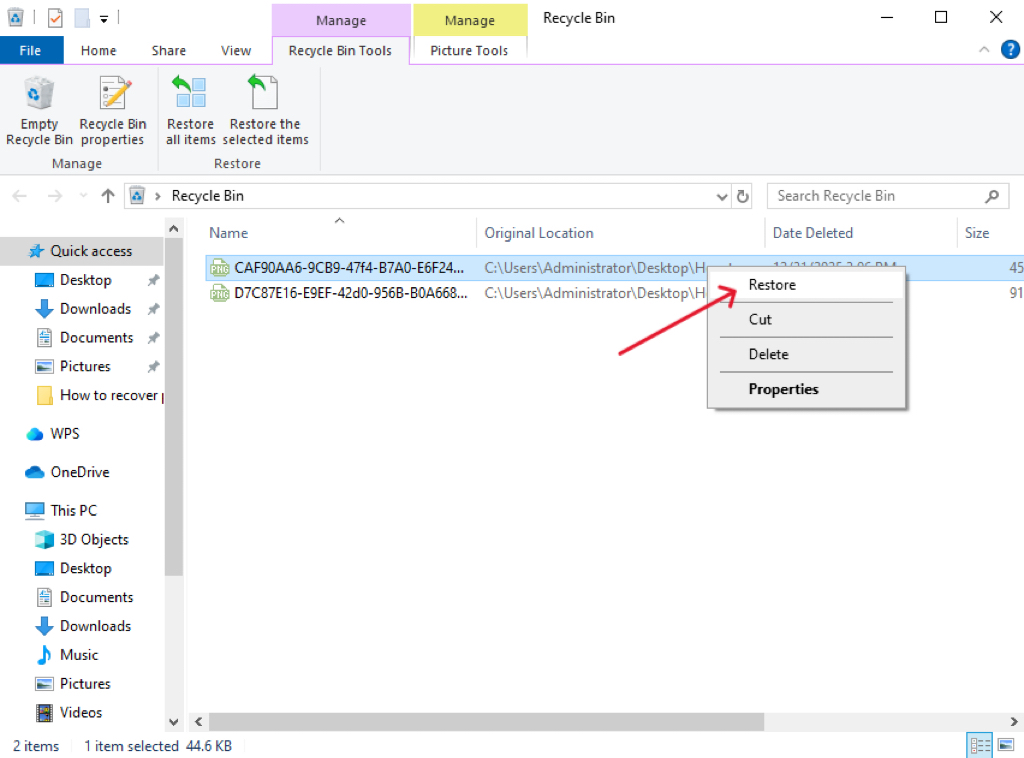
- The Recycle Bin: Open the bin, sort by “Date Deleted,” find your file, right-click, and select “Restore.”
Method 2: The Professional Powerhouse – PandaOffice Drecov
When the Recycle Bin is empty and the “Undo” command does nothing, it’s time to bring in the heavy hitters. For most users, the most reliable answer to how to recover deleted files in Windows is PandaOffice Drecov Data Recovery Files.
This software is designed for those who aren’t tech wizards but need professional-grade results. It bridges the gap between complex data forensics and a user-friendly interface.
Why choose PandaOffice Drecov?
- Versatile Recovery: Whether it’s an accidental deletion, a formatted drive, a crashed system, or a corrupted SD card/USB, this tool handles it all.
- Universal File Support: It recovers over 1,000 file types, including photos, videos, audio, ZIP files, and EXEs.
- Trusted & Secure: It works with industry giants like Microsoft Store, Trustpilot, TechBullion, and Sourceforge. Plus, it’s a local recovery process, meaning your private data never leaves your computer.
- Advanced Repair: It doesn’t just find files; it can even fix corrupted or “unopenable” files that other tools might miss.
Step-by-Step Recovery:
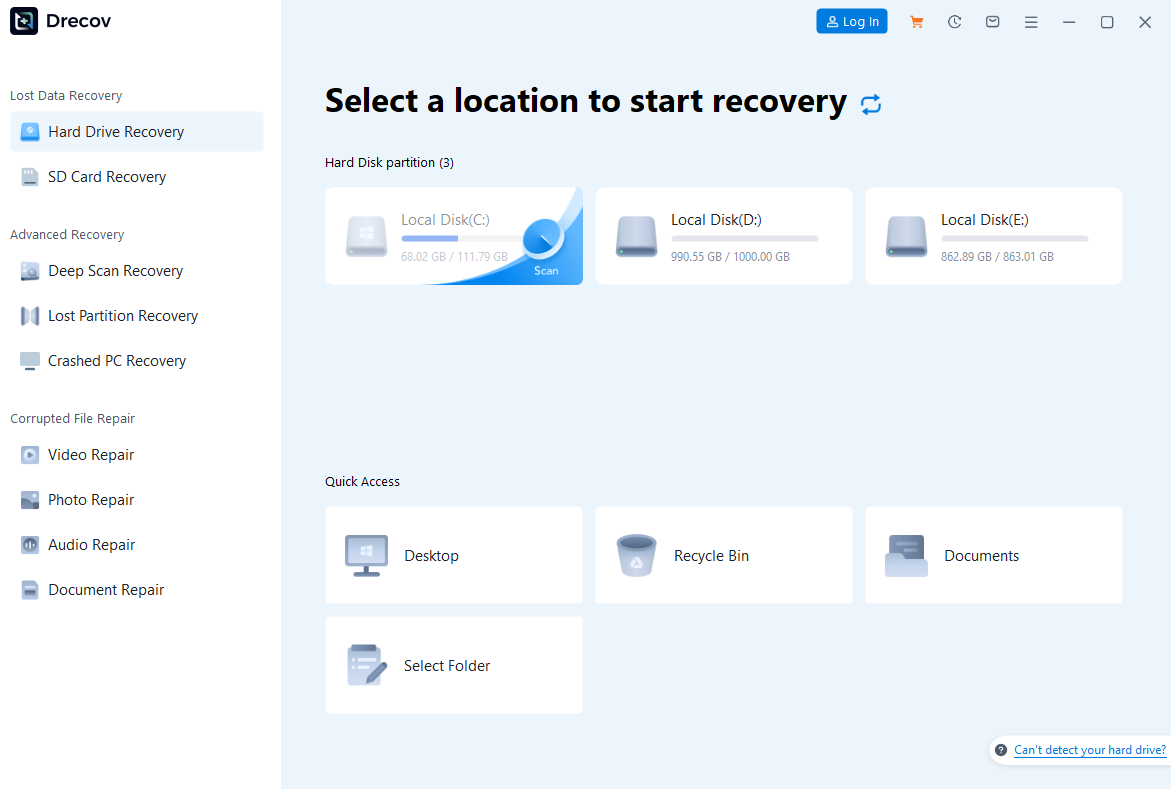
Select Location: Launch the app and pick the drive or folder where the file was last seen (e.g., Desktop or C: Drive).
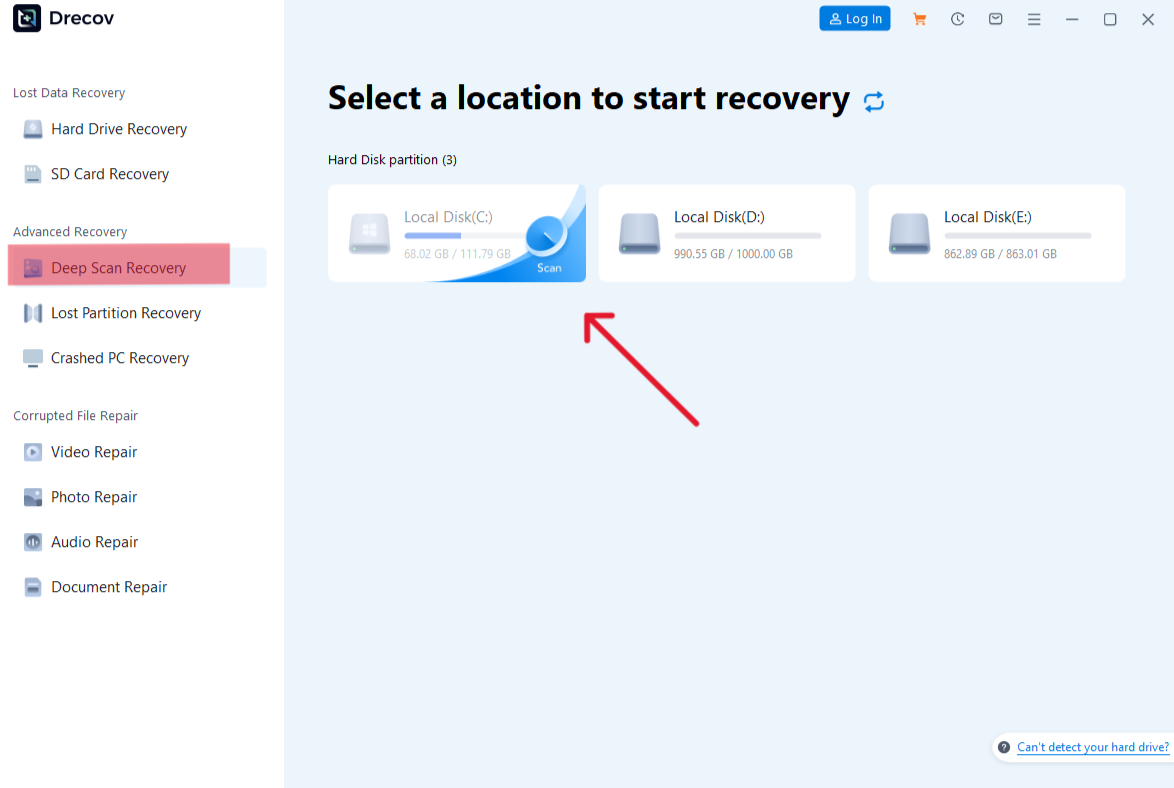
Scan and Preview: Let the software perform a deep scan. You can actually preview files (like looking at a photo or reading a document snippet) before you commit to recovering them.

Recover and Save: Select your files and hit “Recover.” Remember: Save them to an external drive or a different partition!
Method 3: Restoring via “Previous Versions” (Shadow Copies)
Windows has a built-in “time machine” feature called Shadow Copies.
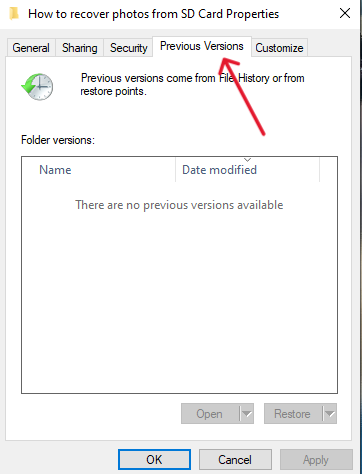
- Navigate to the folder that used to contain the file.
- Right-click the folder and select “Restore previous versions.”
- If you have System Protection or File History turned on, you’ll see a list of older versions of that folder. Pick one, click “Open” to check the contents, and then “Restore” to bring it back.
Method 4: The Techie Route – Windows File Recovery (CMD)
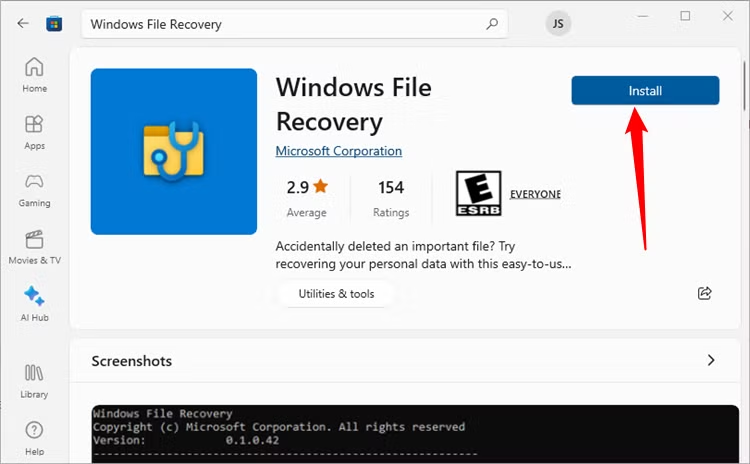
If you are comfortable with a command-line interface, Microsoft offers a free tool called Windows File Recovery in the Microsoft Store. It’s powerful but lacks a visual interface, meaning you’ll need to type specific strings like winfr source-drive: destination-drive: [/mode] [/switches].
🚨 Operation Warning:
Windows File Recovery is a purely command-line-dependent tool, which means the barrier to entry is extremely high. It has no graphical interface, and all operations (selecting drives, choosing recovery modes, specifying file types and paths) must be performed by entering specific code commands.
- Mode Selection is Crucial: WinFR offers four recovery modes (Default, Segment, Signature, Extensive). You must accurately determine which mode to use based on your file system (NTFS, FAT/exFAT) and when the file was lost. If the wrong mode is selected, the scanning efficiency will be extremely low, or it may fail to find the files altogether.
- Path Must Be Precise: You need to accurately input the complete path and file name format for the file(s) you want to recover. For instance, recovering all documents might require inputting
/n *.docx, while recovering a specific file requires/n \Users\YourName\Documents\lostfile.pdf - No Real-Time Preview: Unlike professional third-party tools, WinFR does not offer a real-time preview of file content during the scanning process. You must wait for the entire recovery process to finish before checking the destination folder to see if the files were successfully retrieved and are intact.
Therefore, if you are not familiar with the Command Prompt, or if your data loss situation is complex, we strongly recommend using a professional tool with a graphical interface and preview features, such as Method 2 (PandaOffice Drecov), to avoid accidental operational errors that could lead to secondary overwriting and the complete loss of the chance to recover your files.
Method 5: For Advanced Users — Recovering Files via the CMD Command Line
If your files disappeared because their attributes were maliciously modified (for example, after a virus infection that hid your files), you can try using the Command Prompt.
Press Win + R, type cmd, and press Enter.
Enter the command chkdsk X: /f (replace X with your drive letter) and press Enter to fix disk errors.
Then enter attrib -h -r -s /s /d X:\*.* and press Enter.
This command attempts to remove the hidden, read-only, and system attributes from all files, allowing the “hidden” files to become visible again.
Wrapping Up: Prevention is Better Than Cure
Knowing how to recover deleted files in Windows is a life-saving skill, but the best strategy is never needing it in the first place.
- Cloud Sync: Use OneDrive or Google Drive for your most critical work.
- The 3-2-1 Rule: Keep 3 copies of your data, on 2 different media types, with 1 copy off-site (cloud).
- Think Twice: Before hitting
Shift + Delete(which bypasses the Recycle Bin), take a breath.
By following the steps above—especially using a dedicated tool like PandaOffice Drecov Data Recovery Files—you can turn a potential data disaster into a minor hiccup.
Conclusion
In conclusion, while attempting to recover accidentally deleted files can be a challenging and often time-consuming process, the good news is that with the right approach and a little patience, retrieving lost data is usually possible. Tools like PandaOffice DRecov Data Recovery Files significantly simplify the task, even in complex scenarios. Nevertheless, for any mission-critical data, the most reliable and cost-effective strategy is proactive planning: always maintain a robust backup schedule to avoid the frustration and potential high costs associated with emergency data recovery efforts.






