







Losing valuable video files can cause immense frustration, especially when those files contain irreplaceable personal memories or critical work data. Whether you accidentally tapped the delete button, experienced a system crash, or formatted your storage card by mistake, you need to know exactly how to find deleted videos. Fortunately, modern data storage mechanics mean that your files are rarely gone instantly. When a file is erased, the operating system simply marks its storage sector as available space for new information.
Meanwhile, your original video remains intact until new data overwrites it. This guide delivers clear, highly effective techniques to scan, locate, and restore your missing media files safely. We will explore native recovery options alongside specialized professional tools like PandaOffice Drecov data recovery software to maximize your chances of a successful rescue.
Understanding the Basics of How to Find Deleted Videos
Understanding how digital storage operates helps clarify why recovery remains possible. When you perform a standard deletion, your operating system hides the file path rather than shredding the actual video data. Consequently, the bits and bytes comprising your video remain dormant on the storage drive.
However, users face serious challenges during this phase because active devices constantly write new temporary logs, cache items, or app updates. This continuous background activity can overwrite the hidden media files permanently.
To solve this issue, users need specialized file signatures to identify fragmented video formats like MP4, MKV, and MOV. Professional retrieval utilities like PandaOffice Drecov data recovery software resolve these core challenges. The tool performs deep sector-level scans to rebuild broken file indexes automatically.
Whether your data loss stems from an unexpected system bug, a damaged SD card, or an OS update failure, PandaOffice Drecov provides comprehensive recovery paths. It offers specialized configuration modules designed for a vast array of common modern storage conflicts. For instance, you can reference specific storage configuration tactics like the PandaOffice Steam license setup guide to understand file system permissions, deploy external hardware safely using the PandaOffice ISO USB guide, or resolve local data block transfer issues by studying the PandaOffice ChatGPT download error fix.
⚠ Warning: Install it on a drive different from the one where your data was lost to prevent overwriting.
Solutions to How to Find Deleted Videos Issues
Method 1: Check the Recently Deleted Folder
Most modern smartphones and desktop environments feature a temporary holding zone for discarded media files. This built-in safety net keeps deleted videos for a specific duration, which is typically 30 days.
- Open your native Gallery or Photos app.
- Navigate directly to the Albums tab.
- Scroll down and select Recently Deleted or Trash.
- Browse the temporary thumbnails to locate your missing items.
- Select the required video files and tap Restore to return them to their original folders.
Method 2: Recover Videos via PandaOffice Drecov Data Recovery Software
When native trash bins are completely empty, using professional recovery software becomes mandatory. PandaOffice Drecov data recovery software utilizes sophisticated file scraping algorithms to restore lost videos efficiently.
⚠ Warning: Install it on a drive different from the one where your data was lost to prevent overwriting.
Follow these exact steps to deploy the professional tool:
1.Connect Device and Select Location
Connect your Android phone or external SD card to the computer. Launch the software, locate the device panel, and select the specific drive partition containing your deleted videos.

2.Execute Deep Scan
Click the Scan button to initiate the process. The software will run a quick scan followed automatically by an intensive sector-by-sector deep scan to rebuild fragmented video structures.

3.Filter and Preview Files
Use the file type filter sidebar to select Videos. Double-click the recovered video entries within the preview window to verify their visual integrity before extraction.
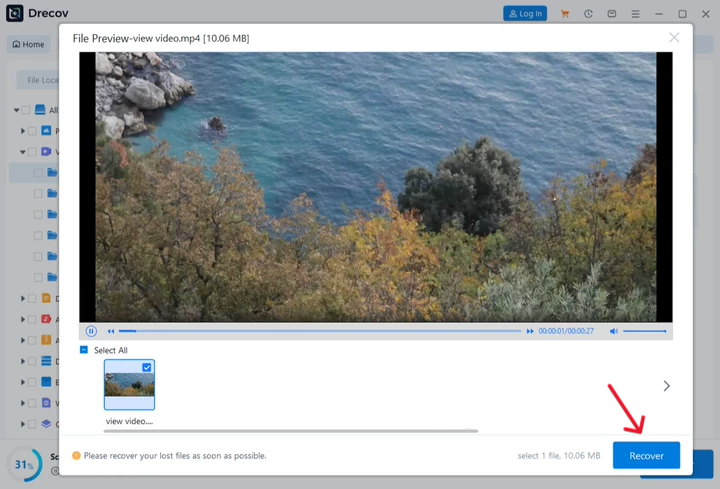
4.Export and Save
Check the boxes next to your desired files and click the Recover button. Save these restored video files directly to your secure computer desktop or an external backup drive.
Smart Backup and Manual Fixes to Access Deleted Videos
If your files are no longer in the native trash folder, you can still easily learn how to find deleted videos on your phone or computer using alternative data extraction pathways. These methods leverage secure cloud architectures or direct physical hardware connections to retrieve your missing media files.
Cloud Storage Backups
Automated cloud ecosystems frequently store background copies of your mobile media. Users can check Google Photos, Microsoft OneDrive, or Dropbox. Log into your cloud account via a desktop web browser, review the independent cloud trash repository, and download the files back to local disks.
Manual Command Line Extraction
Advanced users can connect their phones using the Android Debug Bridge tool via a desktop console. This process reads raw storage blocks directly. However, it requires root access and complex commands that might damage active system files if handled incorrectly.
Comparison of Recovery Pathways
| Recovery Strategy | Success Rate | Technical Difficulty | Risk Level |
| PandaOffice Drecov Software | Extremely High | Low | Minimum risk of data overwrite |
| Cloud Storage Backup | Moderate | Low | Dependent on pre-existing sync |
| Command Line Extraction | High | Extremely High | High risk of system bricking |
Tips and Best Practices
To achieve the best possible outcomes when figuring out how to recover videos, you must observe strict device protocols immediately following data loss.
- Cease Device Activity Immediately: Stop recording new footage, downloading large applications, or running heavy system updates. This minimizes the risk of background processes overwriting unindexed media sectors.
- Toggle Airplane Mode: Turn on airplane mode to cut off incoming network data streams, cache accumulation, and automatic app synchronizations.
- Avoid Local Installation: Never download mobile recovery applications directly onto the impacted smartphone. Doing so can overwrite the deleted video files waiting in your free storage space sectors.
- Maintain Desktop Recovery Habits: Always perform data salvage procedures through a stable desktop computer connection using reliable tools like PandaOffice Drecov data recovery software.
Frequently Asked Questions
How do you recover deleted videos on Android?
You can retrieve deleted files by checking the device Google Photos Trash folder first. Furthermore, if the video has been permanently purged, connect your smartphone to a desktop PC and run a deep scan using PandaOffice Drecov data recovery software to safely reconstruct the lost file fragments.
How to access deleted videos on Android?
Accessing deleted videos requires interacting with unallocated storage sectors. You can check internal app caches or use desktop recovery platforms to bypass the standard Android file system blocks and read the underlying flash storage directly.
How to recover lost videos on Android?
To recover lost videos on Android devices safely, you should immediately turn off internet access to preserve the storage blocks. Following that, utilize a hardware data link along with PandaOffice Drecov data recovery software to locate, filter, and extract your missing media files.
How to find deleted videos on Android?
Open the standard Files application on your Android phone and check the hidden files toggle. In addition, look into cloud account backups linked to your device, or employ professional data recovery systems if the files were wiped during a factory reset.
Is it possible to use recuperar videos borrados del celular methods successfully?
Yes, local language search terms like recuperar videos borrados del celular follow identical technical principles. Regardless of terminology, successful video retrieval relies entirely on deploying efficient scanning utilities before new user files overwrite the old data blocks.
Conclusion
Finding lost media files is entirely achievable when you act quickly and use the right tools. Standard system bins offer a quick initial recovery option, but professional utilities like PandaOffice Drecov data recovery software provide the most reliable way to restore videos lost to deep system errors or formatting issues. Moving forward, you can protect your media by setting up automated cloud backups and keeping reliable desktop file tools ready for emergencies.






