







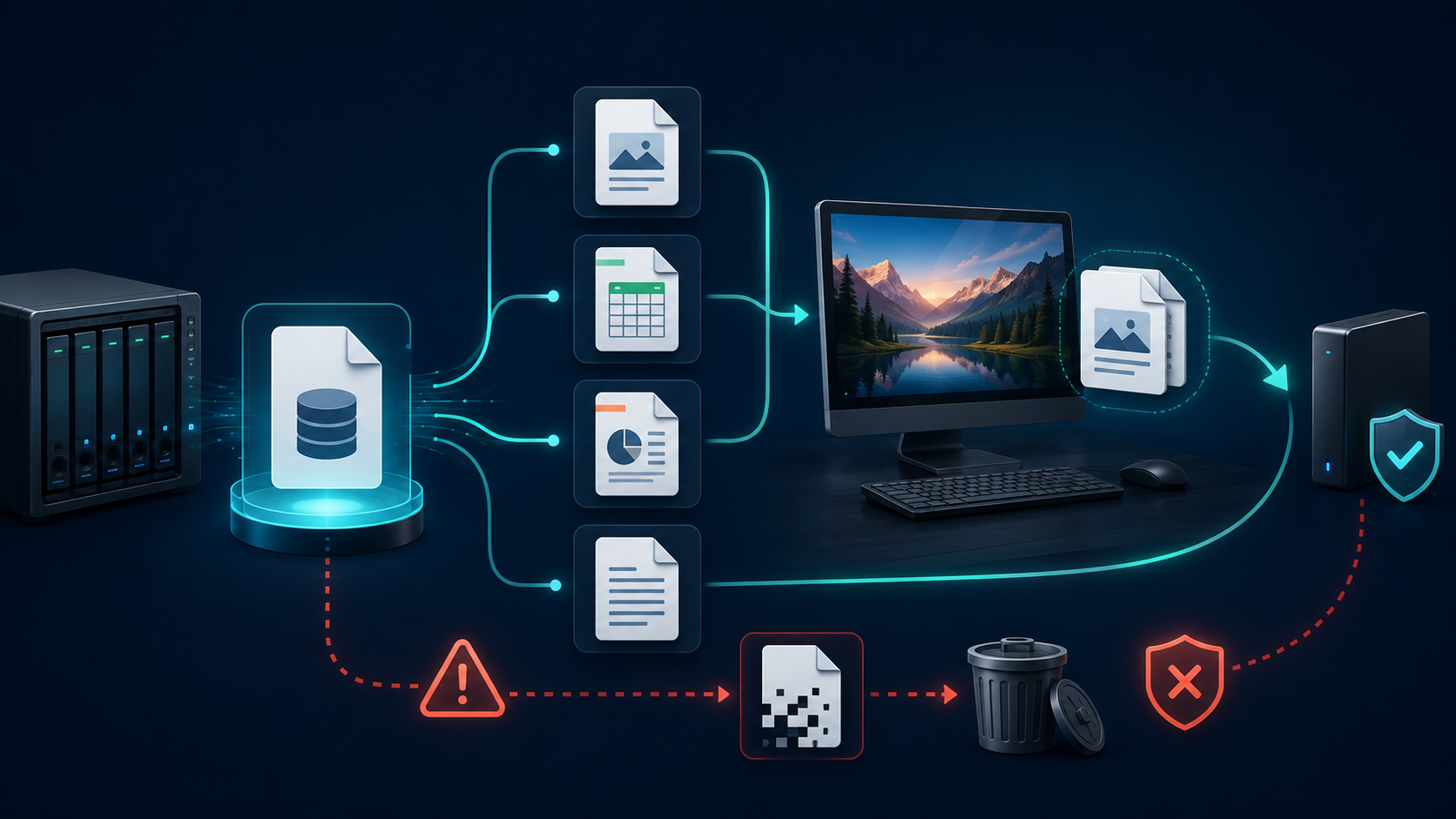
BAK is a generic backup extension used by many applications, not one universal format. Identify the creating program, duplicate the file, inspect its header, and rename or import only a working copy.
A .bak extension describes a backup filename convention, not a storage-hardware fault. Start by identifying the application and original file type. The drive-health advice below applies only if the disk holding the backup is itself unreadable or unstable.
Software can repair some logical structures, but it cannot repair heads, motors, platters, flash chips, or damaged electronics. Clicking, scraping, overheating, intermittent detection, or a changing capacity are stop signs rather than invitations to run more scans.
Quick Answer
For an accessible BAK file, preserve an unchanged copy and identify its creating application before choosing Open, Import, or Restore. If the storage device itself has read errors, follow the separate device-preservation guidance before attempting file inspection.
What the Symptom Really Means
A RAW volume, access error, slow read, bad-sector warning, or write failure does not identify one cause by itself. Rule out cable, enclosure, power, permissions, and free-space problems before changing the file system. Health data and logs are evidence, not a guarantee.
Protect the Source Before Repair
Stop formatting, initialization, installation, downloads, and unnecessary writes. Record the device model, serial number, capacity, partition layout, error message, and encryption state. Keep recovery keys available and choose a different healthy physical disk for output.
Free System Recovery Options to Try First
Method 1: File History or Previous Versions
In Windows, right-click the original folder and check Restore previous versions, or open File History and browse older copies. This is free but works only when File History, backup, or a usable shadow copy existed before the loss. Restore to a different location when possible, then open the files to verify them.
Method 2: Windows Backup or Time Machine
If a Windows system image, Backup and Restore set, or macOS Time Machine backup exists, browse that backup for the needed files before repairing the source. Do not restore an entire image over the affected disk until important files have been copied elsewhere. Backups cannot include changes made after their last successful run.
Safe Diagnostic Order
- Disconnect unnecessary storage and identify the affected device by model and capacity.
- Try one known-good cable, port, enclosure, or power source when applicable.
- Inspect partitions and health information without formatting or repairing.
- Copy readable critical files immediately; image a stable but questionable drive when possible.
- Use recovery software for missing files and save results to another physical disk.
- Only after verification, use a documented logical repair or replace the device.
Recover Files Before Repair
File-system repair may reconnect, rename, truncate, or remove damaged entries. That is why recovery comes first. Install Drecov on a healthy volume, scan the exact source, preview representative files, and restore selected results to a separate destination.
Recover Files with Drecov
Step 1: Select the source
Open Drecov from a healthy Windows drive. Select the affected disk, partition, USB device, or SSD only after confirming its model and capacity.

Step 2: Scan and filter
Run the initial scan. Use Deep Scan only when expected files are missing and the hardware remains stable. Filter by path, type, name, size, or date.

Step 3: Preview and save elsewhere
Preview supported files, select what you need, and recover to a different physical disk. Open several restored files before repairing or reusing the source.

Recovery, Repair, or Replacement?
Use diagnostics to identify the device and collect evidence. Use recovery software to copy missing files. Use CHKDSK or another file-system repair only after backup because repair switches write metadata. Replace a device that continues to report errors. Choose a professional service for physical symptoms or irreplaceable data.
Mistakes to Avoid
- Formatting a RAW or unreadable volume before recovery.
- Running CHKDSK repair switches before copying important files.
- Opening a hard drive outside a qualified clean environment.
- Installing recovery software on the affected volume.
- Saving recovered files back to the source.
- Repeating scans on a clicking or disconnecting drive.
Frequently Asked Questions
Can software fix physical damage?
No. Physical problems require appropriate professional equipment and handling.
Should I format when prompted?
Not before recovery. Formatting writes a new file-system structure.
Where should recovered files go?
To a different healthy physical disk.
Does a successful repair prove the files are intact?
No. Open representative recovered files and maintain backups.
Related recovery guides and official reference
Continue with Fix a Corrupted Drive Without Losing Data and How Do I Repair a Hard Drive? Safe Decision Guide. Before using repair or formatting commands, check the official guidance: official platform documentation.
Final Verdict
BAK Format: Open Backup Files and Recover Safely. The safe order is identify, protect, recover, verify, then repair or replace. Keeping those stages separate avoids turning a manageable logical problem into permanent data loss.
Open a BAK file with the application that created it
Look at the filename, neighboring files, original folder, and the application that last used it. A document.docx.bak may be a document backup; Bookmarks.bak can be browser data; a database backup may use the same extension for an entirely different binary structure. There is no single BAK-to-PDF or BAK-to-ZIP conversion.
- Document backup: duplicate the file, then use the originating application’s Open or Restore function. Rename only the copy when the original document type is known.
- Browser backup: preserve the profile first and follow that browser’s bookmark-recovery procedure.
- SQL Server backup: use SQL Server’s backup inspection and restore tools, not Word or an archive viewer. Restore to a separate test database with appropriate permissions.
SQL Server’s VERIFYONLY checks backup readability and completeness but does not validate every internal data structure. An unfamiliar BAK file from an untrusted source should not be executed. Keep the original until the restored content has been checked.
Further guidance: Microsoft SQL backup statements
Identify the backup by its filename and originating application
| Clue | Likely source | Safe next step |
|---|---|---|
| Bookmarks.bak inside a Chrome or Edge profile | Chromium bookmark backup | Close the browser and preserve the profile before testing a backup copy. |
| A .bak beside a matching .dwg drawing | Possible AutoCAD drawing backup | Confirm the project context, duplicate it, and test the copy as .dwg in the compatible application. |
| .wld.bak or .plr.bak in a Terraria save folder | World or player backup | Preserve the current save, then follow that game version’s restore procedure on a copy. |
| A BAK produced by SQL Server or MobileTrans | Application-specific backup container | Use that product’s Restore interface and inspect the selected backup before replacing data. |
These are identification clues, not proof from the extension alone. Confirm the creating application, neighboring original file, folder, and backup date before renaming. A random BAK is not converted by changing its suffix to PDF or ZIP. If a guessed application reports an invalid format, stop guessing extensions and recheck the source. Keep the original backup unchanged and test only copies.
Further guidance: Microsoft SQL restore statements






