







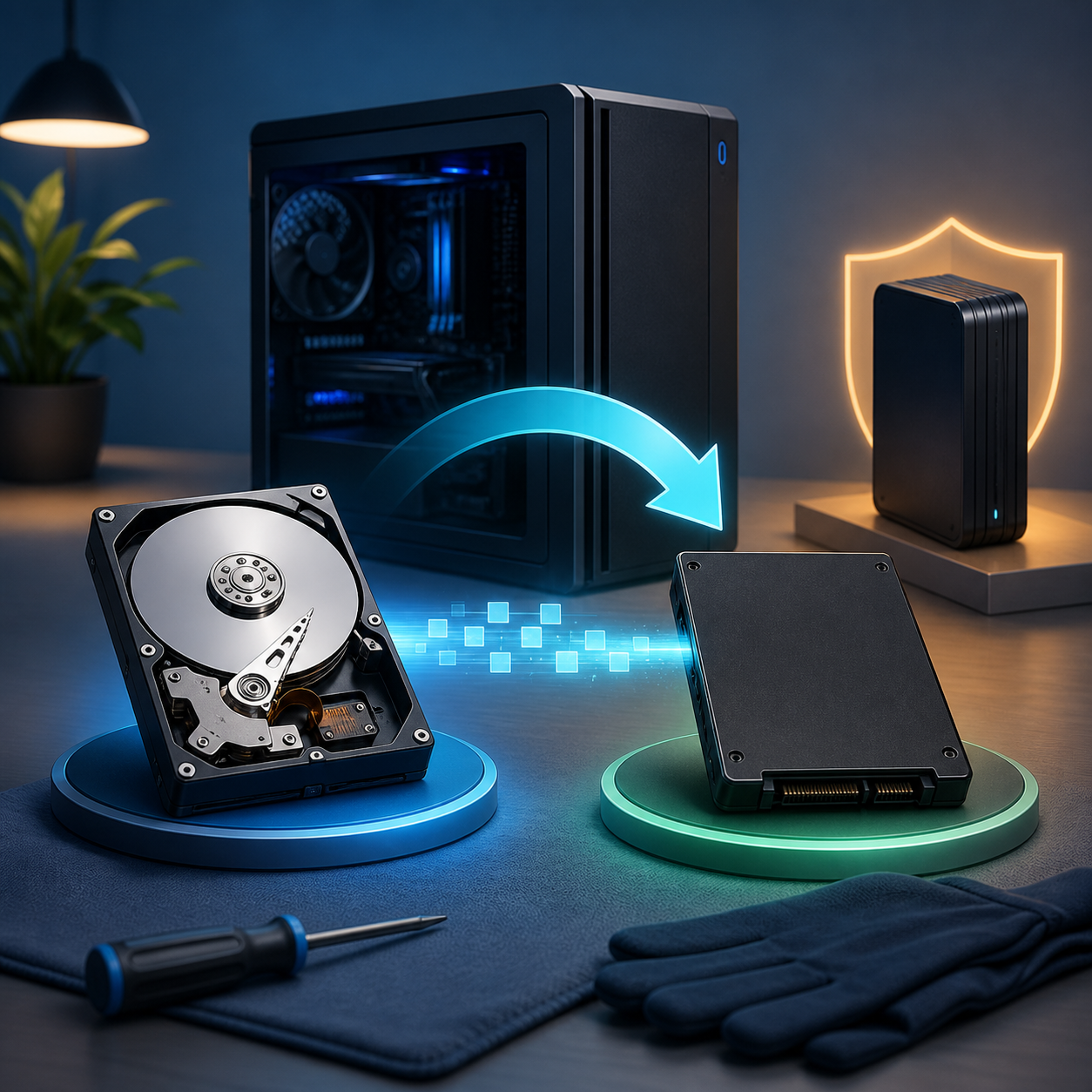
The safe answer for acronis disk clone is to identify the source and destination by model and capacity, protect the only good copy, and verify the result before changing boot order or deleting anything. A clone is useful for migration, but it is not a versioned backup: corruption, deletion, or malware present on the source can be copied too.
This guide covers Acronis cloning, the checks that prevent source–target mistakes, and recovery steps when files are already missing. The destructive boundary is clear: any operation that initializes, formats, repartitions, or overwrites the destination must wait until its identity and contents are confirmed.
Acronis Disk Clone: Fixes, Checks, And Recovery Steps: Quick Decision
- Need a bootable replacement now: use a verified whole-disk clone and test the new disk independently.
- Need historical versions: use scheduled file backup or disk imaging with retention, not a single clone.
- Source is unstable, clicking, disconnecting, or changing capacity: stop cloning and consider controlled imaging or professional recovery.
- Files are already missing: preserve the source and recover to a different healthy disk before migration.
Clone, Image, Backup, And Copy Are Different
A clone reproduces a disk layout on another disk. An image stores disk or partition data inside image files. A file backup preserves selected folders and can retain versions. A normal copy transfers visible files but may omit boot records, hidden partitions, permissions, or application state. Choose by restore goal, not by the word ‘backup’ in a product screen.
For acronis disk clone, write down the required outcome: boot this PC from a replacement disk, restore one deleted document, rebuild after ransomware, or archive a stable point in time. That sentence determines the correct method.
Preflight Checks Before Any Write
- Record source and destination model, serial number, capacity, connection, partition style, and encryption state.
- Open important source files and check SMART or vendor diagnostics without running repairs.
- Back up irreplaceable files separately before cloning whenever the source is healthy enough.
- Suspend BitLocker only when vendor guidance requires it; keep the recovery key available.
- Disconnect unrelated disks to reduce selection errors.
- Confirm the destination may be erased and is large enough for the selected mode.
- Use stable power and a direct connection; avoid loose hubs and sleep during the job.
Vendor And Platform Limits
Capabilities vary by edition and version. For example, current Acronis documentation notes restrictions involving dynamic disks, sector sizes, multiboot layouts, and boot mode. Clonezilla works from bootable media and expects careful device selection. Read the current official documentation for the exact build before you start.
Safe Workflow
- Create or test a separate backup of irreplaceable files.
- Connect the destination and identify both disks by model and capacity.
Checkpoint: verify source and destination
The source contains the authoritative data. The destination is the disk that may be overwritten. If the screen is ambiguous, cancel and disconnect one disk rather than guessing.
- Open Acronis True Image, choose the complete source disk, and select the intended destination.
- Review partition resizing, UEFI or BIOS mode, encryption, exclusions, and overwrite warnings.
Run And Monitor
Start only after the summary matches your written plan. Do not use the source for downloads or repairs during the operation. Stop if the source disconnects, clicks, becomes extremely slow, or reports a different capacity.
- Let the operation complete, save its log, and shut down before changing disk connections.
- Disconnect the old source for the first boot test; verify partitions, files, applications, and restart behavior.
Why A Successful Progress Bar Is Not Proof
Verification must answer the restore goal. Open representative documents, photos, archives, and videos. Compare folder counts and critical file sizes. For a system clone, boot with the old disk disconnected, restart again, and check Windows activation, BitLocker, recovery partitions, and application data. Keep the original unchanged until the new disk survives real use.
Recover Missing Files Before Repair Or Migration
Use PandaOffice Drecov only when needed files once existed on readable local storage and backups or versions do not provide them. Do not install recovery software on the affected source and do not recover results back to it.
- Connect the affected storage without formatting or initializing it.
- Open PandaOffice Drecov and select the exact source location.

- Run Quick Scan, then Deep Scan only if the medium remains stable.
- Filter results by path, type, size, date, and name.

- Preview representative files instead of trusting names alone.
- Recover selected files to another healthy disk and verify them before cloning or repair.

Common Failure Patterns
Destination Is Smaller
Compare used source space, required partitions, sector size, and tool support. Shrinking a filesystem is not the same as shrinking every partition safely. Remove dispensable data only after backup, or choose a larger destination.
Clone Completes But Will Not Boot
Check UEFI versus legacy mode, GPT versus MBR, boot order, Windows Boot Manager, controller mode, and whether the first test included both old and new disks. Do not immediately format the original.
Read Errors Or Freezes
Repeated retries can worsen a failing disk. Stop normal cloning when detection changes or hardware symptoms appear. A controlled image with error handling—or professional service—may preserve more than a consumer clone loop.
The Clone Is Not A Backup History
After migration, establish versioned backups to a separate device or location. Keep at least one offline or otherwise isolated copy and test restores periodically.
Practical Verification Checklist
- Original source remains unchanged and labeled.
- New disk boots or mounts without the source attached.
- Critical files open and sample hashes or sizes match where appropriate.
- All expected partitions and capacity are present.
- Encryption and recovery keys are documented.
- A second backup exists before the old disk is erased.
- The restore procedure has been tested, not merely configured.
Conclusion
Acronis Disk Clone: Fixes, Checks, And Recovery Steps is safest when the job begins with identity checks and ends with a real restore test. Treat every destination overwrite warning seriously, preserve the original until verification is complete, and use recovery software only for missing files on readable storage—not as a substitute for a healthy backup strategy.





