






Troubleshooting
This guide explains the meaning of troubleshooting and walks you through practical steps to identify, diagnose, and resolve common technical problems with ease.
TOP 4 Hot Articles
Top 4 hot articles will provide you reliable solutions to find crucial data with Drecov software.


Windows Stuck on Welcome? Diagnose the Sign-In Stage First
Separate a slow sign-in from a frozen profile, service, update, or storage fault. Use controlled account tests and protect local files before reset or reinstall.
Find a solution that suits your case
Here are file recovery guidelines for all types of files. Just choose the most suitable situation for you to retrieve your data

USB Composite Device Driver Error: Find the Failed Function
Read more →: USB Composite Device Driver Error: Find the Failed FunctionIdentify which interface of a multifunction USB device failed, compare connections and Device Manager states, reinstall only relevant drivers, and recover data only from stable storage.


System Interrupts in Task Manager: Trace the Hardware Signal
Read more →: System Interrupts in Task Manager: Trace the Hardware SignalSystem Interrupts represents time Windows spends servicing hardware signals and deferred work. Diagnose persistent CPU use by correlation rather than trying to end it. The article also defines verification and safe stopping points.
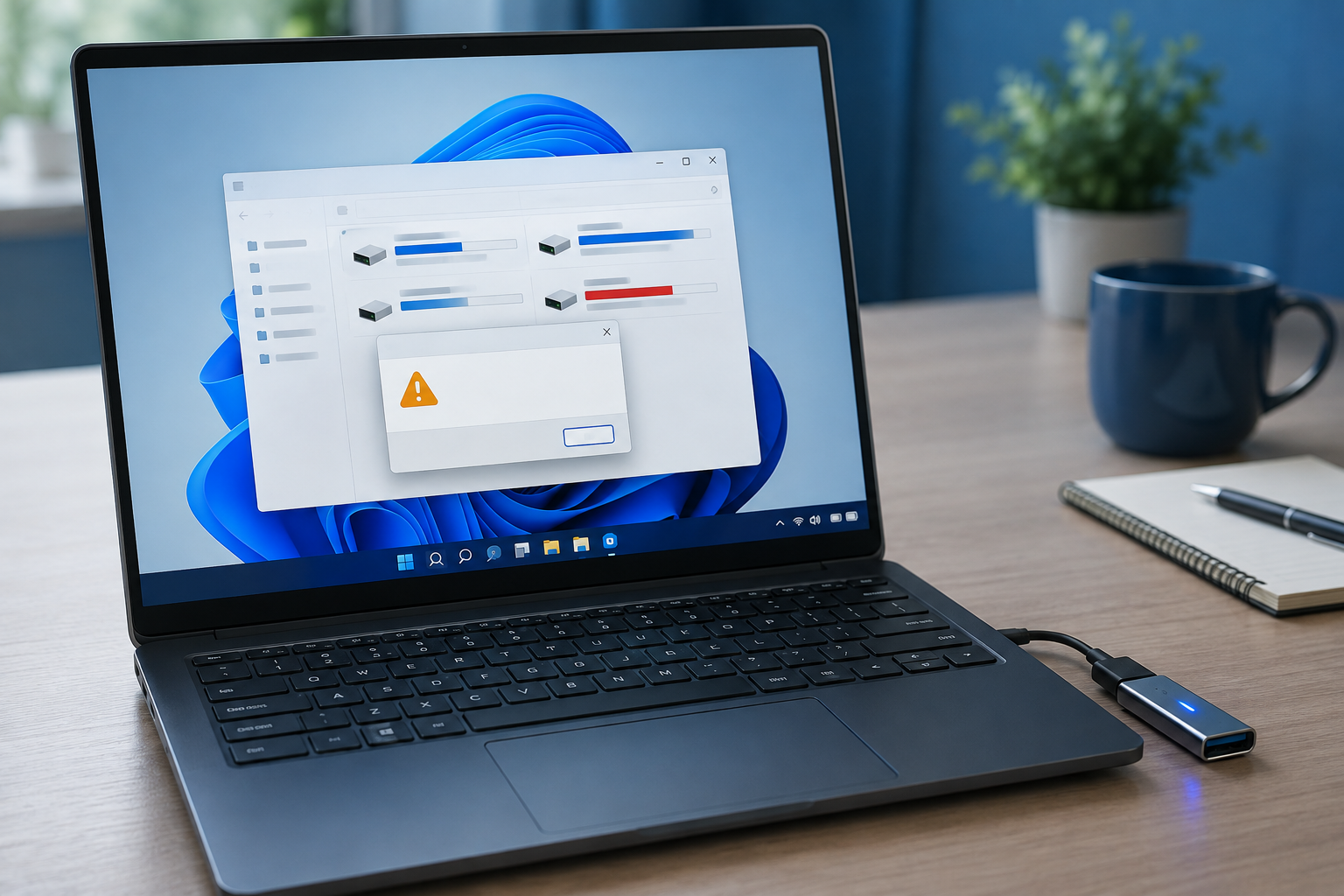
Windows Unable to Format USB? Save Files Before Retrying
Read more →: Windows Unable to Format USB? Save Files Before RetryingSeparate write protection, file-system damage, and hardware instability. Recover valuable files before formatting, then test whether the USB is reliable enough for continued everyday use.

Windows Update Crashing Computer? Protect Files Before Rollback
Read more →: Windows Update Crashing Computer? Protect Files Before RollbackConfirm when crashes began, preserve accessible files, separate driver and quality updates, then use the least disruptive rollback and verify stability under the original workload.

atmfd.dll Not Found? Avoid Unsafe DLL Download Sites
Read more →: atmfd.dll Not Found? Avoid Unsafe DLL Download SitesTreat atmfd.dll as a caller-specific component failure. Preserve important project data, reject random DLL downloads, and use only signed Windows or application repair sources.

Excel Not Saving Formatting? Test the File Type Before Rework
Read more →: Excel Not Saving Formatting? Test the File Type Before ReworkFind why Excel styles disappear after reopening. Preserve two workbook copies, test the actual file format, isolate rules and styles, and restore an earlier version if needed.


The Audio File Format Is Unsupported: Codec or Corruption?
Read more →: The Audio File Format Is Unsupported: Codec or Corruption?Separate extension, codec, player, and corruption problems. Preserve the original recording, test a trusted decoder, and recover a clean source copy when local data is missing.

Exception Processing Message 0xc0000005? Find the Trigger
Read more →: Exception Processing Message 0xc0000005? Find the TriggerCapture the complete dialog, identify its triggering process, preserve application data, and isolate startup, Windows, storage, or memory causes before attempting any broad system repair.

Orange Screen in Windows 10? Identify Tint or Crash First
Read more →: Orange Screen in Windows 10? Identify Tint or Crash FirstUse a screenshot, external display, and Safe Mode to separate color settings from driver or crash faults. Protect important local files before starting disruptive Windows repairs.


Profile Corrupted in Windows? Save Your Files Before Rebuilding It
Read more →: Profile Corrupted in Windows? Save Your Files Before Rebuilding ItDistinguish a temporary sign-in from genuine profile damage, preserve current and old user data, build a clean account, and recover only files that are actually missing.




Copyright © 2025 PandaOffice. All Rights Reserved. The order process, tax issue, and invoicing to end users are conducted by PandaOffice Limited.