







Imagine this: You’ve spent months curating a “Research” folder in your browser, filled with essential articles for your thesis, or a “Travel” folder with every hidden gem in Kyoto for your upcoming trip. One morning, while tidying up your browser, you accidentally click “Delete” on the wrong folder. Suddenly, dozens of irreplaceable links vanish into thin air. A cold sweat breaks out—is it gone forever?
Don’t panic. Whether you accidentally cleared your browser data or a sync error wiped your library, learning how to recover deleted Chrome bookmarks is easier than you think. In this deep dive, we will explore the “magic” behind data retrieval and guide you through the most effective tools, including the industry-leading PandaOffice Drecov.
The Secret Life of Deleted Data: How Recovery Actually Works
Before we jump into the “how-to,” let’s demystify the “how.” Many users believe that clicking “Delete” is like throwing a piece of paper into a fireplace—once it’s gone, it’s ash. In reality, computer storage is more like a massive library with an index.
The Library Metaphor
Think of your computer’s hard drive as a library. Your bookmarks are individual books, and the file system is the Card Catalog (Index). When you delete a bookmark, the computer doesn’t immediately shred the “book.” Instead, it simply takes a red pen and marks the entry in the Card Catalog as “Empty Space.”
The book is still sitting on the shelf! However, because the catalog says the shelf is empty, the library is now free to put a new book in that spot. As long as you haven’t saved new files that “overwrite” that specific shelf, a specialist (recovery software) can go straight to the shelf and bring the book back. This is why the golden rule of data recovery is: Stop using your device immediately after the loss to prevent overwriting!
Method 1: The “Undo” Trick (For Immediate Mistakes)
If you just deleted the bookmark two seconds ago, Chrome has a built-in “oops” button. This is the simplest way to tackle how to recover deleted Chrome bookmarks without any external tools.
- Step 1: Do not close your Chrome browser. If you close it, this temporary memory might be cleared.
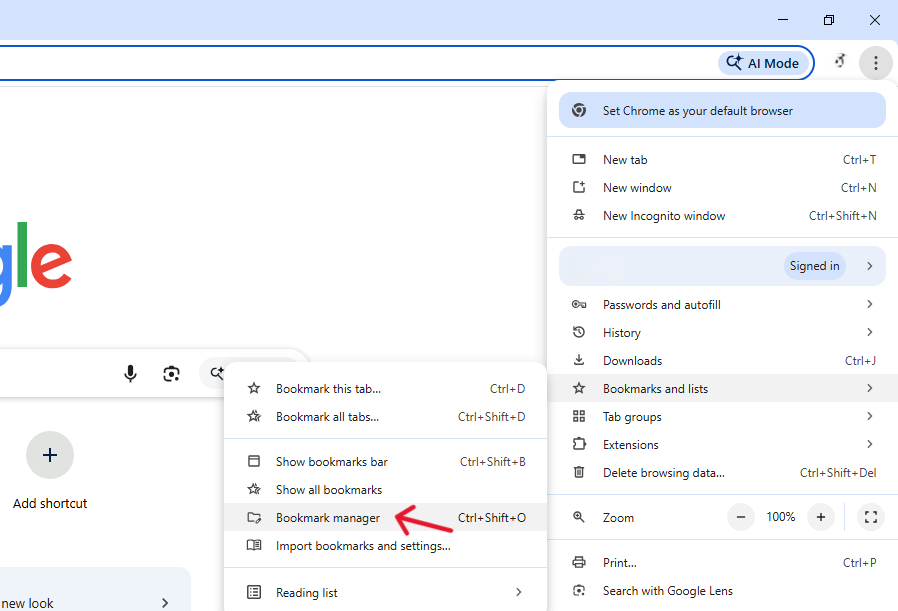
- Step 2: Open the Bookmark Manager by pressing
Ctrl + Shift + O(Windows) orCmd + Option + B(Mac). - Step 3: Once the manager is open, press
Ctrl + Z(Windows) orCmd + Z(Mac). - Step 4: Check your folders. If it worked, your deleted folder or link should reappear instantly.
Note: This only works for the very last action performed while the Bookmark Manager is active.
Method 2: Professional Restoration with PandaOffice Drecov
If the “Undo” trick failed, or if you deleted the bookmarks days ago, you need a professional-grade solution. This is where PandaOffice Drecov shines. Unlike standard browser features, this tool performs a deep sector scan of your hard drive to find the hidden Bookmarks JSON files that Chrome uses to store your data.
Why Use PandaOffice Drecov?
While other methods rely on the browser’s internal stability, PandaOffice Drecov accesses the raw data layer of your disk. It is specifically optimized for retrieving application-specific files like Chrome’s local state databases.
- Versatility: It recovers photos, videos, audio, compressed files (ZIP/RAR), and even system files like EXEs.
- Accidental deletion from your computer desktop.
- Files lost after emptying the Recycle Bin.
- Data loss from disk formatting.
- Accidental deletion or formatting of SD cards/U disks.
- Sync error occurring with deleted OneDrive files
- Privacy First: All recovery happens locally on your machine, so you don’t have to worry about your private data leaking to the web.
Step-by-Step Guide to Using PandaOffice Drecov
- Step 1: Download and Installation Download the latest version of PandaOffice Drecov from the official site. Install it on a drive other than the one where Chrome is installed (usually the
D:drive) to avoid overwriting your lost bookmarks.
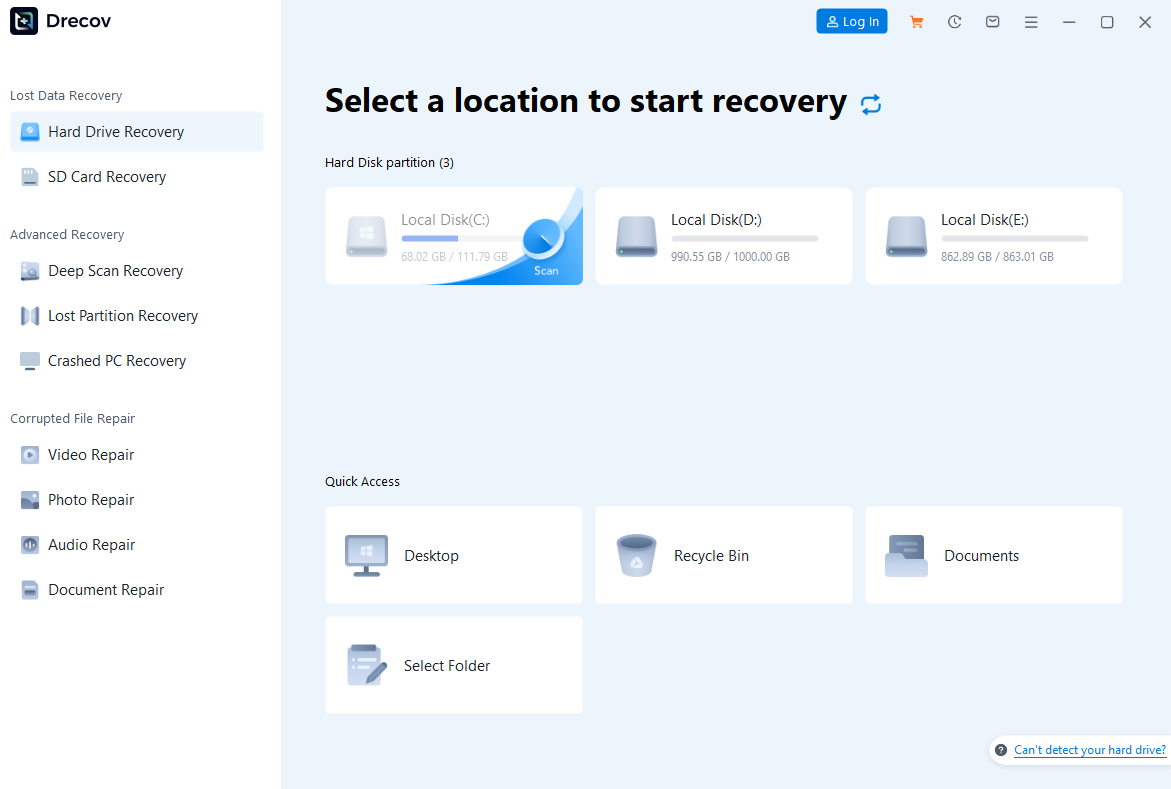
- Step 2: Select the Scan Location Launch the software. Since Chrome bookmarks are stored in the system partition, select your C: Drive (or the drive containing your User profile).

- Step 3: Deep Scan for JSON and BAK files In the search filter, type
Bookmarks. Chrome stores your links in files namedBookmarks(no extension) andBookmarks.bak. PandaOffice Drecov will begin a high-speed scan to locate these specific signatures.

- Step 4: Preview and Recover The software allows you to preview the file’s metadata. Look for the
Bookmarksfile with the most recent “Date Modified” before the deletion. Click Recover and save the file to an external USB drive or a safe folder. - Step 5: Replace in Chrome Copy the recovered file and paste it into the Chrome User Data path:
%LocalAppData%\Google\Chrome\User Data\Default. Restart Chrome, and your library will be restored.
Method 3: The Manual Local Backup (The .bak Strategy)
Chrome creates a secret backup of your bookmarks every time you launch the browser. If you haven’t closed and reopened Chrome multiple times since the deletion, you can find this file manually.
- Step 1: Open Windows File Explorer.Paste this path into the address bar:
%LocalAppData%\Google\Chrome\User Data\Default
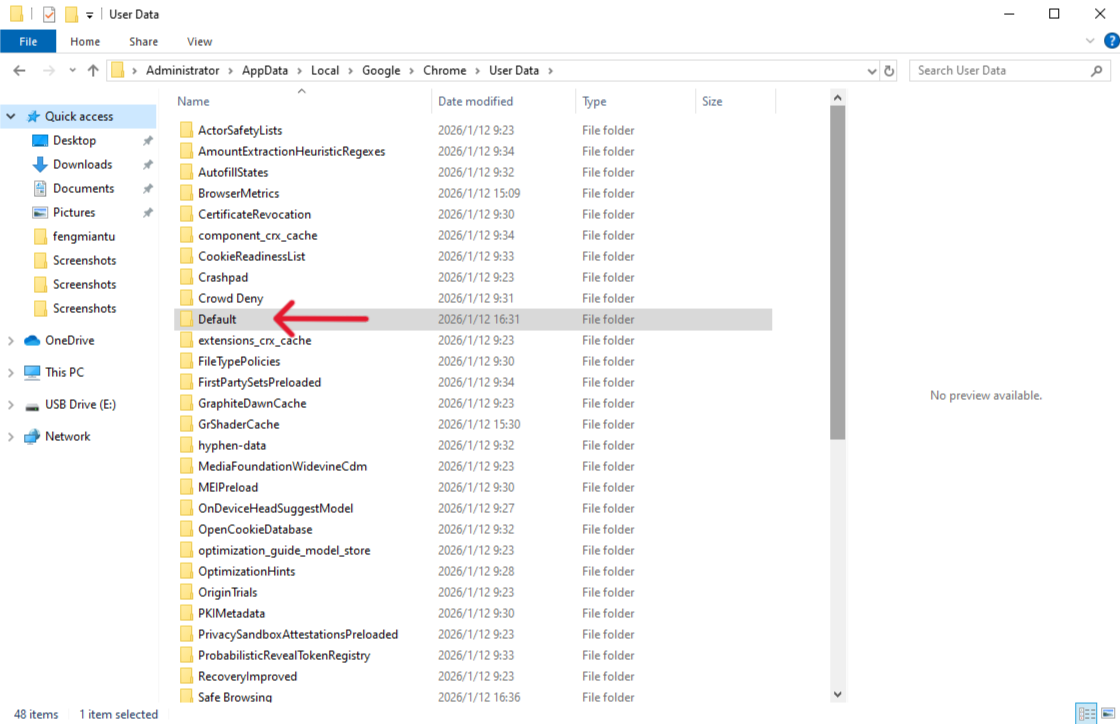
(Note: If you use multiple Chrome profiles, the folder might be named Profile 1 or Profile 2 instead of Default).
- Step 2: Look for two files:
BookmarksandBookmarks.bak.
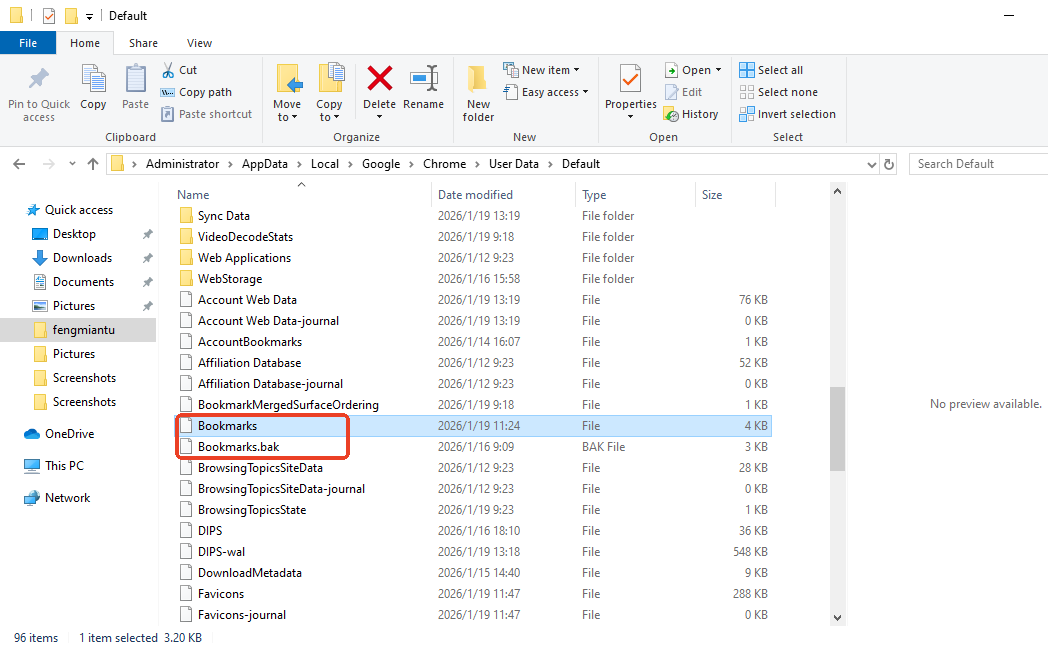
- Step 3: Rename
BookmarkstoBookmarks.old(this is your current, “broken” version).
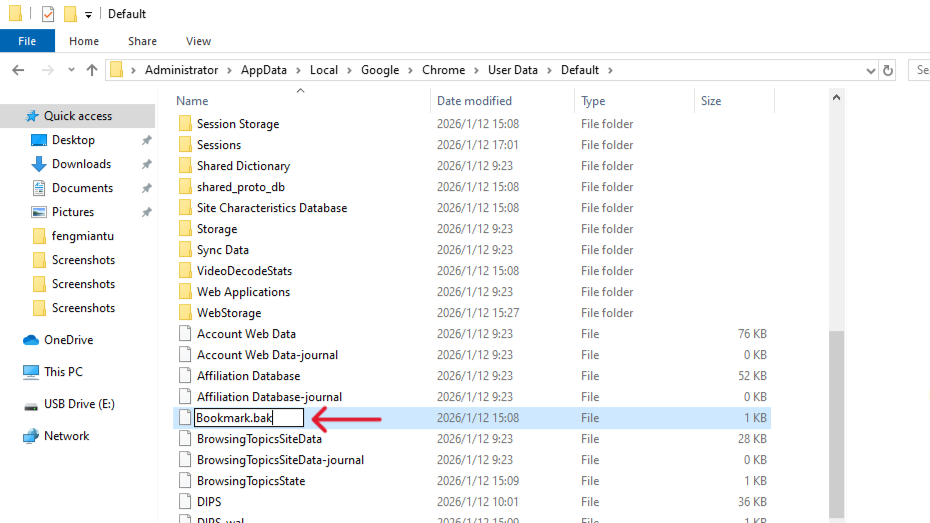
- Step 4: Rename
Bookmarks.baktoBookmarks. - Step 5: Relaunch Chrome. The browser will now read the backup file as your primary list.
Alert: If you see two Bookmarks.bak files, always choose the one with the larger file size or the older timestamp.
Method 4: Utilizing Google Account Sync
If you have “Sync” enabled across multiple devices (like a laptop and a smartphone), you can sometimes intercept the deletion before it spreads.
- Step 1: If you deleted the bookmarks on your PC, immediately turn off the internet on your phone or tablet.
- Step 2: Open Chrome on your mobile device. If the bookmarks are still there (because the “delete” command hasn’t synced yet), you are in luck.
- Step 3: Since you can’t export HTML from mobile easily, manually copy the most important URLs or use a “Share” function to send them to your email.
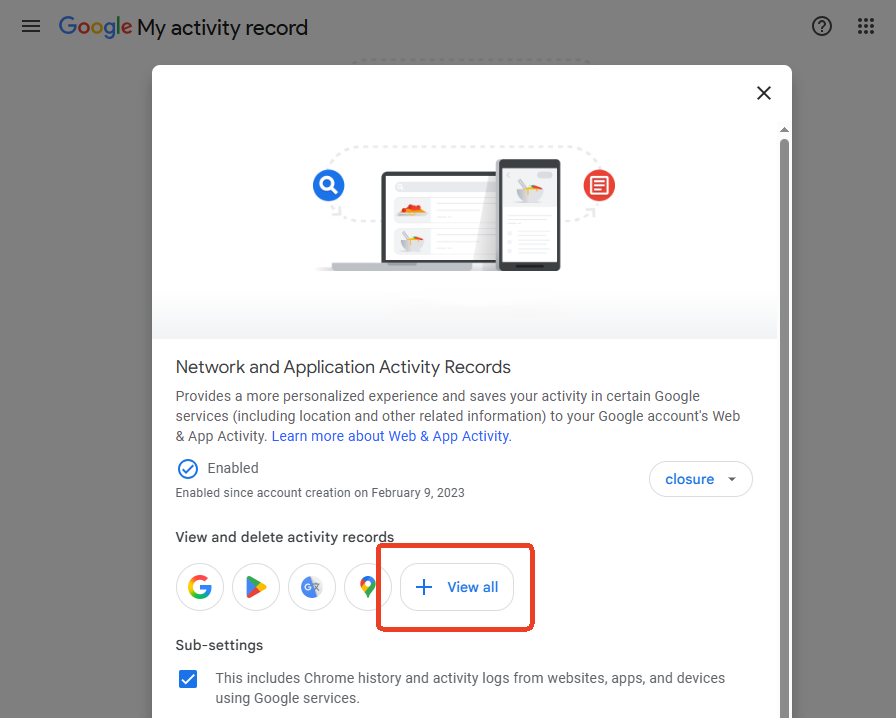
- Step 4: Alternatively, use the Google Takeout service to download a full archive of your Chrome data from the cloud.
Method 5: Using Windows “Previous Versions” (The System Time Machine)
If you’ve discovered the loss too late and your Bookmarks.bak file has already been overwritten by a newer version, don’t give up. Windows has a hidden feature called “Previous Versions” (part of File History or System Protection). It takes snapshots of your files at specific points in time, allowing you to roll back a single folder without affecting your entire computer.
Step-by-Step Guide to System Rollback
- Step 1: Locate the Chrome Data Path Navigate to the parent folder of your Chrome data. Paste this into your File Explorer:
%LocalAppData%\Google\Chrome\User Data
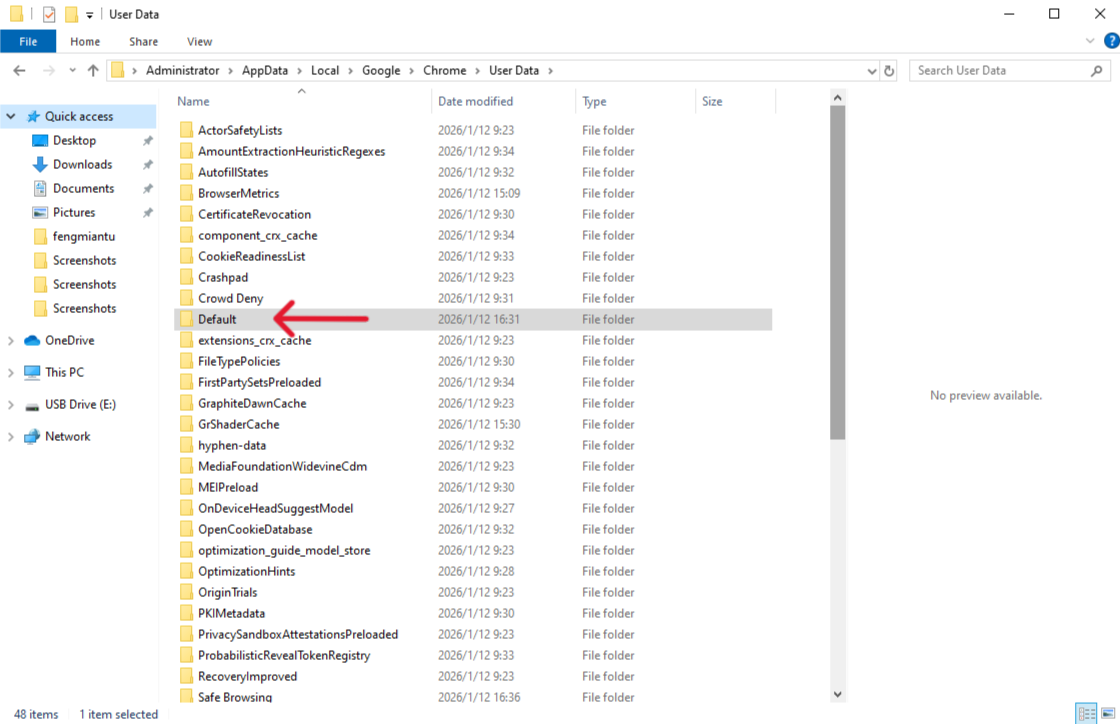
- Step 2: Access Folder Properties Right-click on the folder named
Default(or your specific profile folder) and select Properties from the context menu.
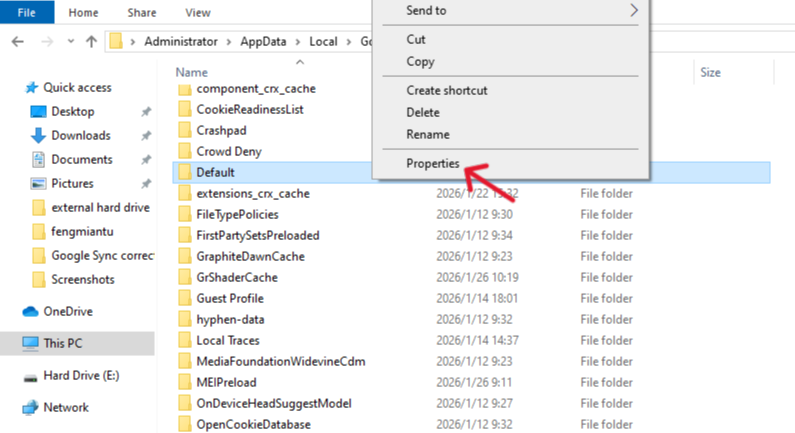
- Step 3: Check “Previous Versions” Tab In the properties window, click the “Previous Versions” tab. Windows will take a moment to search for older snapshots of this folder.
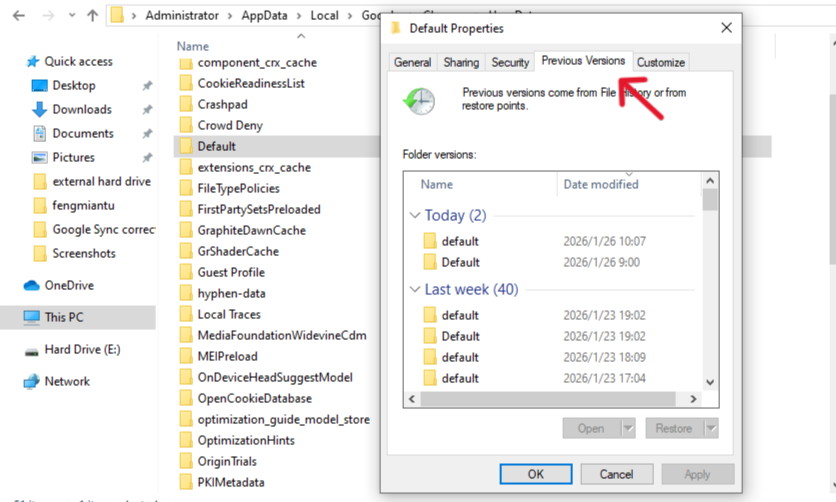
- Step 4: Select an Earlier Snapshot You will see a list of folder versions with different timestamps. Look for a version dated before you deleted your bookmarks.
- Step 5: Restore the Bookmarks File Instead of clicking “Restore” (which replaces the whole folder), click “Open”. This allows you to browse that old folder. Find the
Bookmarksfile inside, copy it, and paste it into your current ChromeDefaultfolder.
Expert Warning: This method only works if you had System Protection or File History enabled prior to the deletion. If the list is empty, it means Windows was not configured to take these automatic snapshots, and you should immediately revert to PandaOffice Drecov for a deep disk scan.
Comparison Table: Which Method is Best for You?
| Feature | Undo (Ctrl+Z) | PandaOffice Drecov | Local .bak File | Google Sync | Previous Versions |
|---|---|---|---|---|---|
| Success Rate | Low | Very High | Medium | Low/Medium | Medium/High |
| Difficulty | Very Easy | Easy (Guided) | Moderate | Moderate | Moderate |
| Time Since Loss | Seconds | Weeks/Months | Hours | Minutes | Days |
| Recovery Logic | Memory Undo | Deep Sector Scan | File Rename | Multiple devices | System Snapshot |
| Prerequisite | None | None | Single Backup | Low (Sync might delete both) | System Protection On |
Proactive Defense: Configuring AutoSave and AutoRecover Features
While Google Chrome is designed to be a “set and forget” browser, its default settings aren’t always optimized for maximum data safety. To avoid needing to learn how to recover deleted Chrome bookmarks in the future, you can configure your system to act as a proactive guardian.
1. Harnessing the Power of Chrome Sync Customization
Most users simply turn on “Sync,” but few dive into the Sync Customization settings. By default, Chrome syncs everything, but during a browser crash, this can cause a “corruption loop” where the error is synced to the cloud instantly.
- Pro Tip: Go to
Settings > You and Google > Sync and Google Services > Manage what you sync.
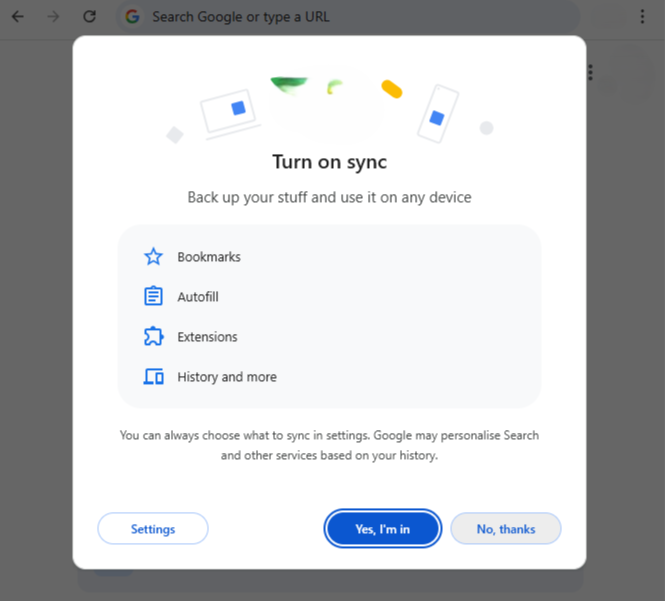
- The Strategy: Toggle “Customize sync.” If you are performing a major reorganization of your bookmarks, consider temporarily toggling off Sync. This creates a “local sandbox” where mistakes won’t be pushed to your other devices, giving you a window to use
Ctrl+Zor the.bakfile without interference.
2. Setting Up Windows File History for Auto-Snapshots
Windows has a built-in “AutoSave” for your entire file system called File History. Once configured, it will automatically back up your Chrome User Data folder every hour.
- Step 1: Connect an external drive or a secondary internal hard drive.
- Step 2: Search for “File History settings” in your Start menu.
- Step 3: Select your drive and click “Turn On.”
- Step 4 (The Critical Step): Click on “Exclude folders” to ensure your
C:\Users\[Name]\AppDatafolder is not excluded. - Result: If you delete a bookmark at 2:00 PM, you can simply right-click the folder and restore the 1:00 PM version. This is the ultimate “AutoRecover” feature for power users.
3. Third-Party “Bookmark Snapshots” via Extensions
If you prefer a more automated, browser-centric approach, there are extensions designed specifically for “Bookmark Auto-Snapshots.”
- Extension Recommendation: Tools like Bookmark Backup or EverSync allow you to set a schedule (e.g., every 24 hours) to create an independent
.htmlor.jsonsnapshot. - The Advantage: Unlike Chrome’s built-in Sync, these extensions keep historical versions. If you deleted a bookmark three days ago and only realized it today, you can go back to the “Tuesday Snapshot” and pull it out without affecting your current work.
How To Recover Deleted Chrome Bookmarks FAQs
1.Can I recover bookmarks after uninstalling Chrome?
Yes. When you uninstall Chrome, it often leaves your “User Data” folder behind. Use PandaOffice Drecov to scan the AppData directory to find the old JSON files even if the browser application is gone.
2.Does “Clear Browsing History” delete bookmarks?
No. Clearing history, cookies, and cache does not affect your bookmarks. If they disappeared after a cleaning, it’s likely due to a sync error or accidental folder deletion.
3. Why is my Bookmarks.bak file missing?
Chrome only keeps one backup. If the browser has been opened and closed multiple times after the bookmarks were deleted, the .bak file was likely overwritten with the “new” version that doesn’t contain your links. In this case, PandaOffice Drecov is your only remaining option.
4.After restoring the Bookmarks file, why does it appear as unreadable code, or why are the website icons (favicons) missing?
This usually happens for two technical reasons:
JSON Formatting Issues: Chrome bookmarks are stored in JSON (JavaScript Object Notation) format. If you used a generic text editor to open or move the file, the encoding might have been changed from UTF-8 to something else. Always use a raw copy-paste method or a code editor like VS Code to handle these files.
Favicon Database Separation: It is important to understand that the Bookmarks file only stores URLs and Names. The actual icons (favicons) are stored in a separate database file called Favicons in the same directory.
- The Fix: If you recovered your bookmarks using PandaOffice Drecov, make sure to also look for and recover the file named
Favicons. Placing it back in theUser Data/Defaultfolder will bring back all your visual icons. If you don’t recover this file, don’t worry—the icons will automatically reappear one by one as you visit the websites again.
Conclusion
To summarize, learning how to recover deleted Chrome bookmarks involves a hierarchy of actions. Start with Ctrl+Z. If that fails, check your %LocalAppData% folder for the .bak file. For any situation involving permanent deletion, formatted drives, or failed syncs, PandaOffice Drecov provides the most reliable and deep-scanning technology to bring your data back to life.
By following the prevention steps like regular HTML exports, you can transform your browser from a fragile list of links into a robust, backed-up knowledge base.






