






Troubleshooting
This guide explains the meaning of troubleshooting and walks you through practical steps to identify, diagnose, and resolve common technical problems with ease.
TOP 4 Hot Articles
Top 4 hot articles will provide you reliable solutions to find crucial data with Drecov software.


Windows Stuck on Welcome? Diagnose the Sign-In Stage First
Separate a slow sign-in from a frozen profile, service, update, or storage fault. Use controlled account tests and protect local files before reset or reinstall.


Could Not Find the Recovery Environment? Check WinRE First
Identify why Windows cannot locate WinRE, protect local files, and choose the least invasive path before reset or partition changes.
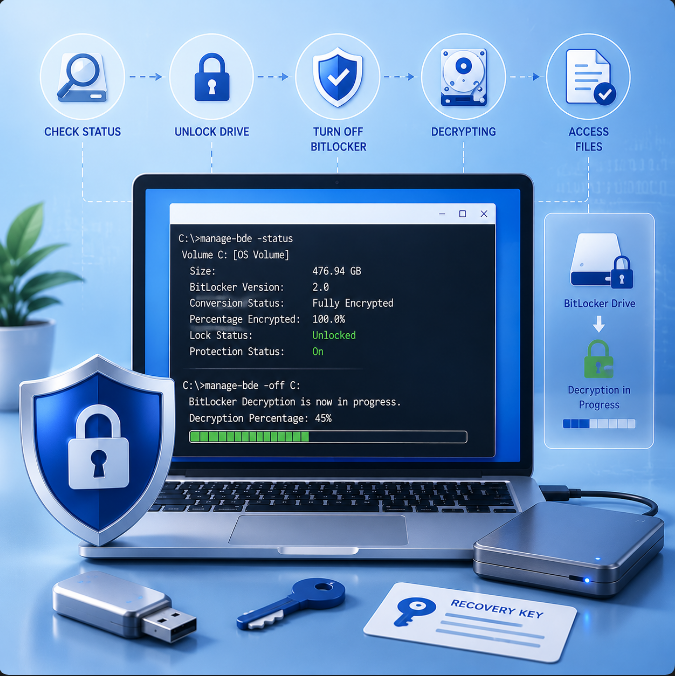

Fix Turn Off BitLocker Cmd: BitLocker Recovery Steps
This guide explains turn off BitLocker cmd steps with manage-bde status, authorized unlock, correct drive-letter checks, backup before decryption, Instagram reset text separation, Excel sheet protection boundaries, and file recovery after accessible storage loses data.

SD Card Not Showing Up on Windows: Complete Fix Guide for Detection Issues
This guide explains why an SD card may not appear on Windows, covering driver issues, partition corruption, repair methods, formatting, and safe data recovery solutions.
Find a solution that suits your case
Here are file recovery guidelines for all types of files. Just choose the most suitable situation for you to retrieve your data
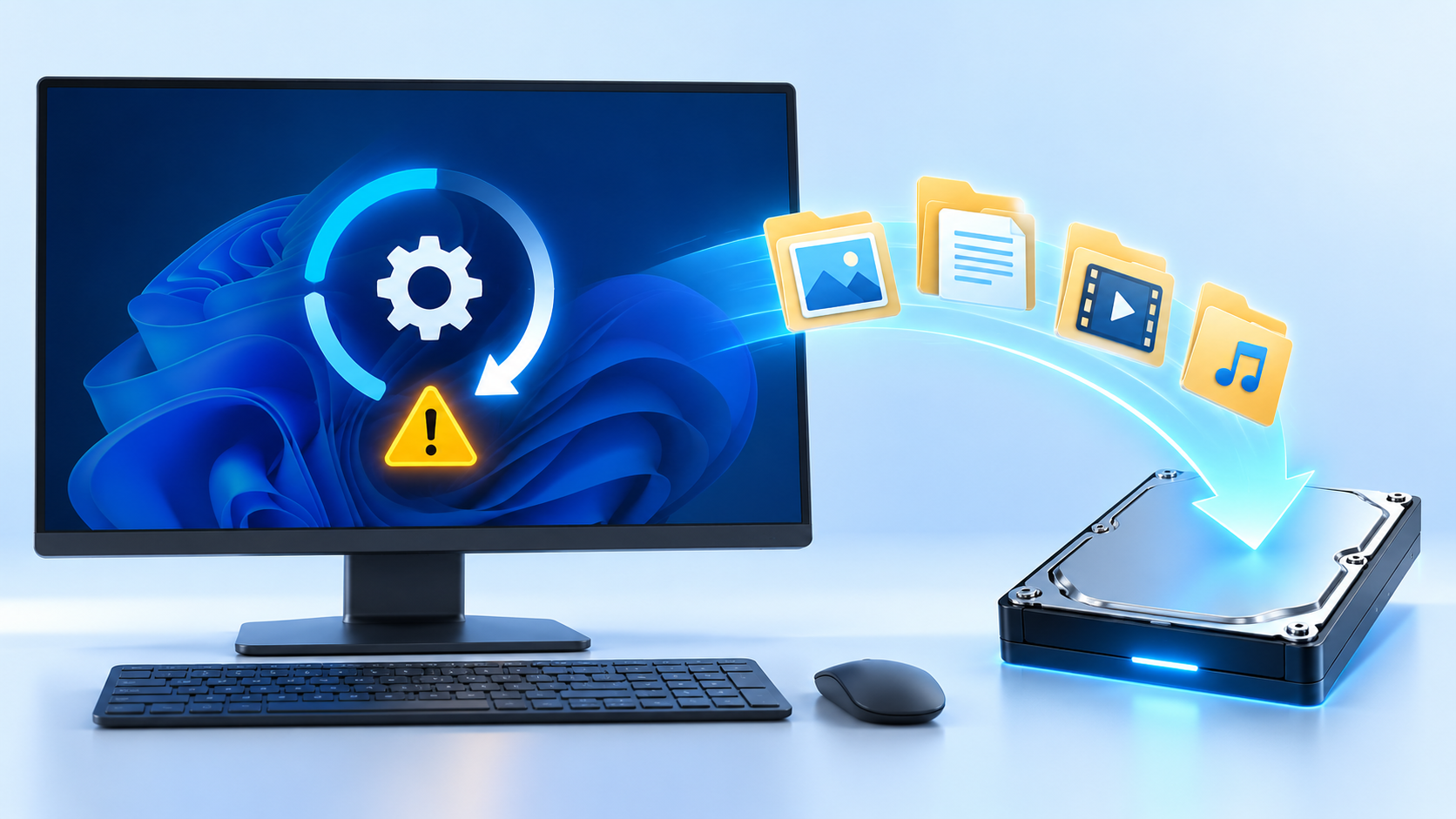

Windows Stuck in Automatic Repair: Recover Files Before Reset
Read more →: Windows Stuck in Automatic Repair: Recover Files Before ResetWindows stuck in Automatic Repair recover files: Before changing the disk, determine whether it contains irreplaceable files, whether the hardware is stable, and which devices must read it. Formatting is the final configuration step, not the first response to an error. Quick Answer For the native checks used in this diagnosis, consult the official technical…
The Requested Resource Is in Use: Find What Holds It
Read more →: The Requested Resource Is in Use: Find What Holds ItFind out whether an app, background task, phone connection, or unstable drive is blocking your action. Close only the responsible process, preserve unsaved work, and recover files if access has turned into actual data loss.
Can’t Read From the Source File or Disk? Save What Opens
Read more →: Can’t Read From the Source File or Disk? Save What OpensA copy error may come from one unreadable file, the source drive, a path issue, or a connection. Test a small file, preserve accessible folders, and recover from stable media before repair.
PC Won’t Boot to BIOS? Find the First Failure
Read more →: PC Won’t Boot to BIOS? Find the First FailureA missing BIOS screen can result from power, display, keyboard, or firmware trouble. Observe where startup stops, try the correct entry method, and protect the drive before invasive repair.
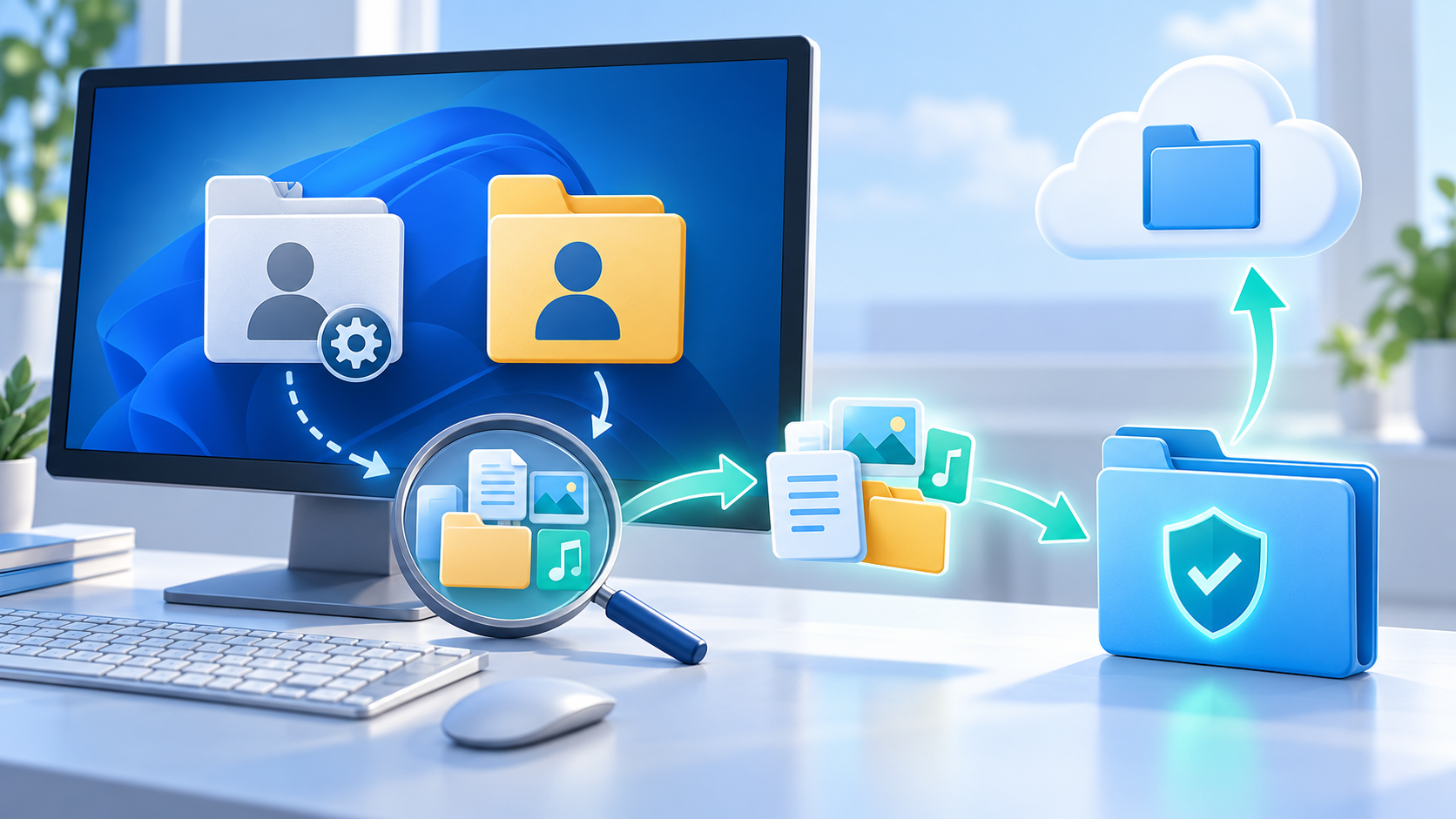
Files Missing After Windows User Profile Repair
Read more →: Files Missing After Windows User Profile RepairSign out of the temporary or repaired profile before copying data. Check C:\\Users for the previous profile, Public, Desktop and cloud folders, compare the profile SID in Registry only after a backup, copy files instead of moving them, and recover deleted items to another drive.

BitLocker Drive Asks for a Recovery Key After Update
Read more →: BitLocker Drive Asks for a Recovery Key After UpdateDo not format, initialize, disable TPM or clear security settings to bypass BitLocker. Find the 48-digit recovery key in the Microsoft account, organization portal, printed copy or saved file, verify the key identifier, unlock the drive, and immediately copy important data to another encrypted location.
SanDisk Card Repair Starts With One Question: Is the Card Stable?
Read more →: SanDisk Card Repair Starts With One Question: Is the Card Stable?Separate reader, lock, compatibility, file-system, and physical card faults. Preserve recoverable files first, then format or replace the card only when the evidence supports it.

Why Are My Videos Not Playing? Run One Comparison Before Installing Codecs
Read more →: Why Are My Videos Not Playing? Run One Comparison Before Installing CodecsUse controlled playback comparisons to separate one damaged local file from player, codec, browser, streaming, graphics, or storage problems, then apply and verify the appropriate correction.
Windows Installation Has Failed—Use the Stage to Find the Cause
Read more →: Windows Installation Has Failed—Use the Stage to Find the CauseSeparate upgrade, boot-media, partition, driver, and restart-stage failures. Preserve existing data, collect the exact Setup evidence, test the relevant correction, and verify Windows before restoring files and applications.
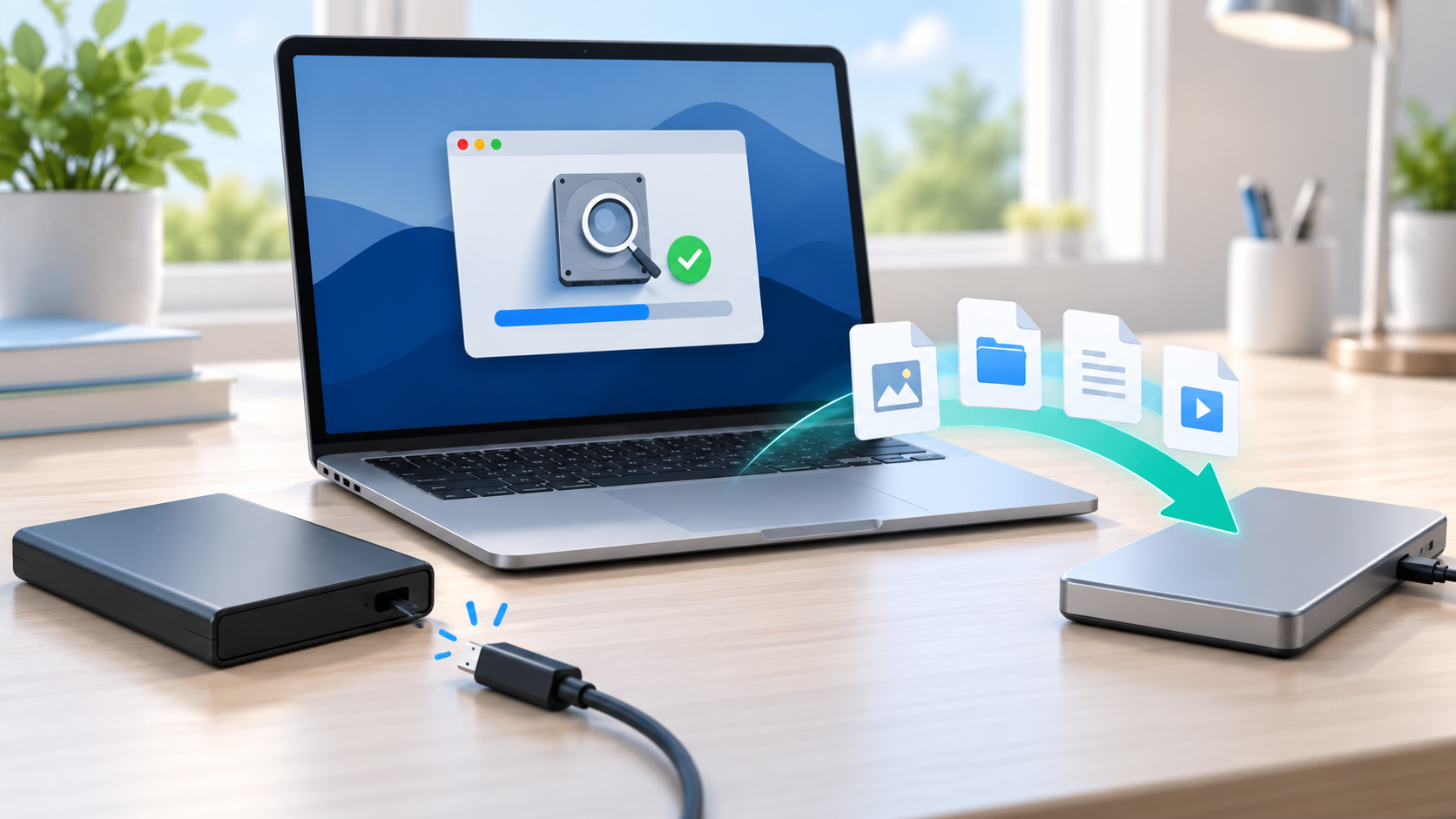
External Drive Disconnected Without Ejecting on Mac: Safe Checks
Read more →: External Drive Disconnected Without Ejecting on Mac: Safe ChecksAfter an unsafe disconnect, reconnect the drive once with a known-good cable and copy readable files immediately. Check Disk Utility for the physical device and file system, create an image if errors repeat, and run First Aid only after data is protected on another disk.




Copyright © 2025 PandaOffice. All Rights Reserved. The order process, tax issue, and invoicing to end users are conducted by PandaOffice Limited.