






Drecov Knowledge
Drecov Knowledge provides practical solutions for common data recovery issues, including deleted files, lost photos, damaged drives, and software usage guides to help users recover important data.
TOP 4 Hot Articles
Top 4 hot articles will provide you reliable solutions to find crucial data with Drecov software.

“There Isn’t Enough Memory to Complete This Action” in Excel?
Protect unsaved work, distinguish a workbook-specific limit from add-ins or system pressure, simplify the failing operation, and recover missing workbook copies safely only when genuinely necessary.
Find a solution that suits your case
Here are file recovery guidelines for all types of files. Just choose the most suitable situation for you to retrieve your data

What Term Describes a Logical Drive? Volume vs. Partition
Read more →: What Term Describes a Logical Drive? Volume vs. PartitionA logical drive is often described as a volume, but MBR terminology is more specific. Learn to distinguish storage layers, read a disk layout safely, and recognize when missing files require recovery rather than repartitioning.
How to Open CR3 Files Without Changing Your Originals
Read more →: How to Open CR3 Files Without Changing Your OriginalsA CR3 viewing failure can reflect unsupported camera data rather than damage. Check compatibility, test a copied original, and export separately. When photographs are actually missing, protect the source before attempting recovery.
How to Retrieve Dashcam Footage Before the Event Is Lost
Read more →: How to Retrieve Dashcam Footage Before the Event Is LostRetrieve an accessible recording through the camera’s supported export route, preserving the full event. Search missing clips by time and channel before scanning a stable card. Check playback and keep untouched copies separately.
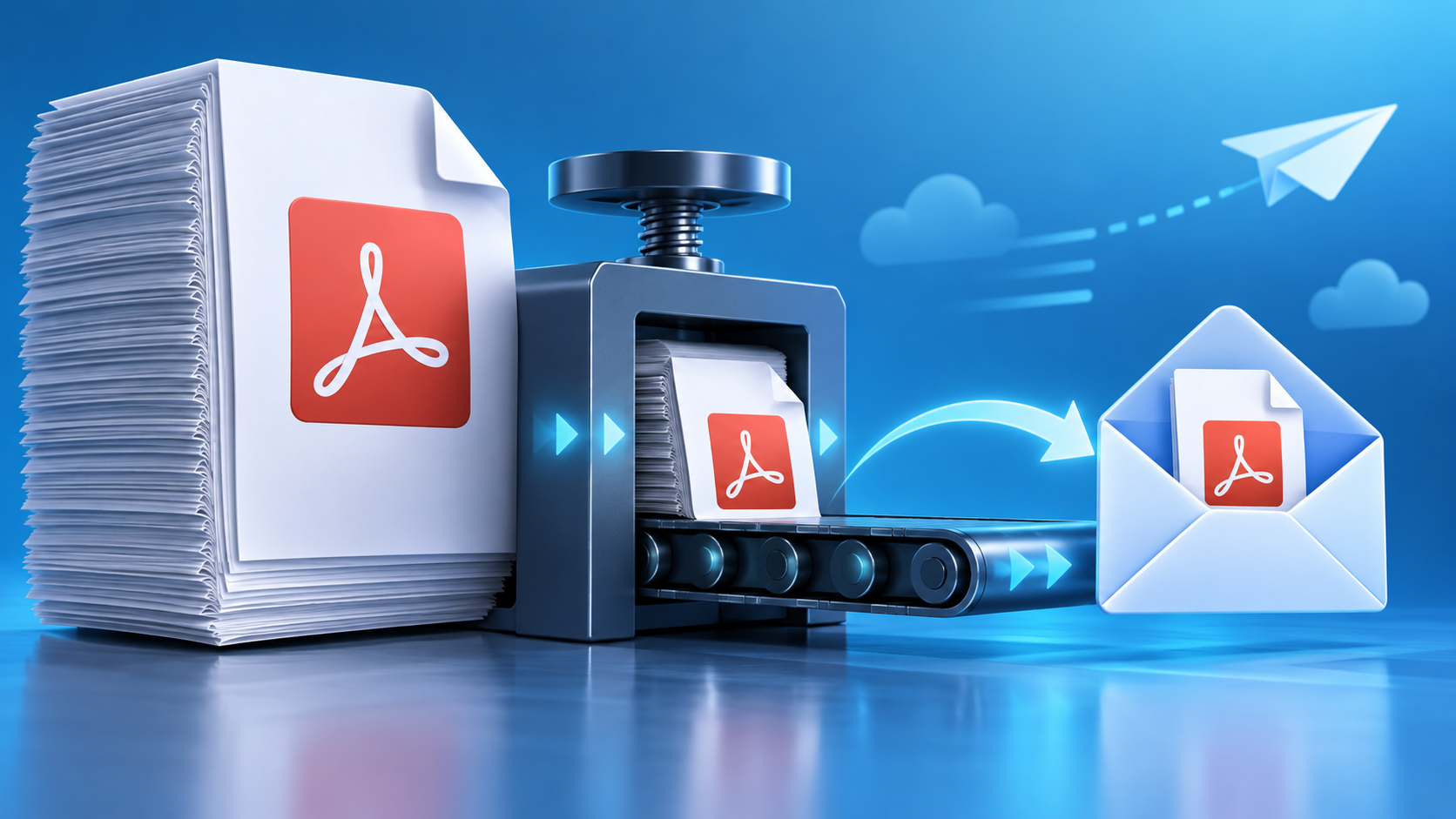
PDF Too Large to Email? Choose the Right Delivery Fix
Read more →: PDF Too Large to Email? Choose the Right Delivery FixIdentify the attachment limit, preserve the original PDF, then reduce images, split the document, or send a controlled cloud link according to quality and privacy needs.
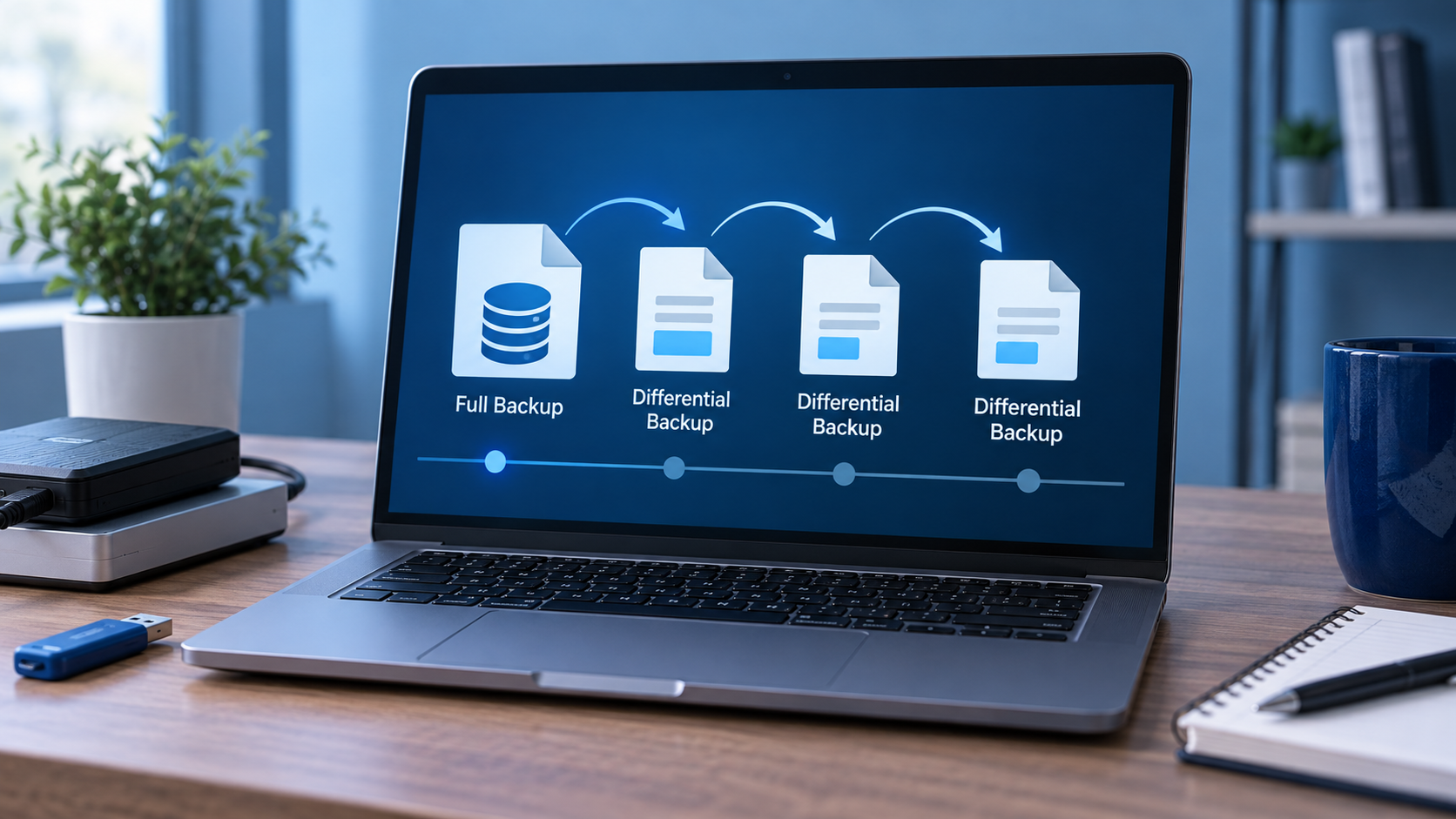
What Are Differential Backups? Understand the Restore Chain
Read more →: What Are Differential Backups? Understand the Restore ChainDifferential backups capture changes since the latest full backup. They simplify restoration but grow until the next full backup. This article compares backup chains, failure risks, retention, testing, and missing-backup recovery.
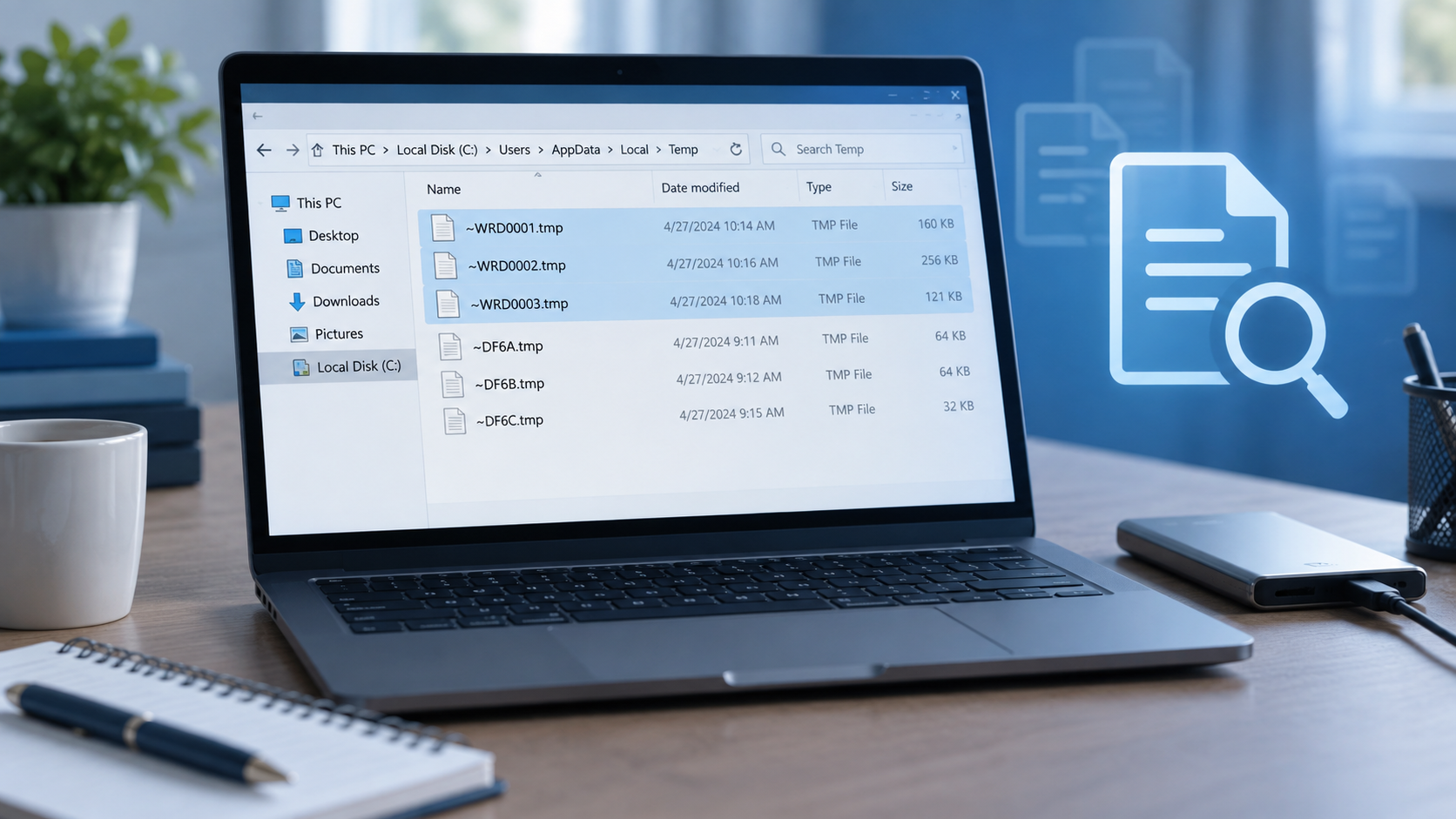
Where Does Word Save Temp Files? Check the Right Location
Read more →: Where Does Word Save Temp Files? Check the Right LocationWord recovery data can appear in Document Recovery, the configured AutoRecover path, UnsavedFiles, Windows Temp, or the document folder. Search copies safely, verify content, and scan only after built-in options fail.
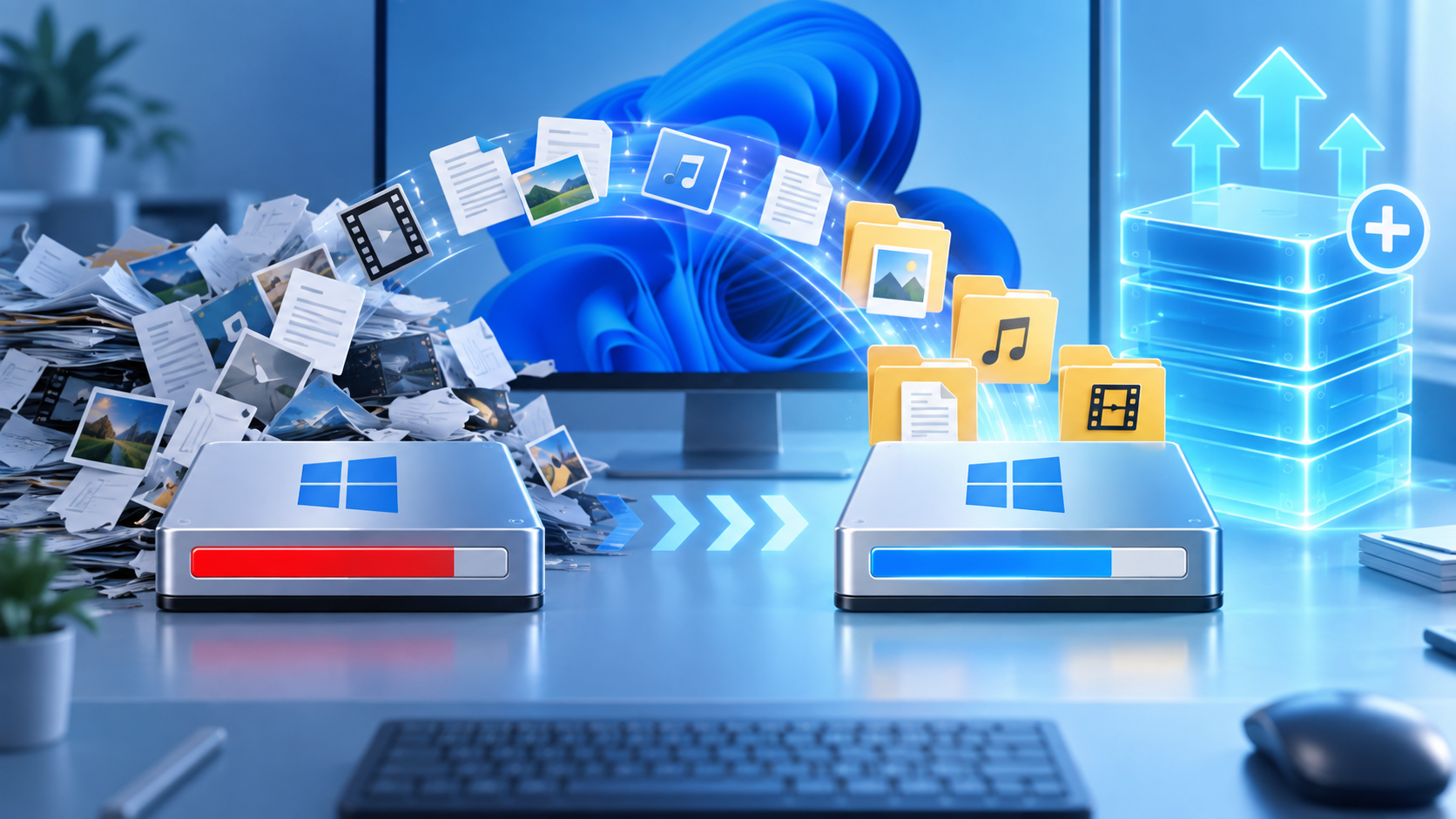
How to Increase C Drive Space Without Risky Guesswork
Read more →: How to Increase C Drive Space Without Risky GuessworkMeasure what consumes C:, choose cleanup or relocation before partition changes, and extend the volume only when adjacent unallocated space and verified backups safely allow it.

How to Partition USB Flash Storage Without Losing Files
Read more →: How to Partition USB Flash Storage Without Losing FilesChoose a sensible USB layout, preserve existing files, create partitions with Windows tools, and verify device compatibility before relying on the newly created storage volumes.
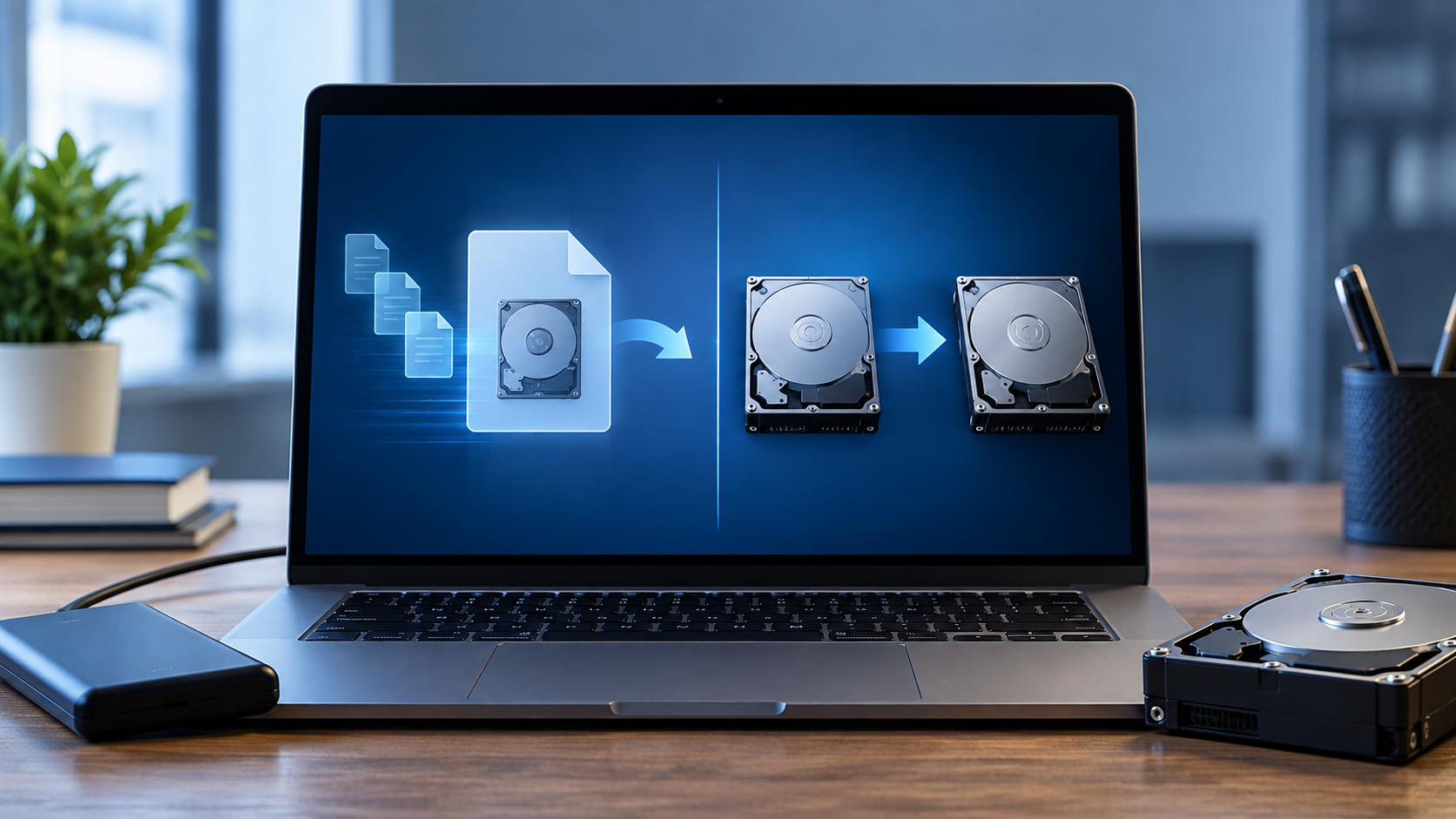
Disk Image vs Clone: Choose by Recovery and Migration Needs
Read more →: Disk Image vs Clone: Choose by Recovery and Migration NeedsA clone writes a disk layout directly to another drive, while an image stores that layout in files for later restoration. Choose by destination, retention, boot needs, and source stability.
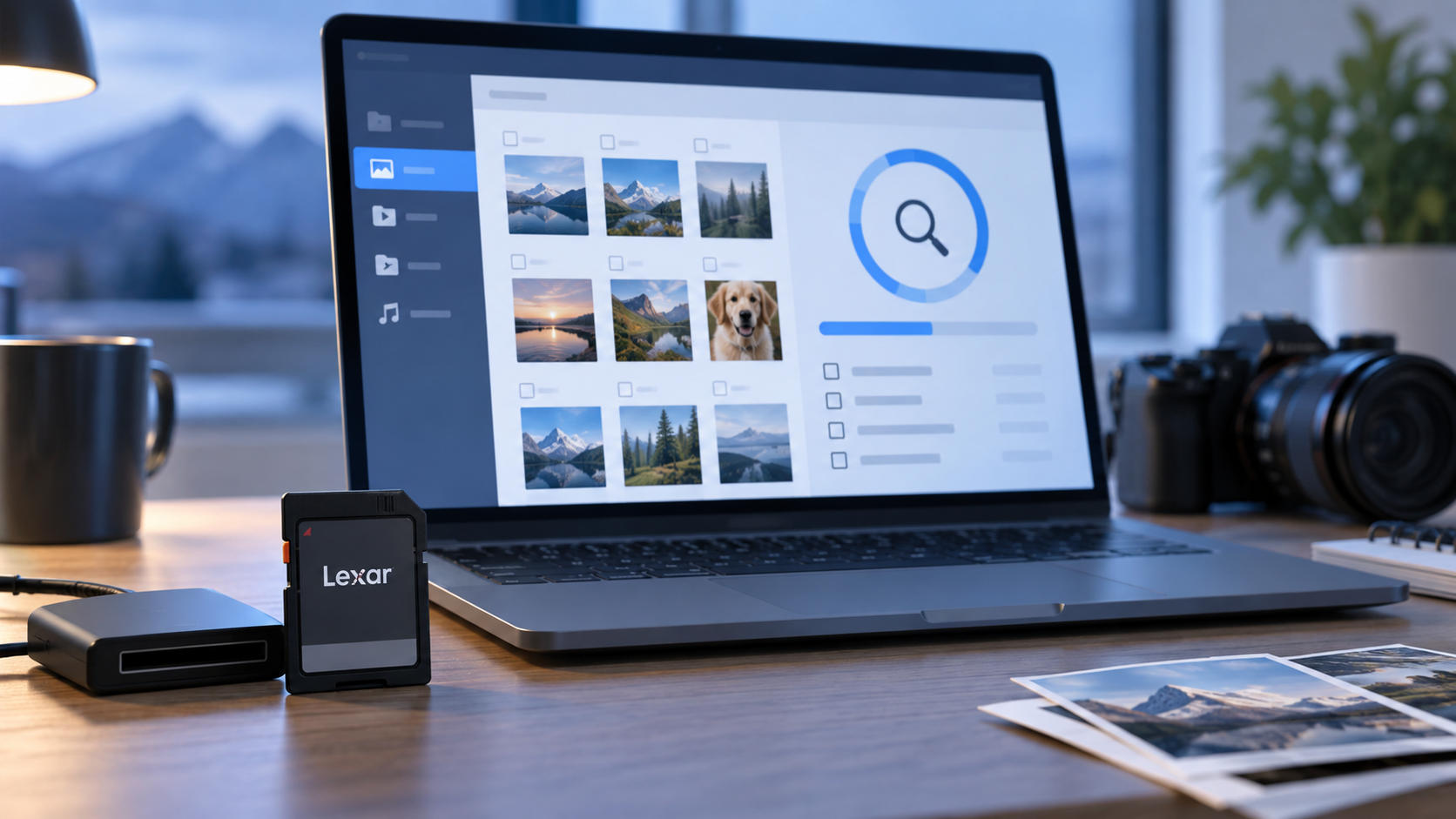
Lexar Recovery Tool: Check the Drive Before You Scan
Read more →: Lexar Recovery Tool: Check the Drive Before You ScanLexar’s utility offers a straightforward scan for some accessible storage devices. This article explains the device checks that matter first, the situations Lexar excludes, and a careful alternative workflow for stable Windows-readable media.




Copyright © 2025 PandaOffice. All Rights Reserved. The order process, tax issue, and invoicing to end users are conducted by PandaOffice Limited.