






Drecov Knowledge
Drecov Knowledge provides practical solutions for common data recovery issues, including deleted files, lost photos, damaged drives, and software usage guides to help users recover important data.
TOP 4 Hot Articles
Top 4 hot articles will provide you reliable solutions to find crucial data with Drecov software.


“There Isn’t Enough Memory to Complete This Action” in Excel?
Protect unsaved work, distinguish a workbook-specific limit from add-ins or system pressure, simplify the failing operation, and recover missing workbook copies safely only when genuinely necessary.
Find a solution that suits your case
Here are file recovery guidelines for all types of files. Just choose the most suitable situation for you to retrieve your data


Burn ISO to USB Without Mistaking Copy for Imaging
Read more →: Burn ISO to USB Without Mistaking Copy for ImagingWriting an ISO is not ordinary copying. Protect the USB, verify the image source and target disk, write it once, then test bootability and contents. The article includes practical verification and stopping points.
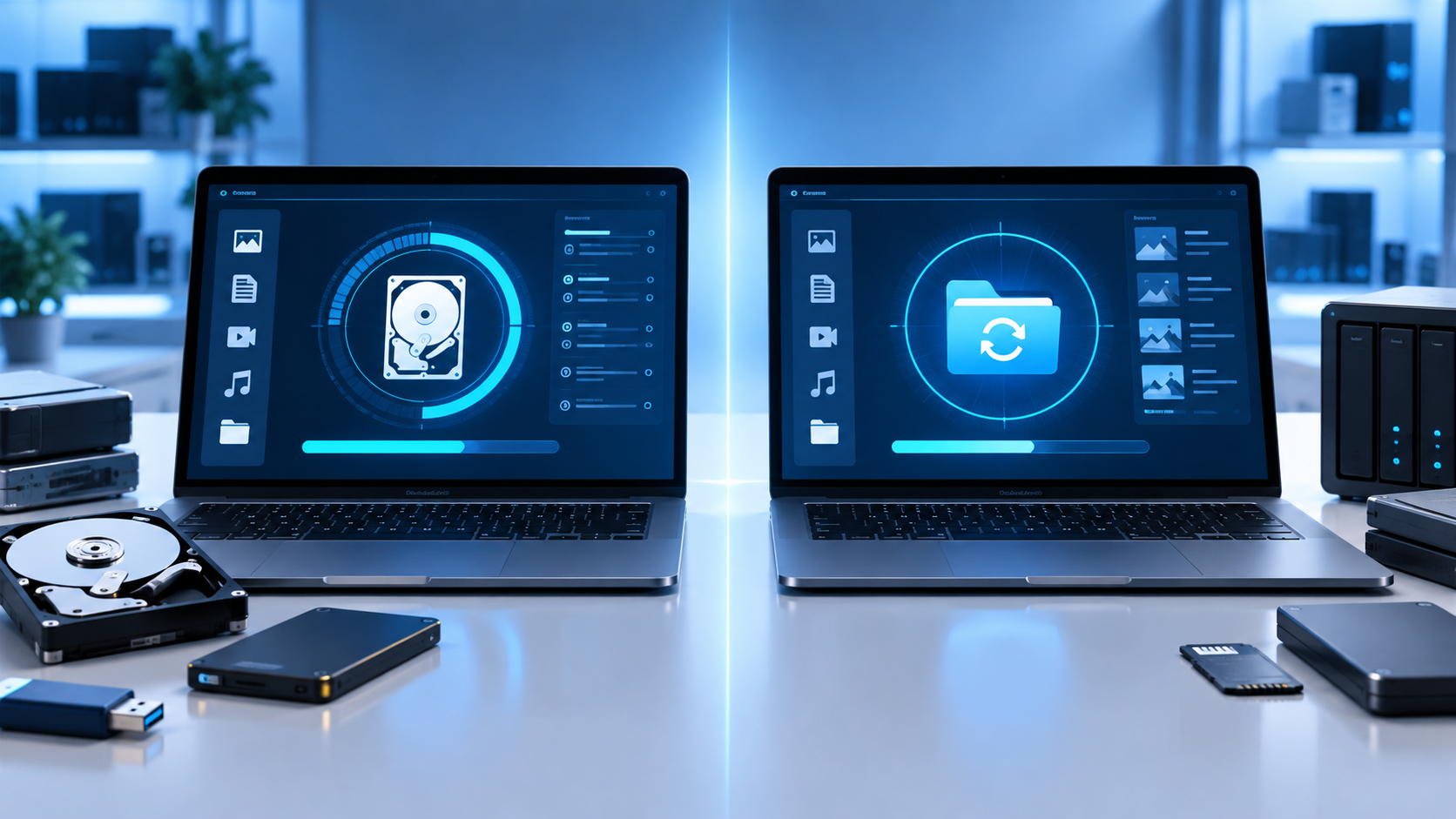
Disk Drill vs R-Studio: Choose by Recovery Workflow
Read more →: Disk Drill vs R-Studio: Choose by Recovery WorkflowUse documented capabilities and workflow fit—not invented recovery rates—to decide between Disk Drill, R-Studio, Drecov, or professional service. The article includes practical verification and stopping points.

Task Manager Not Opening? Test the Launch Path Before Repair
Read more →: Task Manager Not Opening? Test the Launch Path Before RepairDifferent launch paths reveal whether Task Manager is blocked by a shortcut, policy, damaged system component, account problem, or active malware. The article also defines verification and safe stopping points.
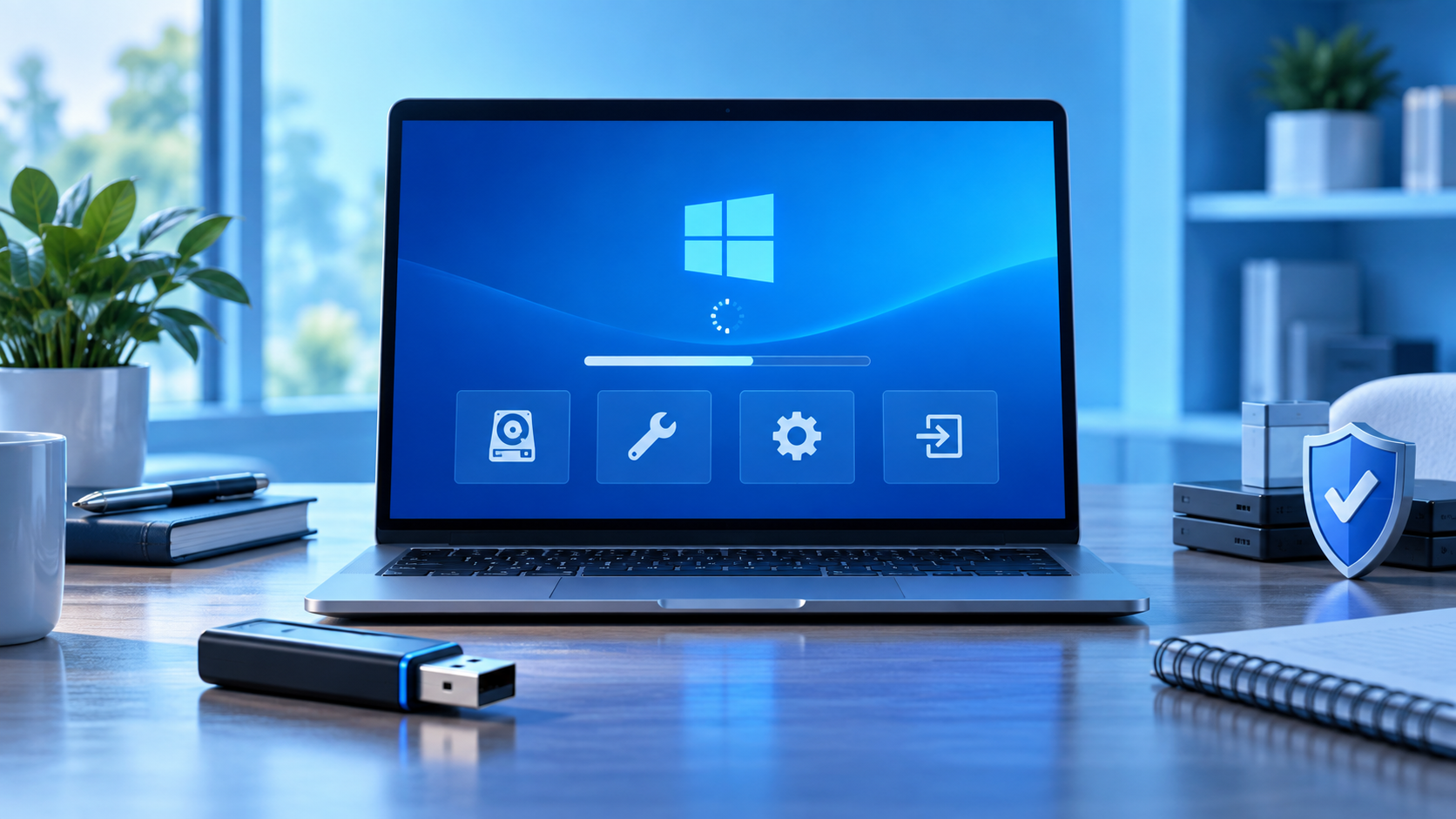
Win 10 USB Recovery Drive: Create It Without Losing Files
Read more →: Win 10 USB Recovery Drive: Create It Without Losing FilesLearn what a Windows 10 recovery USB contains, how to create and test one, and what to do if the chosen flash drive still holds files you need.

Recover a File Deleted From a Shared Drive Before Retention Expires
Read more →: Recover a File Deleted From a Shared Drive Before Retention ExpiresIdentify the sharing platform and file owner, restore from its Trash or administrator controls, then examine local synced storage only when the cloud copy is gone.


Buffalo LinkStation Backup Software: Choose the Right Direction
Read more →: Buffalo LinkStation Backup Software: Choose the Right DirectionSeparate PC backups from LinkStation backup jobs, confirm the correct destination, and rehearse restoration. If a local original disappeared before backup, recover that Windows copy without treating the NAS share as a directly scannable disk.

CleverFiles Video Repair: Is Your Clip the Right Candidate?
Read more →: CleverFiles Video Repair: Is Your Clip the Right Candidate?Learn when an existing broken clip suits online repair, what to preserve before uploading, and how to judge the result. A separate workflow covers finding a deleted local original before attempting repairs.

DiskGenius: Recover Files Before Changing the Disk
Read more →: DiskGenius: Recover Files Before Changing the DiskDiskGenius combines recovery and disk-management functions, making operation choice important. This review explains which tasks read or modify storage, how to assess recovered files, and when a separate Drecov workflow fits stable Windows media.

Ontrack Easy Recovery: Which Features Do You Actually Need?
Read more →: Ontrack Easy Recovery: Which Features Do You Actually Need?EasyRecovery capabilities vary by edition. Match the software to deleted files, missing volumes or existing corrupt media, then assess recoverable results. A separate Windows recovery workflow explains how Drecov scans stable storage and saves verified files elsewhere.
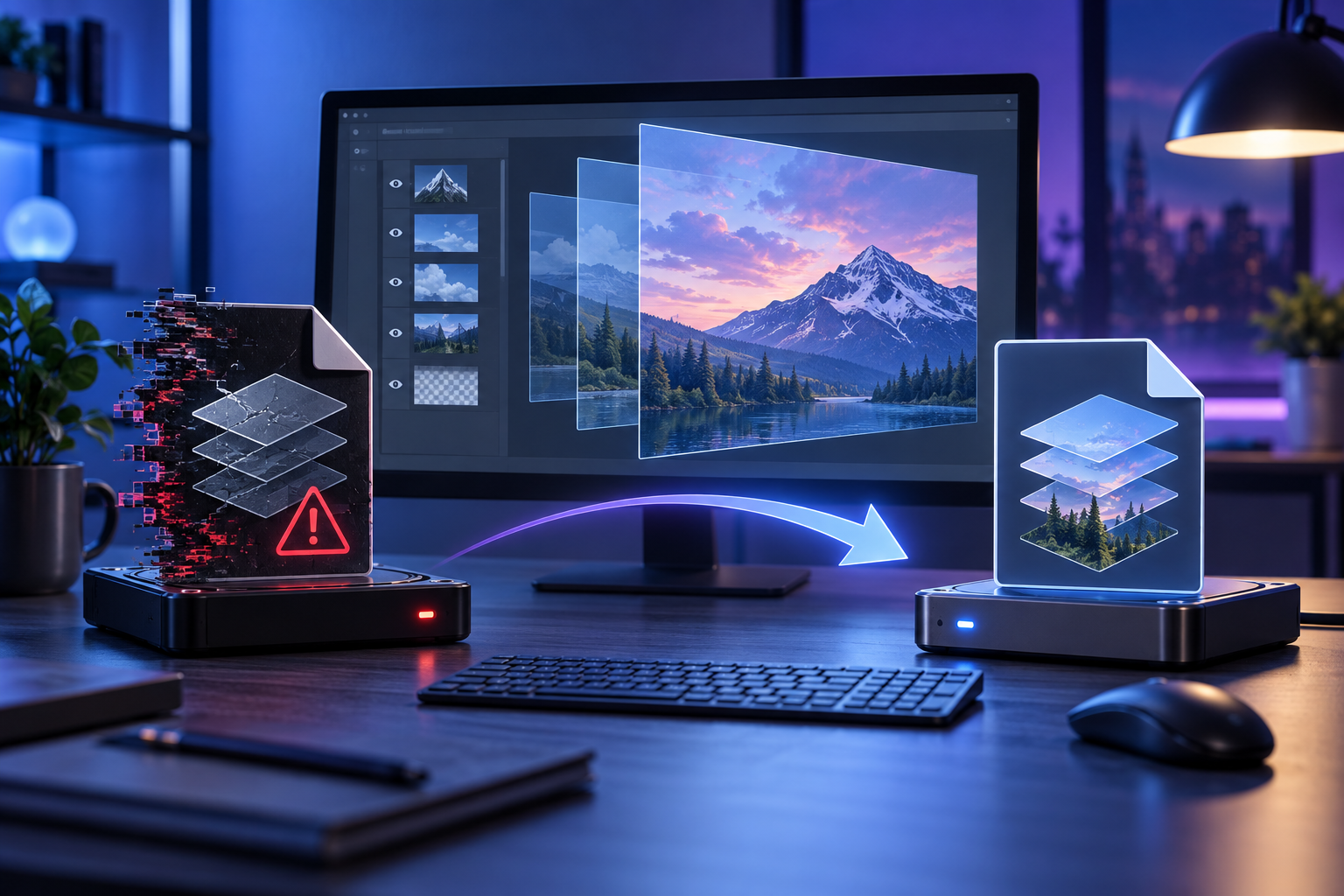
Photoshop Recovery Toolbox: Will Your Layers Survive?
Read more →: Photoshop Recovery Toolbox: Will Your Layers Survive?A repaired PSD must preserve the parts you need to edit, not merely display a picture. This review explains documented repair limits, safer saved copies, local file recovery, and checks for the resulting Photoshop project.




Copyright © 2025 PandaOffice. All Rights Reserved. The order process, tax issue, and invoicing to end users are conducted by PandaOffice Limited.