






USB Recovery
USB data recovery tool to restore deleted or formatted files from USB flash drives. Fast scan, file preview, and safe recovery for Windows users.
TOP 4 Hot Articles
Top 4 hot articles will provide you reliable solutions to find crucial data with Drecov software.


How to Fix USB Flash Memory: 5 Easy Ways to Save Your Data
Don’t let a corrupted drive ruin your day. This comprehensive guide teaches you how to fix USB flash memory using proven techniques like CHKDSK and Diskpart. We also explore professional USB flash memory recovery programs like PandaOffice Drecov to restore lost data and fix USB storage visibility issues, ensuring your important files stay safe and…


Why PS4 Controller Won’t Connect to PS4 with USB [Fix]
Struggling because your PS4 controller won’t connect to PS4 with USB? This comprehensive guide troubleshoots everything from faulty data cables and hardware resets to system database rebuilds. We also explore managing USB storage on PS4 and provide professional steps to recover lost game data using PandaOffice Drecov, ensuring your console and files remain in peak…

USB Device Not Recognized? How to Recover Your Data Fast
This comprehensive guide explains how to fix USB device not recognized issues on Windows and Mac using 7 proven methods. From updating drivers and adjusting power settings to performing deep-sector data recovery with PandaOffice Drecov, we provide step-by-step instructions to restore your files. Stop the “Unknown USB Device” loop and regain access to your drive…


How to Format USB to FAT32: The Ultimate 128GB Fix (2026)
Need to format usb drive to fat32 for a car stereo or console? This 2026 guide reveals how to format usb to fat32 even for large 128GB disks using CMD, PowerShell, and GUI tools. We also feature formatting usb to fat32 safety tips with PandaOffice Drecov to ensure your files stay protected throughout the process.
Find a solution that suits your case
Here are file recovery guidelines for all types of files. Just choose the most suitable situation for you to retrieve your data


USB Drive Data Recovery Software: Choose It and Save Your Files
Read more →: USB Drive Data Recovery Software: Choose It and Save Your FilesMatch a USB recovery method to the loss, follow a complete Drecov workflow, and separate source problems from saving errors. Check destination space, permissions and file-size limits before verifying the recovered copies.

USB Recovery on Windows: Choose the Right Way to Get Files Back
Read more →: USB Recovery on Windows: Choose the Right Way to Get Files BackCheck whether your USB drive is stable, look for an existing copy, then follow recovery steps for Drecov, TestDisk, or PhotoRec. The guide also covers RAW and formatted drives, stop signs, file verification, and common USB recovery questions.

USB Recovery Software: 8 Tools Compared by What You Need
Read more →: USB Recovery Software: 8 Tools Compared by What You NeedCompare eight USB recovery tools by their strengths, limits, and appropriate use cases. The article covers Drecov’s complete recovery workflow, free and open-source alternatives, Windows File Recovery commands, common questions, and a final tool-by-tool table.
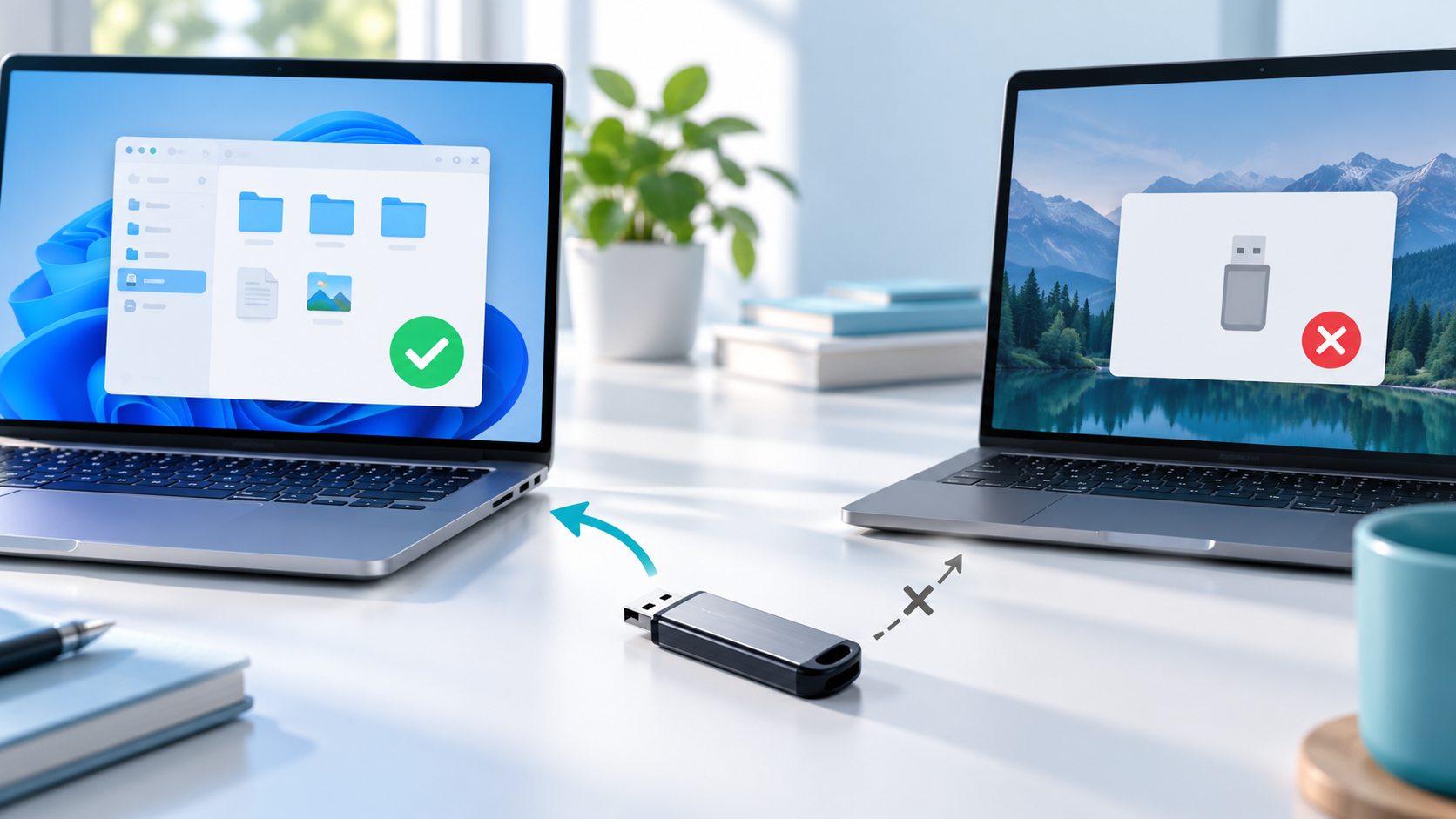
USB Drive Works on One PC but Not Another: Safe Checks
Read more →: USB Drive Works on One PC but Not Another: Safe ChecksCompare the working and failing computers before changing the USB. Use a direct port, check Device Manager and Disk Management, compare drive letters and policies, copy important files on the working PC, and avoid formatting or driver tools that write to the device.
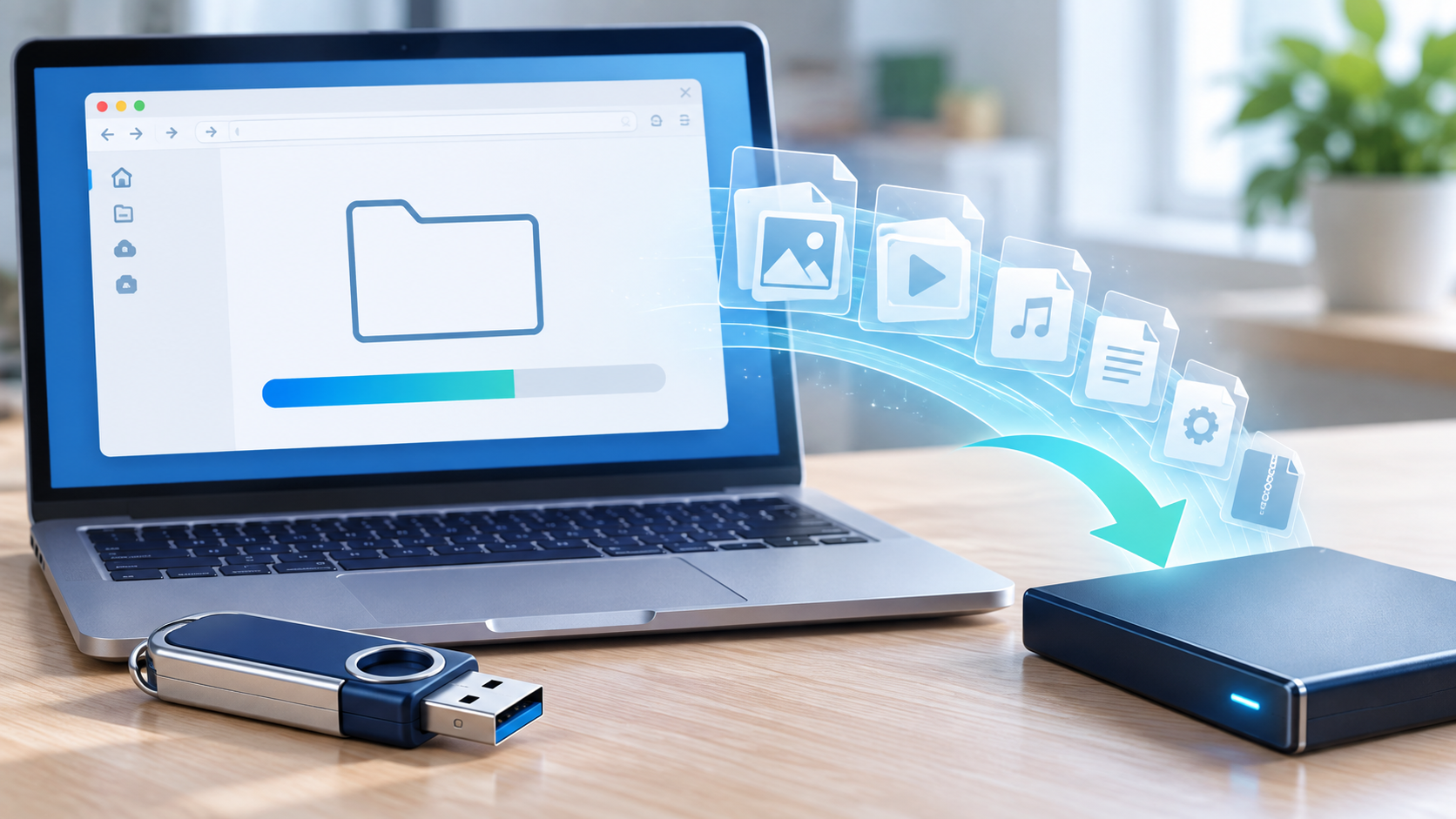
USB Folder Is Empty but Space Is Used: Reveal Files Safely
Read more →: USB Folder Is Empty but Space Is Used: Reveal Files SafelyAn empty USB folder with occupied space can indicate hidden attributes, malware, file-system damage, or a view filter. Scan the computer and drive, enable hidden items without opening unknown shortcuts, inspect capacity, and copy verified files to another drive before repair.
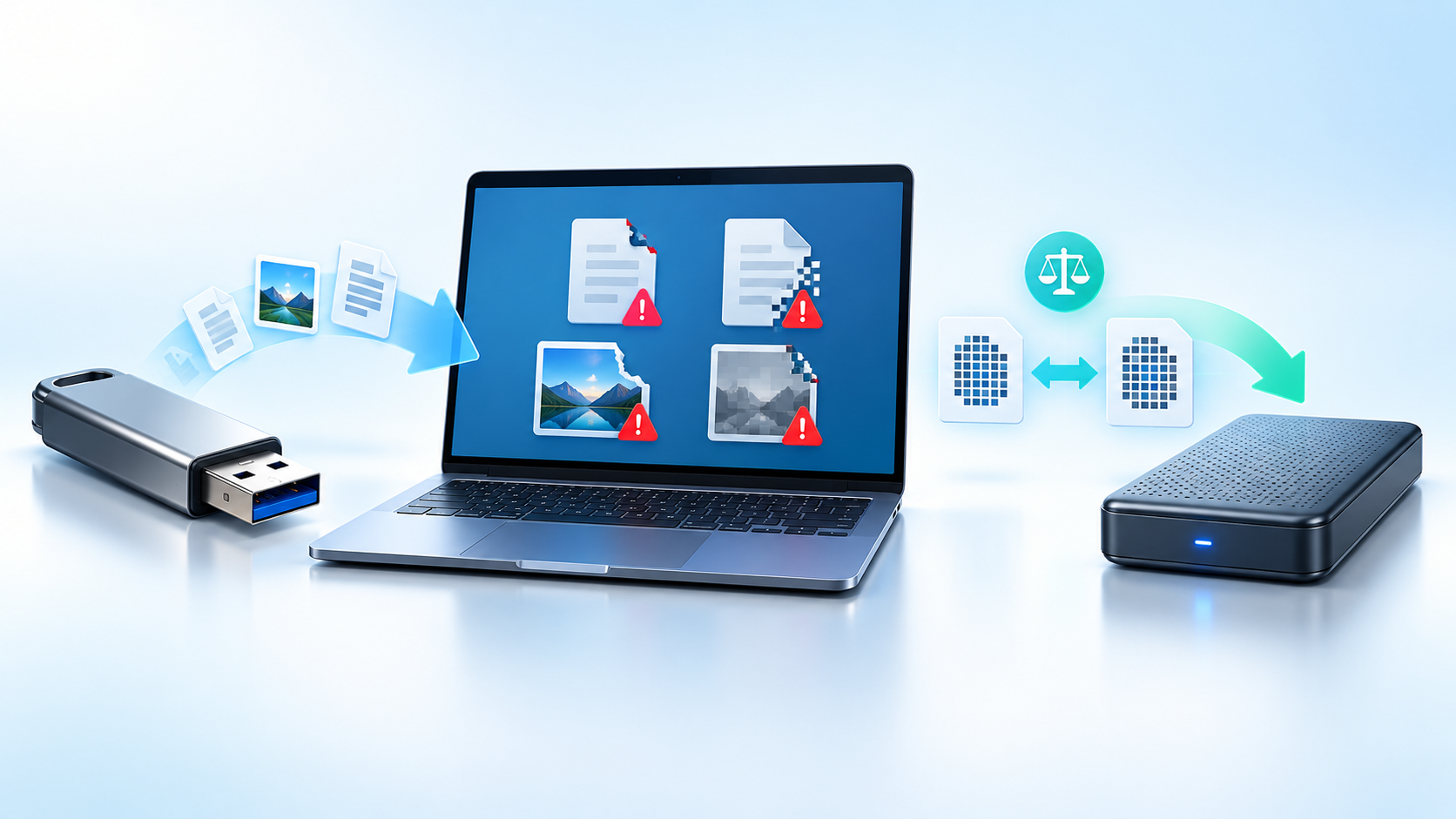
Files Corrupted After USB Transfer: Verify and Recover Safely
Read more →: Files Corrupted After USB Transfer: Verify and Recover SafelyKeep the source and destination copies unchanged while diagnosing corruption. Compare file sizes and hashes, retry one copy through a known-good port, and recover the original from the source, backup, or file history. Repair only a duplicate, never the sole copy.
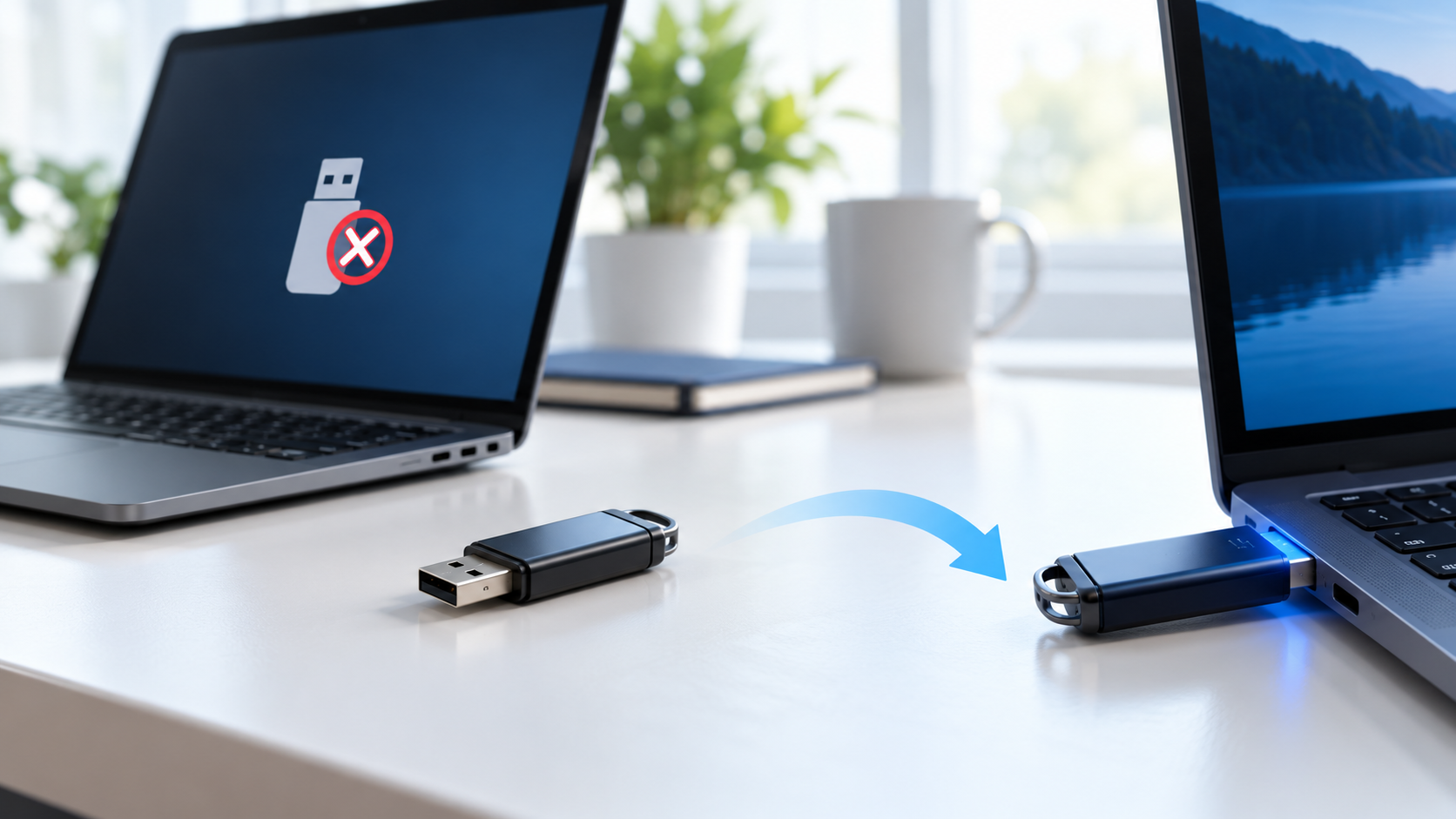
USB Drive Not Recognized After Unsafe Removal: Safe Checks
Read more →: USB Drive Not Recognized After Unsafe Removal: Safe ChecksAvoid repeated reconnects after unsafe removal. Try one direct port, then check Device Manager and Disk Management for the correct capacity. If the USB reports zero size, disconnects, or gets hot, stop; otherwise copy priority files and recover to another drive.
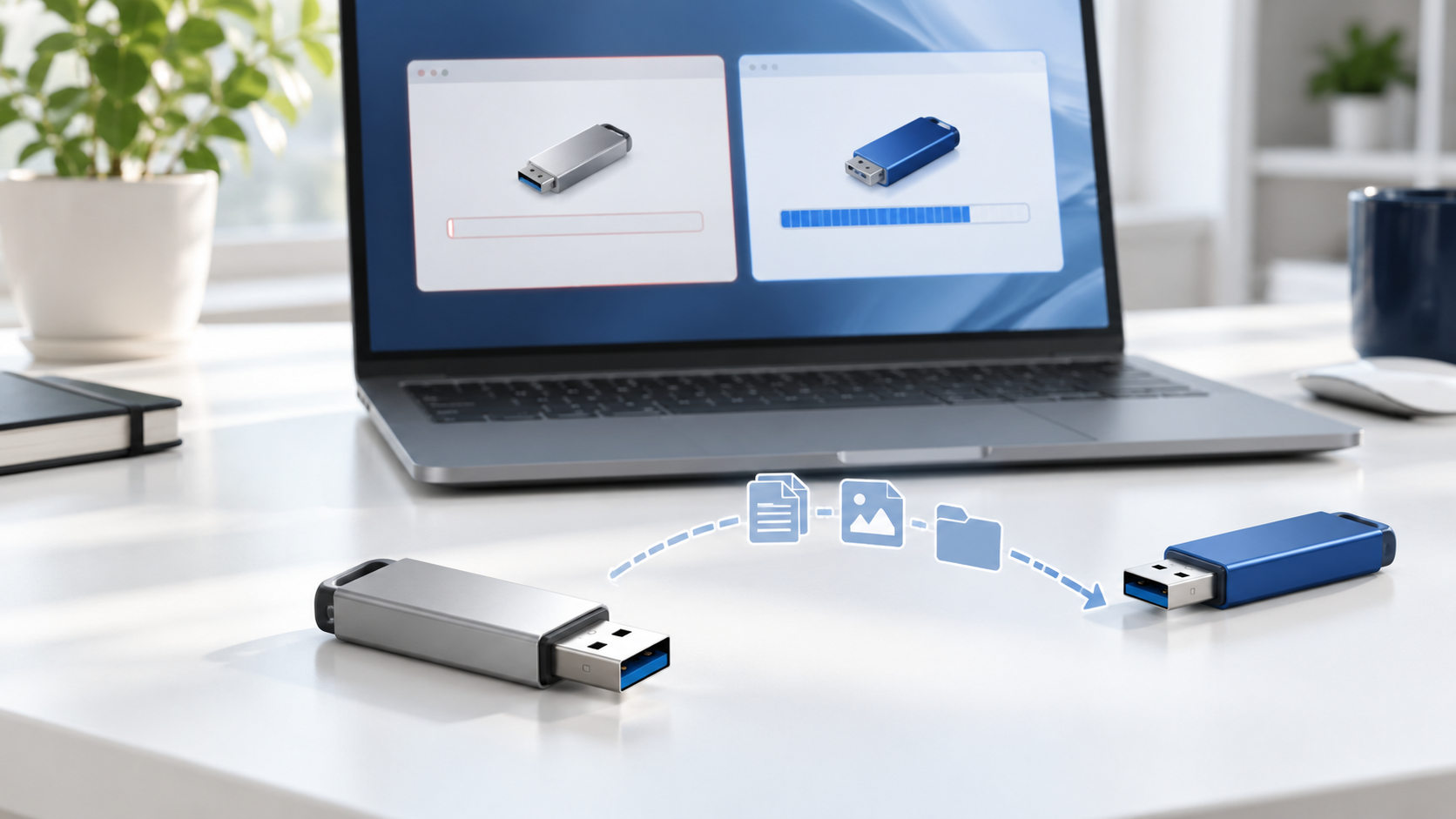
USB Drive Shows 0 Bytes: Recover Before Formatting
Read more →: USB Drive Shows 0 Bytes: Recover Before FormattingDo not format or initialize a USB drive showing 0 bytes. Test one direct port and another trusted computer, check its physical presence in Disk Management, and stop if capacity remains zero or the device disconnects. Controller failure may require a professional lab.
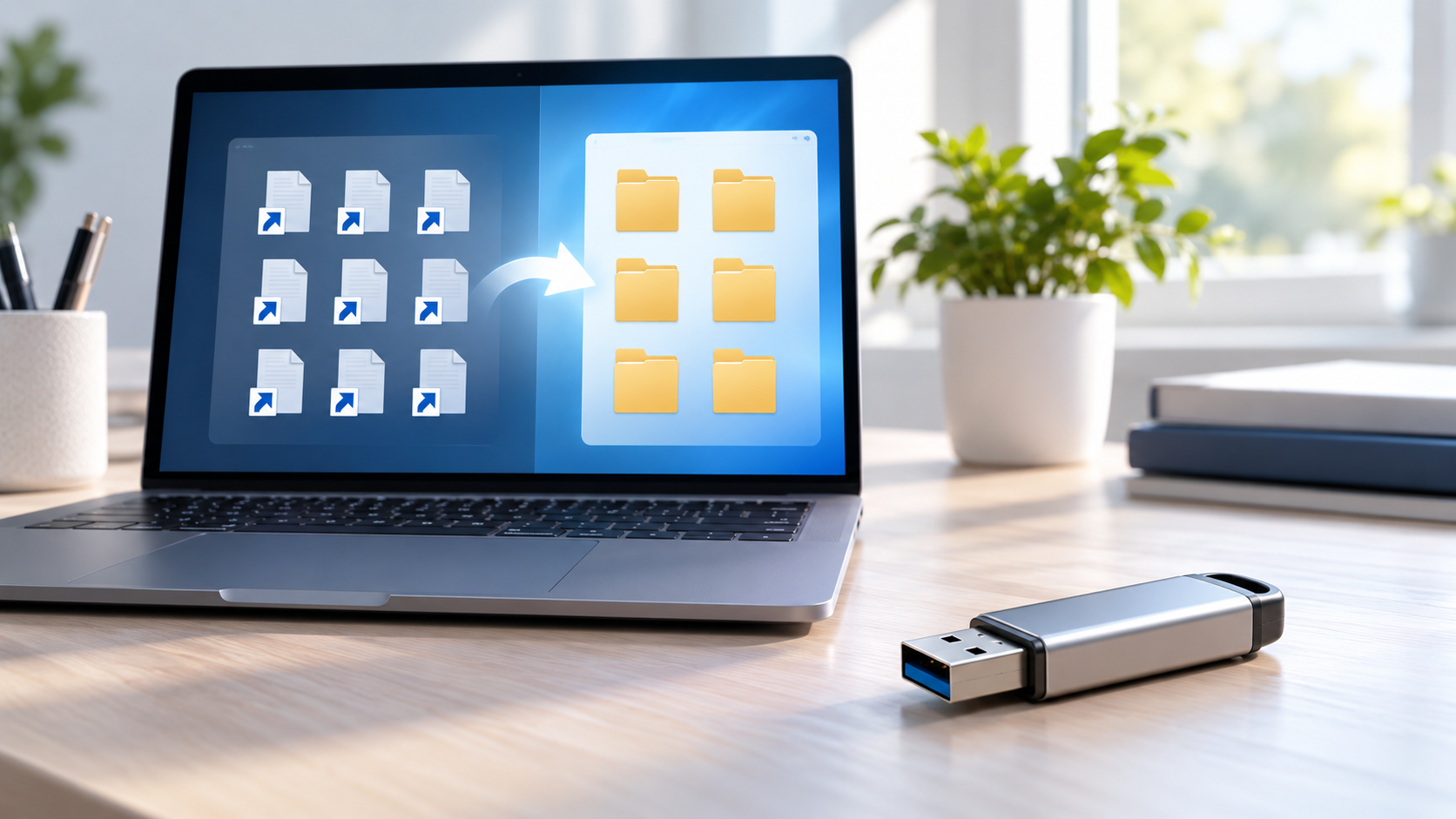
USB Files Turned Into Shortcuts: Find the Original Files Safely
Read more →: USB Files Turned Into Shortcuts: Find the Original Files SafelyShortcut files can be created by malware while originals remain hidden. Disconnect the USB from other computers, scan the host and drive, show hidden items without opening unknown shortcuts, copy verified originals to another disk, and format only after recovery and a clean backup.
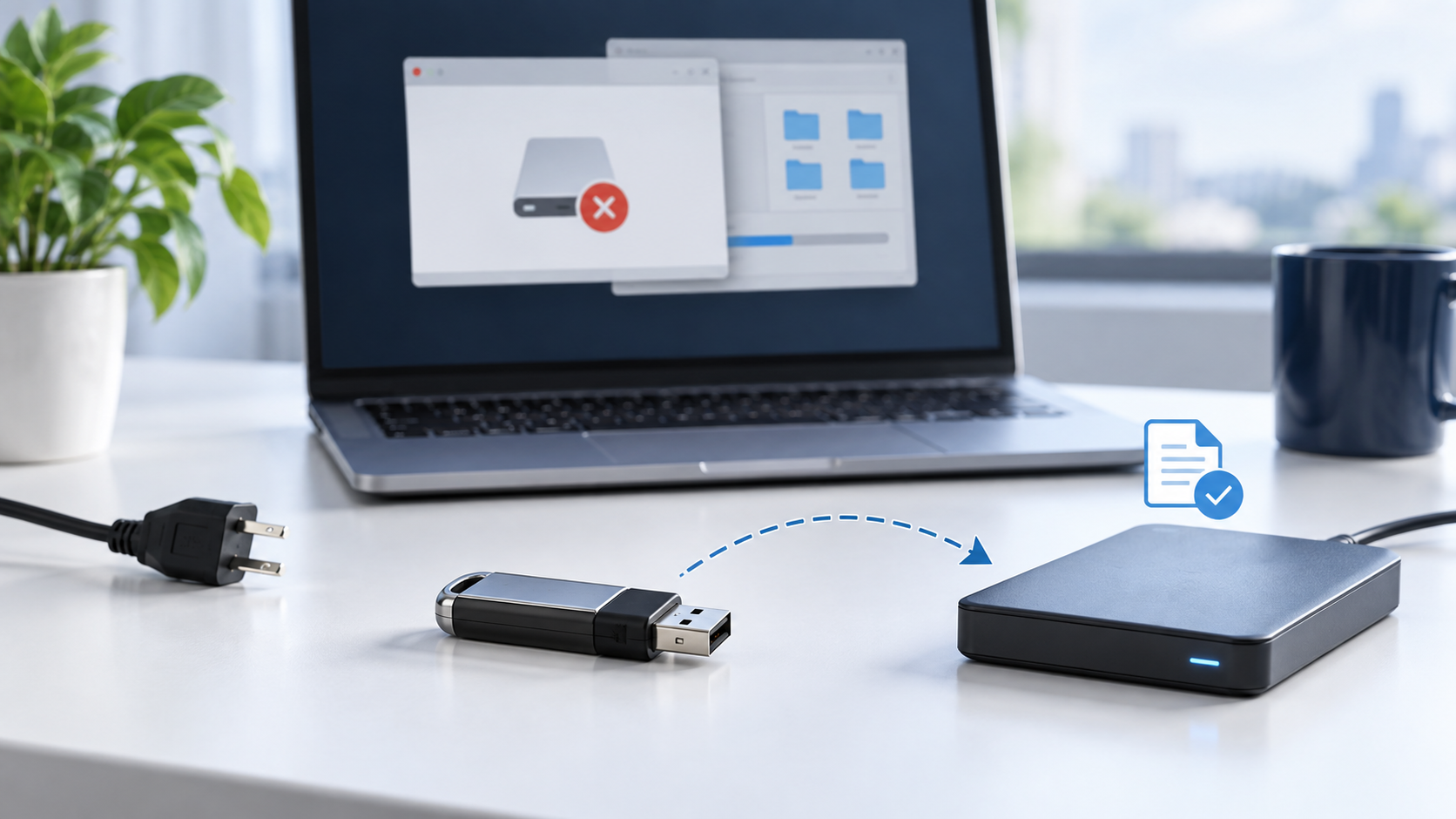

USB Drive Became RAW After Power Loss: Recover Before Format
Read more →: USB Drive Became RAW After Power Loss: Recover Before FormatDo not format a USB drive that became RAW after power loss. Confirm the correct capacity in Disk Management, avoid CHKDSK on the only copy, create a sector image when possible, and recover files to another healthy disk before repairing or recreating the volume.




Copyright © 2025 PandaOffice. All Rights Reserved. The order process, tax issue, and invoicing to end users are conducted by PandaOffice Limited.